

Voice notes are available on macOS only. If you don’t see Voice notes in the popover’s sidebar, update Tuple.
Send a voice note
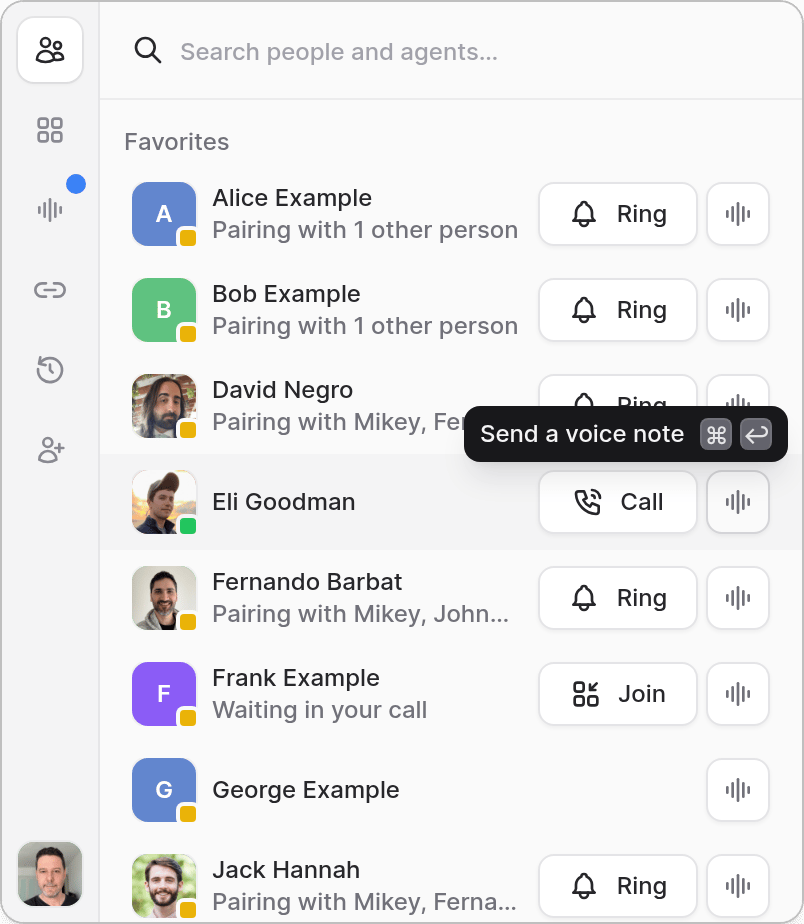
You can start a voice note in three ways:- From People: Click the voice notes button to the right of a person’s Call button in the popover. You can also select them with the arrow keys and press
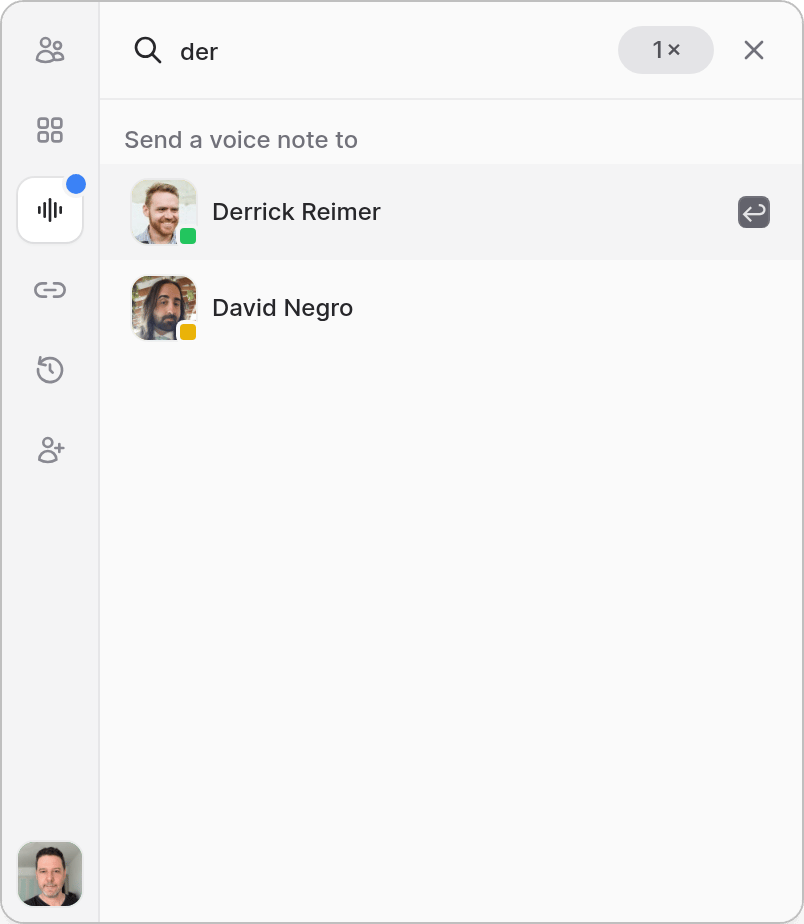
⌘ Return. - From Voice notes: Open the Voice notes tab in the popover’s sidebar, click + at the top right, search for a person, and press
Return. - With a hotkey: Set a New Voice Note hotkey in Hotkeys settings. Press it from any app to open the popover’s person search.
Record and send
When you start a voice note, a recording bar appears at the top right of your screen, under the Tuple menu bar icon. It shows who the note is for, a live level meter, and how long you’ve been recording. Recording starts as soon as your microphone is ready.- Press
Returnor click Send to send the note. - Press
Escapeor click Discard to throw it away.
Which microphone Tuple uses
If you picked an input device in Audio settings, voice notes record on that device. Otherwise they record on the system default microphone. A Bluetooth headset, such as AirPods, can take a couple of seconds to start. The bar shows Starting microphone… until it’s ready. If the bar shows No sound from your mic, check that your microphone is on and not muted.Get a voice note
When someone sends you a voice note, a notification appears under the Tuple menu bar icon with their name and Sent you a voice note. If Play call sounds is on in Audio settings, Tuple also plays a sound. You can act on the note from the notification:- Play: Hover over the notification and click the play button. You can also press
⌃⌥Spacewhile the notification is on screen, to play or pause the newest note. While it plays, a ring around the play button fills in to show how far it’s played. - Reply: Click Reply to record a voice note back to the sender.
- Call back: Click the arrow next to Reply, then click Call back. Call back is available when the sender is online and you aren’t on a call.
- React: Click 👍 to let the sender know you heard it.
- Open: Click anywhere else on the notification to open the note in the popover and play it.
Listen in the popover
Open the Voice notes tab in the popover’s sidebar to see the notes you got in the last 7 days, newest first. Notes you haven’t heard yet have a New label.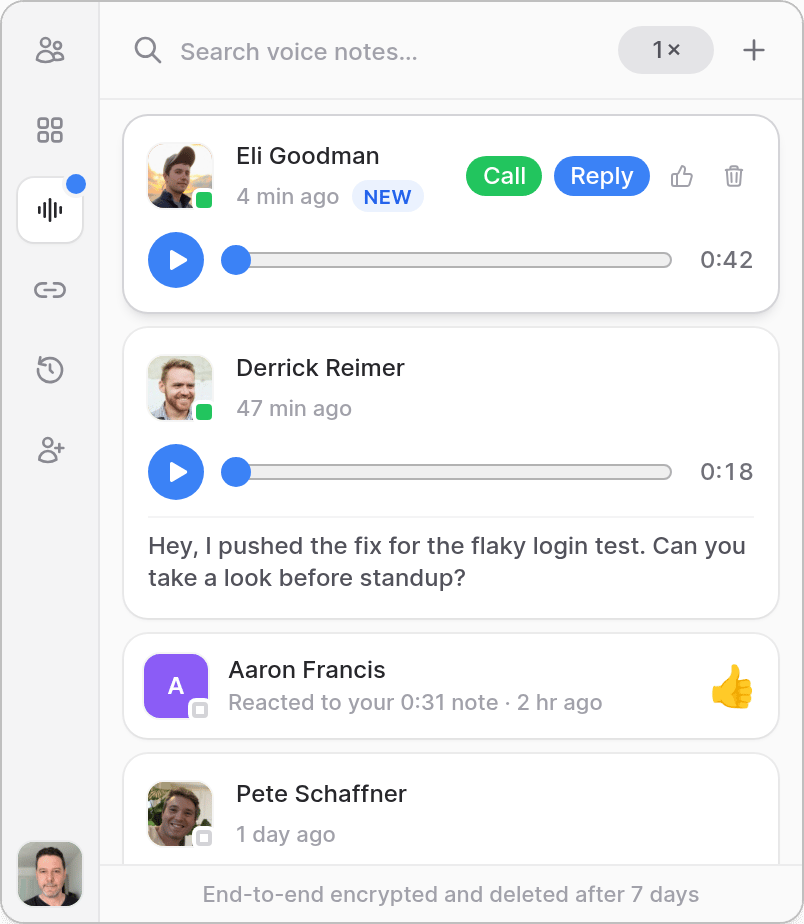
- Reply: Record a voice note back to the sender.
- Call: Call the sender. This shows only when the sender is online and you aren’t on a call.
- React: Click 👍 to let the sender know you heard it. The button fills in once you’ve reacted, including from the notification.
- Delete: Delete the note. This removes it from all your Macs.
Keyboard shortcuts
Transcripts and search
If you chose a transcription model in Capture settings, Tuple transcribes each note on your Mac after you play it. The transcript appears under the note. Click it to see all of it. Use the search field at the top of the list to find notes by sender. When your notes have transcripts, the search also matches words in them.Privacy and retention
- End-to-end encrypted: Your Mac encrypts each note before it uploads it, and only the recipient’s Macs can decrypt it. Tuple’s servers store the encrypted audio and can’t play it.
- Transcribed on your Mac: Transcripts are made on your Mac with your local transcription model. They aren’t sent to Tuple.
- Deleted after 7 days: Every note is deleted after 7 days, whether or not it was heard. You can delete a note you got sooner.
Use more than one Mac
If you use Tuple on more than one Mac, your Macs pass the key that opens your voice notes to each other while they’re online. A Mac that doesn’t have the key for a note yet shows Sent to your other Mac instead of a play button. Open Tuple on your other Mac, and once it passes the key on, you can play the note on both.Read voice notes from the Tuple CLI
The Tuple CLI can list your notes and read their transcripts. Your agent can use these to catch up on your notes for you.tuple voice-notes listlists your notes from the last 7 days. Add--receivedor--sentto show one direction, and--unheardto show only notes that haven’t been heard.tuple voice-notes transcript <id>prints a note’s transcript. If the note doesn’t have one yet, Tuple transcribes it on your Mac first. This needs a transcription model in Capture settings.
list_voice_notes and get_voice_note_transcript tools, and a summarize_voice_notes prompt. Reading a transcript doesn’t mark the note as heard.