

Capture streams what happens on a call to your local disk: a transcript of what’s said, recordings of any screen that gets shared, and metadata for apps on shared screens. It runs entirely on your machine; nothing gets sent to an external service.Capturing calls enables two things: it lets agents follow the call in real time, and allows you to reference information from past calls. For ideas, see Ways to use Capture.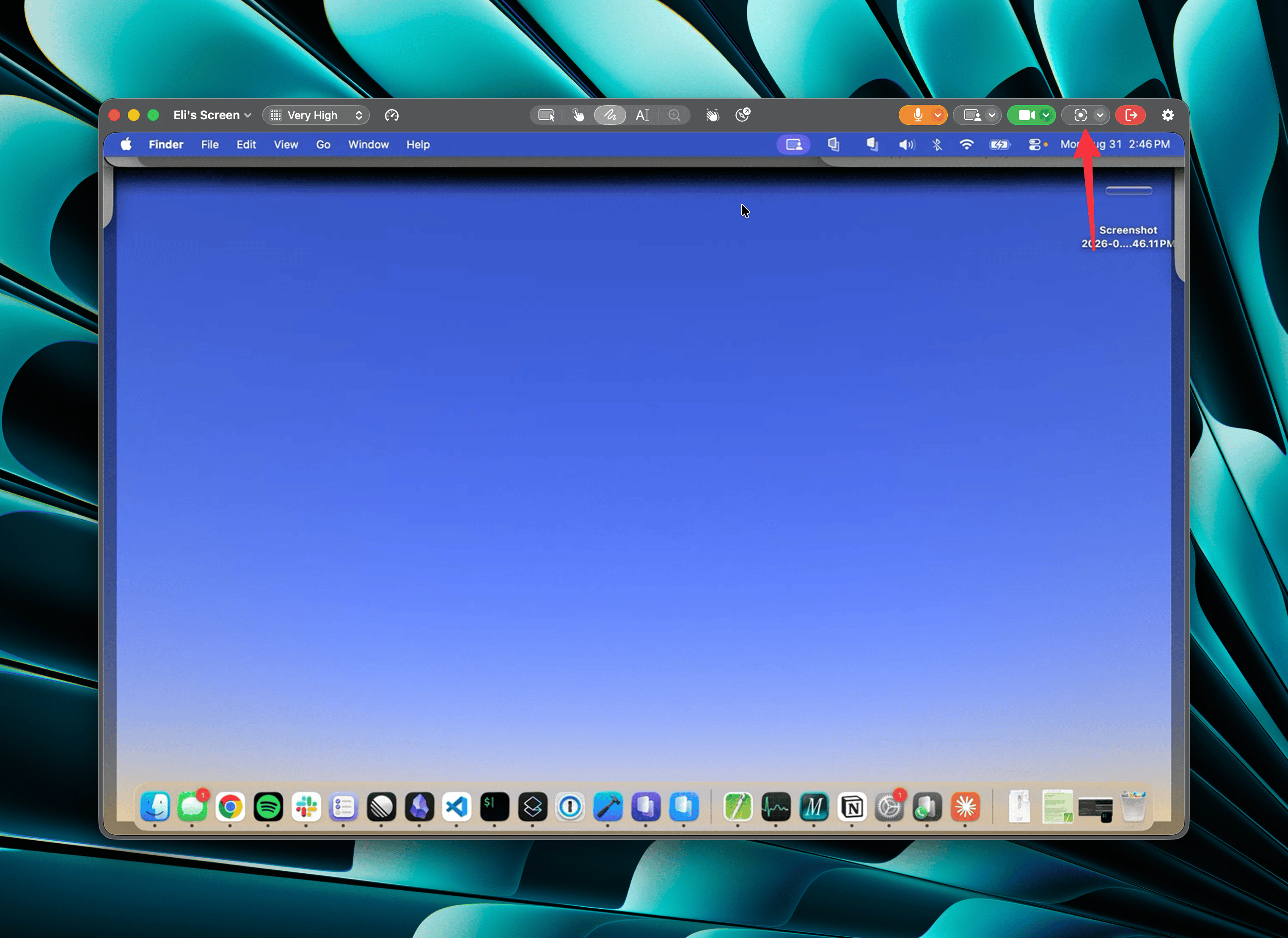
Starting and stopping capture
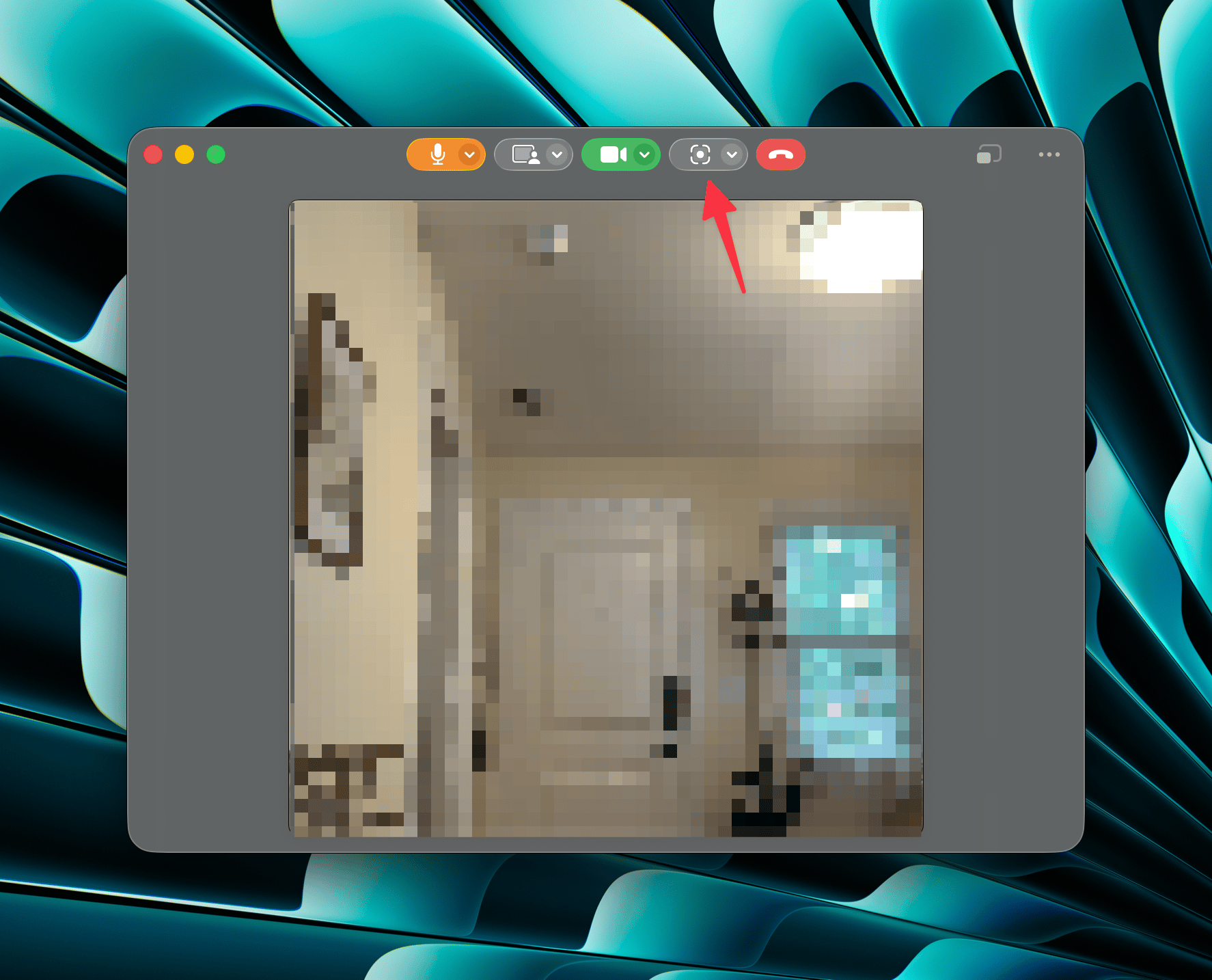
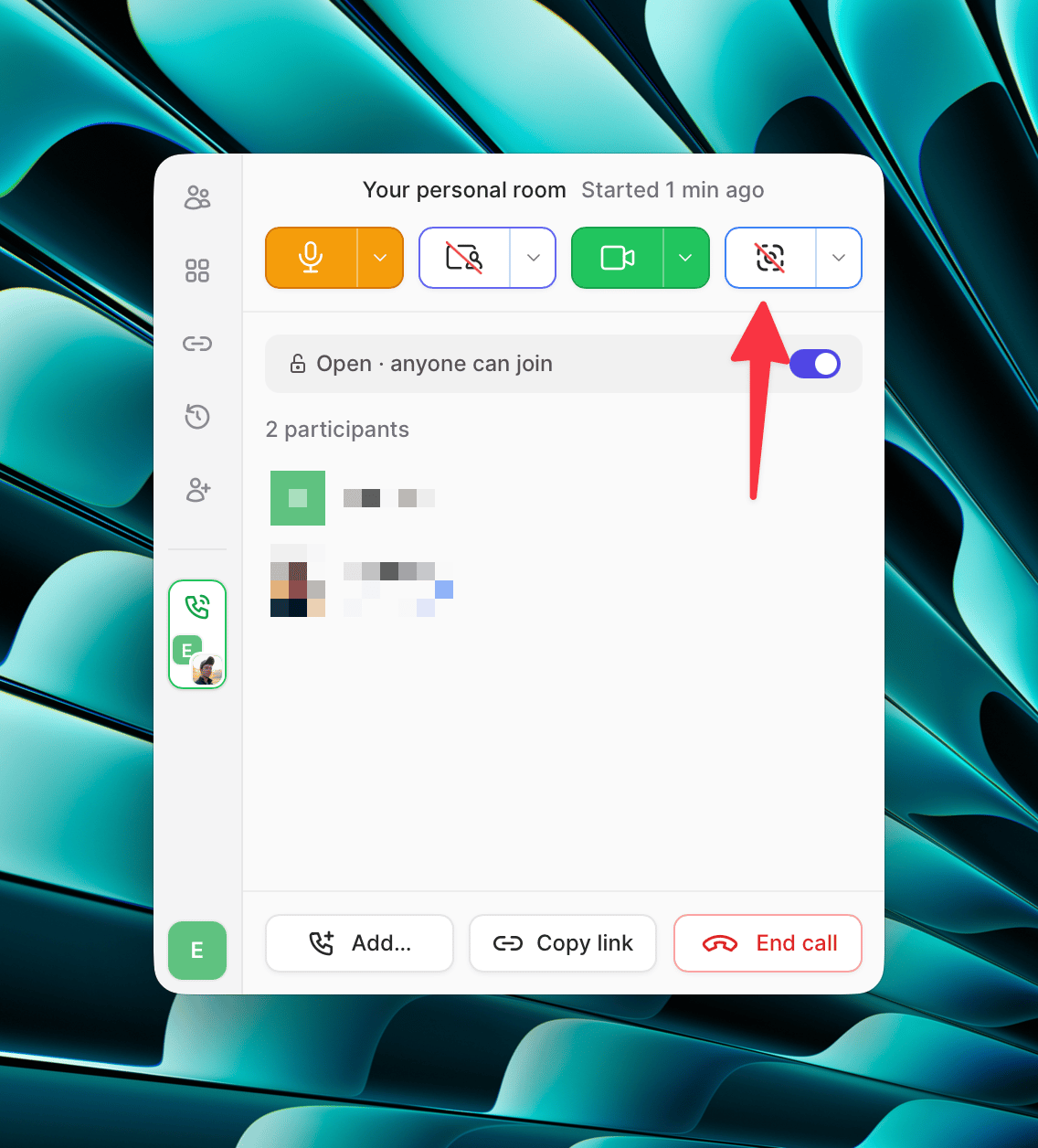
The Capture button appears in the popover, the screen share window, and the webcam window:What Capture records
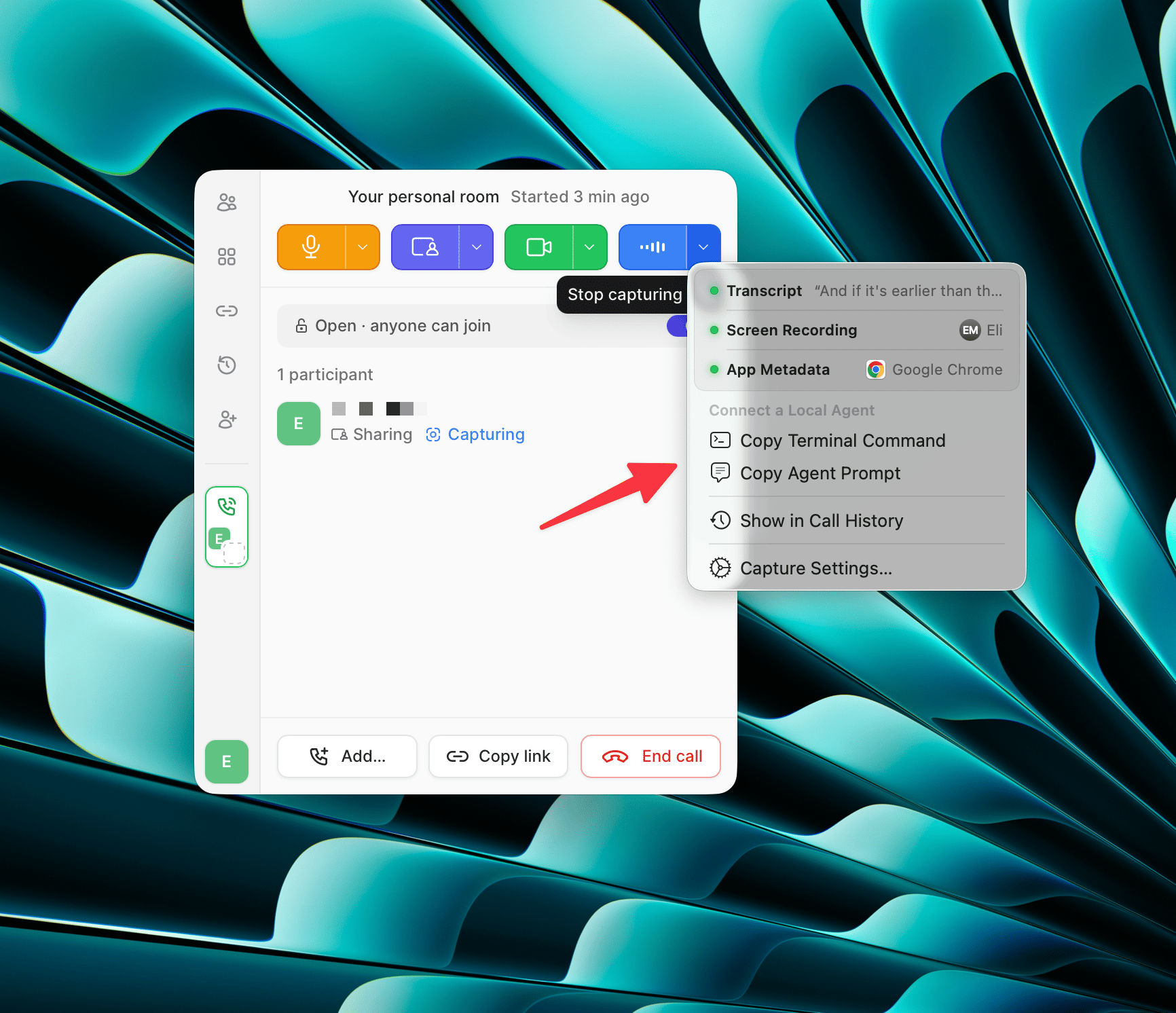
A captured call contains three kinds of content:- Transcript: everything said on a call, transcribed by a local Whisper model.
- Screen recordings: recordings of any screen that gets shared on a call (yours or someone else’s).
- App metadata: window titles and content URLs for the apps visible in shared screens; learn more about what gets shared.
Capture transcribes each participant’s audio as you receive it. When someone shares system audio, it arrives mixed in with their voice. Speech that their Mac plays, such as a video, can show up in your transcript as something they said. Your own lines come from your microphone only, so your system audio never appears in your transcript.
Seeing who is capturing
While capture is active, each capturing participant shows a Capturing indicator in the popover participant list and in the screen share window’s participant list. Check these lists to see who is capturing, including when you join a call that’s already being captured.Capturing solo
You can capture a call by yourself, even before any other participants have joined. This is useful for capturing notes, dictation, or working with an agent (see Connecting an agent).The Capture menu
The chevron next to the Capture button opens the Capture menu, which shows what’s being captured right now and how to hand the call to an agent:- Copy Terminal Command copies a
tuple connectcommand to run in your terminal. - Copy Agent Prompt copies a prompt to paste into an agent you already have running.
Accessing captured calls
Captured call content is stored in a local database on your machine. You can browse captured calls in the Local History tab, or use thetuple CLI to search, list, and export past calls — see Searching past calls.How screen recordings are stored
Capture keeps every captured call in one SQLite database at~/Library/Application Support/Tuple/index.db. Screen recordings are rows in this database, not separate video files.Disk usage
Screen recordings use almost all of the disk space that Capture takes up. Transcripts and app metadata are small by comparison.As a rough guide, one minute of screen sharing uses 1–10 MB of disk space. A 30-minute call with a screen shared the whole time uses about 30–300 MB; a typical 30-minute call is usually around 100 MB.The exact amount depends on what’s on the screen:- Screen activity: a mostly static screen, like an editor you’re reading, uses less space than scrolling, switching windows, or playing video.
- Resolution: larger and higher-resolution screens use more space. Tuple records shared screens at their full resolution so that text stays legible.
- Whose screen it is: recordings of your own screen tend to use more space than recordings of screens that other participants share.
Encryption
Tuple doesn’t encrypt the database or the screen recordings in it. The frames are compressed VP9 video, so they look like unreadable binary data, but you don’t need a key to read them. Call encryption protects a screen share only while it travels between participants. Capture stores the video after decryption.Your macOS user account’s file permissions protect the database. To encrypt it at rest, turn on FileVault. Backups of your Mac, such as Time Machine, include the database.Automating with triggers
Tuple firescall-capture-started and call-capture-complete triggers when a capture session begins and ends. Use a trigger script to post-process transcripts, summarize the call, or save it into your team’s notes system.Browse the Triggers Directory to see what others have built.