

Input/Output Device
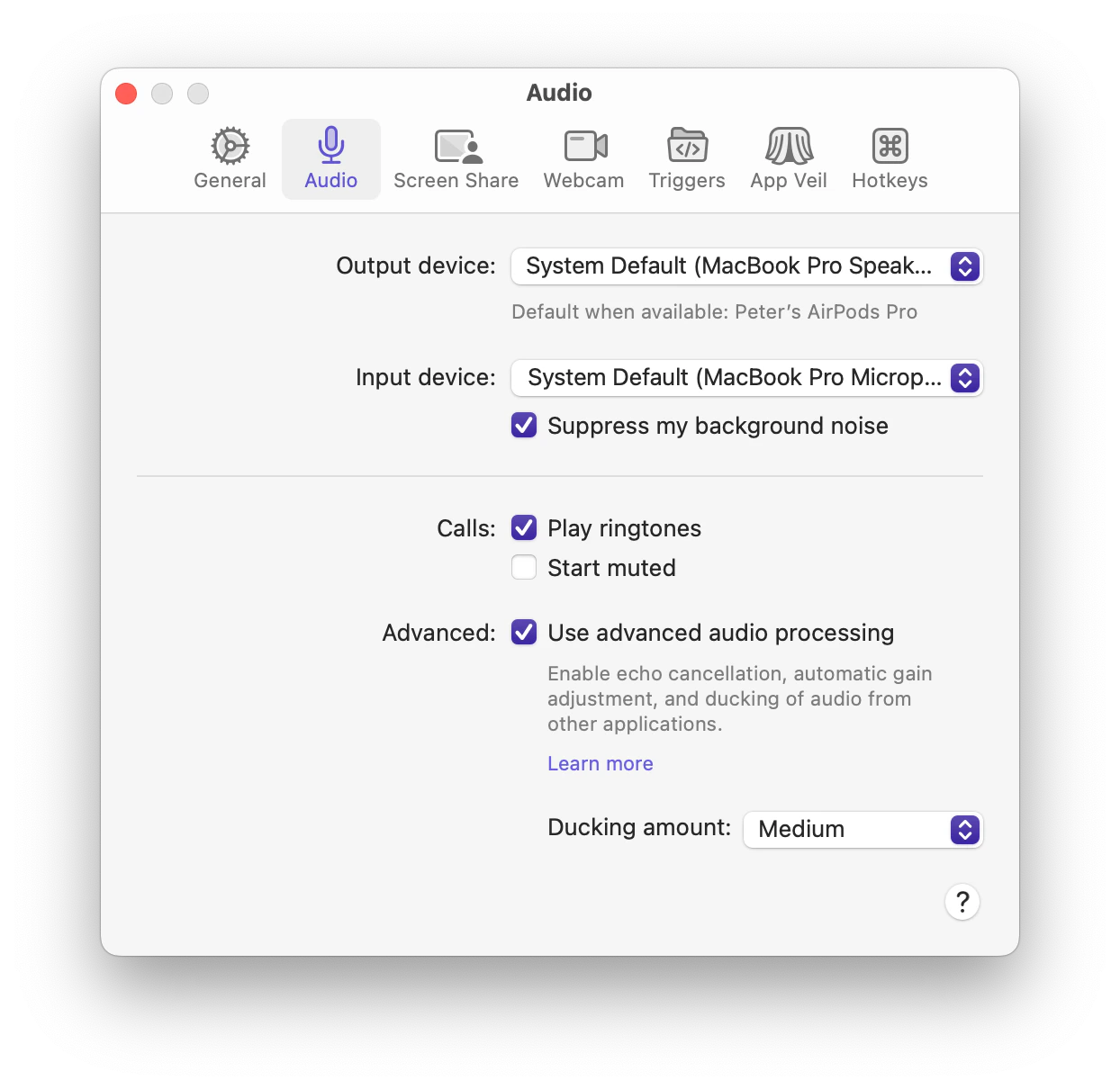
You can select audio devices that you want Tuple to use for input and output, or leave it as the System Default. If you explicitly set these devices here, then the device you select will always be used if it’s available. You can see which device is selected even if disconnected by looking at the text below each dropdown. Note: We recommend that you use the System Default values to avoid confusion. This is because most controls (e.g. keyboard shortcuts for volume/muting) will affect the system’s default devices, which might lead to confusion if you have Tuple set to override it. If you have a consistent pairing setup which is different than your usual devices, or if you want to route audio through a third-party app (e.g. Krisp.ai), then you could set these manually, but please be aware that this may cause unexpected behavior with macOS audio controls as they only control the system default devices.Automatically adjust my microphone volume
When this setting is on, Tuple raises or lowers your microphone’s input volume when your speech is too quiet or too loud. It only steps in when your level is well outside the normal range, so most people won’t notice a change. This setting is on by default.Suppress my background noise
To remove unwanted noises from the background of your audio, you can use this setting to toggle our noise suppression feature.Play call sounds
Turn this off if you prefer not to hear ringing when someone calls you and rely on the popup instead. This setting also silences the sounds for join requests, and for people joining or leaving active calls and rooms. When several people join in quick succession, Tuple plays a short tune instead of repeating the same sound.Start muted
If you prefer to use a different service for audio during your pairing sessions, you can enable this setting to have Tuple always start calls muted.Notifications
These settings control the in-call notifications that fire from your audio state. Both are on by default.- Speaking while muted — shows the speaking-while-muted notification when Tuple detects your voice while your microphone is muted.
- Audio output is muted — shows a notification while your call audio output is muted, so you don’t miss your pair speaking. The card auto-dismisses when you unmute.