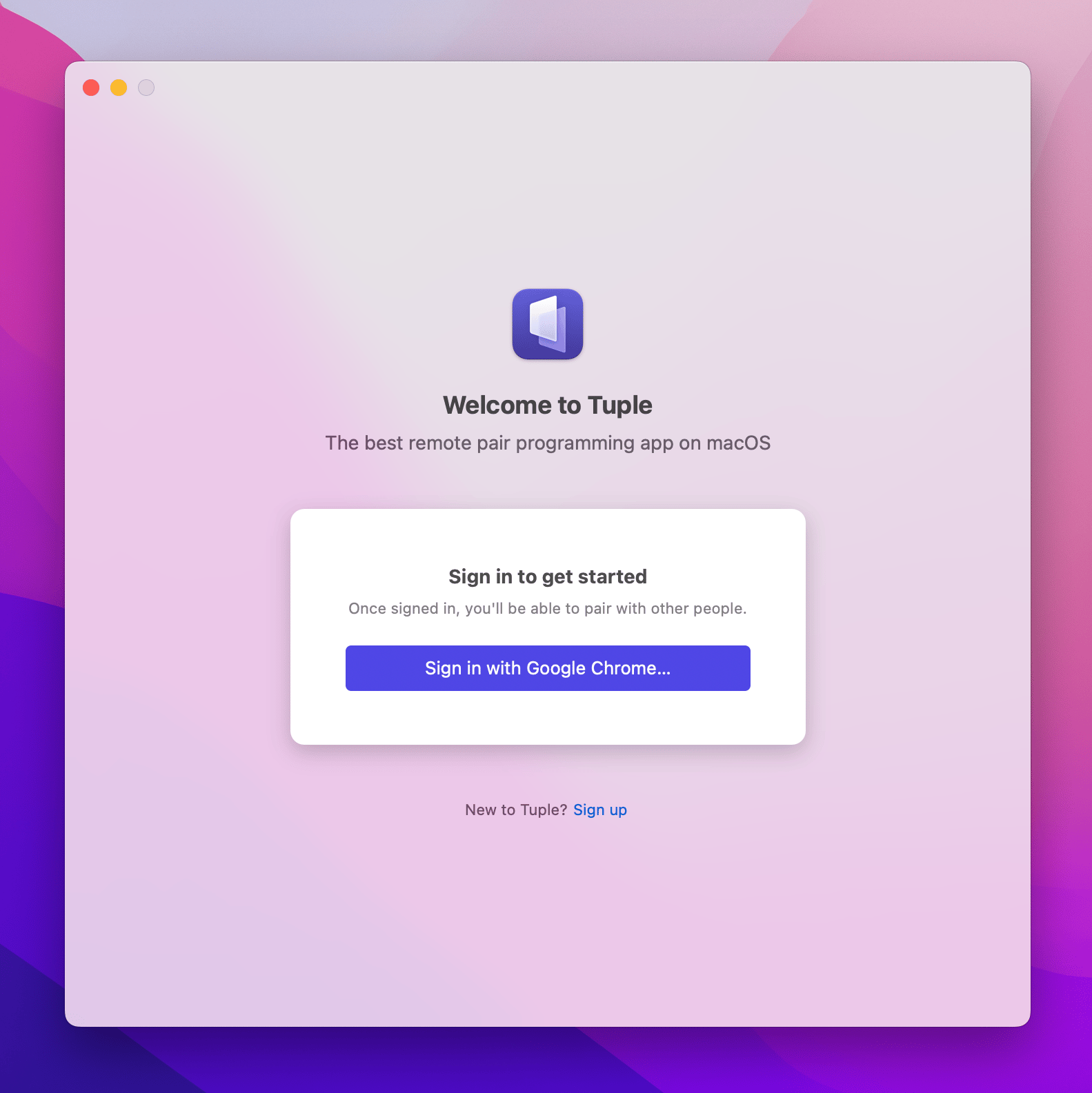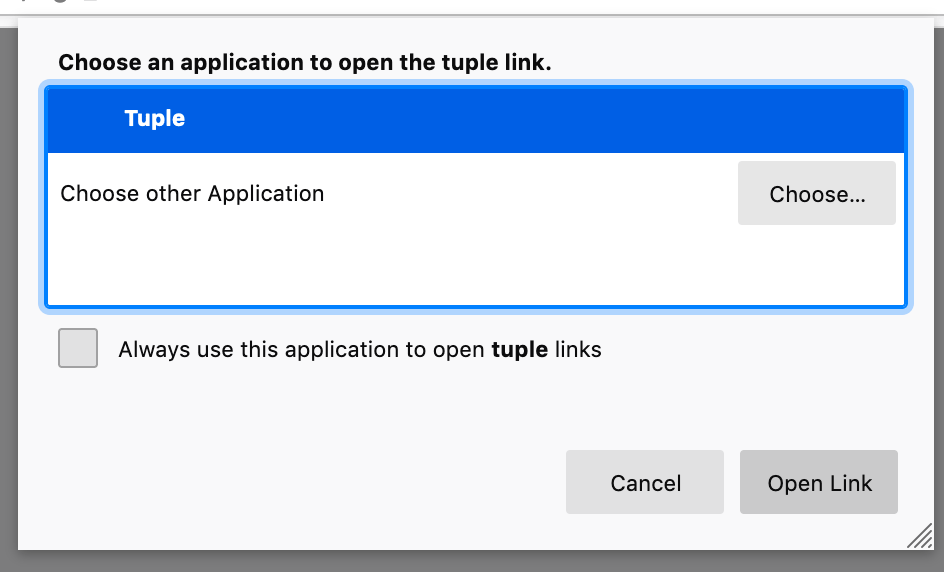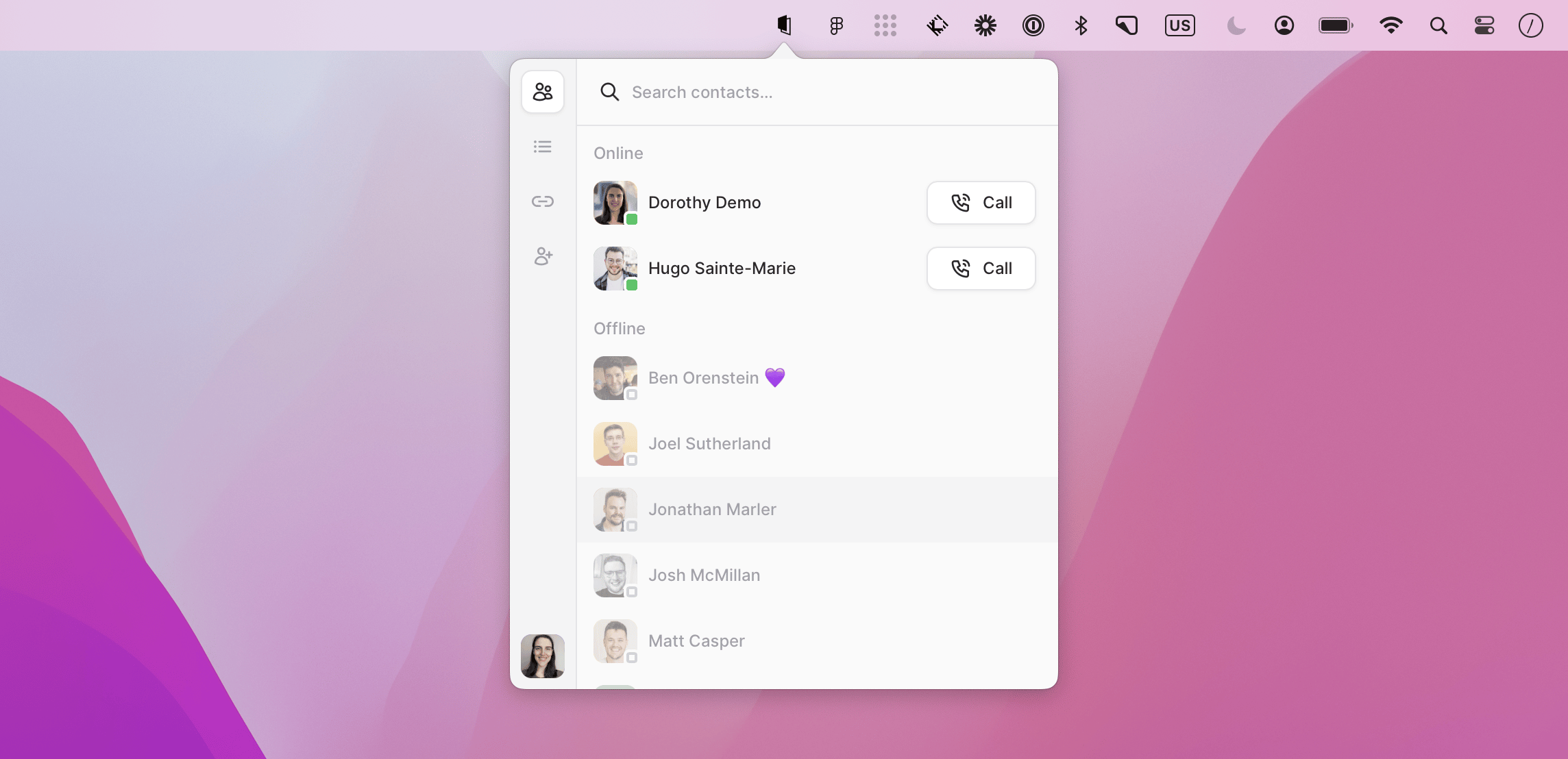

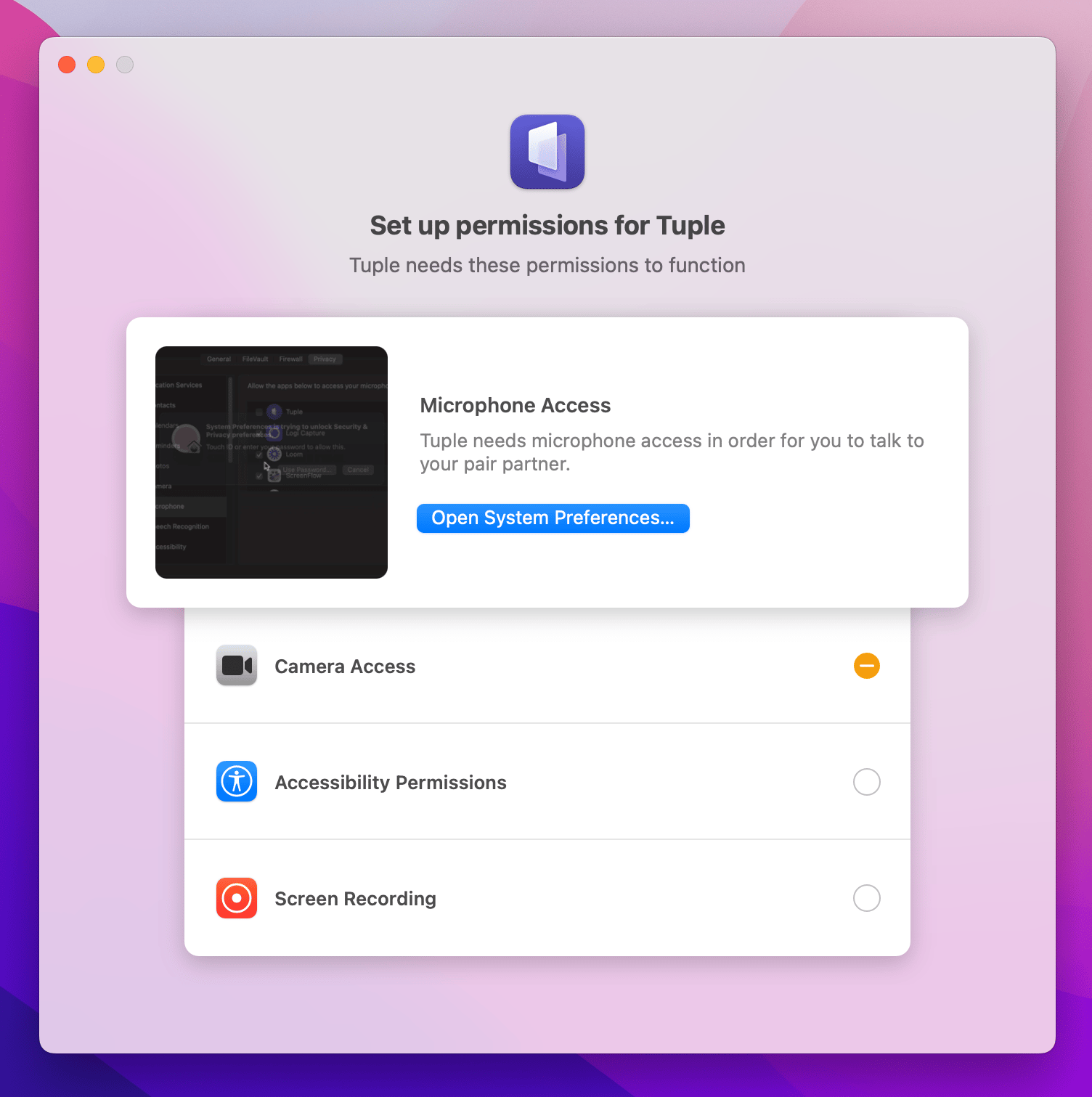
After you download and open Tuple, we’ll prompt you for access to your microphone, camera, screen, and accessibility tools. Clicking “Ask for Access” for each option (Microphone, Camera, Accessibility, and Screen Recording) will take you to your System Preferences, where you can grant access:Permission prompts for microphone, camera, accessibility, and screen recording accessOnce your permissions are set up, you’ll be prompted to sign in through your web browser:Browser sign-in page for logging in to TupleOnce signed in on your web browser, you’ll see a dialog asking if you’d like to be redirected back to Tuple. It’ll look something like this:Browser dialog asking whether to open the sign-in link in TupleOpen that link with the Tuple app, and you’ll be signed in!When that’s done, you’ll see the Tuple icon appear in the menu bar. Go ahead and click it, and you’ll be able to share your screen!Tuple popover open from the menu bar after installation
Troubleshooting

Sometimes permissions become misconfigured (for example when installing Tuple on a new laptop restored from a previous backup).If you are having trouble giving permissions to Tuple, you can try running the following commands in terminal to reset permissions:
Once you have run these commands, please restart Tuple before continuing.