

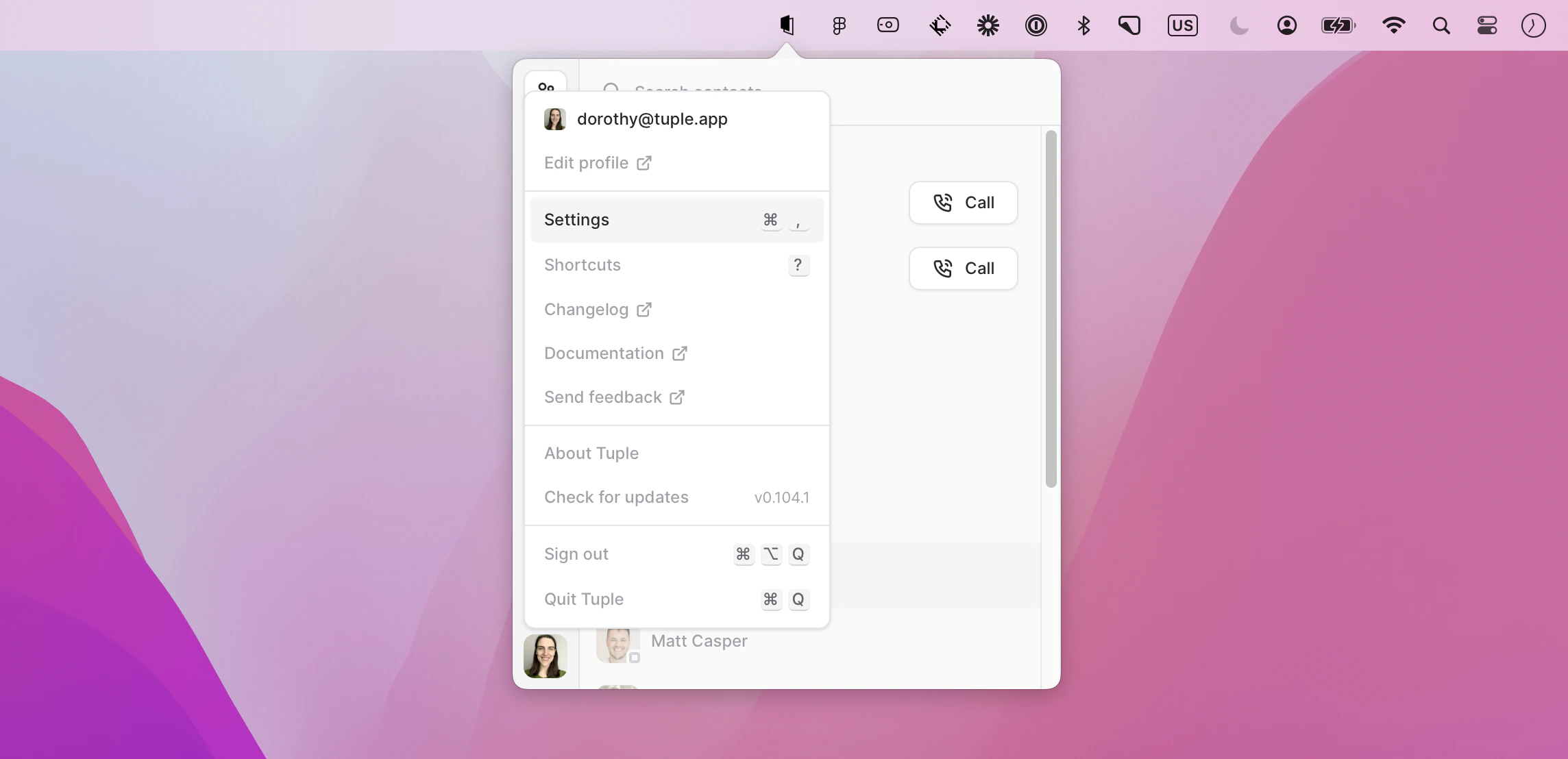
Enabling transcription
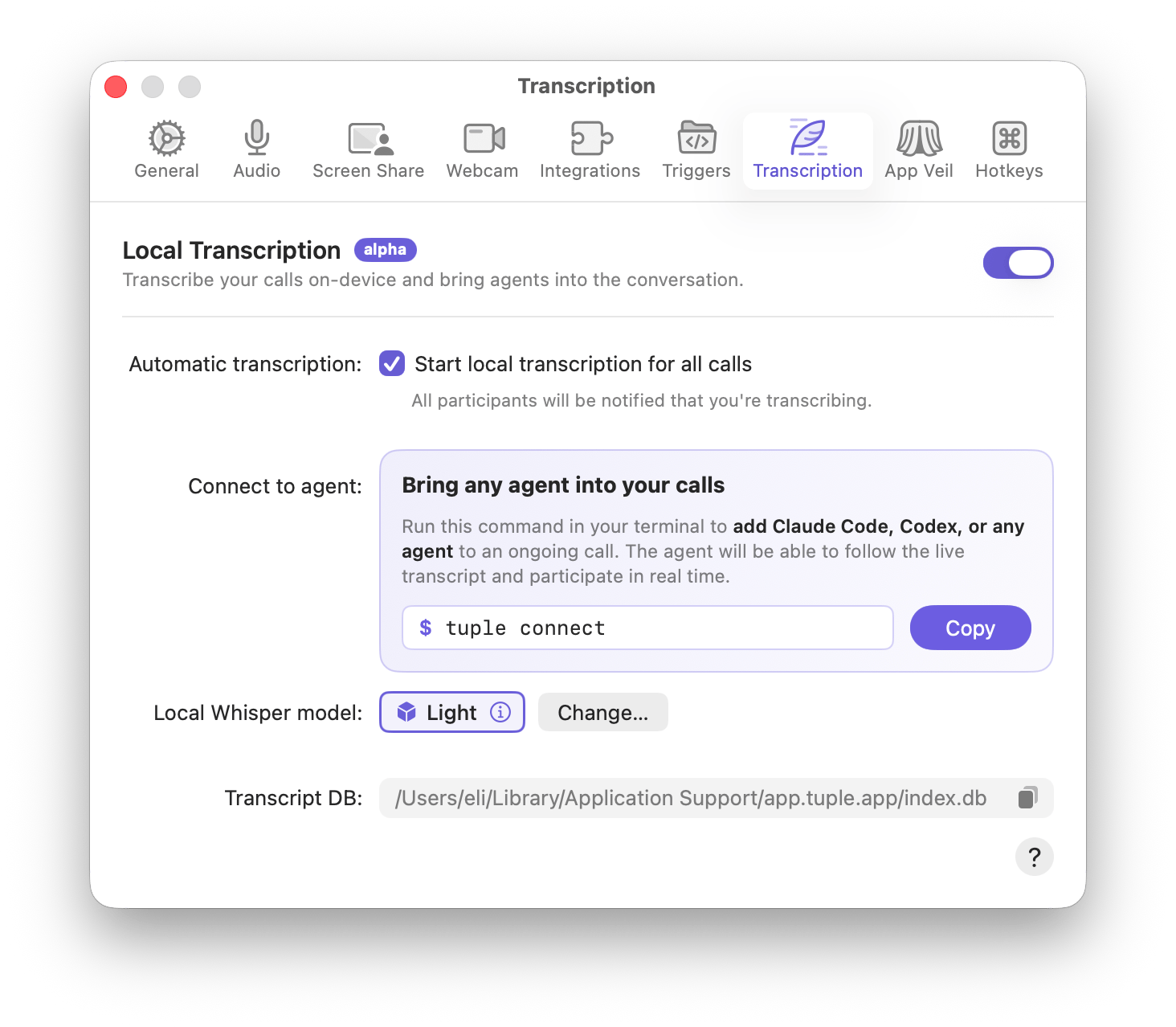
The master switch at the top of the pane turns transcription on or off for the account. While it’s off, the rest of the pane is dimmed and the Transcribe call control is unavailable. Flipping the switch on requires a downloaded model:- A model is already downloaded and selected — transcription activates immediately.
- No model is downloaded yet — Tuple opens a prompt to install one. Download a model to enable the feature.
Supported models
Tuple ships with a list of pre-optimized transcription models that you can download on demand. These are GGML models designed to be used by whisper.cpp, which have been further optimized to utilize CoreML. The base models have all been sourced from the main whisper.cpp repository.
Hosted models are stored in
~/Library/Application Support/app.tuple.app/Transcription Models/. Switching models leaves the previously downloaded model on disk; use Remove in the picker to delete one.
If a download fails, or if a model file is corrupt or can’t be installed, a red error icon appears next to the model in the picker. Click the icon to see the specific problem and the recommended fix:
- Model is corrupted — remove the model and download it again (or, for a custom model, choose a new file).
- Download failed — the download didn’t complete; try again.
- Not enough disk space — free up space on your disk and try the download again.
Custom model
If you’d rather use your own GGML model, the Custom model row at the bottom of the picker lets you choose a.bin or .gguf model file from disk with the Choose… button. The file you pick becomes your selected model right away.
Custom models need a matching
.mlmodelc CoreML sidecar installed alongside the GGML file. Tuple’s built-in models include this sidecar automatically; a custom GGML file does not. If the CoreML bundle isn’t present next to the model, Whisper throws an error when Tuple tries to load it.Transcript storage
Transcripts are stored in a local database on your machine, not as individual files. The Transcription tab shows the database path in the Transcript DB field. The database location can’t be changed from settings. To read, search, and export past calls, use thetuple CLI — see Accessing your transcripts and Searching past calls.
Automatically transcribe calls
When this checkbox is on, Tuple starts transcribing the call as soon as you join, just as if you’d clicked the Transcribe call control yourself. Other participants will be informed that you’ve started transcribing. This checkbox is on by default. It’s only available when transcription is enabled and a model is installed.Bringing an agent into your calls
The Transcription tab includes a Connect to Agent card explaining how to attach an AI agent (Claude Code, Codex, or any harness) to a call. Copy thetuple command it shows and run it in your terminal during a call; the agent then follows the live transcript and participates in real time.
If the Tuple CLI isn’t installed yet, the card shows an Install button instead. See Connect an AI agent for full details.