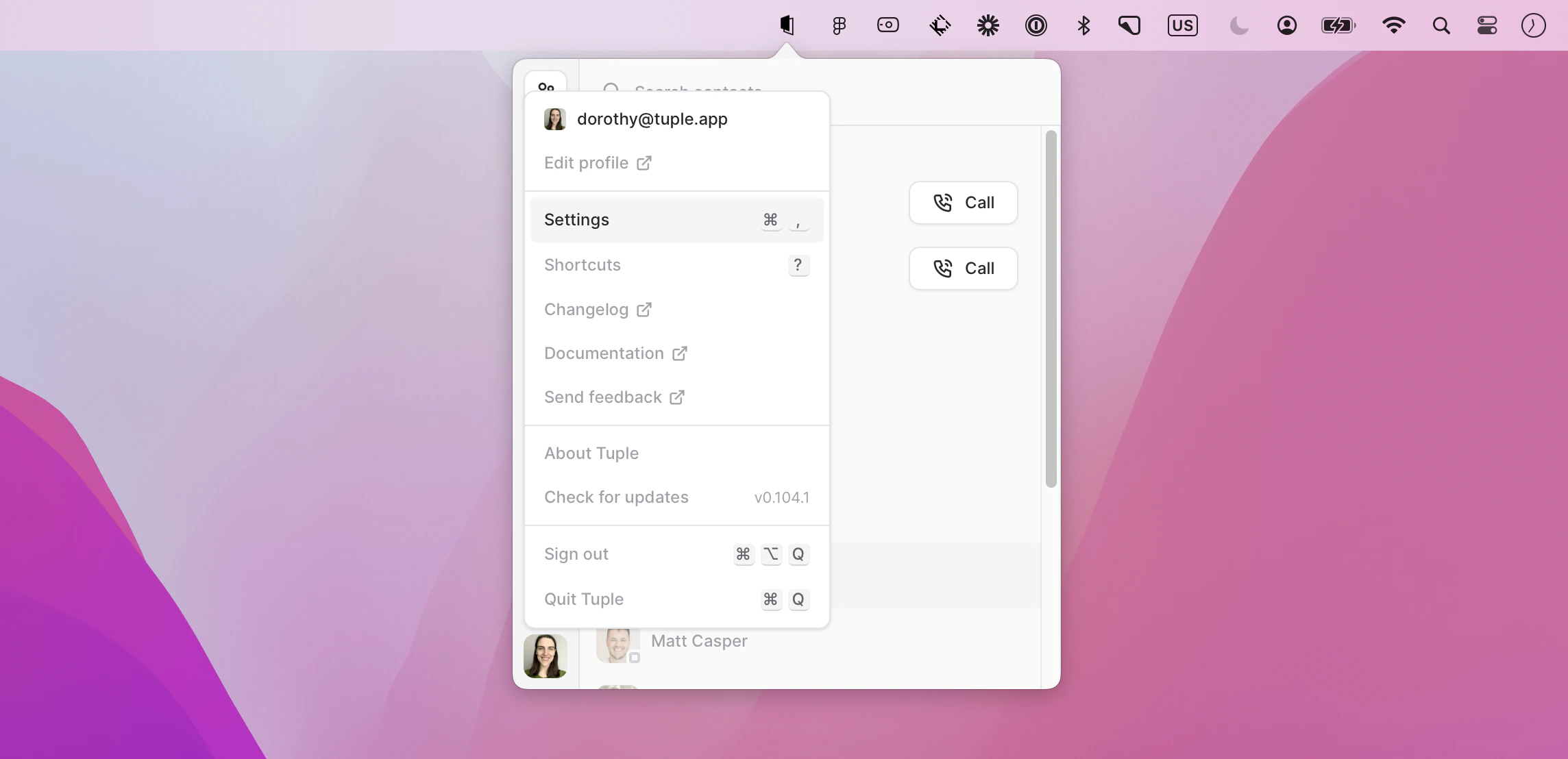
To open your preferences, click your avatar at the bottom left of the Tuple popover and select Settings from the dropdown:You can also press cmd + , to open the Settings window.Then select Screen Share in the sidebar:
This setting dictates the resolution that will be used when someone else shares their screen with you. If you adjust this setting while a session is in progress, it will be utilized in the next call. On a call where faster interactions are necessary, you might want to set this lower; if you don’t need to do a lot of typing or clicking but want high viewing quality, then set it higher.
On Apple Silicon Macs, Tuple can upscale incoming screen share video to make text and UI elements look sharper on your display. This is a local, per-viewer setting — it only affects what you see and has no impact on the resolution other participants receive.You can toggle this from the Screen Share preferences pane, or directly during a call from the Upscale Content option in the screen share window’s settings menu.
If this setting is enabled, the audio playing on your Mac is sent to the other participants while you’re sharing your screen.You can also turn it on or off during a call from Share System Audio in the screen share menu in the call controls. That menu item appears only while you’re sharing your screen.Tuple only sends system audio while your Mac’s sound output is headphones. See Sharing system audio for which devices count as headphones and what gets shared.
If this setting is enabled, when an app gets focus while you’re sharing, its window title and URL are shared with the other participants. If they are capturing the call, this allows them to have a history of the files and URLs viewed on a call, as well as giving any connected agents a quick way to understand what’s being discussed. You’ll be asked if you want to enable this the first time you share your screen.Apps hidden by App Veil will not share any metadata.Before anything is shared, Tuple will apply a variety of heuristics to prevent sensitive information from being transmitted; see Sharing app metadata for more information.
If you don’t like the fact that guests can force a URL to open on your computer, you can disable this. URLs will still be sent to your clipboard, but you have to explicitly paste them into a browser to open them.
If selected, any drawings created with the paint mouse mode will persist until you right click. You can also change this while on a call via the settings dropdown on the screen share window.
If this setting is enabled, you’ll see other participants’ cursors all the time. If it’s disabled, you’ll only see them if another participant enters control mode.
If this setting is enabled, you’ll see name labels appear on other participants’ cursors whenever they enter a call, take control, or begin annotating on the screen. If it’s disabled, name labels will only be shown if you hover over another participant’s cursor.
Your cursor, paint strokes, text annotations, and highlight clicks all use a single color, so other participants can tell your marks from theirs.Leave it on Automatic and Tuple assigns you a free color at the start of each call, picking colors with good contrast so everyone is easy to tell apart. Your color can change from call to call.If you pick one of the eleven colors instead, Tuple uses it on every call. The choice applies immediately, including on a call already in progress, and takes precedence over the color the call would have given you — so it is possible to end up matching someone else.You can also change this during a call from the Cursor Color swatches at the top of the settings menu in the shared screen window. Both places set the same preference and stay in sync.
Was this page helpful?
Assistant
Responses are generated using AI and may contain mistakes.