

Tuple can transcribe what you and your pair say during a call. Transcription runs entirely on your machine — nothing is sent to an external service.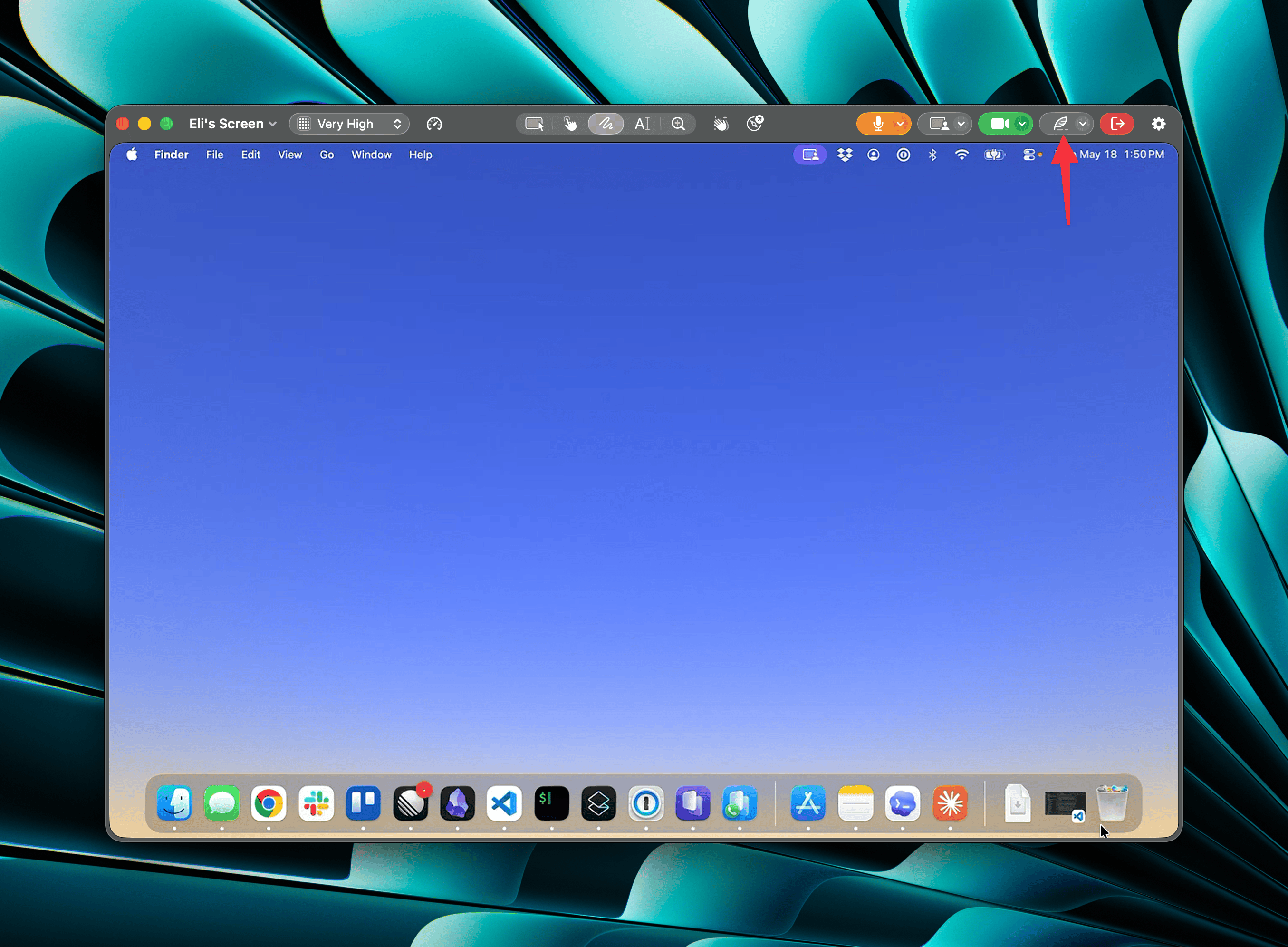
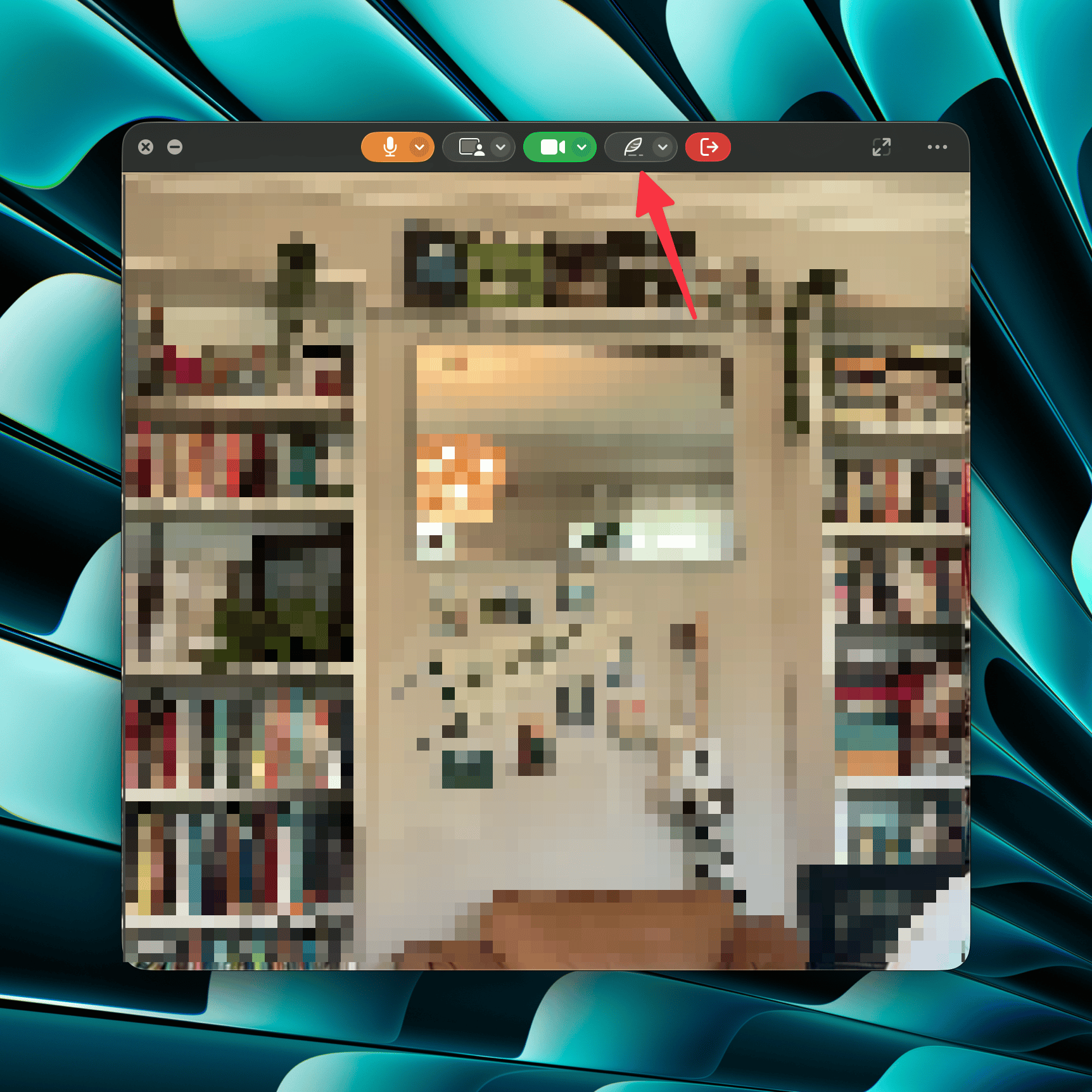
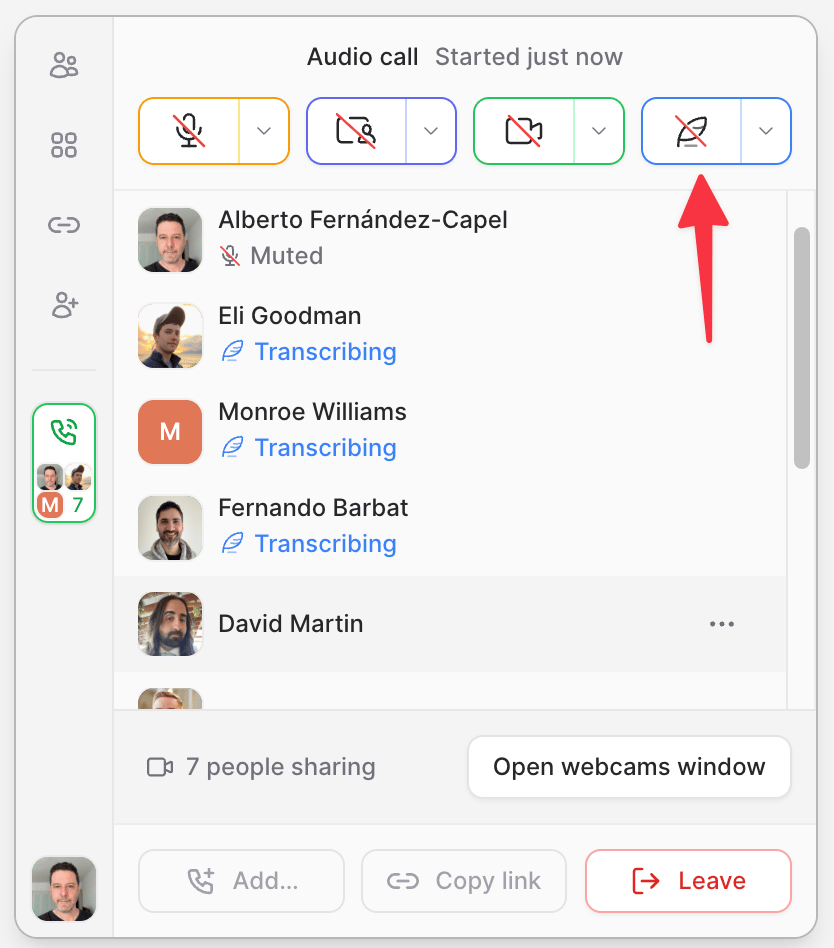
Starting and stopping transcription
The Transcribe button appears in the call controls popover, the screen share window, and the webcam window.Notifying participants about transcription
When you start transcription, every other participant receives a privacy notice. Transcription starts immediately — the notice is informational, not a gate. The notice stays on screen until the participant acknowledges it or leaves the call.If you join a call that’s already being transcribed, you’ll receive the same notice.While transcription is active, each transcribing participant shows a Transcribing indicator in the popover participant list and in the screen share window’s participant list.Transcribing solo
You can transcribe a call by yourself, even before any other participants have joined. This is useful for capturing notes, dictation, or working with an agent (see Connecting an agent).First-run model download
Tuple transcribes using an on-device Whisper model. If you attempt to start transcription without a model downloaded, you’ll be prompted to download one. Click Download to fetch the default “Turbo” model. When the download finishes, transcription starts automatically.To choose a different model before downloading, click Open Settings… instead. Learn more about supported models.Connecting an agent
When transcription is active, the panel shows atuple connect command. Copy it and run it in a terminal to attach an AI agent (Claude Code, Codex, Cursor, Copilot, or any harness) to the live call.If the Tuple CLI isn’t installed yet, the panel shows an Install CLI button instead.See Connect an AI agent for full details on what agents can do once connected.Reading the transcript live
Tuple doesn’t display the running transcript in the app itself — the in-call panel only shows thetuple connect command and the transcribing indicator. To read the transcript as it’s being produced, use the CLI:--follow streams new speech segments in arrival order until the call ends. See transcription show for other modes (one-shot snapshots, --wait batching, --watch-words, and per-recording streams).Accessing your transcripts
Transcripts are stored in a local database on your machine. Use thetuple CLI to search, list, and export past calls. See Searching past calls.Automating with triggers
Tuple firescall-transcription-started and call-transcription-complete triggers when transcription begins and ends. Use a trigger script to post-process transcripts, summarize the call, or save it into your team’s notes system.Browse the Triggers Directory to see what others have built.