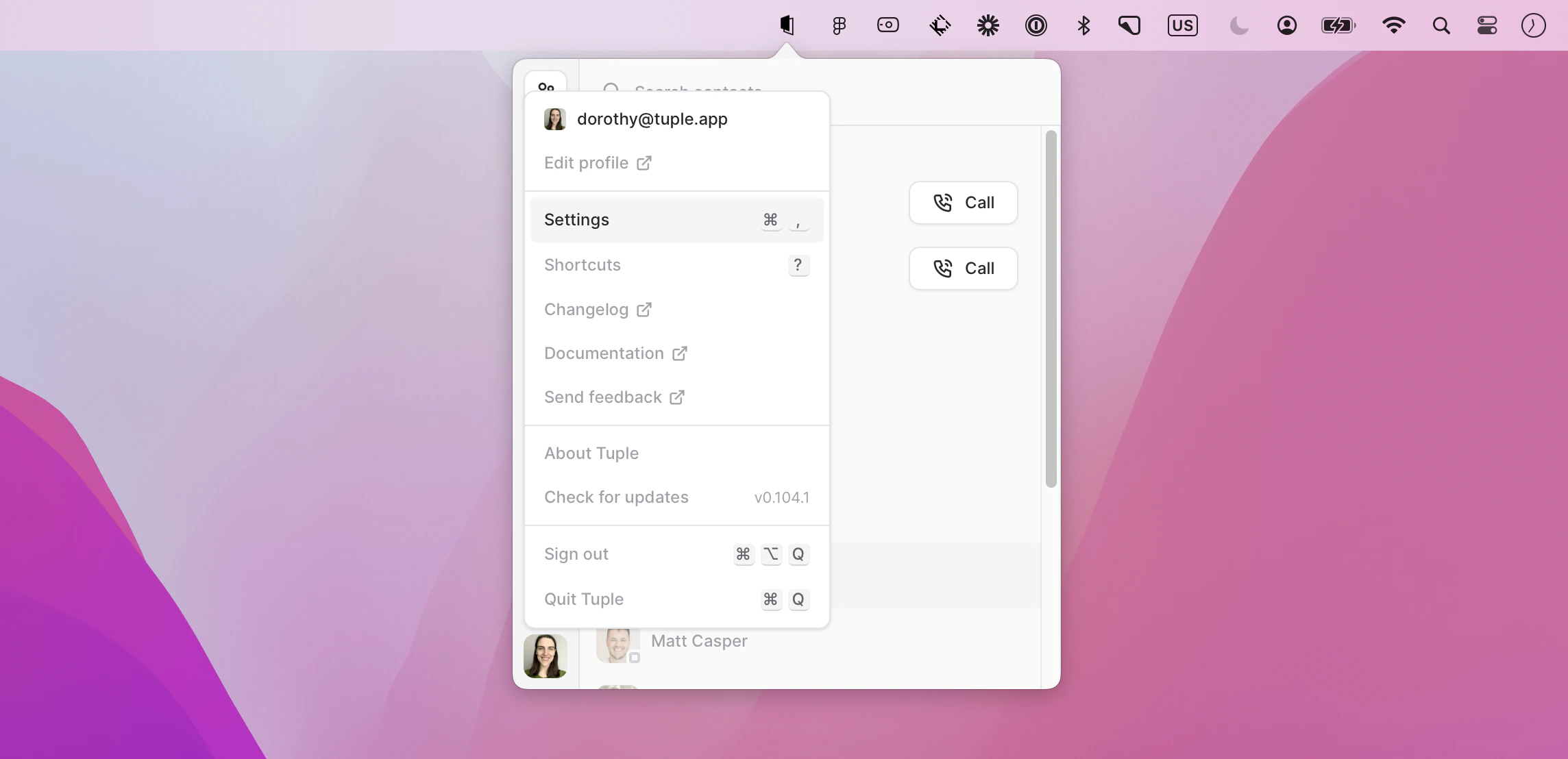
To open your preferences, click your avatar at the bottom left of the Tuple popover and select Settings from the dropdown:You can also press cmd + , to open the Settings window. Then select General in the sidebar:
Choose which icon Tuple displays in the macOS menu bar. You can pick between the default Tuple Logo and Pear Buddy. The icon adapts to your system appearance and tints white during active calls.
Open at loginWhen this feature is enabled, Tuple will automatically launch when you log into your computer after a restart or explicit logout. Note that it will not launch if your computer is merely locked or asleep.Always show dock iconWith this enabled, Tuple will always have an icon in the dock / command-tab carousel. When disabled, a Tuple icon will only appear in those locations when you’re on a call.Enable call feedback popupWhen this feature is enabled, the call feedback form will show up after you conclude a Tuple call.Notify me when I’m in calls aloneWhen this setting is on, Tuple reminds you when everyone else has left a room, or when you’ve been alone in a call for a while. Click Leave on the reminder to end the call, or Stay to keep it going. If you don’t answer, the reminder goes away and you stay in the call.Turn this off if you like to stay in a room so others can drop in. You can also choose Don’t Remind Me Again from the reminder’s Stay menu, which turns this setting off.
Show my friends who I’m pairing withIf selected, people you and your pair both know will be able to see your call’s participants in their contact list. You can learn more here.Report call statisticsWhen this setting is on, we get occasional snapshots of the metrics from calls such as frame rate, latency, etc.
Was this page helpful?
{"docsConfig":{"theme":"palm","$schema":"https://mintlify.com/docs.json","name":"Tuple documentation","description":"Documentation for Tuple, the remote pair programming app for developers on macOS, Windows, and Linux.","colors":{"primary":"#6a5ed9","light":"#adb6f4","dark":"#5e50c7"},"logo":{"light":"https://mintcdn.com/tuple-0f82e5be/-nDSac4-fwCPupIa/logo/light.png?fit=max\u0026auto=format\u0026n=-nDSac4-fwCPupIa\u0026q=85\u0026s=691cb0a8e2a3dcdc0227b893ee08b6b6","dark":"https://mintcdn.com/tuple-0f82e5be/-nDSac4-fwCPupIa/logo/dark.png?fit=max\u0026auto=format\u0026n=-nDSac4-fwCPupIa\u0026q=85\u0026s=5a19781377926b4667bf0867efd75e57"},"favicon":"https://mintcdn.com/tuple-0f82e5be/EHjq0cG1Dd6CF26O/favicon.svg?fit=max\u0026auto=format\u0026n=EHjq0cG1Dd6CF26O\u0026q=85\u0026s=1b6c6ae1f64a9c50fe32a72a08c1e044","navbar":{"links":[{"href":"https://tuple.app?utm_source=docs","label":"Website"},{"href":"mailto:support@tuple.app","label":"Support"}],"primary":{"type":"button","label":"Download","href":"https://tuple.app/download?utm_source=docs"}},"footer":{"socials":{"x":"https://x.com/tuple","linkedin":"https://linkedin.com/company/tuple","youtube":"https://www.youtube.com/@tuple-app"},"links":[{"header":"Product","items":[{"label":"Download","href":"https://tuple.app/download?utm_source=docs"},{"label":"Changelog","href":"/changelog"},{"label":"Pricing","href":"https://tuple.app/pricing?utm_source=docs"}]},{"header":"Resources","items":[{"label":"Support","href":"mailto:support@tuple.app"},{"label":"Blog","href":"https://tuple.app/blog?utm_source=docs"}]}]},"seo":{"metatags":{"og:image":"https://docs.tuple.app/images/og.jpg"}},"integrations":{"posthog":{"apiKey":"phc_1X4UcburMnpeGzdvbEpquCPIp4RO5Wn46yogbxpD1Y8","apiHost":"https://us.i.posthog.com"}},"contextual":{"options":["copy","view","chatgpt","claude","perplexity","mcp","cursor","vscode"],"display":"header"},"styling":{"latex":false},"navigation":{"global":{"anchors":[{"anchor":"Changelog","icon":"list","href":"/changelog"}]},"pages":[]}},"deployment":{"deploymentMetadataValue":{"subdomain":"tuple-0f82e5be","hasAudioNarration":false,"actualSubdomain":"tuple-0f82e5be","customDomains":["docs.tuple.app"],"gitSource":{"type":"github","owner":"tupleapp","repo":"docs","deployBranch":"main","contentDirectory":"","isPrivate":true,"mountPath":"","label":""},"chroma":{"liveDeploymentHistoryId":"6ae0e5c7d22959c2aa83a8bc","collectionId":"e09a40cb-36de-40a6-a5eb-08ba17b1bced","schemaVersion":"v3","latestBuiltDeploymentHistoryId":"6ae0e5c7d22959c2aa83a8bc"},"feedback":{"thumbs":true,"agentFeedback":false},"entitlements":{"AI_CHAT":{"status":"ENABLED"},"WEB_MCP":{"status":"ENABLED"},"NARRATION":{"status":"ENABLED"}},"buildId":"6ae0e5c7d22959c2aa83a8bc","clientVersion":"0.0.3990","searchFilterCounts":[{"language":"default","tag":"Pairing with Tuple","count":26},{"language":"default","tag":"Team Management","count":19},{"language":"default","tag":"Features","count":15},{"language":"default","tag":"Troubleshooting","count":14},{"language":"default","tag":"Application Preferences","count":13},{"language":"default","tag":"macOS","count":9},{"language":"default","tag":"Authentication and SSO","count":9},{"language":"default","tag":"Tuple CLI","count":7},{"language":"default","tag":"Calls","count":7},{"language":"default","tag":"Managing Your Account","count":6}]},"assistantConfig":{"enableAskAiButton":false,"enableStarterQuestions":true,"enableContextualStarterQuestions":true,"enableAskAiSearchBar":true,"deflection":{"enabled":true,"email":"support@tuple.app","showHelpButton":true}},"basePath":"","hasChatPermissions":true,"hasWebMcpPermissions":true,"toggles":[{"name":"kill-isr","enabled":true,"variant":{"name":"disabled","enabled":false,"feature_enabled":true},"impressionData":false},{"name":"agent-mintlify-slack","enabled":true,"variant":{"name":"disabled","enabled":false,"feature_enabled":true},"impressionData":false},{"name":"editor-v7-file-tree","enabled":true,"variant":{"name":"disabled","enabled":false,"feature_enabled":true},"impressionData":false},{"name":"agent-integrations-settings","enabled":true,"variant":{"name":"disabled","enabled":false,"feature_enabled":true},"impressionData":false},{"name":"automations-pr-grouping","enabled":true,"variant":{"name":"disabled","enabled":false,"feature_enabled":true},"impressionData":false},{"name":"custom-prefix","enabled":true,"variant":{"name":"disabled","enabled":false,"feature_enabled":true},"impressionData":false},{"name":"analytics-v7","enabled":true,"variant":{"name":"disabled","enabled":false,"feature_enabled":true},"impressionData":false},{"name":"user-flows-analytics","enabled":true,"variant":{"name":"disabled","enabled":false,"feature_enabled":true},"impressionData":false},{"name":"no-publish-flow","enabled":true,"variant":{"name":"disabled","enabled":false,"feature_enabled":true},"impressionData":false},{"name":"workos-onboarding","enabled":true,"variant":{"name":"disabled","enabled":false,"feature_enabled":true},"impressionData":false},{"name":"llms-txt-v2","enabled":true,"variant":{"name":"disabled","enabled":false,"feature_enabled":true},"impressionData":false},{"name":"pause-universal-search-reconcile","enabled":true,"variant":{"name":"disabled","enabled":false,"feature_enabled":true},"impressionData":false},{"name":"snapshot-serving-live","enabled":true,"variant":{"name":"disabled","enabled":false,"feature_enabled":true},"impressionData":false},{"name":"stripTemperatureMiddleware","enabled":true,"variant":{"name":"disabled","enabled":false,"feature_enabled":true},"impressionData":false},{"name":"per-site-search-delta","enabled":true,"variant":{"name":"disabled","enabled":false,"feature_enabled":true},"impressionData":false},{"name":"support-platform-pylon-zendesk","enabled":true,"variant":{"name":"disabled","enabled":false,"feature_enabled":true},"impressionData":false},{"name":"snapshot-serving","enabled":true,"variant":{"name":"disabled","enabled":false,"feature_enabled":true},"impressionData":false},{"name":"instant-rollback","enabled":true,"variant":{"name":"disabled","enabled":false,"feature_enabled":true},"impressionData":false},{"name":"granular-notifications-server","enabled":true,"variant":{"name":"disabled","enabled":false,"feature_enabled":true},"impressionData":false},{"name":"granular-notifications","enabled":true,"variant":{"name":"disabled","enabled":false,"feature_enabled":true},"impressionData":false},{"name":"editor-private-page-search","enabled":true,"variant":{"name":"disabled","enabled":false,"feature_enabled":true},"impressionData":false},{"name":"automations-fable","enabled":true,"variant":{"name":"disabled","enabled":false,"feature_enabled":true},"impressionData":false},{"name":"fixed-ai-action-pricing","enabled":true,"variant":{"name":"disabled","enabled":false,"feature_enabled":true},"impressionData":false},{"name":"automation-resolve-merge-conflict","enabled":true,"variant":{"name":"disabled","enabled":false,"feature_enabled":true},"impressionData":false},{"name":"scoped-publishing","enabled":true,"variant":{"name":"disabled","enabled":false,"feature_enabled":true},"impressionData":false},{"name":"mintql","enabled":true,"variant":{"name":"disabled","enabled":false,"feature_enabled":true},"impressionData":false},{"name":"page-level-analytics","enabled":true,"variant":{"name":"disabled","enabled":false,"feature_enabled":true},"impressionData":false},{"name":"editor-version-history-v2","enabled":true,"variant":{"name":"disabled","enabled":false,"feature_enabled":true},"impressionData":false},{"name":"editor-nav-generations","enabled":true,"variant":{"name":"disabled","enabled":false,"feature_enabled":true},"impressionData":false},{"name":"billing-page-v2","enabled":true,"variant":{"name":"disabled","enabled":false,"feature_enabled":true},"impressionData":false},{"name":"workspace-projects","enabled":true,"variant":{"name":"disabled","enabled":false,"feature_enabled":true},"impressionData":false},{"name":"assistant-v5","enabled":true,"variant":{"name":"disabled","enabled":false,"feature_enabled":true},"impressionData":false},{"name":"byok-sep-25","enabled":true,"variant":{"name":"disabled","enabled":false,"feature_enabled":true},"impressionData":false},{"name":"fork-pr-previews","enabled":true,"variant":{"name":"disabled","enabled":false,"feature_enabled":true},"impressionData":false},{"name":"revalidation-jwt","enabled":true,"variant":{"name":"disabled","enabled":false,"feature_enabled":true},"impressionData":false},{"name":"vite-origin","enabled":true,"variant":{"name":"disabled","enabled":false,"feature_enabled":true},"impressionData":false},{"name":"editor-agent-model-picker","enabled":true,"variant":{"name":"disabled","enabled":false,"feature_enabled":true},"impressionData":false},{"name":"billing-updated-9-15","enabled":true,"variant":{"name":"disabled","enabled":false,"feature_enabled":true},"impressionData":false},{"name":"workos-sso-scim","enabled":true,"variant":{"name":"disabled","enabled":false,"feature_enabled":true},"impressionData":false},{"name":"hobby-abuse-scan","enabled":true,"variant":{"name":"disabled","enabled":false,"feature_enabled":true},"impressionData":false},{"name":"dashboard-inbox","enabled":true,"variant":{"name":"disabled","enabled":false,"feature_enabled":true},"impressionData":false},{"name":"workos-signup","enabled":true,"variant":{"name":"disabled","enabled":false,"feature_enabled":true},"impressionData":false},{"name":"workos-enabled","enabled":true,"variant":{"name":"disabled","enabled":false,"feature_enabled":true},"impressionData":false}],"isAtlas":false,"googleFontsInlined":false},"customCss":[],"page":{"pagePath":"application-preferences/macos-preferences-general","slug":"/application-preferences/macos-preferences-general","pageMetadata":{"title":"General","description":null,"href":"/application-preferences/macos-preferences-general"},"pageType":"default","mdx":{"mdxSource":{"compiledSource":"\"use strict\";const{Fragment:_Fragment,jsx:_jsx,jsxs:_jsxs}=arguments[0];const{useMDXComponents:_provideComponents}=arguments[0];function _createMdxContent(props){const _components={a:`a`,p:`p`,strong:`strong`,..._provideComponents(),...props.components},{Heading,OptimizedImage}=_components;if(!Heading)_missingMdxReference(`Heading`,true);if(!OptimizedImage)_missingMdxReference(`OptimizedImage`,true);return _jsxs(_Fragment,{children:[_jsxs(_components.p,{children:[`To open your preferences, click your avatar at the bottom left of the Tuple popover and select `,_jsx(_components.strong,{children:`Settings`}),` from the dropdown:`]}),`\n`,_jsx(OptimizedImage,{src:`https://mintcdn.com/tuple-0f82e5be/O4IiteXcXoa48ycm/images/application-preferences/shared/macos/open-settings-menu.png?fit=max\u0026auto=format\u0026n=O4IiteXcXoa48ycm\u0026q=85\u0026s=8e319e5ebb3804ad65f01b886acce54d`,alt:`Tuple avatar menu with Settings selected on macOS`,\"data-og-width\":`2288`,width:`2288`,\"data-og-height\":`1108`,height:`1108`,\"data-path\":`images/application-preferences/shared/macos/open-settings-menu.png`,\"data-optimize\":`true`,\"data-opv\":`3`,srcset:`https://mintcdn.com/tuple-0f82e5be/O4IiteXcXoa48ycm/images/application-preferences/shared/macos/open-settings-menu.png?w=280\u0026fit=max\u0026auto=format\u0026n=O4IiteXcXoa48ycm\u0026q=85\u0026s=2e5f55409b277a3b13b6d1c00e32d048 280w, https://mintcdn.com/tuple-0f82e5be/O4IiteXcXoa48ycm/images/application-preferences/shared/macos/open-settings-menu.png?w=560\u0026fit=max\u0026auto=format\u0026n=O4IiteXcXoa48ycm\u0026q=85\u0026s=889b96cefedb4277a92f7f185f67923c 560w, https://mintcdn.com/tuple-0f82e5be/O4IiteXcXoa48ycm/images/application-preferences/shared/macos/open-settings-menu.png?w=840\u0026fit=max\u0026auto=format\u0026n=O4IiteXcXoa48ycm\u0026q=85\u0026s=6a3001bc8967a33c08d9ddd278609acc 840w, https://mintcdn.com/tuple-0f82e5be/O4IiteXcXoa48ycm/images/application-preferences/shared/macos/open-settings-menu.png?w=1100\u0026fit=max\u0026auto=format\u0026n=O4IiteXcXoa48ycm\u0026q=85\u0026s=cbeed6102d6f0fb5c7d797e39989c9e5 1100w, https://mintcdn.com/tuple-0f82e5be/O4IiteXcXoa48ycm/images/application-preferences/shared/macos/open-settings-menu.png?w=1650\u0026fit=max\u0026auto=format\u0026n=O4IiteXcXoa48ycm\u0026q=85\u0026s=4c9be089e73084adbce93b500b53313e 1650w, https://mintcdn.com/tuple-0f82e5be/O4IiteXcXoa48ycm/images/application-preferences/shared/macos/open-settings-menu.png?w=2500\u0026fit=max\u0026auto=format\u0026n=O4IiteXcXoa48ycm\u0026q=85\u0026s=03908034a6787b0999c09f1289a512e0 2500w`}),`\n`,_jsxs(_components.p,{children:[`You can also press `,_jsx(_components.strong,{children:`cmd + ,`}),` to open the Settings window. Then select `,_jsx(_components.strong,{children:`General`}),` in the sidebar:`]}),`\n`,_jsx(OptimizedImage,{src:`https://mintcdn.com/tuple-0f82e5be/-94iStnV_dCqB5zH/images/application-preferences/macos-preferences-general/general-tab.png?fit=max\u0026auto=format\u0026n=-94iStnV_dCqB5zH\u0026q=85\u0026s=9cba9be0c76a214fad2f2d86c6e2559b`,alt:`Settings window with the General tab selected on macOS`,\"data-og-width\":`726`,width:`726`,\"data-og-height\":`648`,height:`648`,\"data-path\":`images/application-preferences/macos-preferences-general/general-tab.png`,\"data-optimize\":`true`,\"data-opv\":`3`,srcset:`https://mintcdn.com/tuple-0f82e5be/-94iStnV_dCqB5zH/images/application-preferences/macos-preferences-general/general-tab.png?w=280\u0026fit=max\u0026auto=format\u0026n=-94iStnV_dCqB5zH\u0026q=85\u0026s=115699d2843bf9dcdb1ae371dd9035d1 280w, https://mintcdn.com/tuple-0f82e5be/-94iStnV_dCqB5zH/images/application-preferences/macos-preferences-general/general-tab.png?w=560\u0026fit=max\u0026auto=format\u0026n=-94iStnV_dCqB5zH\u0026q=85\u0026s=2bf2e2bf0f3fcbe5dd0f42a0d100ed79 560w, https://mintcdn.com/tuple-0f82e5be/-94iStnV_dCqB5zH/images/application-preferences/macos-preferences-general/general-tab.png?w=840\u0026fit=max\u0026auto=format\u0026n=-94iStnV_dCqB5zH\u0026q=85\u0026s=bfb6f339f661842582796d3cc6f10be4 840w, https://mintcdn.com/tuple-0f82e5be/-94iStnV_dCqB5zH/images/application-preferences/macos-preferences-general/general-tab.png?w=1100\u0026fit=max\u0026auto=format\u0026n=-94iStnV_dCqB5zH\u0026q=85\u0026s=4912bd3c5c82c776d838e8f1b0e4a5bb 1100w, https://mintcdn.com/tuple-0f82e5be/-94iStnV_dCqB5zH/images/application-preferences/macos-preferences-general/general-tab.png?w=1650\u0026fit=max\u0026auto=format\u0026n=-94iStnV_dCqB5zH\u0026q=85\u0026s=9d56213a9bd439e402da7c1c3e14c66a 1650w, https://mintcdn.com/tuple-0f82e5be/-94iStnV_dCqB5zH/images/application-preferences/macos-preferences-general/general-tab.png?w=2500\u0026fit=max\u0026auto=format\u0026n=-94iStnV_dCqB5zH\u0026q=85\u0026s=ab89c2a308d63ab4f1e9089f4a93acaa 2500w`}),`\n`,_jsx(Heading,{level:`2`,id:`appearance`,children:`Appearance`}),`\n`,_jsx(_components.p,{children:`Select Light mode, Dark mode, or tell Tuple to pick up your system preferences.`}),`\n`,_jsx(Heading,{level:`2`,id:`menu-bar-icon`,children:`Menu bar icon`}),`\n`,_jsxs(_components.p,{children:[`Choose which icon Tuple displays in the macOS menu bar. You can pick between the default `,_jsx(_components.strong,{children:`Tuple Logo`}),` and `,_jsx(_components.strong,{children:`Pear Buddy`}),`. The icon adapts to your system appearance and tints white during active calls.`]}),`\n`,_jsx(Heading,{level:`2`,id:`behavior`,children:`Behavior`}),`\n`,_jsx(_components.p,{children:_jsx(_components.strong,{children:`Open at login`})}),`\n`,_jsx(_components.p,{children:`When this feature is enabled, Tuple will automatically launch when you log into your computer after a restart or explicit logout. Note that it will not launch if your computer is merely locked or asleep.`}),`\n`,_jsx(_components.p,{children:_jsx(_components.strong,{children:`Always show dock icon`})}),`\n`,_jsx(_components.p,{children:`With this enabled, Tuple will always have an icon in the dock / command-tab carousel. When disabled, a Tuple icon will only appear in those locations when you’re on a call.`}),`\n`,_jsx(_components.p,{children:_jsx(_components.strong,{children:`Enable call feedback popup`})}),`\n`,_jsx(_components.p,{children:`When this feature is enabled, the call feedback form will show up after you conclude a Tuple call.`}),`\n`,_jsx(_components.p,{children:_jsx(_components.strong,{children:`Notify me when I’m in calls alone`})}),`\n`,_jsxs(_components.p,{children:[`When this setting is on, Tuple reminds you when everyone else has left a room, or when you’ve been alone in a call for a while. Click `,_jsx(_components.strong,{children:`Leave`}),` on the reminder to end the call, or `,_jsx(_components.strong,{children:`Stay`}),` to keep it going. If you don’t answer, the reminder goes away and you stay in the call.`]}),`\n`,_jsxs(_components.p,{children:[`Turn this off if you like to stay in a room so others can drop in. You can also choose `,_jsx(_components.strong,{children:`Don’t Remind Me Again`}),` from the reminder’s `,_jsx(_components.strong,{children:`Stay`}),` menu, which turns this setting off.`]}),`\n`,_jsx(Heading,{level:`2`,id:`privacy`,children:`Privacy`}),`\n`,_jsx(_components.p,{children:_jsx(_components.strong,{children:`Show my friends who I’m pairing with`})}),`\n`,_jsxs(_components.p,{children:[`If selected, people you and your pair both know will be able to see your call’s participants in their contact list. You can learn more `,_jsx(_components.a,{href:`/pairing-with-tuple/showing-who-youre-pairing-with`,children:`here`}),`.`]}),`\n`,_jsx(_components.p,{children:_jsx(_components.strong,{children:`Report call statistics`})}),`\n`,_jsx(_components.p,{children:`When this setting is on, we get occasional snapshots of the metrics from calls such as frame rate, latency, etc.`})]})}function MDXContent(props={}){const{wrapper:MDXLayout}={..._provideComponents(),...props.components};return MDXLayout?_jsx(MDXLayout,{...props,children:_jsx(_createMdxContent,{...props})}):_createMdxContent(props)}return{default:MDXContent};function _missingMdxReference(id,component){throw new Error(`Expected `+(component?`component`:`object`)+\" `\"+id+\"` to be defined: you likely forgot to import, pass, or provide it.\")}","frontmatter":{},"scope":{"config":{},"pageMetadata":{"title":"General","description":null,"href":"/application-preferences/macos-preferences-general"}}},"mdxSourceWithNoJs":null},"mdxExtracts":{"tableOfContents":[{"title":"Appearance","slug":"appearance","depth":2,"children":[]},{"title":"Menu bar icon","slug":"menu-bar-icon","depth":2,"children":[]},{"title":"Behavior","slug":"behavior","depth":2,"children":[]},{"title":"Privacy","slug":"privacy","depth":2,"children":[]}],"codeExamples":{}},"jsLinks":[],"subdomain":"tuple-0f82e5be","siteName":"Tuple documentation","title":"General - Tuple documentation","contextualStarterQuestions":[{"_id":"6ad921ba09c8edb90f1ae6d8","deploymentId":"69cbe83e7f226f107dbe3406","questionText":"How do I open preferences?","status":"active","generatedBy":"contextual","path":"application-preferences/macos-preferences-general","createdAt":"2026-10-21T20:34:02.684Z","updatedAt":"2026-10-21T20:34:02.684Z","__v":0},{"_id":"6ad921ba09c8edb90f1ae6da","deploymentId":"69cbe83e7f226f107dbe3406","questionText":"Where is the General tab?","status":"active","generatedBy":"contextual","path":"application-preferences/macos-preferences-general","createdAt":"2026-10-21T20:34:02.684Z","updatedAt":"2026-10-21T20:34:02.684Z","__v":0},{"_id":"6ad921ba09c8edb90f1ae6d9","deploymentId":"69cbe83e7f226f107dbe3406","questionText":"What's the keyboard shortcut?","status":"active","generatedBy":"contextual","path":"application-preferences/macos-preferences-general","createdAt":"2026-10-21T20:34:02.684Z","updatedAt":"2026-10-21T20:34:02.684Z","__v":0}],"navMaps":{"firstHrefInVersion":{},"firstHrefInLanguage":{}},"lastModified":"2026-10-21T20:33:47.816Z","originalFileLocation":"application-preferences/macos-preferences-general.mdx"},"headHtml":"\u003cscript data-mint-head>(function(){var d=document.documentElement,p=null;if(!p){try{p=localStorage.getItem(\"isDarkMode\")}catch(e){}if(p==='true')p='dark';else if(p==='false')p='light';if(p!=='light'\u0026\u0026p!=='dark'\u0026\u0026p!=='system')p=\"system\"}var r=p==='system'?(matchMedia(\"(prefers-color-scheme: dark)\").matches?'dark':'light'):p;d.classList.remove(r==='dark'?'light':'dark');d.classList.add(r);d.setAttribute(\"data-theme-preference\",p)})();\u003c/script>\u003cmeta data-mint-head name=\"application-name\" content=\"Tuple documentation\">\u003cmeta data-mint-head name=\"generator\" content=\"Mintlify\">\u003clink data-mint-head rel=\"icon\" type=\"image/png\" sizes=\"192x192\" href=\"/mintlify-assets/_mintlify/favicons/tuple-0f82e5be/1w1zy1sfDexR8wGh/_generated/favicon/android-chrome-192x192.png\" media=\"(prefers-color-scheme: light)\">\u003clink data-mint-head rel=\"apple-touch-icon\" type=\"image/png\" sizes=\"180x180\" href=\"/mintlify-assets/_mintlify/favicons/tuple-0f82e5be/1w1zy1sfDexR8wGh/_generated/favicon/apple-touch-icon.png\">\u003clink data-mint-head rel=\"icon\" type=\"image/png\" sizes=\"16x16\" href=\"/mintlify-assets/_mintlify/favicons/tuple-0f82e5be/1w1zy1sfDexR8wGh/_generated/favicon/favicon-16x16.png\" media=\"(prefers-color-scheme: light)\">\u003clink data-mint-head rel=\"icon\" type=\"image/png\" sizes=\"32x32\" href=\"/mintlify-assets/_mintlify/favicons/tuple-0f82e5be/1w1zy1sfDexR8wGh/_generated/favicon/favicon-32x32.png\" media=\"(prefers-color-scheme: light)\">\u003clink data-mint-head rel=\"shortcut icon\" type=\"image/x-icon\" href=\"/mintlify-assets/_mintlify/favicons/tuple-0f82e5be/1w1zy1sfDexR8wGh/_generated/favicon/favicon.ico\" media=\"(prefers-color-scheme: light)\">\u003clink data-mint-head rel=\"icon\" type=\"image/png\" sizes=\"192x192\" href=\"/mintlify-assets/_mintlify/favicons/tuple-0f82e5be/1w1zy1sfDexR8wGh/_generated/favicon-dark/android-chrome-192x192.png\" media=\"(prefers-color-scheme: dark)\">\u003clink data-mint-head rel=\"icon\" type=\"image/png\" sizes=\"16x16\" href=\"/mintlify-assets/_mintlify/favicons/tuple-0f82e5be/1w1zy1sfDexR8wGh/_generated/favicon-dark/favicon-16x16.png\" media=\"(prefers-color-scheme: dark)\">\u003clink data-mint-head rel=\"icon\" type=\"image/png\" sizes=\"32x32\" href=\"/mintlify-assets/_mintlify/favicons/tuple-0f82e5be/1w1zy1sfDexR8wGh/_generated/favicon-dark/favicon-32x32.png\" media=\"(prefers-color-scheme: dark)\">\u003clink data-mint-head rel=\"shortcut icon\" type=\"image/x-icon\" href=\"/mintlify-assets/_mintlify/favicons/tuple-0f82e5be/1w1zy1sfDexR8wGh/_generated/favicon-dark/favicon.ico\" media=\"(prefers-color-scheme: dark)\">\u003cmeta data-mint-head property=\"og:title\" content=\"General - Tuple documentation\">\u003cmeta data-mint-head property=\"og:site_name\" content=\"Tuple documentation\">\u003cmeta data-mint-head property=\"og:url\" content=\"https://docs.tuple.app/application-preferences/macos-preferences-general\">\u003cmeta data-mint-head property=\"og:type\" content=\"website\">\u003cmeta data-mint-head property=\"og:image\" content=\"https://docs.tuple.app/images/og.jpg\">\u003cmeta data-mint-head property=\"og:image:width\" content=\"1200\">\u003cmeta data-mint-head property=\"og:image:height\" content=\"630\">\u003cmeta data-mint-head name=\"twitter:card\" content=\"summary_large_image\">\u003cmeta data-mint-head name=\"twitter:title\" content=\"General - Tuple documentation\">\u003cmeta data-mint-head name=\"twitter:image\" content=\"https://docs.tuple.app/images/og.jpg\">\u003cmeta data-mint-head name=\"twitter:image:width\" content=\"1200\">\u003cmeta data-mint-head name=\"twitter:image:height\" content=\"630\">\u003cmeta data-mint-head name=\"msapplication-config\" content=\"/mintlify-assets/_mintlify/favicons/tuple-0f82e5be/1w1zy1sfDexR8wGh/_generated/favicon/browserconfig.xml\">\u003cmeta data-mint-head name=\"apple-mobile-web-app-title\" content=\"Tuple documentation\">\u003cmeta data-mint-head name=\"msapplication-TileColor\" content=\"#6a5ed9\">\u003clink data-mint-head rel=\"canonical\" href=\"https://docs.tuple.app/application-preferences/macos-preferences-general\">\u003clink data-mint-head rel=\"alternate\" type=\"application/xml\" href=\"/sitemap.xml\">\u003clink data-mint-head rel=\"alternate\" type=\"text/markdown\" href=\"/application-preferences/macos-preferences-general.md\">\u003cscript data-mint-head type=\"application/ld+json\">{\"@context\":\"https://schema.org\",\"@graph\":[{\"@type\":\"Organization\",\"@id\":\"https://docs.tuple.app/#organization\",\"name\":\"Tuple documentation\",\"url\":\"https://docs.tuple.app\",\"logo\":{\"@type\":\"ImageObject\",\"url\":\"https://mintcdn.com/tuple-0f82e5be/-nDSac4-fwCPupIa/logo/light.png?fit=max\u0026auto=format\u0026n=-nDSac4-fwCPupIa\u0026q=85\u0026s=691cb0a8e2a3dcdc0227b893ee08b6b6\"}},{\"@type\":\"WebSite\",\"@id\":\"https://docs.tuple.app#website\",\"name\":\"Tuple documentation\",\"url\":\"https://docs.tuple.app\",\"publisher\":{\"@id\":\"https://docs.tuple.app/#organization\"}},{\"@type\":\"WebPage\",\"@id\":\"https://docs.tuple.app/application-preferences/macos-preferences-general#webpage\",\"url\":\"https://docs.tuple.app/application-preferences/macos-preferences-general\",\"name\":\"General\",\"dateModified\":\"2026-10-21T20:33:47.816Z\",\"isPartOf\":{\"@id\":\"https://docs.tuple.app#website\"},\"breadcrumb\":{\"@id\":\"https://docs.tuple.app/application-preferences/macos-preferences-general#breadcrumb\"}},{\"@type\":\"BreadcrumbList\",\"@id\":\"https://docs.tuple.app/application-preferences/macos-preferences-general#breadcrumb\",\"itemListElement\":[{\"@type\":\"ListItem\",\"position\":1,\"name\":\"Tuple documentation\",\"item\":\"https://docs.tuple.app\"},{\"@type\":\"ListItem\",\"position\":2,\"name\":\"General\",\"item\":\"https://docs.tuple.app/application-preferences/macos-preferences-general\"}]},{\"@type\":[\"Article\",\"TechArticle\"],\"@id\":\"https://docs.tuple.app/application-preferences/macos-preferences-general#article\",\"headline\":\"General\",\"name\":\"General\",\"url\":\"https://docs.tuple.app/application-preferences/macos-preferences-general\",\"mainEntityOfPage\":{\"@id\":\"https://docs.tuple.app/application-preferences/macos-preferences-general#webpage\"},\"image\":\"https://docs.tuple.app/images/og.jpg\",\"dateModified\":\"2026-10-21T20:33:47.816Z\",\"publisher\":{\"@id\":\"https://docs.tuple.app/#organization\"},\"isPartOf\":{\"@id\":\"https://docs.tuple.app#website\"}}]}\u003c/script>\u003cscript data-mint-head type=\"application/ld+json\">{\"@context\":\"https://schema.org\",\"@type\":\"WebSite\",\"name\":\"Tuple documentation\",\"creator\":{\"@type\":\"Organization\",\"name\":\"Mintlify\",\"url\":\"https://mintlify.com\"}}\u003c/script>","siteName":"Tuple documentation","nav":{"global":{"anchors":[{"anchor":"Changelog","icon":"list","href":"/changelog"}]},"groups":[{"group":"Getting Started","pages":[{"title":"Installation","href":"/getting-started/installation"},{"title":"Supported platforms","href":"/troubleshooting/supported-platforms"},{"title":"Tuple for Linux (alpha)","href":"/getting-started/tuple-for-linux"},{"title":"Agreements and Policies","href":"/overview/agreements-and-policies"}]},{"group":"Pairing with Tuple","pages":[{"group":"Screen Sharing","root":{"title":"Sharing your screen","href":"/pairing-with-tuple/sharing-your-screen"},"pages":[{"title":"Interacting with a shared screen","href":"/pairing-with-tuple/interacting-with-a-shared-screen"},{"title":"Requesting a share","href":"/pairing-with-tuple/requesting-a-share"},{"title":"Sharing app metadata","href":"/pairing-with-tuple/sharing-app-metadata"},{"title":"Sharing system audio","href":"/pairing-with-tuple/sharing-system-audio"}]},{"group":"Calls","pages":[{"title":"Adding more call participants","href":"/pairing-with-tuple/adding-more-call-participants"},{"title":"Joining an existing call","href":"/pairing-with-tuple/joining-an-existing-call"},{"title":"Joining a call via a link/URL","href":"/pairing-with-tuple/joining-a-call-via-a-linkurl"},{"title":"Joining a call from your browser (alpha)","href":"/pairing-with-tuple/joining-a-call-from-your-browser"},{"title":"Using Rooms","href":"/pairing-with-tuple/using-rooms"},{"title":"Pairing with Someone on Tuple as a Guest","href":"/pairing-with-tuple/pairing-with-someone-on-tuple-as-a-guest"},{"title":"Using Tuple for Interviews","href":"/pairing-with-tuple/using-tuple-for-interviews"}]},{"group":"Features","pages":[{"title":"Audio device swapping","href":"/pairing-with-tuple/audio-device-swapping"},{"title":"Copying and pasting from one computer to another","href":"/pairing-with-tuple/copying-and-pasting-from-one-computer-to-another-sharing-your-clipboard"},{"title":"Sound Check","href":"/pairing-with-tuple/sound-check"},{"title":"Call Stats","href":"/pairing-with-tuple/call-stats"},{"title":"Sharing a webcam video","href":"/pairing-with-tuple/sharing-a-webcam-video"},{"title":"Collaborative Painting","href":"/pairing-with-tuple/collaborative-painting"},{"title":"Showing Who You're Pairing With","href":"/pairing-with-tuple/showing-who-youre-pairing-with"},{"title":"Using your keyboard to navigate Tuple","href":"/pairing-with-tuple/using-your-keyboard-to-navigate-tuple"},{"title":"Spotlight Integration","href":"/pairing-with-tuple/spotlight-integration"},{"title":"How to stream pair programming sessions","href":"/pairing-with-tuple/how-to-stream-pair-programming-sessions"},{"title":"Capturing calls","href":"/pairing-with-tuple/capturing-calls"},{"title":"Ways to use Capture","href":"/pairing-with-tuple/ways-to-use-capture"},{"title":"Local call history","href":"/pairing-with-tuple/local-call-history"},{"title":"Searching past calls","href":"/pairing-with-tuple/searching-past-calls"},{"title":"Speaking-while-muted notification","href":"/pairing-with-tuple/speaking-while-muted-notification"}]}]},{"group":"Managing Your Account","pages":[{"group":"Profile and Security","pages":[{"title":"Setting your profile picture avatar","href":"/managing-your-account/setting-your-profile-picture-avatar"},{"title":"Resetting your password","href":"/managing-your-account/resetting-your-password"}]},{"group":"Account Type and Access","pages":[{"title":"Using Tuple as an unpaid user","href":"/managing-your-account/using-tuple-as-an-unpaid-user"},{"title":"Upgrading a guest account","href":"/managing-your-account/upgrading-a-guest-account"}]},{"group":"Integrations and Activity","pages":[{"title":"Adding Integrations","href":"/managing-your-account/adding-integrations"},{"title":"Viewing your call history","href":"/managing-your-account/viewing-your-call-history"}]}]},{"group":"Team Management","pages":[{"group":"Members and Permissions","root":{"title":"Inviting users","href":"/team-management/inviting-users"},"pages":[{"title":"Removing users","href":"/team-management/removing-users"},{"title":"Team Owner and Managers","href":"/team-management/team-owner-and-managers"},{"title":"Requesting a Team Invite Link","href":"/team-management/requesting-a-team-invite-link"}]},{"group":"Billing and Subscription","root":{"title":"Managing Team billing","href":"/team-management/managing-team-billing"},"pages":[{"title":"Adding Details To Your Invoice","href":"/team-management/adding-details-to-your-invoice"},{"title":"Cancelling a subscription","href":"/team-management/cancelling-a-subscription"},{"title":"Reactivating a subscription","href":"/team-management/reactivating-a-subscription"},{"title":"OSS and startup plans","href":"/team-management/oss-and-startup-plans"}]},{"group":"Authentication and SSO","pages":[{"title":"Sign In With Google","href":"/team-management/sign-in-with-google"},{"title":"Sign in With Microsoft","href":"/team-management/sign-in-with-microsoft"},{"group":"SAML","root":{"title":"Single Sign-On (SSO)","href":"/team-management/configuring-single-sign-on-sso"},"pages":[{"title":"Okta","href":"/team-management/sso-okta"},{"title":"Google Workspace","href":"/team-management/sso-google"},{"title":"Microsoft Entra ID","href":"/team-management/sso-azure"},{"title":"OneLogin","href":"/team-management/sso-onelogin"}]},{"group":"SCIM","root":{"title":"SCIM provisioning","href":"/team-management/scim-provisioning"},"pages":[{"title":"Okta","href":"/team-management/scim-okta"},{"title":"Microsoft Entra ID","href":"/team-management/scim-entra-id"},{"title":"OneLogin","href":"/team-management/scim-onelogin"}]}]},{"group":"Reporting","pages":[{"title":"Pairing Insights","href":"/team-management/pairing-insights"},{"title":"Exporting Team Usage","href":"/team-management/exporting-team-usage"},{"title":"Usage API (alpha)","description":"Access Tuple call data programmatically and manage API tokens from the dashboard.","href":"/team-management/usage-api-alpha"}]}]},{"group":"Application Preferences","pages":[{"group":"macOS","expanded":false,"pages":[{"title":"General","href":"/application-preferences/macos-preferences-general"},{"title":"Audio","description":null,"href":"/application-preferences/macos-preferences-audio"},{"title":"Screen share","href":"/application-preferences/macos-preferences-screen-share"},{"title":"Webcam","href":"/application-preferences/macos-preferences-webcam"},{"title":"Hotkeys","href":"/application-preferences/macos-preferences-hotkeys"},{"title":"Capture","href":"/application-preferences/macos-preferences-capture"},{"title":"App Veil","href":"/application-preferences/macos-preferences-app-veil"},{"title":"Triggers","href":"/application-preferences/macos-preferences-triggers"},{"title":"Integrations","href":"/application-preferences/macos-preferences-integrations"}]},{"group":"Windows","expanded":false,"pages":[{"title":"General","href":"/application-preferences/windows-preferences-general"},{"title":"Audio","href":"/application-preferences/windows-preferences-audio"},{"title":"Network","href":"/application-preferences/windows-preferences-network"},{"title":"Capture","hidden":true,"href":"/application-preferences/windows-preferences-capture"},{"title":"App Veil","href":"/application-preferences/windows-preferences-app-veil"}]}]},{"group":"Tuple CLI","pages":[{"title":"CLI overview","href":"/cli/overview"},{"title":"Command reference","href":"/cli/commands"},{"title":"Connect an AI agent","href":"/cli/connect"},{"title":"Config file","href":"/cli/config"},{"title":"MCP server","href":"/cli/mcp"},{"title":"Migrate Tuple CLI and MCP integrations","href":"/cli/migration"},{"title":"Migrate from the earlier Linux commands","href":"/cli/linux-migration"}]},{"group":"Triggers","pages":[{"title":"Building a trigger","href":"/triggers/building-a-trigger"},{"title":"Testing and debugging","href":"/triggers/testing-and-debugging"},{"title":"API reference","href":"/triggers/api-reference"},{"title":"Best practices","href":"/triggers/best-practices"},{"title":"Submitting a trigger","href":"/triggers/submitting-a-trigger"},{"title":"Security","href":"/triggers/security"}]},{"group":"Troubleshooting","pages":[{"group":"Connectivity and Call Quality","pages":[{"title":"Fixing Connectivity Issues","href":"/troubleshooting/fixing-connectivity-issues"},{"title":"Networking and Firewall Issues","href":"/troubleshooting/networking-and-firewall-issues"},{"title":"Reducing latency","href":"/troubleshooting/reducing-latency"},{"title":"AWDL interference","href":"/troubleshooting/awdl"}]},{"group":"Audio and Notifications","pages":[{"title":"Audio Issues","href":"/troubleshooting/audio-issues"},{"title":"Audio device swapping","href":"/troubleshooting/audio-device-swapping"},{"title":"Quiet microphone on Windows","href":"/troubleshooting/quiet-microphone-on-windows"},{"title":"Not receiving notifications","href":"/troubleshooting/not-receiving-notifications"}]},{"group":"Performance and Stability","pages":[{"title":"Crashes","href":"/troubleshooting/crashes"},{"title":"High CPU usage","href":"/troubleshooting/high-cpu-usage"}]},{"group":"Updates and System Setup","pages":[{"title":"Upgrading","href":"/troubleshooting/upgrading"},{"title":"Minimum Disk Space Requirements","href":"/troubleshooting/minimum-disk-space-requirements"},{"title":"Preventing Launch at Login","href":"/troubleshooting/preventing-launch-at-login"}]},{"group":"Diagnostics and Support","pages":[{"title":"Recording on Tuple","href":"/troubleshooting/recording-on-tuple"}]}]}]},"title":"General - Tuple documentation","buildId":"dpl_2oYXwqkEXirXBPk8wV1FtM5USFWi","deploymentId":"dpl_2oYXwqkEXirXBPk8wV1FtM5USFWi","dynamics":["a74be98ba7"],"chunks":["zoom-image-lightbox-D7yRe3On.js","lightbox-handle-r17bVUz3.js"]}