
SCIM provisioning requires an existing Okta SAML integration. Complete the SSO setup first.
Prerequisites
Your Okta app must be configured at creation time to use SCIM. If you have an existing app that was not configured for SCIM, contact Okta Support.Setup
1
Request SCIM credentials
Send an email to support@tuple.app to enable SCIM for your team.Once approved, your SCIM credentials appear on the Team Management page in Tuple: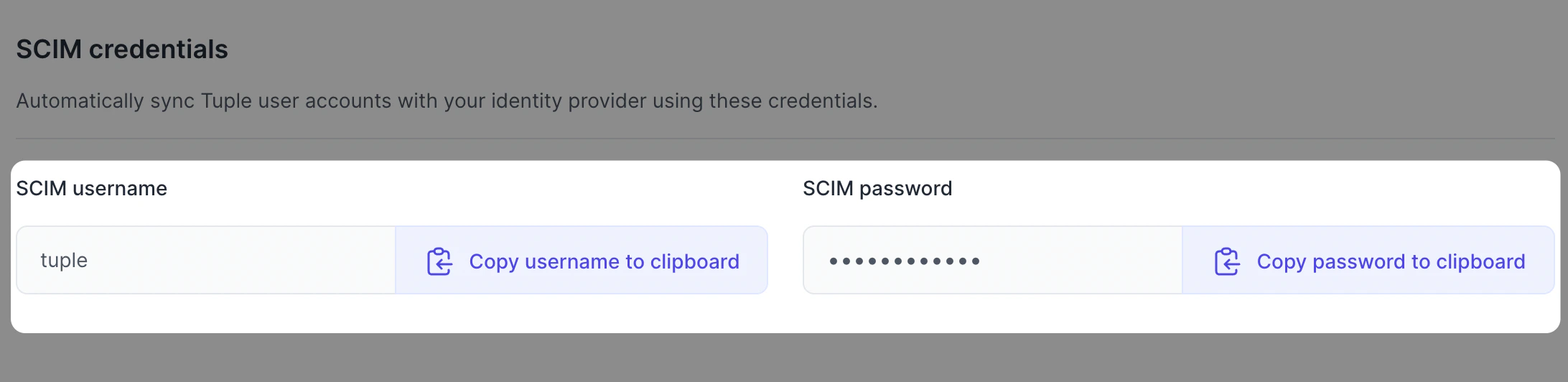
2
Enable SCIM in Okta
In your Tuple application in Okta, enable SCIM provisioning: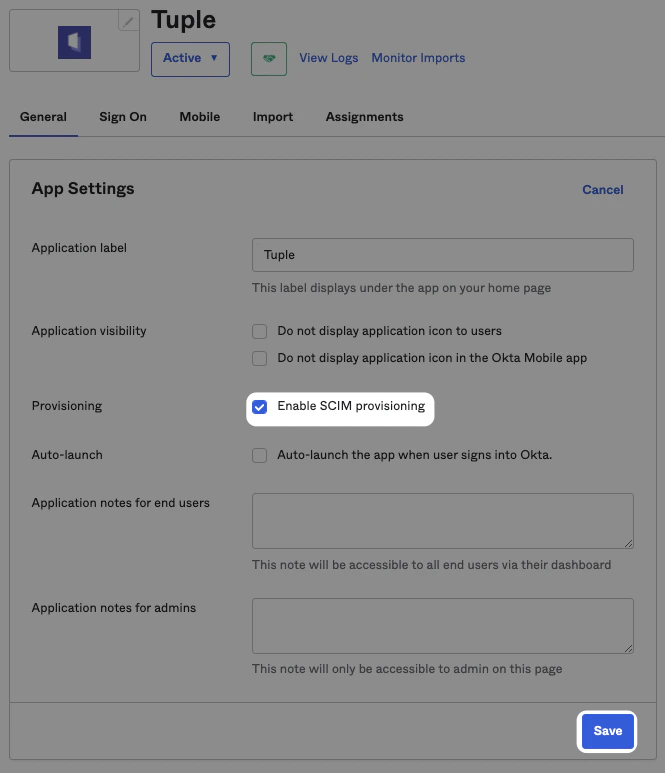
3
Configure provisioning
In Provisioning, configure with the following values: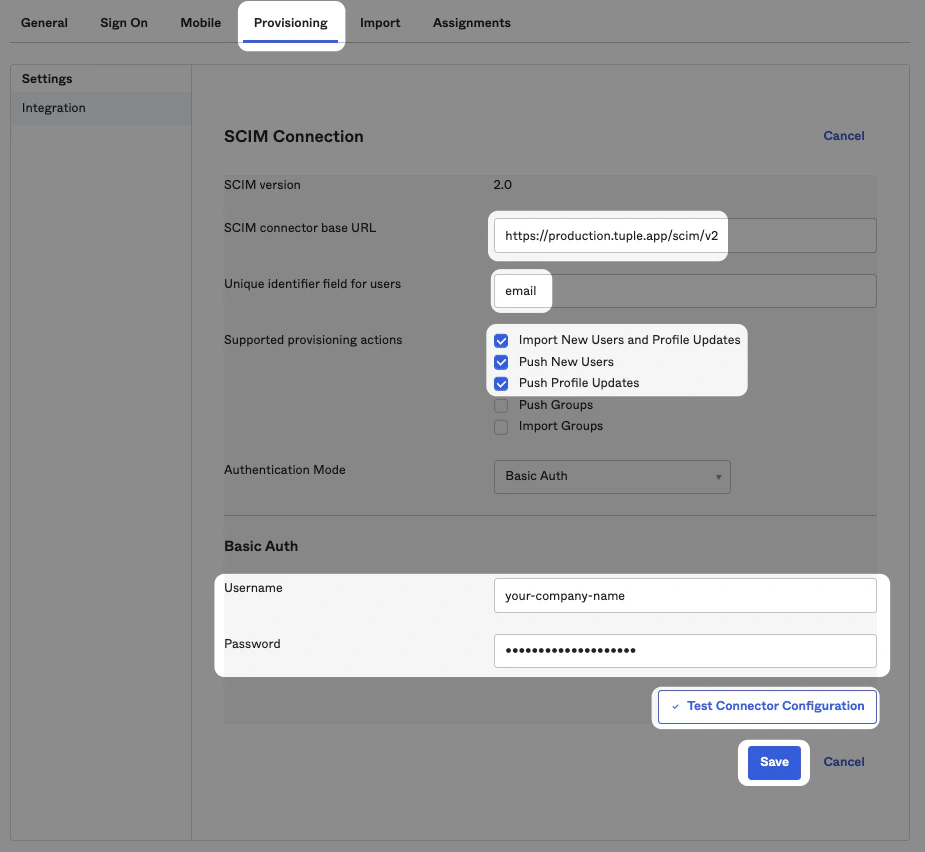
- Import new users and Profile Updates
- Push New Users
- Push Profile Updates
4
Enable features to app
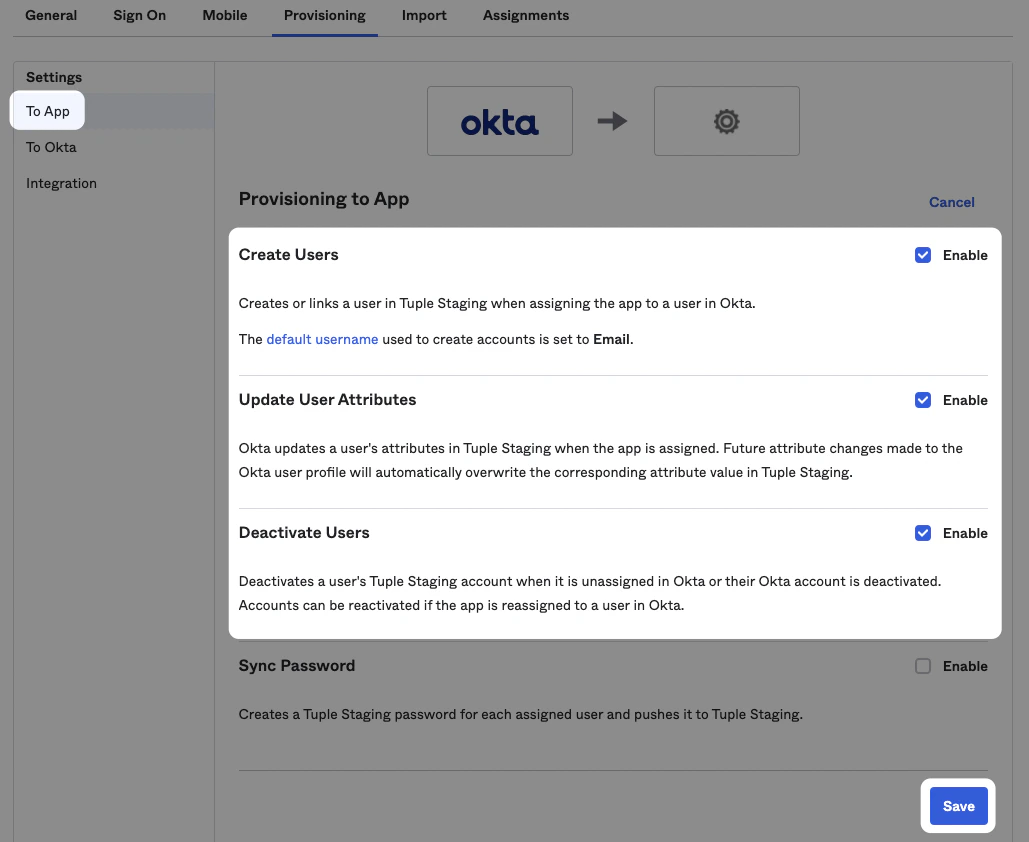
Once the integration step is successful, enable features To App: