

SCIM provisioning requires an existing OneLogin SAML integration. Complete the SSO setup first.
Prerequisites
You need the SCIM credentials from your Team Management page in Tuple. If you don’t see them, contact support@tuple.app to enable SCIM for your team.Setup
1
Add the SCIM provisioner app
In OneLogin, navigate to Apps > Add Apps. Search for SCIM Provisioner with SAML (Core Schema) and select it.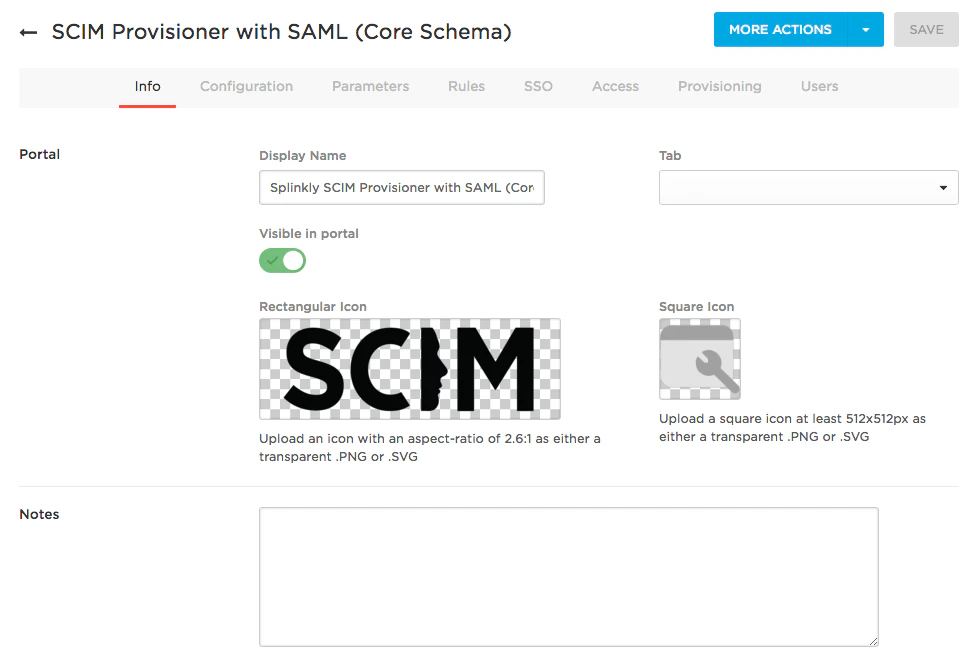
2
Configure the SCIM connection
Go to the Configuration tab. Fill in the SAML fields from your existing OneLogin SAML integration, then fill in the SCIM fields: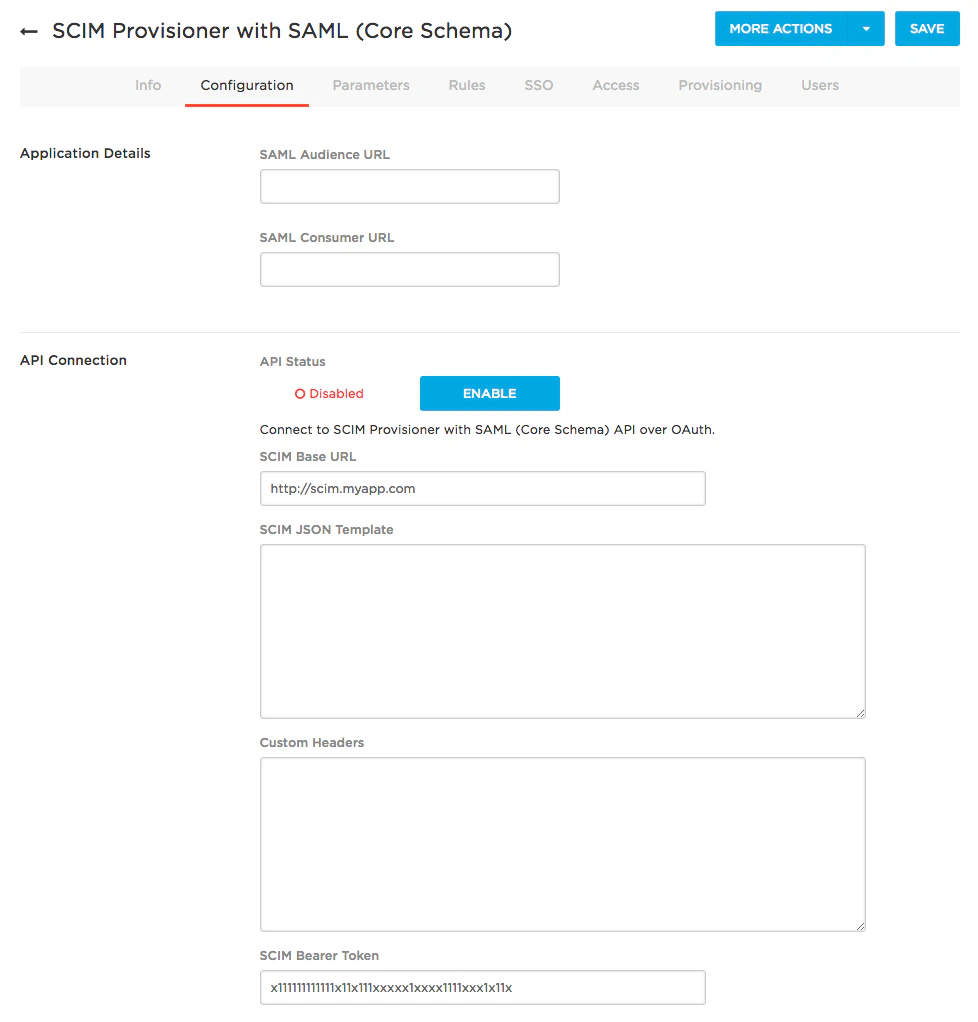
acme and your SCIM password is abc123, enter acme:abc123. The password alone is not a valid token.Leave SCIM JSON Template and Custom Headers empty.3
Enable the connection
Click Enable on the Configuration tab. OneLogin sends a test request to verify the SCIM endpoint.A successful connection shows API Status as Enabled.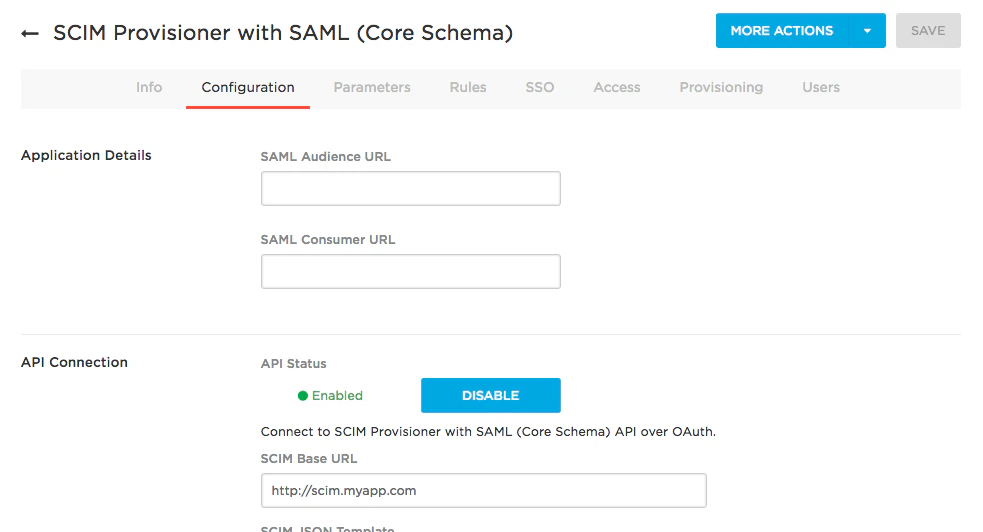
4
Enable provisioning
Go to the Provisioning tab and check Enable provisioning.Select the actions you want OneLogin to handle:
- Create user
- Delete user
- Update user