

Email addresses in Okta and Tuple must match exactly. For example,
dev+tuple@company.com does not match dev@company.com. Verify your team’s email addresses before enabling SSO.Tuple falls back to the SAML NameID when no email attribute is present in the response, so if your provider’s NameID defaults to something other than email (such as a username or UPN), set it to the user’s email address as well.1
Create a SAML app
After signing in to your Okta account, click Applications in the navigation bar and then click Create App Integration.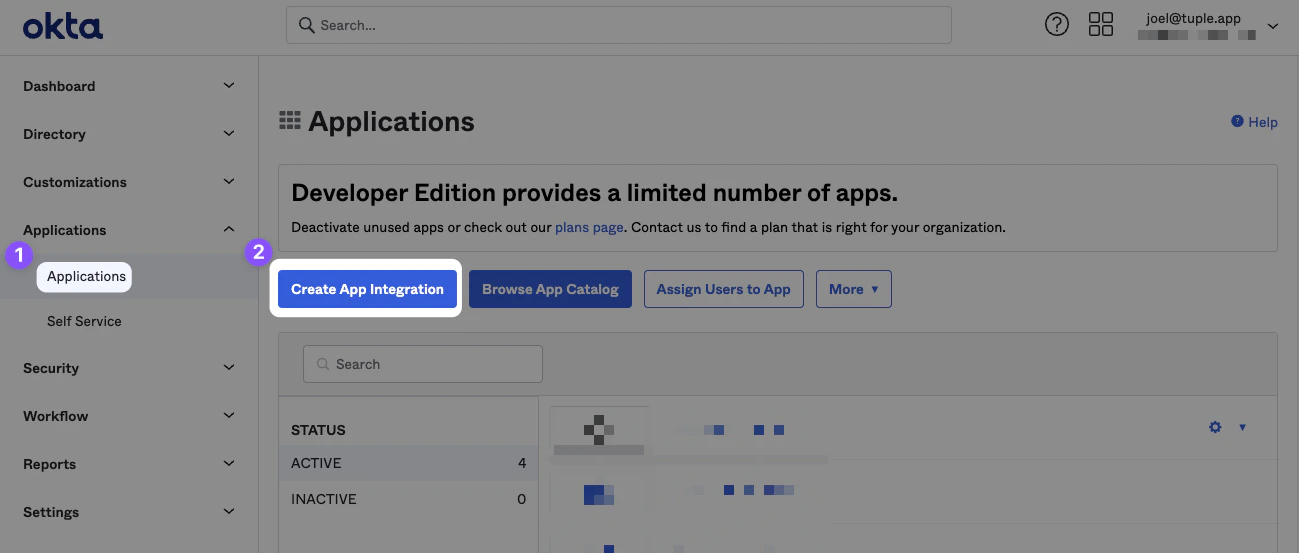
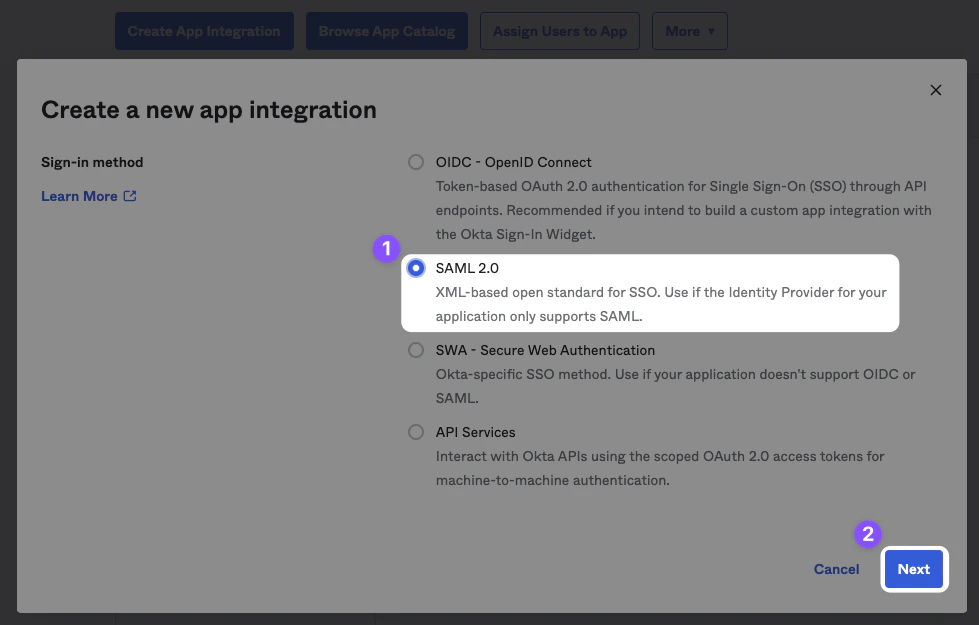
2
Configure the app
Name the app “Tuple” and upload an icon, which you can download here.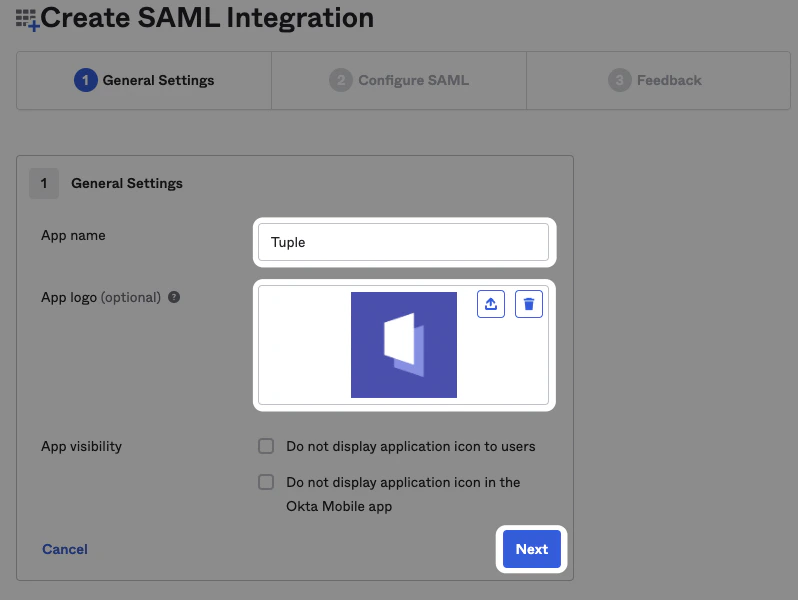
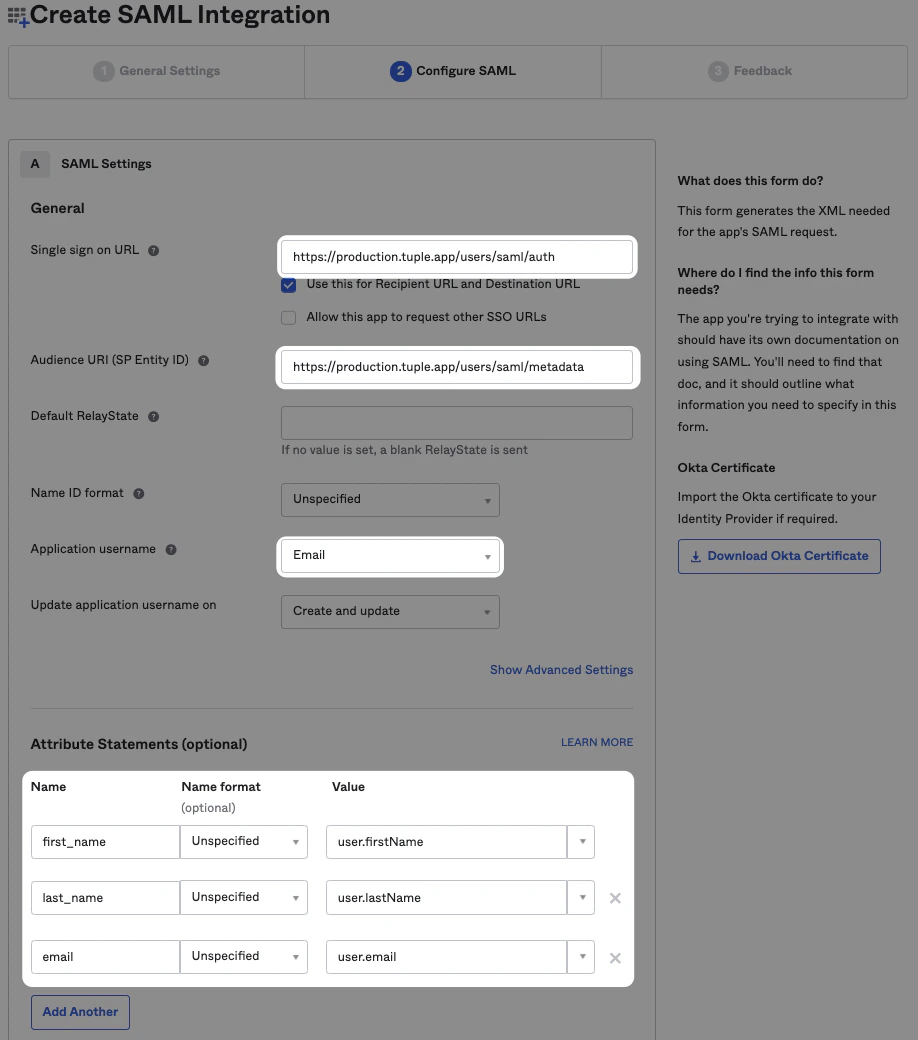
email, first_name, and last_name.3
Set up SAML in Tuple
After finishing the install wizard, click View SAML Setup Instructions on the Sign On tab.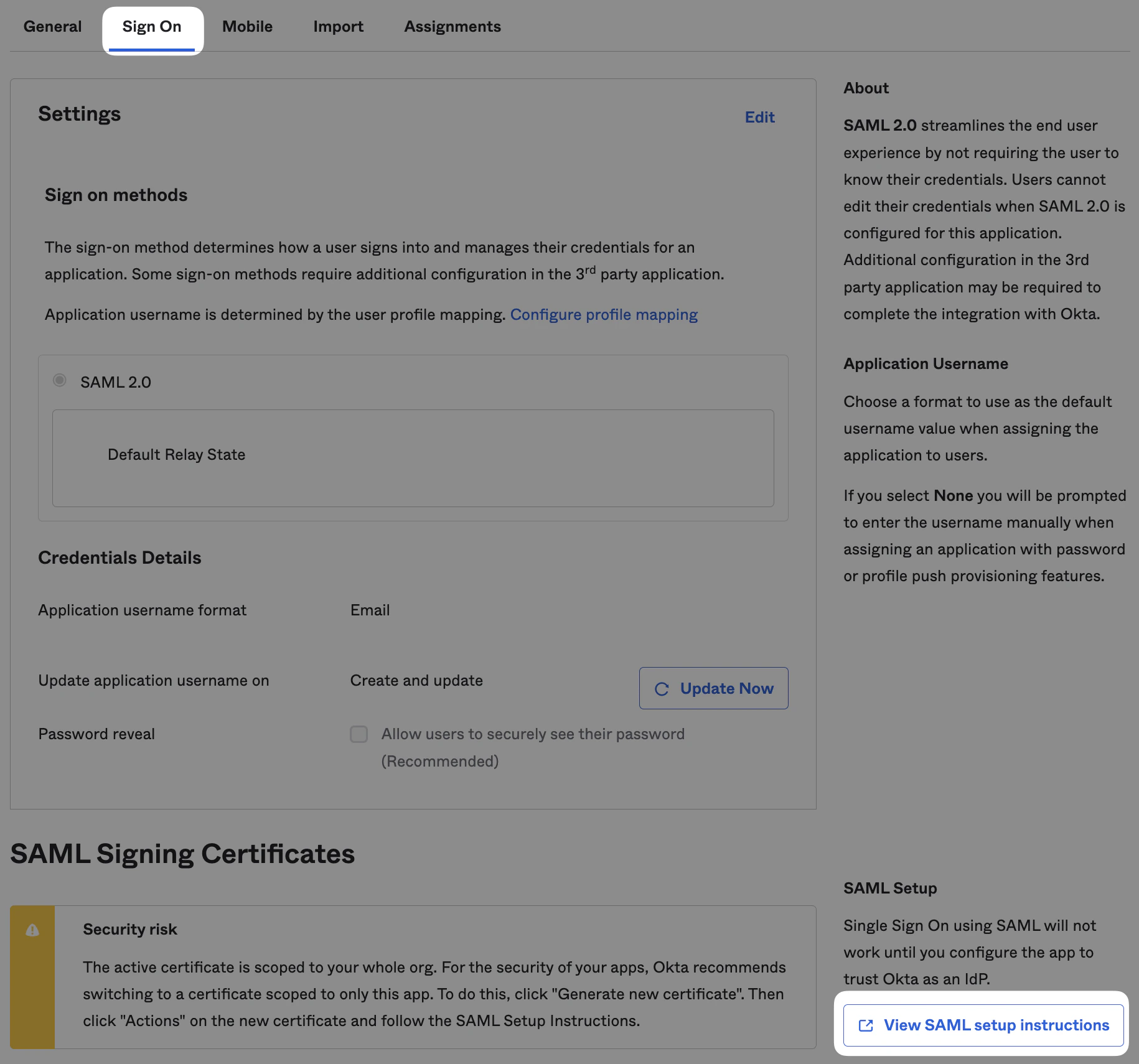
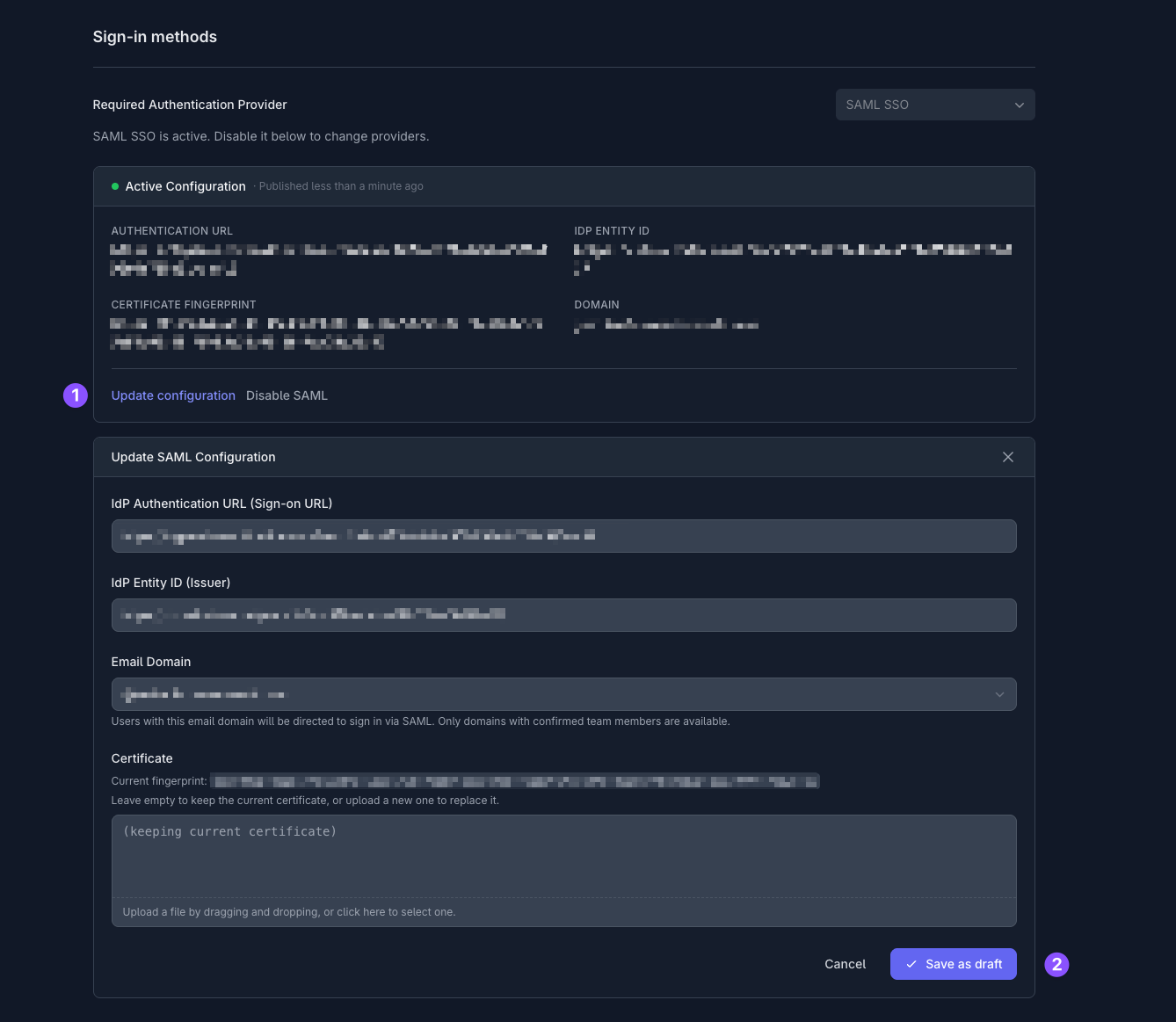
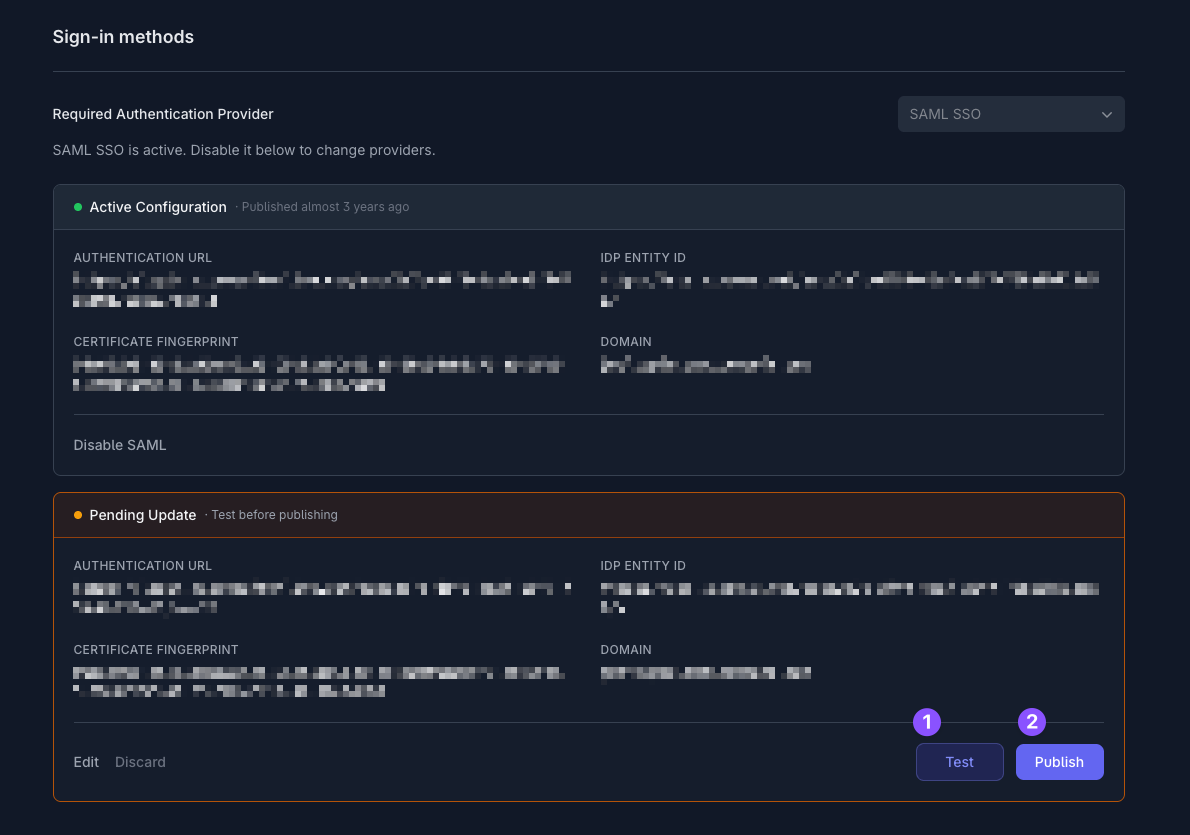
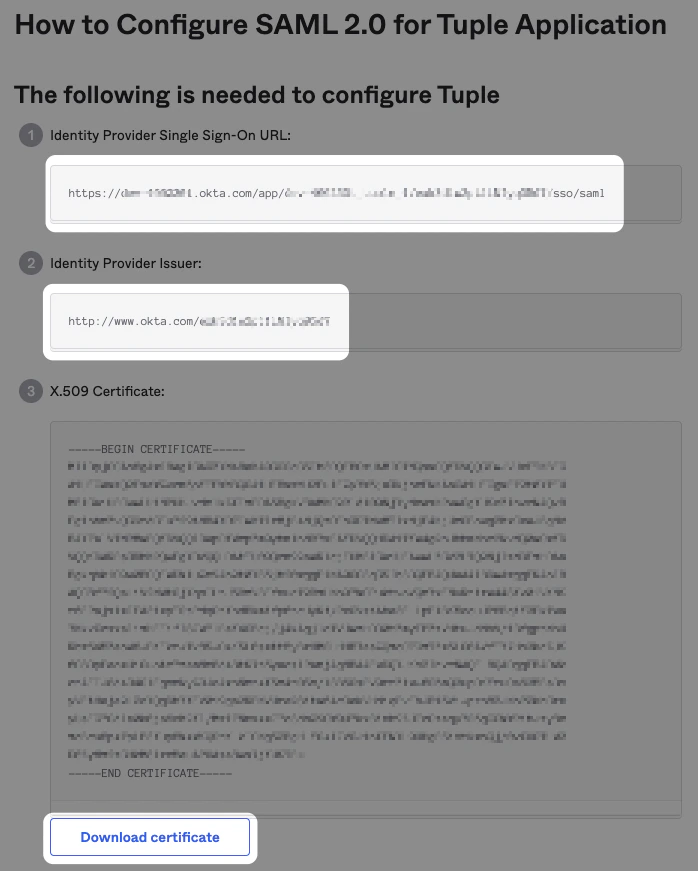
- Identity Provider Single Sign-On URL
- Identity Provider Issuer URL
-
Downloaded certificate file
Only team owners can enable SAML. To find out who your team owner is, check your profile.