

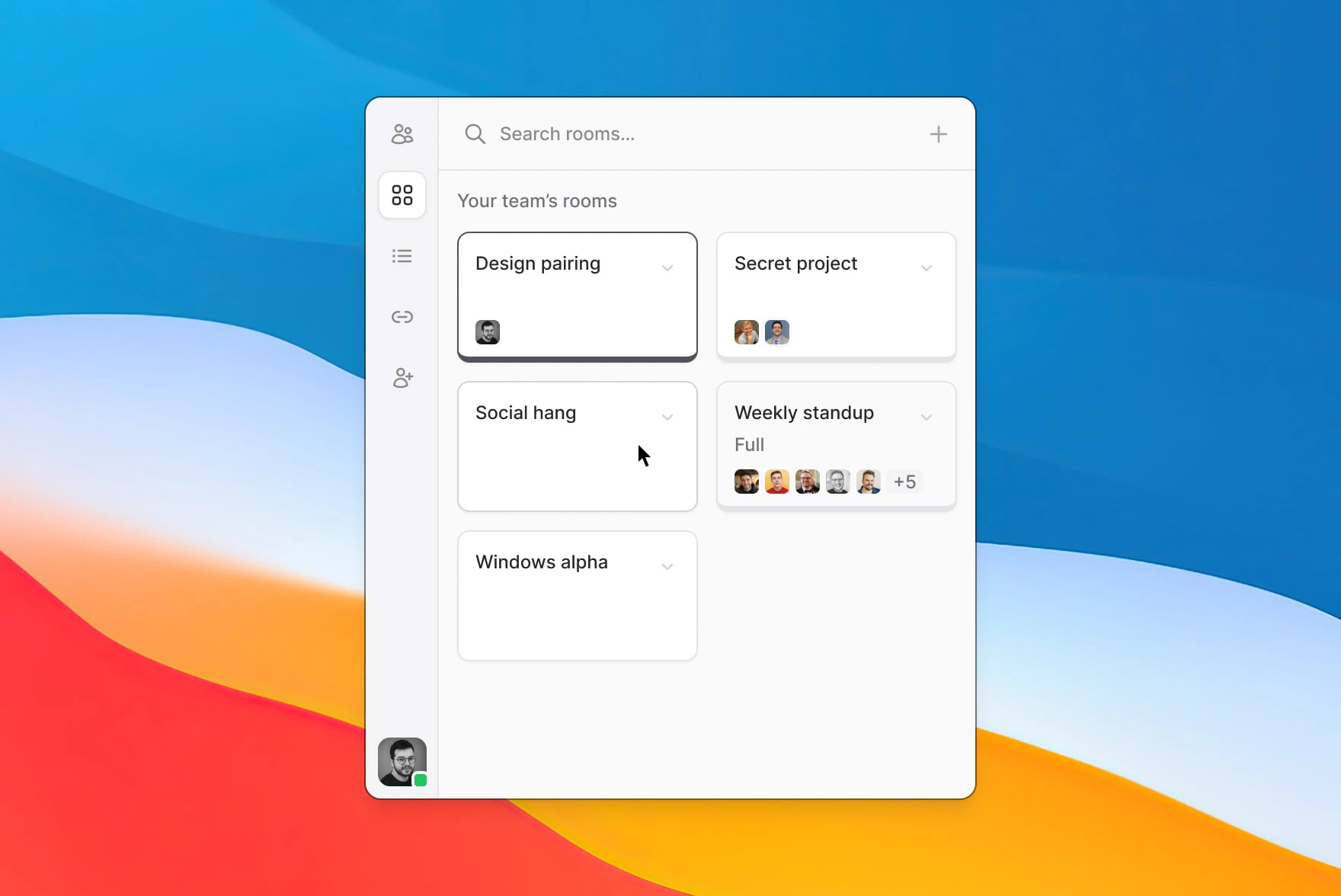
- Everyone in your team can see all rooms and who is in them
- Everyone in your team can create, rename, or delete rooms
Your personal room
The Rooms tab also includes a “Your personal room” card pinned at the top of the list. Clicking the card does two things at once: it joins your personal room and copies your personal-room link to your clipboard, so you can paste it into a chat or calendar invite. The card reuses your existing personal-room link — the same one already in your calendar invites or recurring events — rather than minting a new URL each time. Links you’ve previously shared keep working, and any open/closed change you make below applies to those same links.Open vs closed (door control)
While you’re in your personal room, a door control row sits just below the call controls. Use it to change who can join, mid-call:- Open — your contacts and teammates can join freely.
- Closed — joining requires your approval. Visitors see “Room closed · request to join” and you’ll be prompted to admit them.
Joining a room
To enter a room, simply click on it. You can only be in a single room (or call) at once: if you enter a room while you’re already in another call, you’ll get prompted for a confirmation that you want to leave it.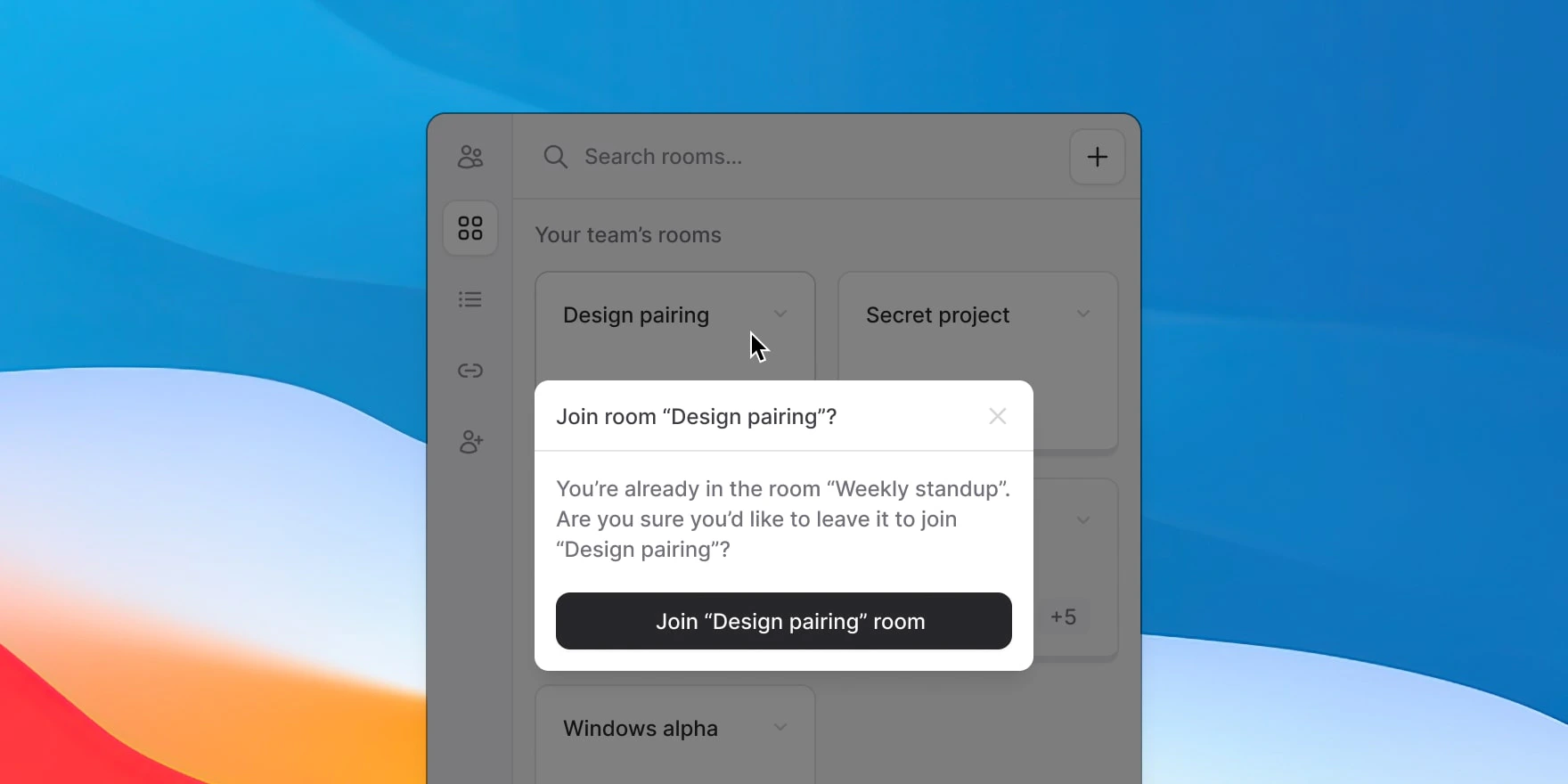
Viewing and updating room info
To copy a room’s link, click the dropdown menu icon in its top-right corner and select the “Copy Room Link” action. If you want to rename or delete a room, you can find those actions in the “More” submenu.Creating a room
To create a new room, click on the + icon in the top-right corner of the app. You’ll be prompted to pick a name for the room, and that’s it! Note that duplicate names are not allowed: you can’t create a room (or rename an existing one) with a name that’s already in use.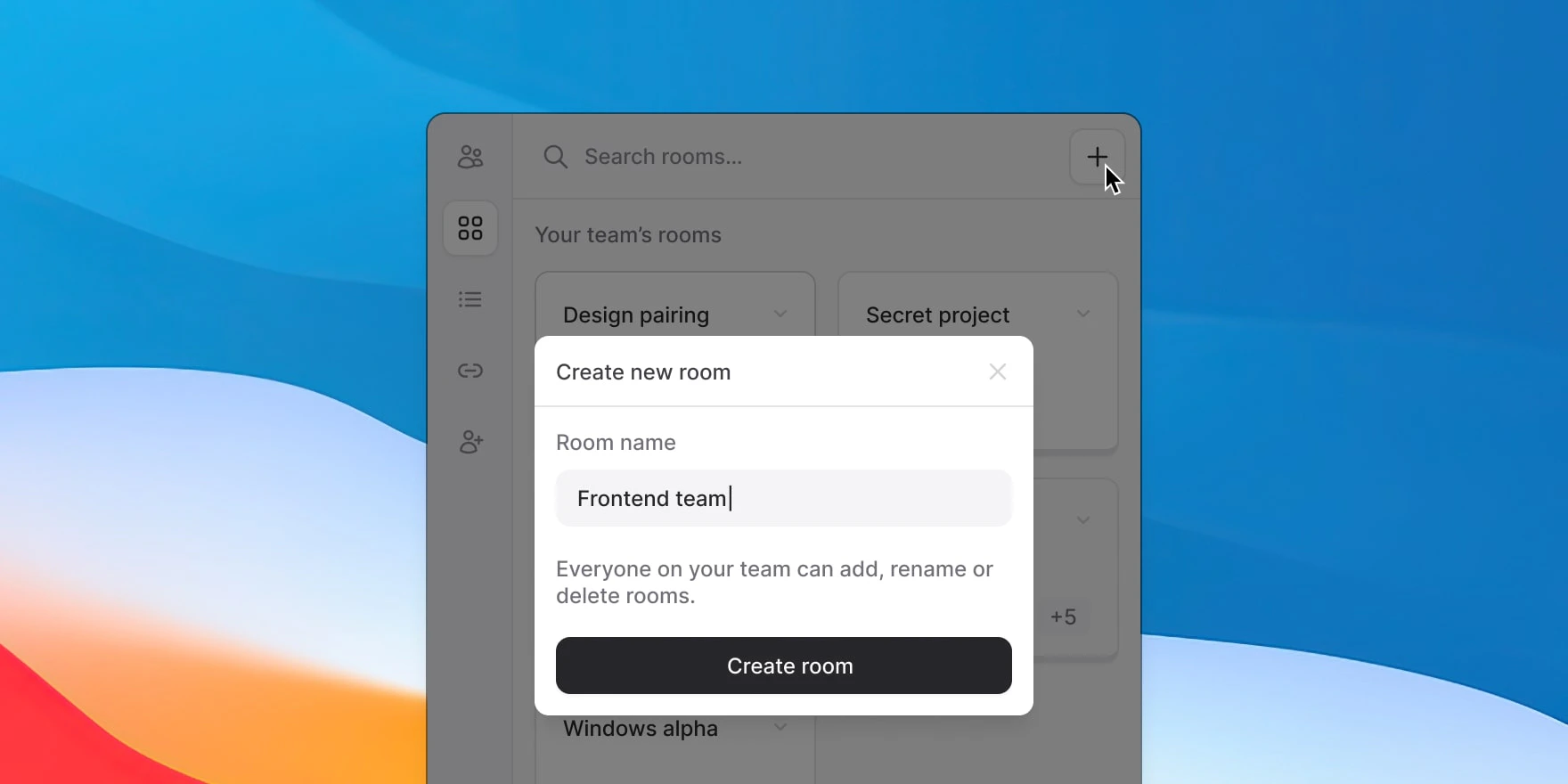
Favoriting rooms
You can favorite rooms by selecting the “Favorite Room” action in the room’s dropdown menu. Favorited rooms stay pinned to the top of the Rooms tab.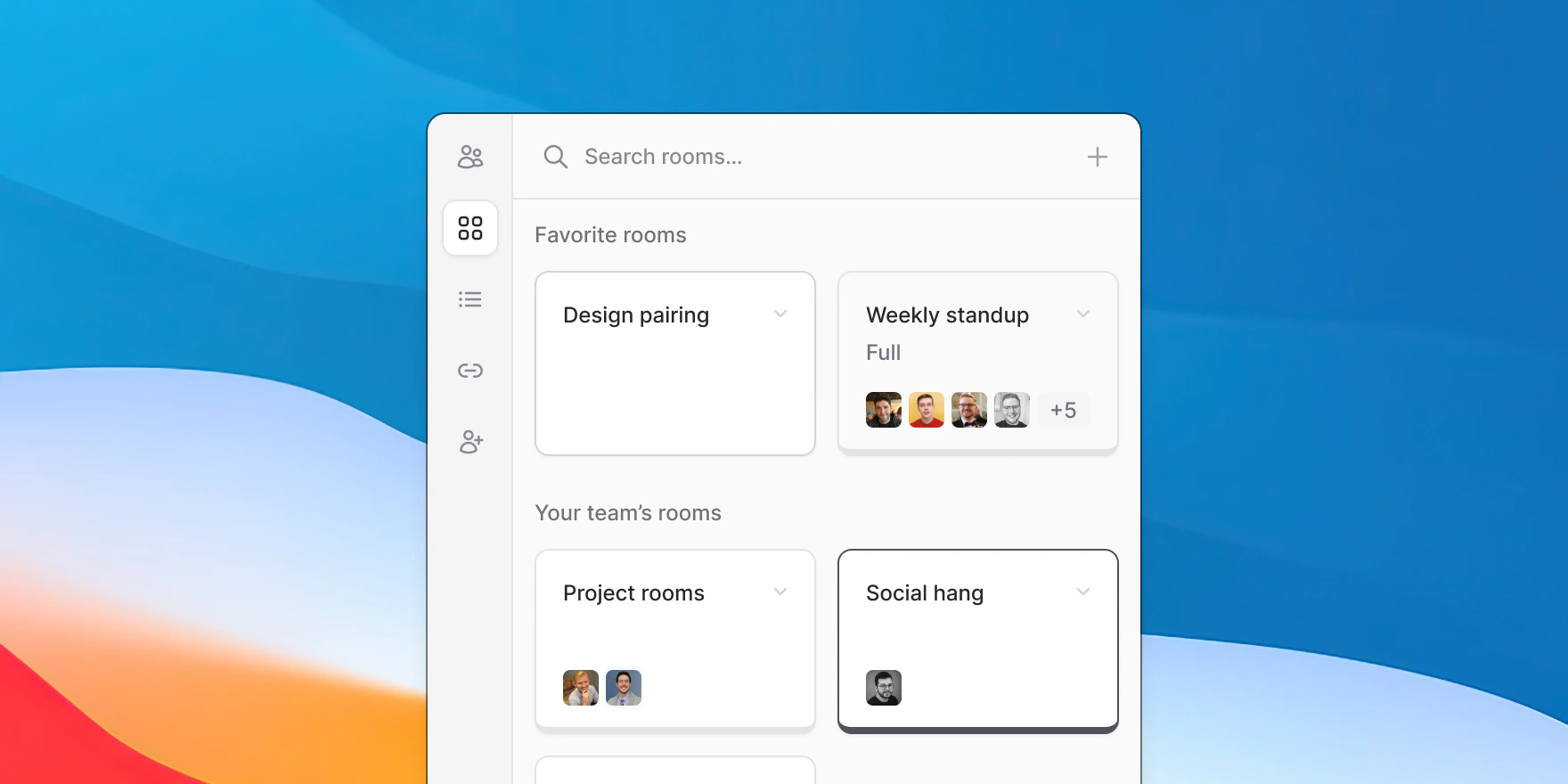
Subscribing to rooms (macOS only)
You can subscribe to rooms to get notified when your teammates are in a given room. Using the “Subscribe” submenu in the room’s dropdown, you can select whether you want to show a badge on the Tuple menu bar icon, receive a push notification, or both.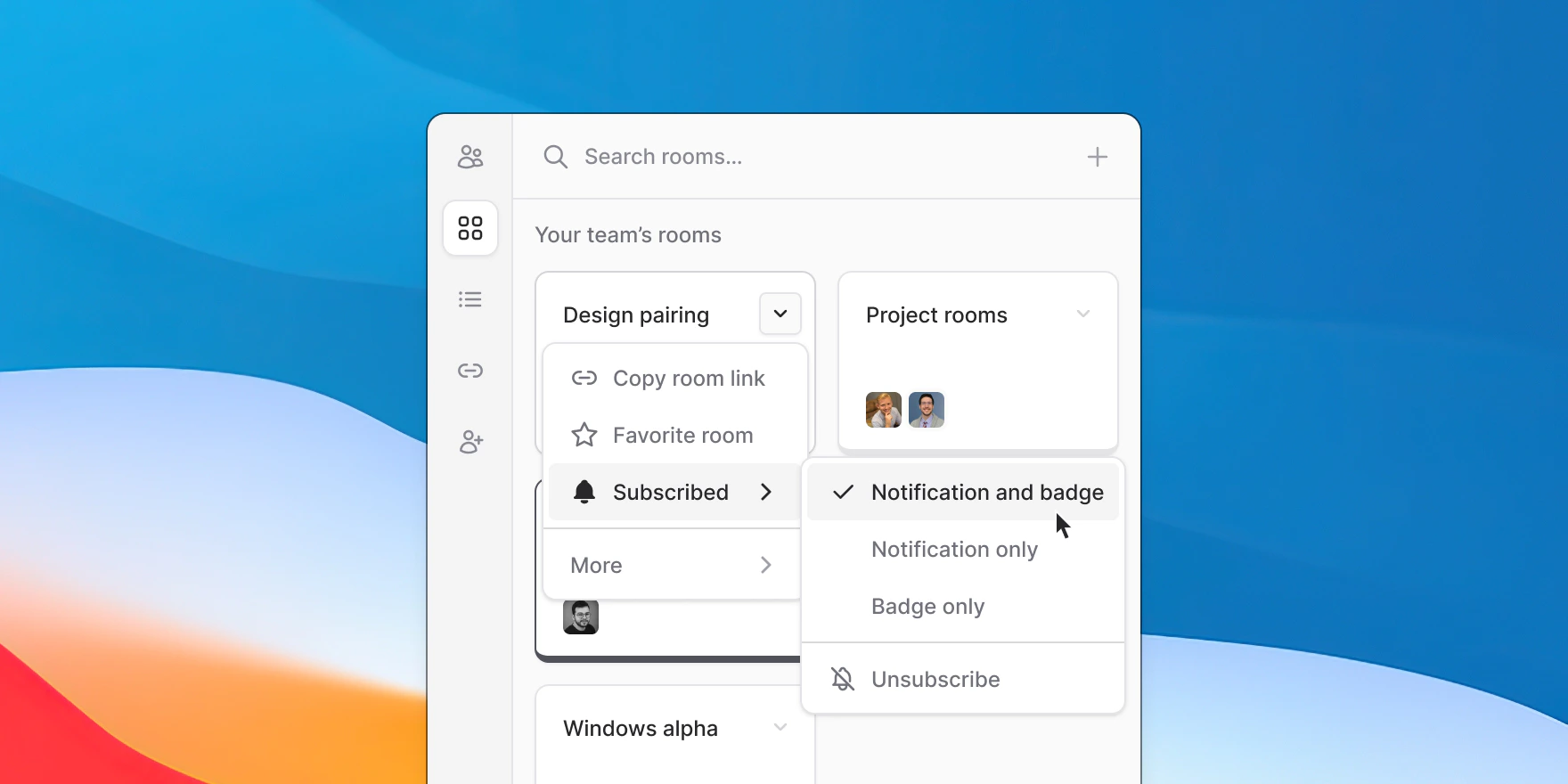
Auto-removal of inactive rooms
To keep your team’s room list manageable, Tuple automatically removes rooms that haven’t been used in a while.Removal criteria
- Rooms that haven’t had any calls for 180 days are automatically removed
- Rooms created within the last 30 days are never removed, even if unused
- Rooms with an active call are never removed
What removal means
- Rooms are removed permanently. If a room is removed and you’d like to use it again, you’ll need to create one with that name again.
Adjusting or disabling auto-removal
Team owners and managers can configure this in Team Settings → Room Settings:- Change the inactivity period (30 to 365 days)
- Disable auto-removal entirely
Managing rooms from the CLI
The Tuple CLI can list, join, favorite, and create rooms. The MCP server exposes the same actions to AI coding agents.We’re still exploring ways to make Rooms more valuable. If you have any feedback that would make this feature more useful to your team, let us know!