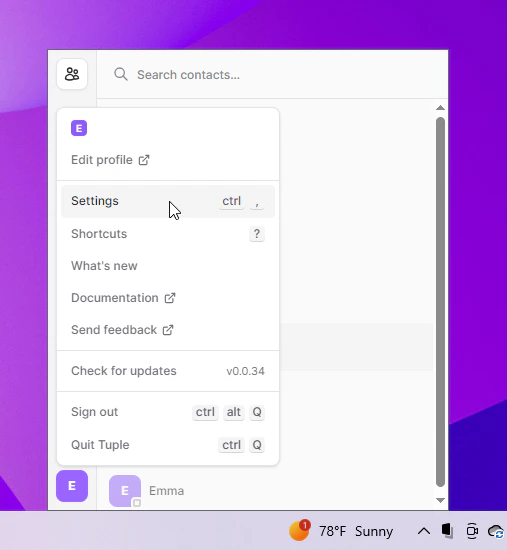
To open your preferences, click your avatar at the bottom left of the Tuple popover and select Settings from the dropdown: Tuple avatar menu with Settings selected on Windows You can also use the keyboard shortcut ctrl+,. This will bring up the settings window. You can then select the Network tab: Settings window with the Network tab selected on Windows

Force TURN

Enabling this will force your calls to use a TURN server. This is useful if you’re a network that has known P2P issues

Force Media Server

Enabling this will force Tuple to use a media server for screen sharing. Again, useful on networks with known P2P issues.