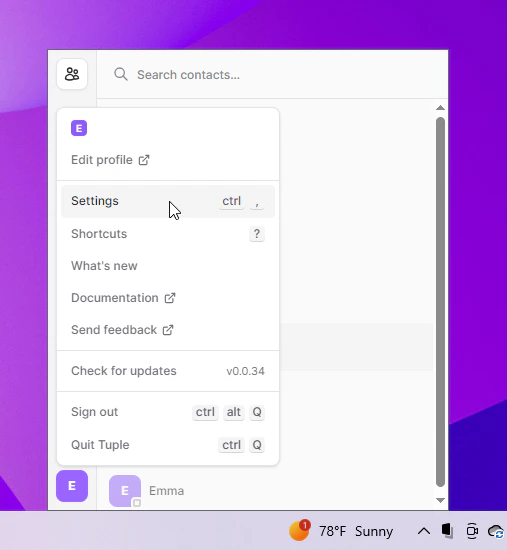
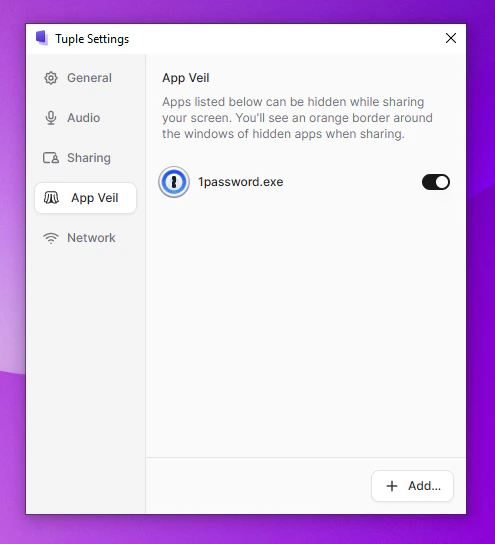
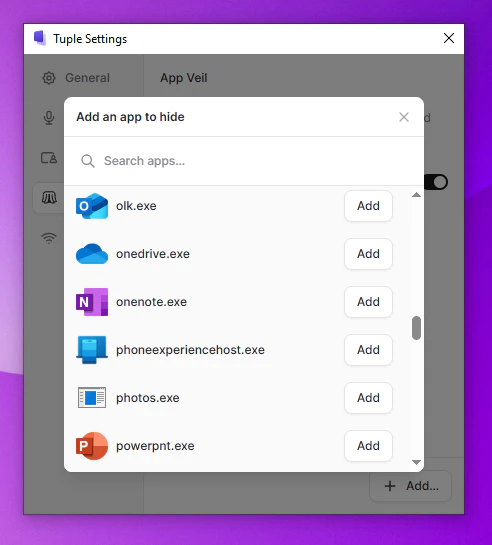
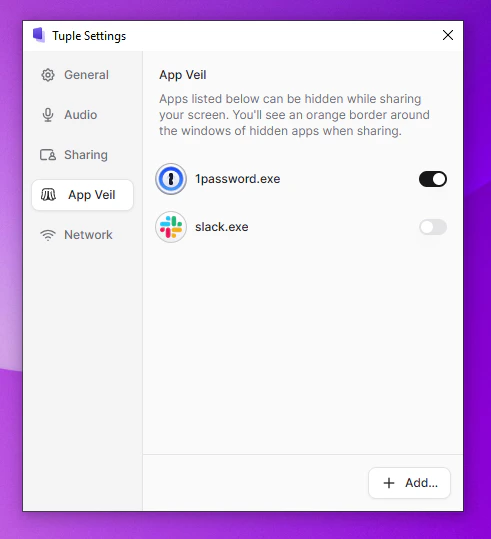
To open your preferences, click your avatar at the bottom left of the Tuple popover and select Settings from the dropdown:You can also use the keyboard shortcut ctrl+,. This will bring up the settings window. From here, you can select the App Veil tab:In this tab, you can select the apps that you want to be hidden when you share your screen. Click the button marked “Add…” to bring up a list of apps on your machine:Click the “Add” button next to an app to add it to the list of things to veil. If you need to temporarily unveil a veiled app, you can toggle it off via the main settings view:When you share your screen with a veiled app, this is what you’ll see:…and this is what others on the call will see:
Was this page helpful?
Assistant
Responses are generated using AI and may contain mistakes.