

Provider-specific guides
Okta
Includes optional SCIM provisioning
Google Workspace
Google Admin console setup
Microsoft Entra ID
Formerly Azure AD
OneLogin
SAML Test Connector setup
General SSO setup
If your identity provider is not listed above, you can configure SAML SSO manually using the values below.Email addresses in and Tuple must match exactly. For example,
dev+tuple@company.com does not match dev@company.com. Verify your team’s email addresses before enabling SSO.Tuple falls back to the SAML NameID when no email attribute is present in the response, so if your provider’s NameID defaults to something other than email (such as a username or UPN), set it to the user’s email address as well.What you need from your identity provider
- Your SSO IdP Entity ID
- Your SSO target URL that performs authentication
- Your auth certificate or its SHA1 fingerprint
- Attributes that include
first_name,last_name, andemail
Tuple’s SAML endpoints
Enable SAML in Tuple
Navigate to the Settings tab of the team management dashboard.Only team owners can enable SAML. To find out who your team owner is, check your profile.
Managing your SAML configuration
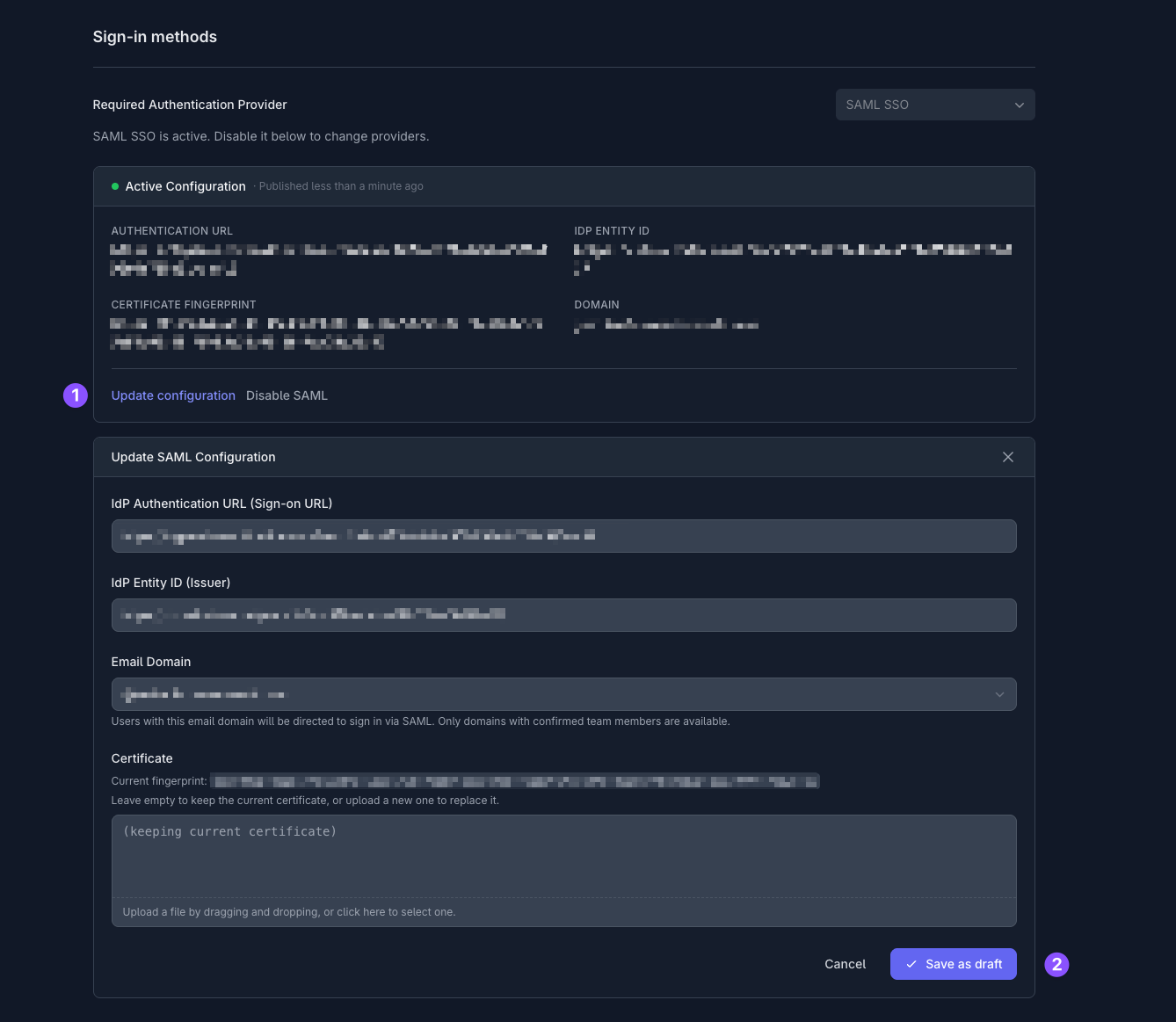
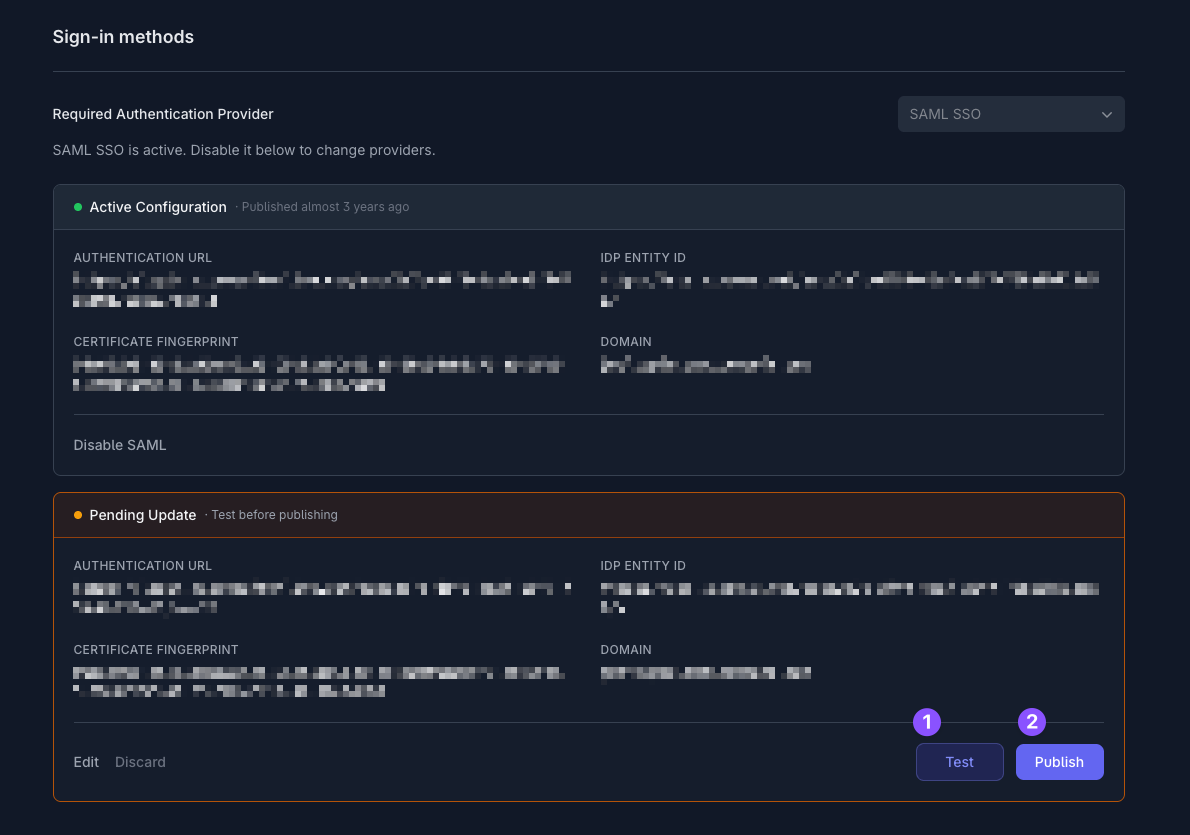
Tuple keeps a single Active Configuration plus any Pending Update draft you’re working on. Changes are staged as drafts so you can test them before they affect the rest of your team.Update an existing configuration
On the Settings tab of the team management dashboard, click Update configuration on the Active Configuration card. The Update SAML Configuration form opens pre-filled with your current values. Leave the Certificate field empty to keep the existing certificate, or upload a new file to replace it. The current fingerprint is shown above the upload field. Click Save as draft to create a Pending Update. From there, Test the draft, then Publish it when you’re ready. You can also Edit the draft to make further changes, or Discard it to throw it away.Archived configurations
When you publish a new SAML configuration, the previous one is automatically archived. Expand archived SAML configurations on the Settings tab to see past configurations: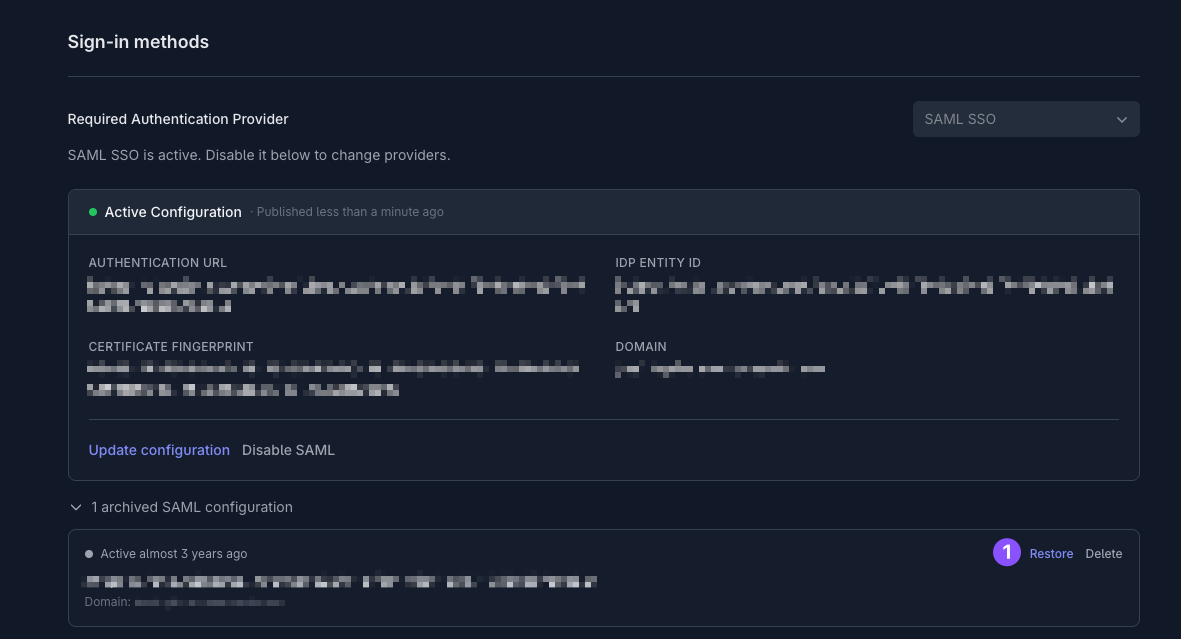
- Restore — bring an archived configuration back so you can test and publish it again. This is useful if you need to roll back to a previous identity provider setup.
- Delete — permanently remove an archived configuration.
Reference
Provisioning and deprovisioning
Provisioning and deprovisioning
The first time a user authenticates through your identity provider, Tuple provisions an account for them. If you are on a per-seat billing plan, billing begins for that seat immediately.Tuple finds or creates the account using the email address in the SAML response, falling back to the NameID when no email attribute is present. An unrecognized address creates a new account rather than failing, and an address that belongs to a member of a different team fails with “Not a member of the team associated with the Identity Provider.” Both symptoms usually mean the identity provider is sending a different identifier (such as a UPN) than the user’s Tuple email address.You can disable a user’s access in your identity provider, but deprovisioning their Tuple account (and stopping billing for that seat) must be done on the team management page by your team owner.For automated provisioning, see SCIM provisioning.
Roles and permissions
Roles and permissions
Tuple has three roles: team owner, team manager, and user.
- Team owners can manage team settings, add and remove users, promote managers, and update billing information.
- Team managers can manage team settings, add and remove users, and promote other managers.
- Users can make and receive calls and share team invite links.
Email requirements
Email requirements
Email addresses in your identity provider and Tuple must match exactly. For example,
dev+tuple@company.com does not match dev@company.com. Verify your team’s email addresses before enabling SSO.Tuple reads the email from the SAML email attribute, checking several common claim names automatically. If no email attribute is present, Tuple uses the NameID value instead. If your provider’s NameID isn’t the user’s email address — notably Microsoft Entra ID, where it defaults to the UPN — see the Microsoft Entra ID guide for how to keep them consistent.