

Email addresses in Microsoft Entra ID and Tuple must match exactly. For example,
dev+tuple@company.com does not match dev@company.com. Verify your team’s email addresses before enabling SSO.Tuple falls back to the SAML NameID when no email attribute is present in the response, so if your provider’s NameID defaults to something other than email (such as a username or UPN), set it to the user’s email address as well.1
Create an enterprise application
Sign in to the Microsoft Entra admin center as at least a Cloud Application Administrator.Navigate to Identity > Applications > Enterprise applications and click New application. Then click Create your own application.Enter “Tuple” as the application name, select Integrate any other application you don’t find in the gallery (Non-gallery), and click Create.
2
Assign users
Before configuring SSO, assign the users who need access to Tuple. In your new Tuple application, go to Users and groups and add the users or groups that should have SSO access.
3
Configure SAML
In your Tuple application, navigate to Single sign-on in the left sidebar and select SAML as the sign-on method.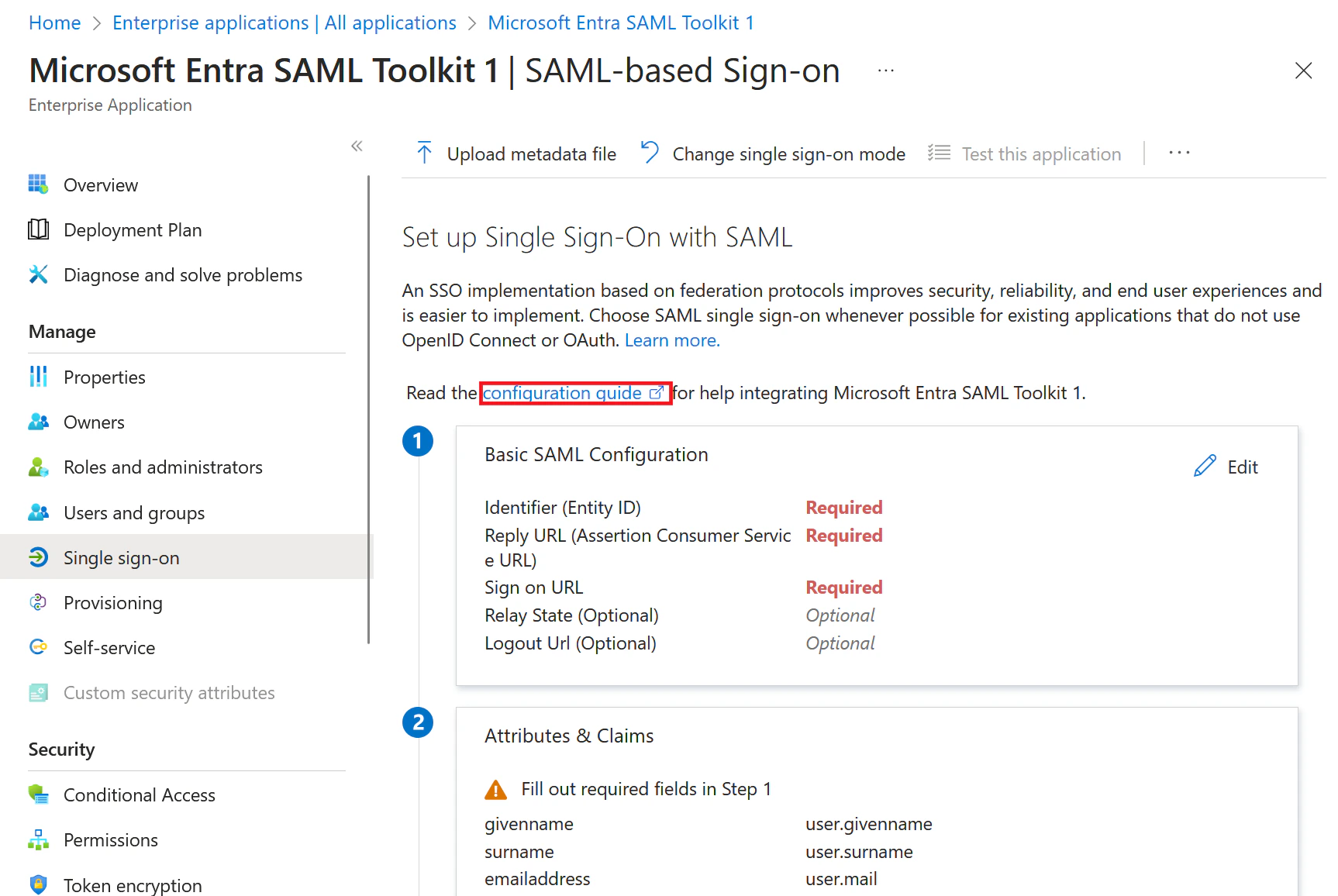
4
Configure attributes and claims
Click Edit on the Attributes & Claims card. Add two custom claims so Tuple receives the user’s first and last name.Click Add new claim and create each of the following:
Leave the Namespace field empty for both claims.Tuple identifies the signing-in user by the email address in the SAML response, so two more settings matter:
- The default email claim (
http://schemas.xmlsoap.org/ws/2005/05/identity/claims/emailaddress) must keepuser.mailas its source attribute. - The Unique User Identifier (Name ID) claim should also be sourced from
user.mail. Entra ID defaults it touser.userprincipalname, and a UPN likeu0123456@company.comoften differs from the user’s email address.
mail to userName there so SAML and SCIM identify users by the same address.5
Set up SAML in Tuple
On the SAML Certificates card, download the Certificate (Base64) file.Then, in the Set up Tuple card, copy the following values:Under Sign-in methods, set Required Authentication Provider to SAML SSO. The Update SAML Configuration form appears: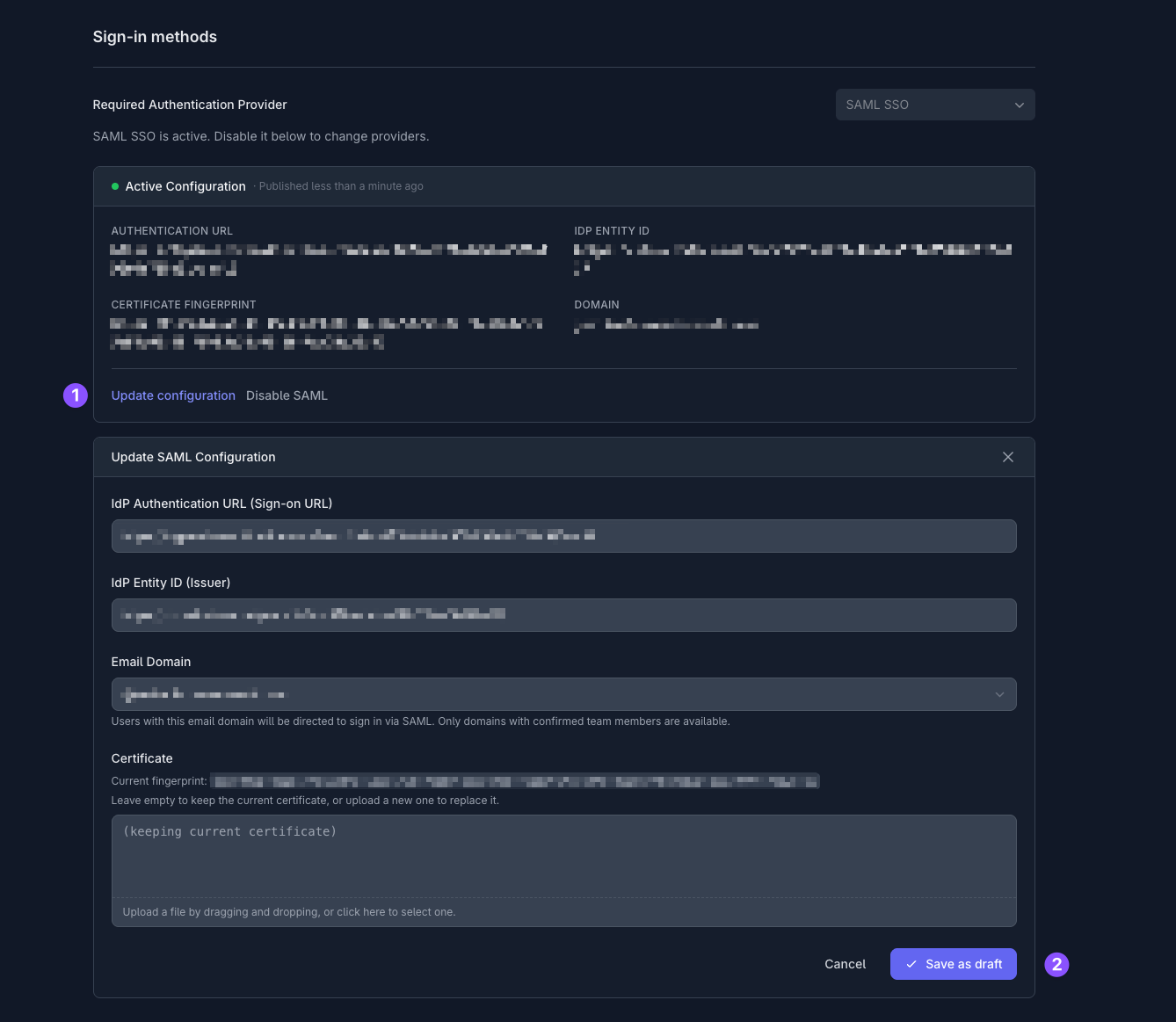
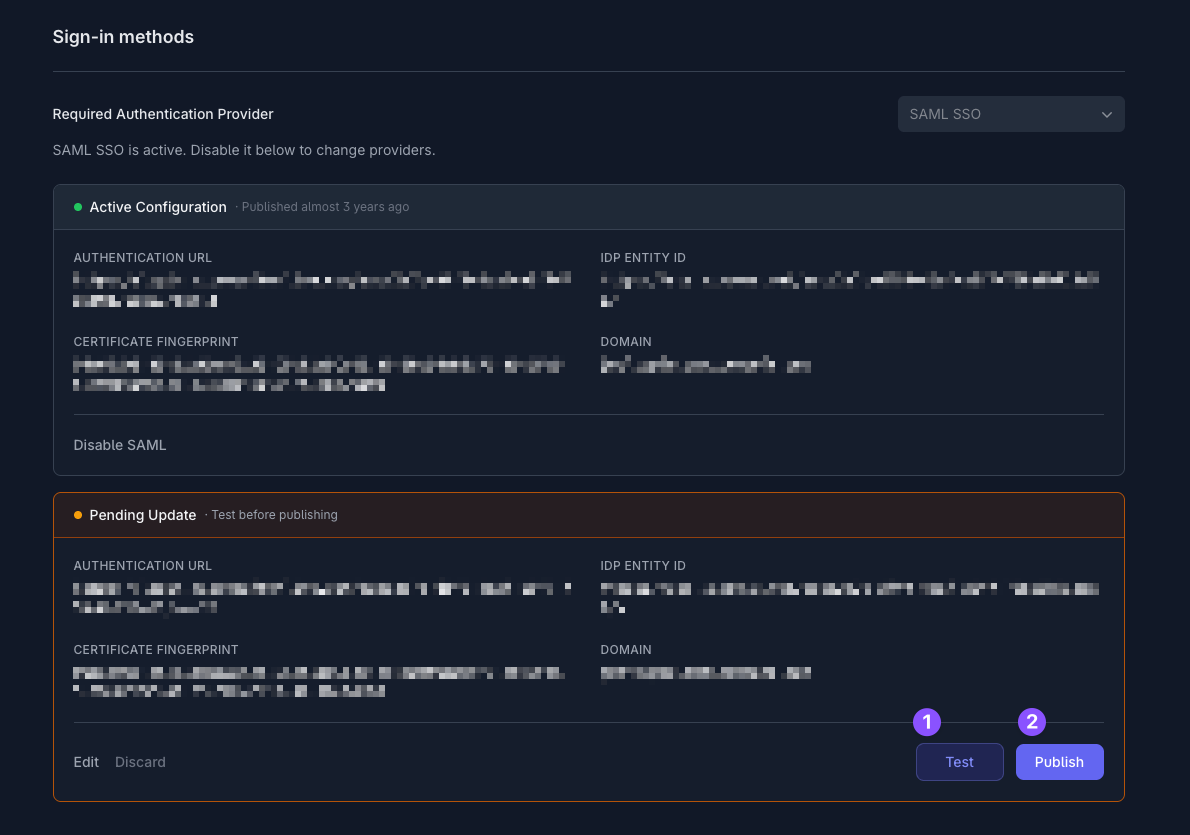
- Login URL — this is your IdP authentication URL
- Microsoft Entra Identifier — this is your IdP entity ID
Only team owners can enable SAML. To find out who your team owner is, check your profile.