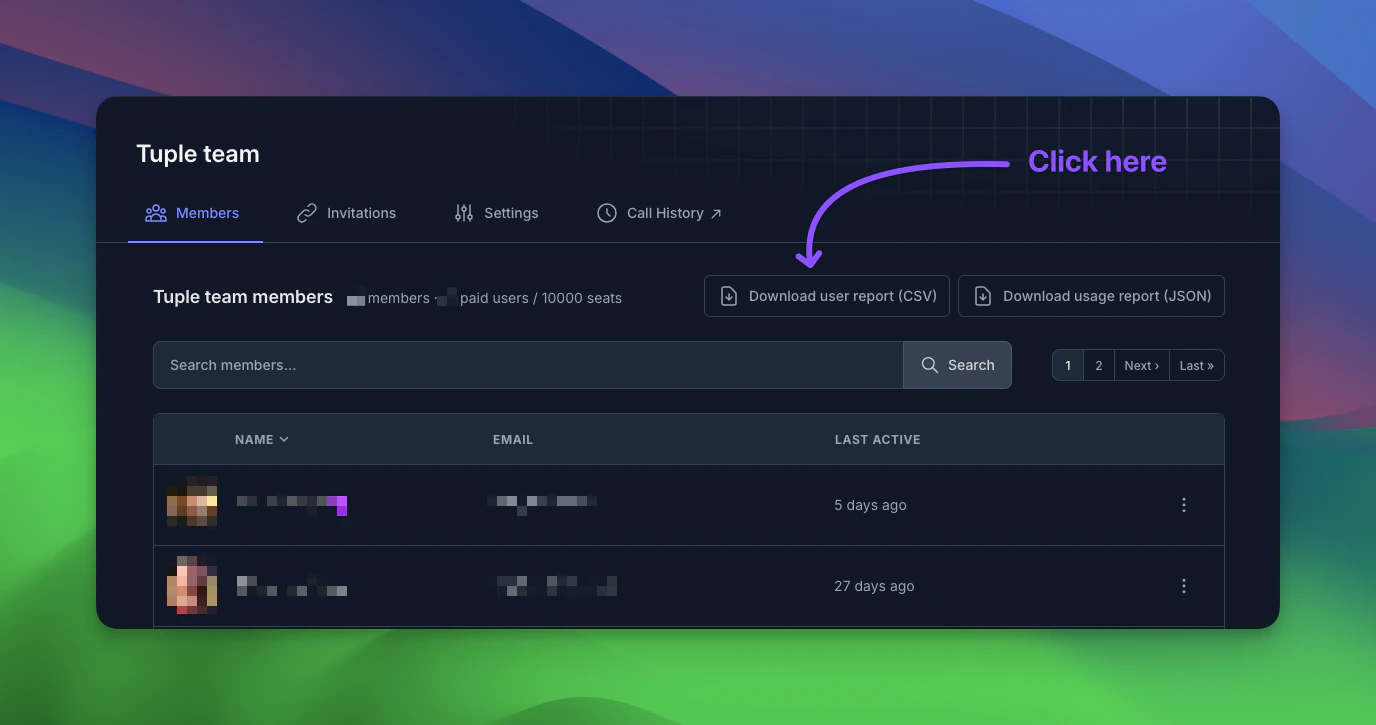
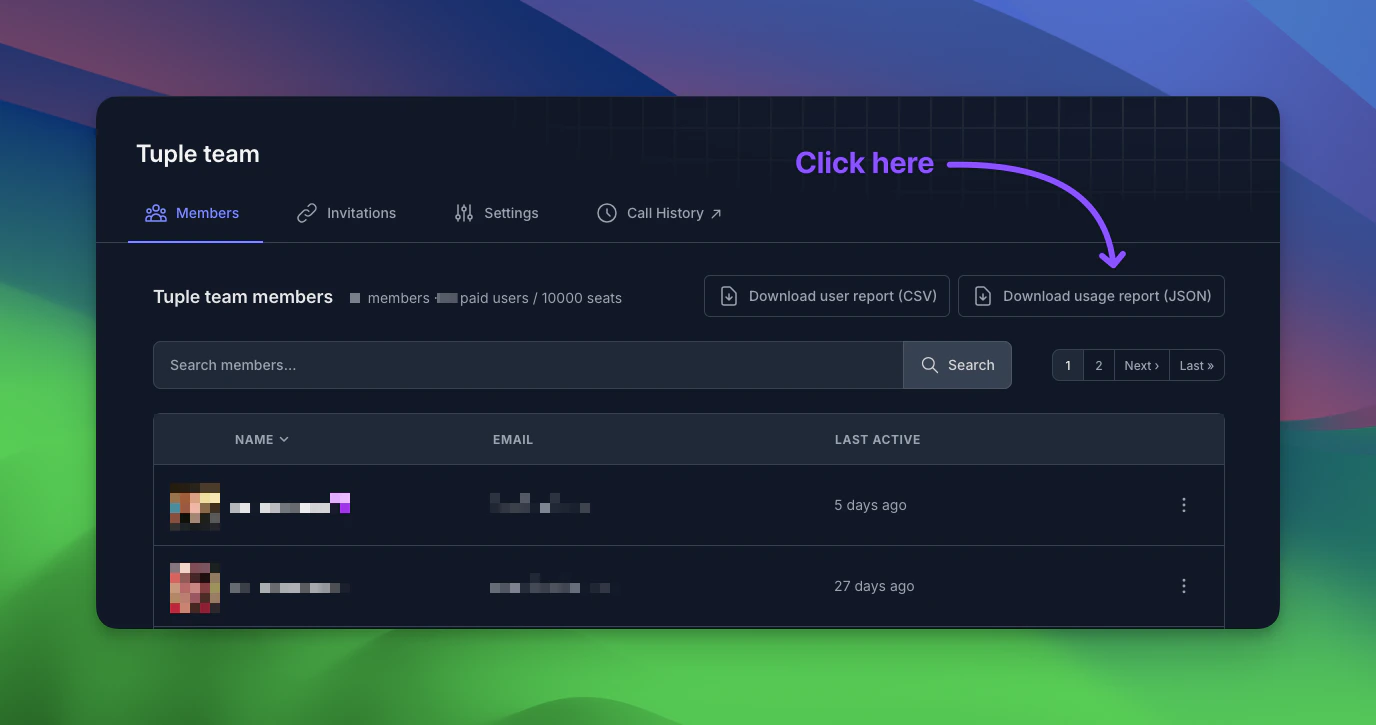
{
  "$schema": "http://json-schema.org/draft-07/schema#",
  "type": "object",
  "properties": {
    "team_members": {
      "type": "array",
      "items": {
        "type": "object",
        "properties": {
          "user_id": { "type": "integer" },
          "name": { "type": "string" },
          "email": { "type": "string", "format": "email" },
          "last_sign_in": { "type": ["string", "null"], "format": "date-time" },
          "created_at": { "type": "string", "format": "date-time" },
          "last_call_at": { "type": ["string", "null"], "format": "date-time" }
        },
        "required": ["user_id", "name", "email", "created_at"]
      }
    },
    "calls": {
      "type": "array",
      "items": {
        "type": "object",
        "properties": {
          "call_id": { "type": "string", "format": "uuid" },
          "participants": {
            "type": "array",
            "items": {
              "type": "object",
              "properties": {
                "user_id": { "type": "integer" },
                "name": { "type": "string" },
                "email": { "type": "string", "format": "email" },
                "duration_minutes": { "type": "integer", "minimum": 0 }
              },
              "required": ["user_id", "name", "email", "duration_minutes"]
            }
          },
          "duration_minutes": { "type": "integer", "minimum": 0 },
          "started_at": { "type": "string", "format": "date-time" },
          "ended_at": { "type": "string", "format": "date-time" }
        },
        "required": ["call_id", "participants", "duration_minutes", "started_at", "ended_at"]
      }
    }
  },
  "required": ["team_members", "calls"]
}