

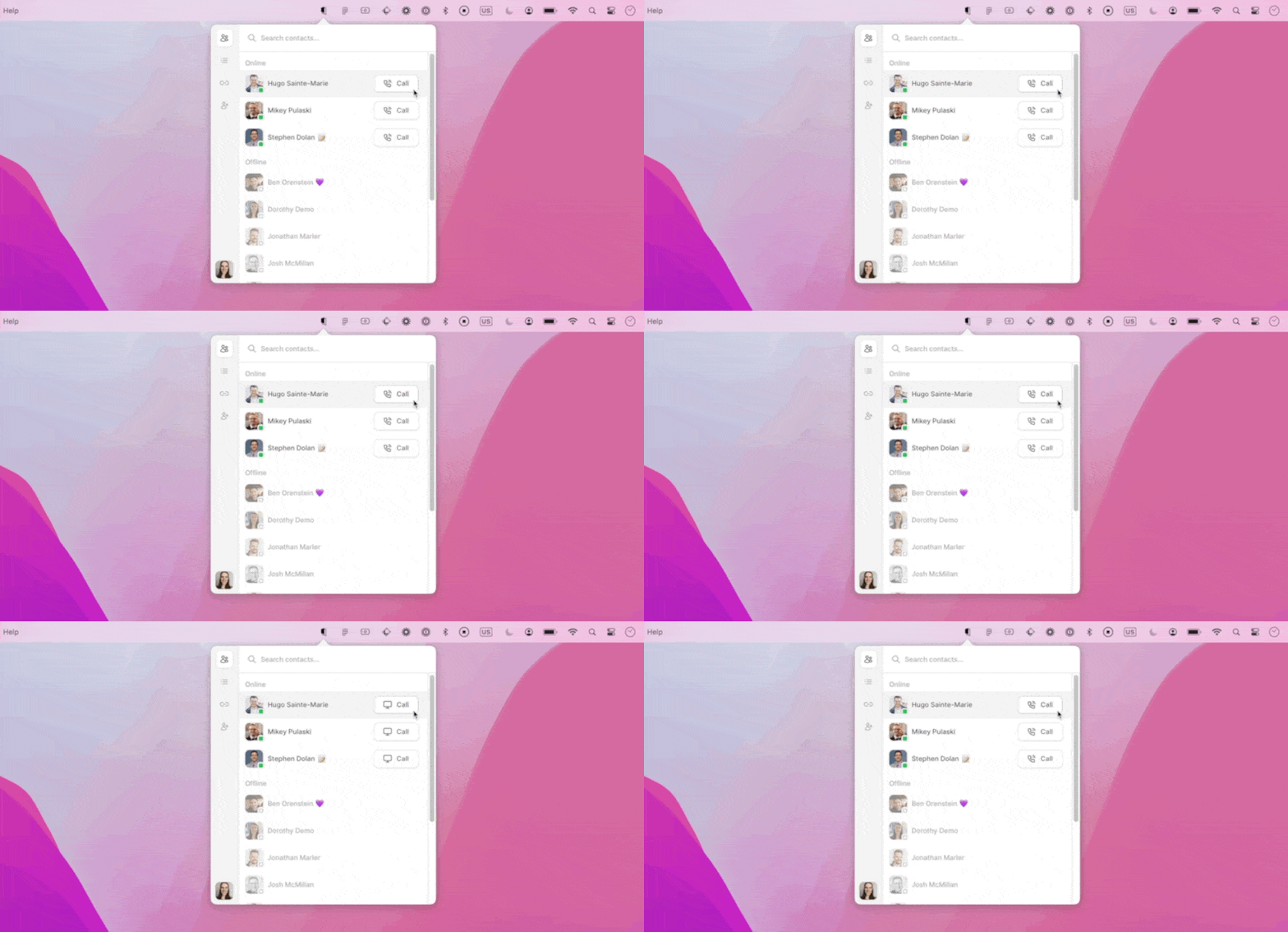
To start a Tuple call, click the “Call” icon to the right of one of your contact’s names: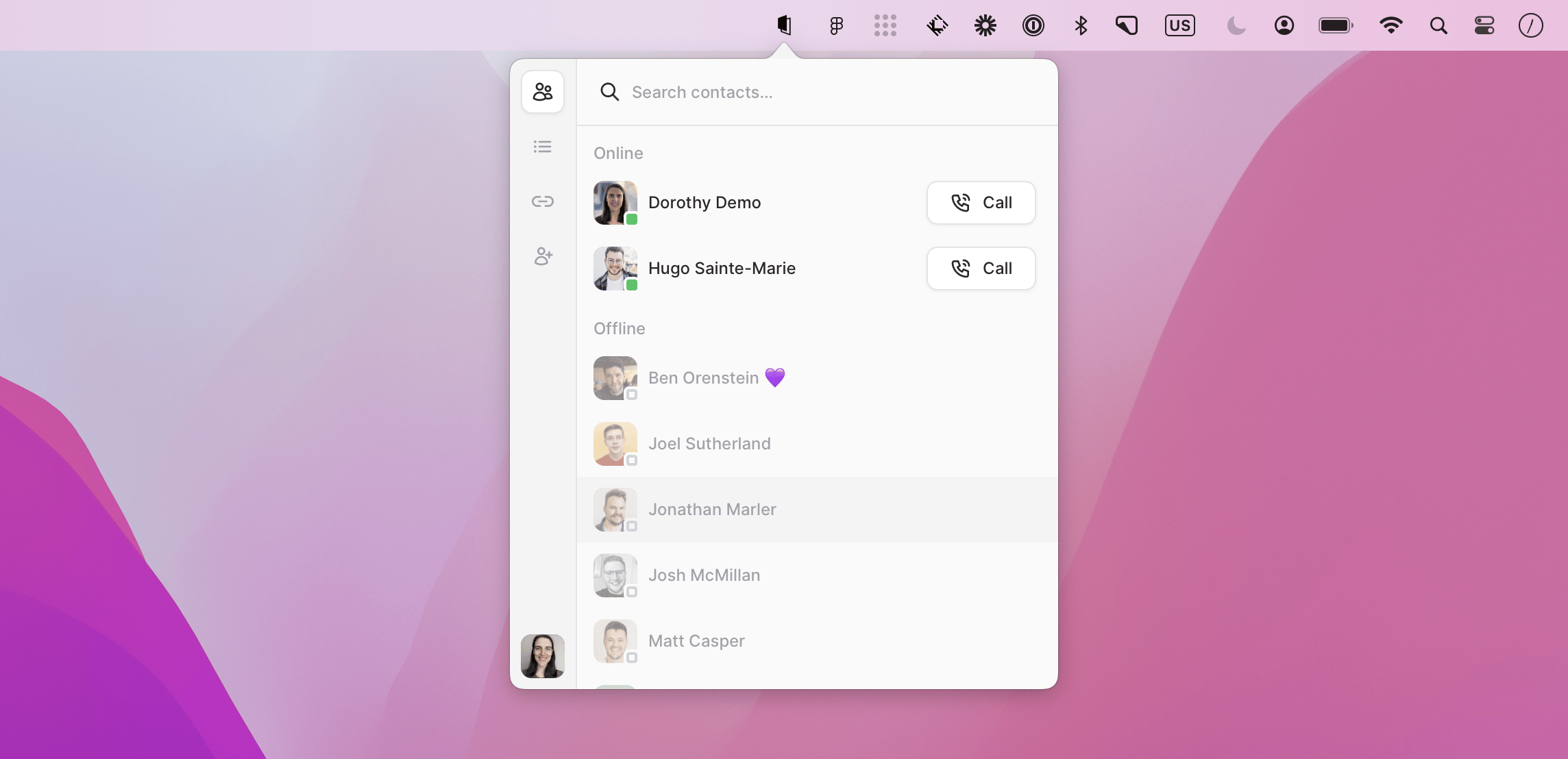
- Online (green dot) — signed in and available to pair.
- Busy — signed in but currently on a Tuple call.
- Offline — no dot; Tuple isn’t running or the person is signed out.
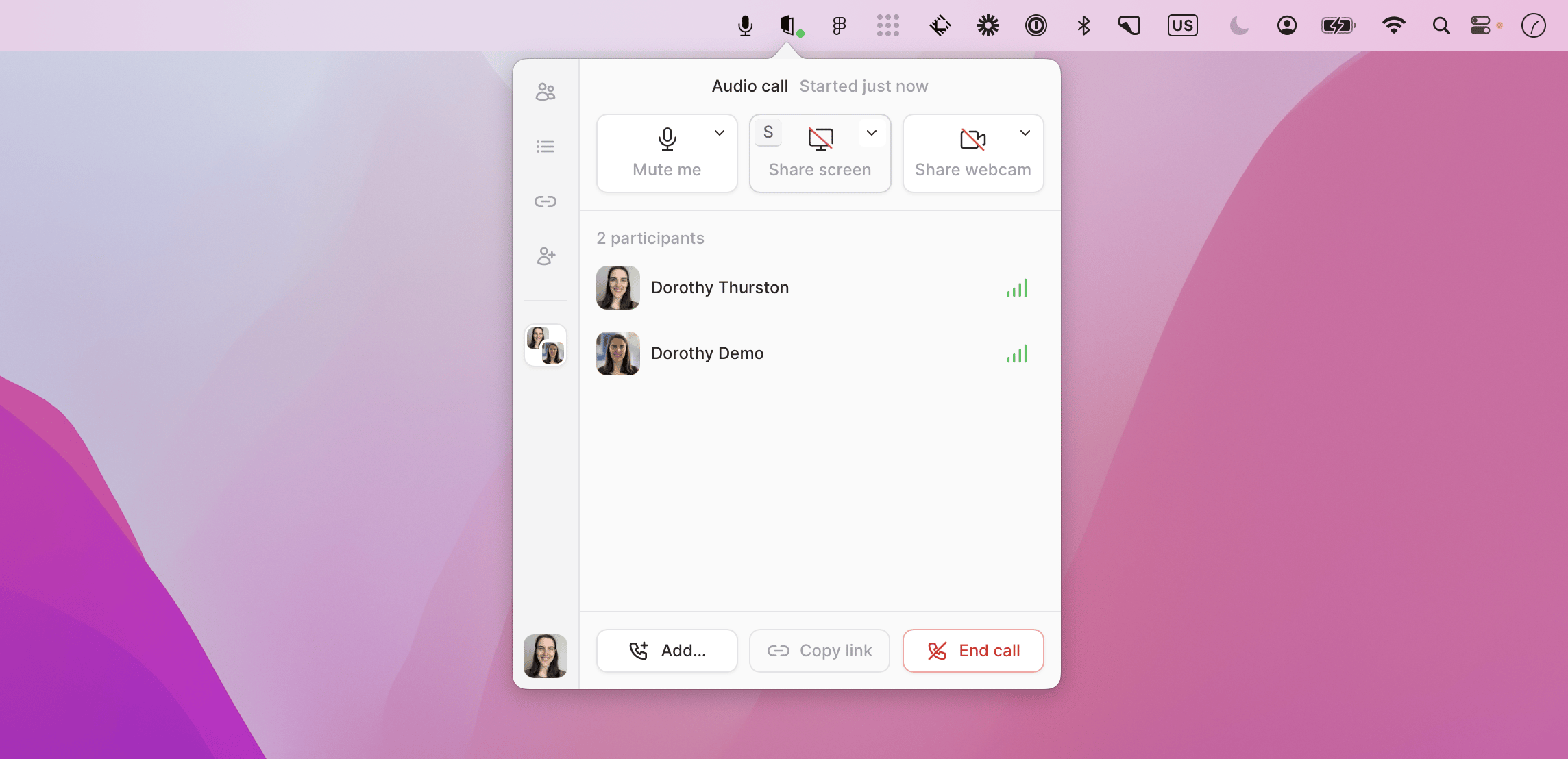
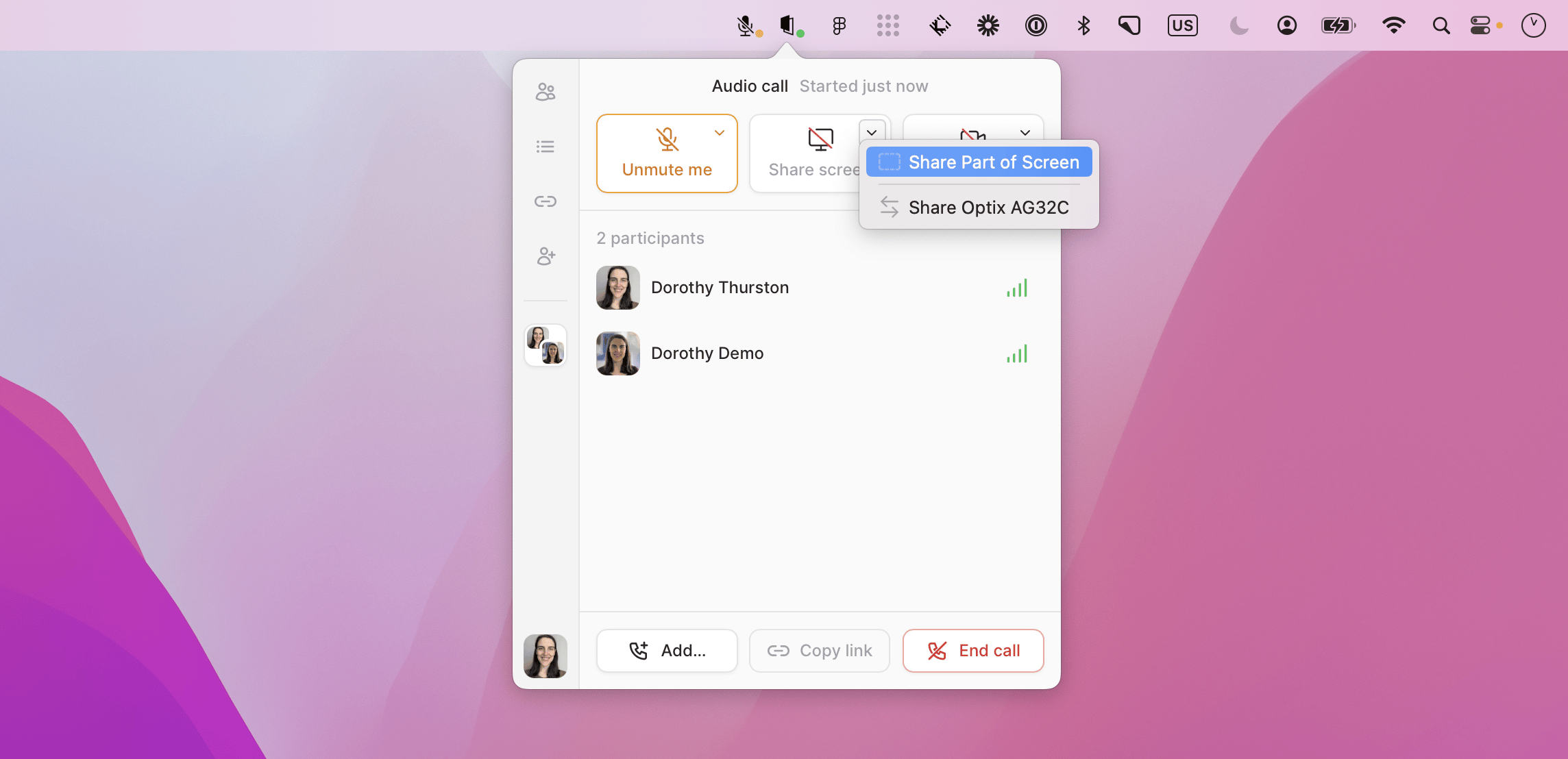
tuple contacts list --status.Once you have started a call you’ll be able to share your screen by clicking “Share screen”:Sharing part of your screen
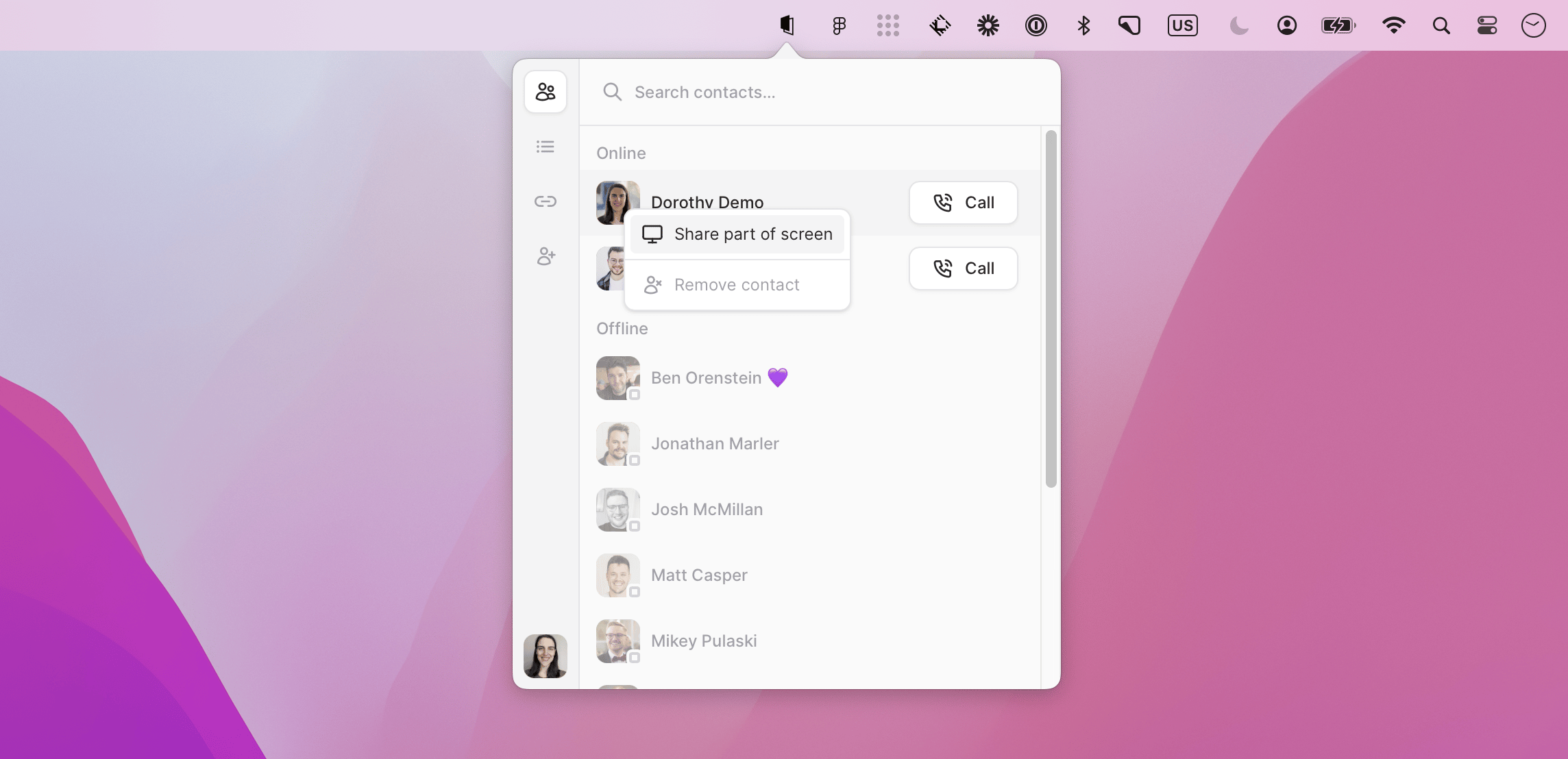
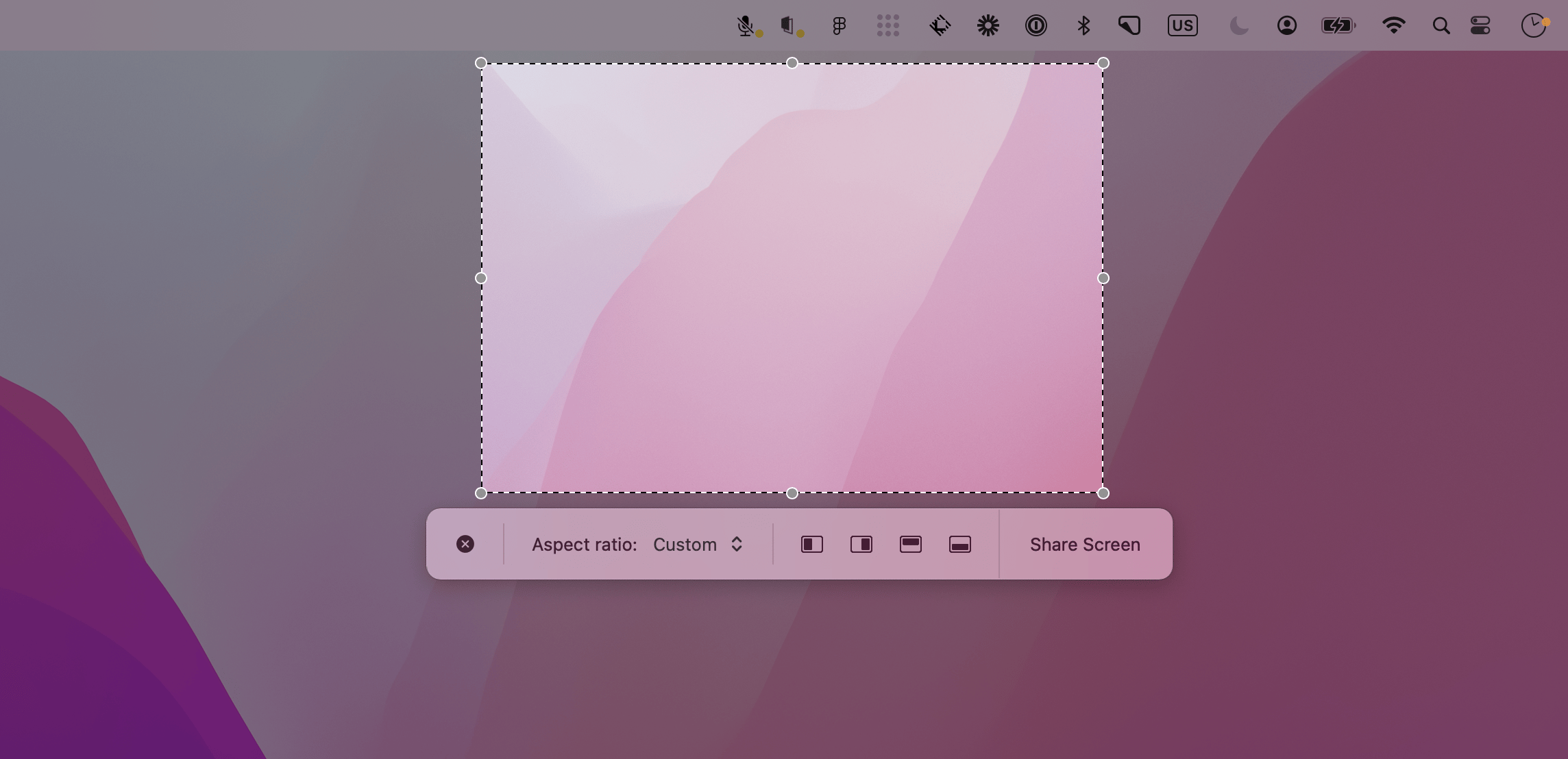
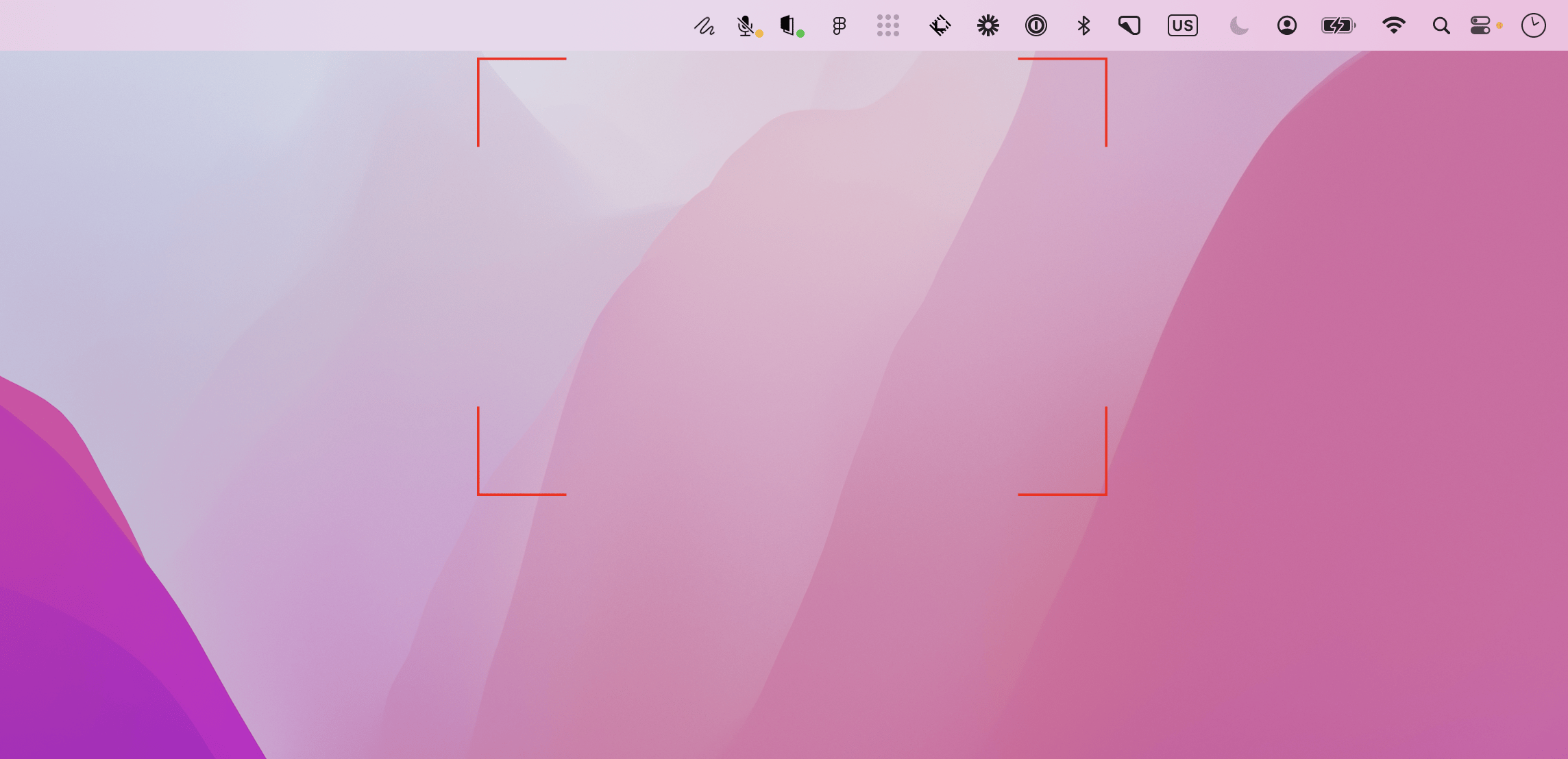
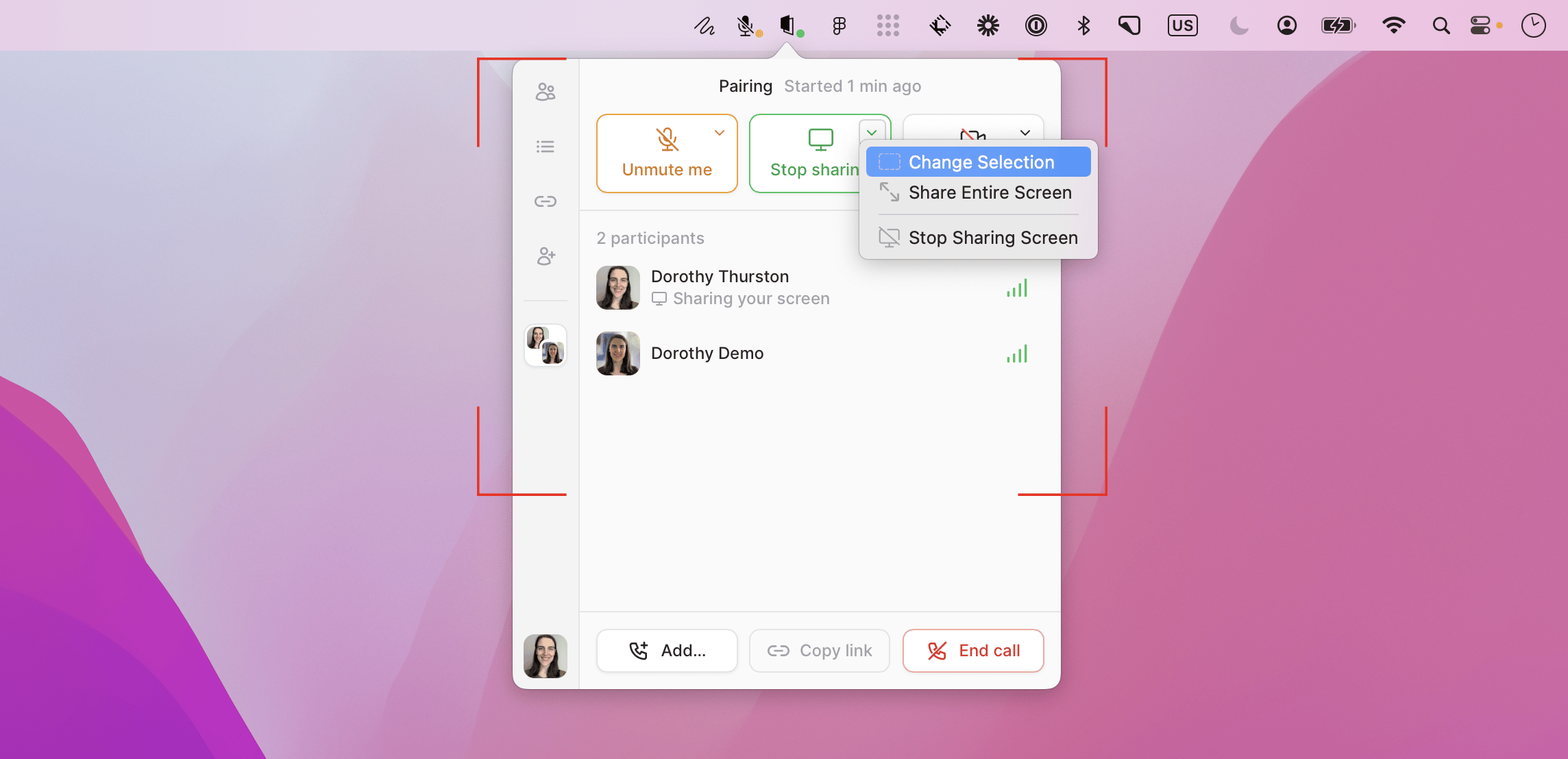
To start a call sharing only part of your screen, right-click (or Control-click) on your contact’s name:- Pick a window — Click the window icon in the toolbar (or press
Space) to enter pick-window mode. Hover over any window to highlight it, then click to snap the selection rectangle to that window’s bounds. PressSpaceagain to return to manual rectangle mode, or pressEscapeto cancel. Note: this just sets the screen share boundaries - if the window moves or gets hidden, the boundary won’t change. - Pin to half screen — Click one of the directional icons to snap the selection to the left, right, top, or bottom half of your screen.
- Aspect ratio — Choose a preset aspect ratio (16:10, 16:9, or 4:3) to optimize your sharing area for your pair’s display.
- Resize without changing dimensions — Hold
Shiftand drag a corner handle to scale the selection proportionally.
Sharing your screen immediately when starting a call
If you’d like to share your screen immediately when starting a call, you can hold alt to toggle the call button mode.When alt is held, the call button will show the option to start a screen sharing call, which will share your screen immediately when your pair answers:Choosing which display to share
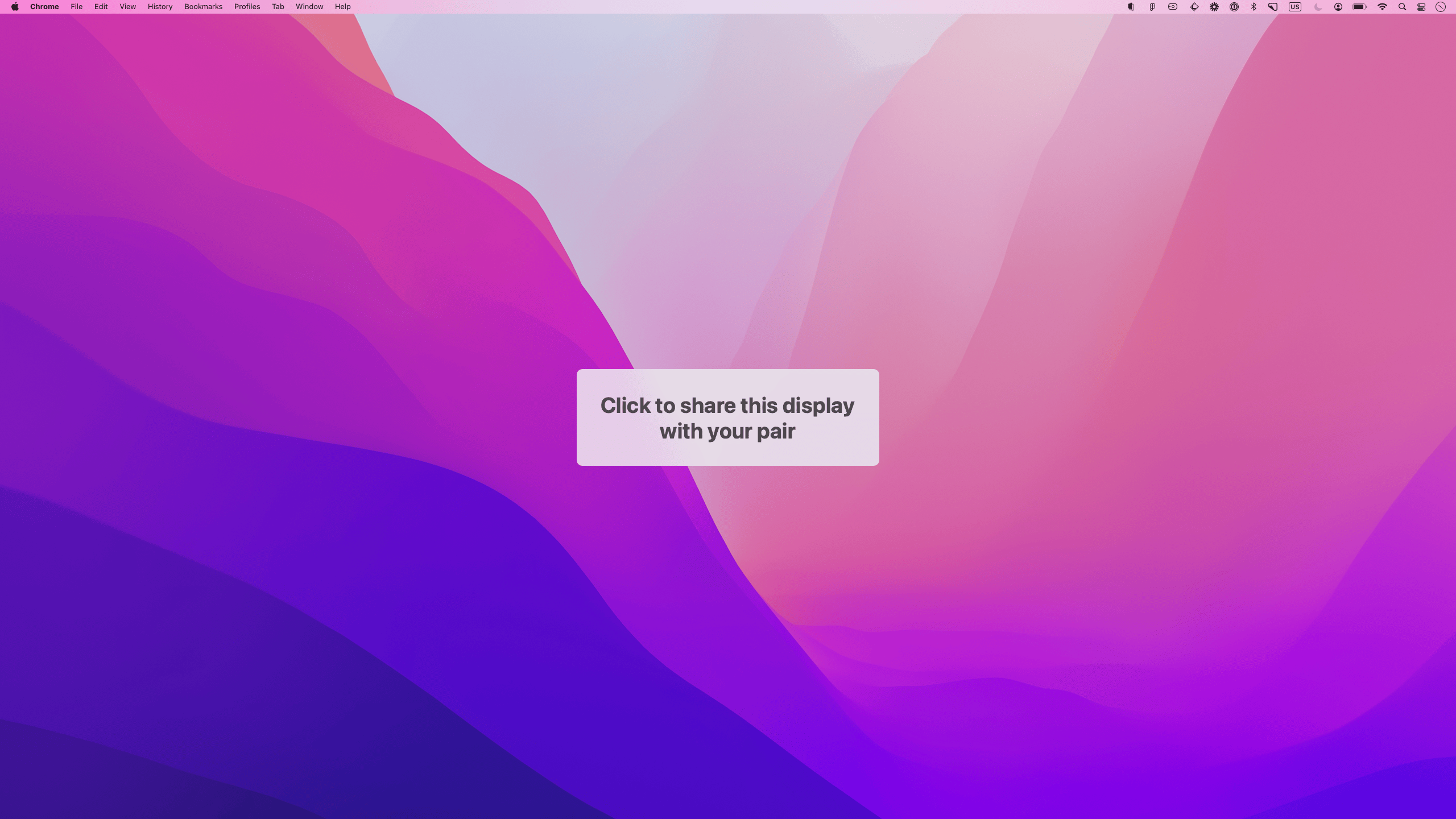
If you have multiple displays and choose to start a call with screen sharing, Tuple will prompt you to pick one before the call starts. Just click anywhere on the display you want to share:Changing displayed screens during a call
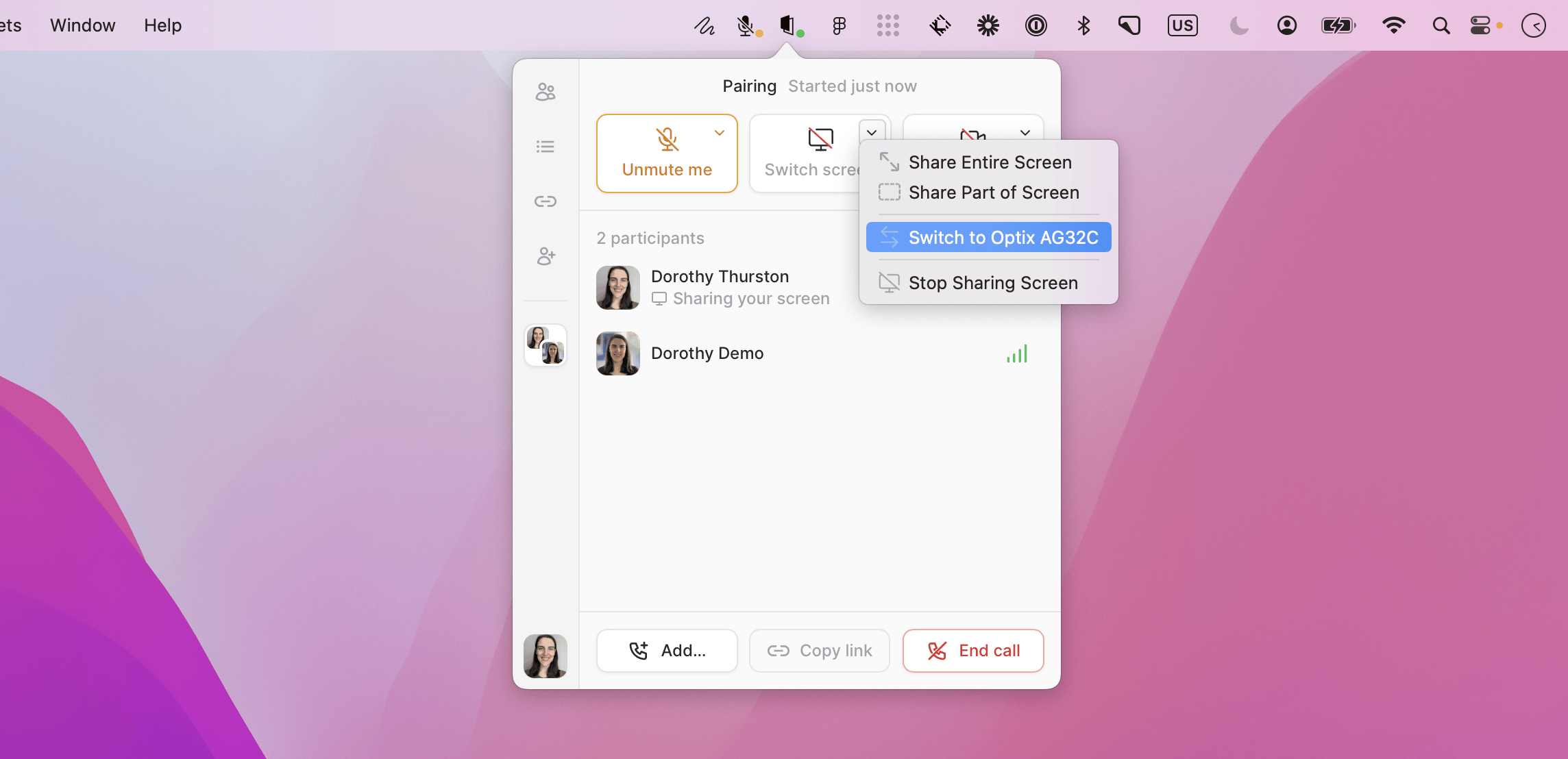
If you’re already sharing a display but want to switch to a different one, you can swap to a specific display by opening the Tuple app menu and clicking “Switch Screen” or by using the quick switcher:Changing which call participant is sharing their screen
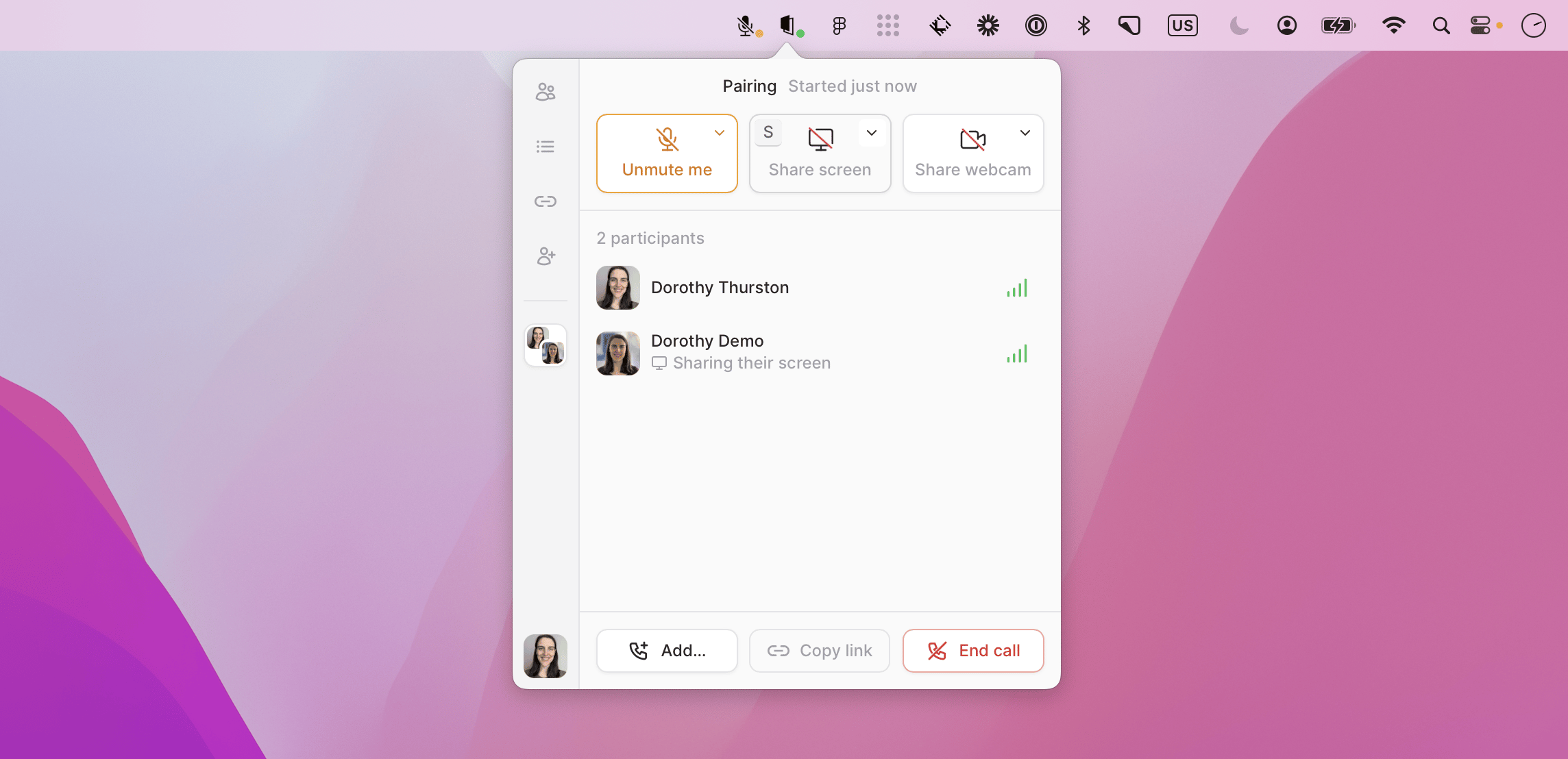
If another call participant is sharing their screen, you can swap to sharing your screen by opening the Tuple app menu and clicking “Share Screen”:Stopping sharing your screen
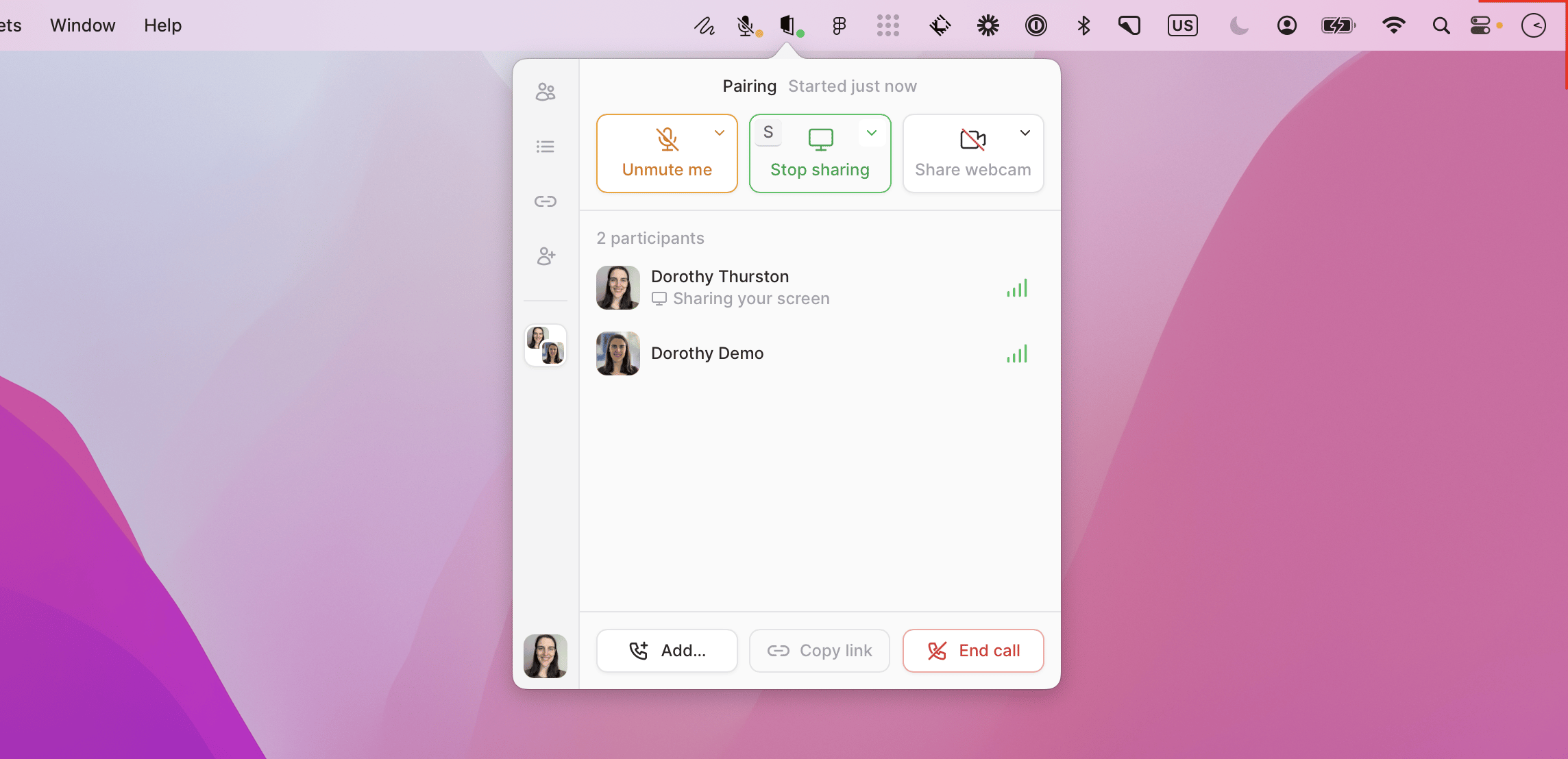
When you would like to stop sharing your screen, you can stop by opening the Tuple app menu and clicking “Stop Sharing”: