> ## Documentation Index
> Fetch the complete documentation index at: https://docs.tuple.app/llms.txt
> Use this file to discover all available pages before exploring further.
# Building a trigger
Triggers live in the `~/.tuple/triggers` directory. We recommend placing each trigger you create in its own subdirectory in that location.
Let's create a new trigger that announces out loud the name of the person who is calling you:
```sh theme={null}
mkdir ~/.tuple/triggers/call-announcer
touch ~/.tuple/triggers/call-announcer/call-incoming
chmod +x ~/.tuple/triggers/call-announcer/call-incoming
```
Notice that we:
1. Created a new subdirectory for the trigger.
2. Created a file with the name of the event we want to trigger on—in this case, the `call-incoming` event, which fires whenever you receive a call.
3. Made that file executable. This is important: Tuple will only run scripts you've marked as executable.
You can author triggers in whatever programming language you're most comfortable with. We'll use bash for this example since our trigger logic is quite simple:
```sh theme={null}
#!/bin/sh
PERSON_CALLING=$TUPLE_TRIGGER_CALLER_FULL_NAME
say "${PERSON_CALLING} would like to pair with you"
```
Notice that we reference a `TUPLE_TRIGGER_CALLER_FULL_NAME` variable in this script. When Tuple calls your trigger, it will sometimes pass in useful information in the form of environment variables. You can see which variables are passed in (and their definitions) for every event in the [API reference](/triggers/api-reference).
**That's it!** Tuple will now *trigger* this code at a key lifecycle *event*. Whenever you receive an incoming call, your computer will kindly let you know who is giving you a ring.
Well, almost.
For triggers to work, they need to be enabled. You can enable triggers by going to Tuple Preferences ⌘ , → **Triggers** and clicking on the **Enable** button. Or, if you're on macOS, simply [click here](tuple://enable-triggers).
## Testing the trigger
Asking your coworker to call you over and over while you get your trigger logic right would be a drag. Instead, let's use Tuple's built-in tooling to ensure our trigger functions as expected.
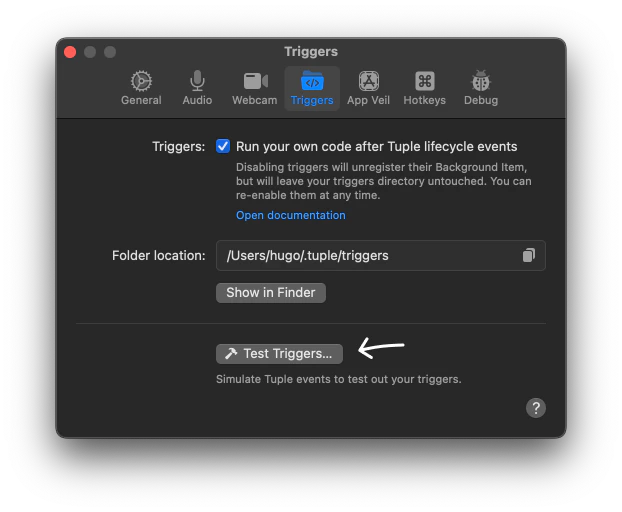
Open Tuple Preferences → **Triggers** and open the Simulator by clicking on **Test Triggers**.
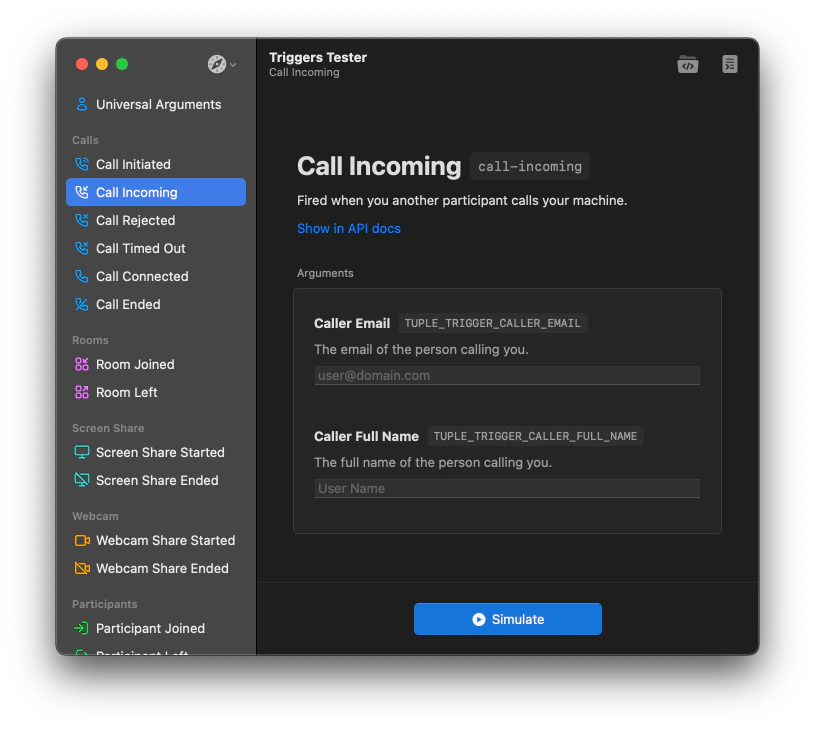
 Find the event we're trying to trigger (`call-incoming`), select it, and click **Simulate**.
 You should now be hearing your friendly host announce the fake caller.
**Running into issues? Feel free to reach out to [support@tuple.app](mailto:support@tuple.app).**
## Key takeaways
### 1. Location matters
All of your trigger code needs to live in `~/.tuple/triggers`.
We recommend you nest your code in subdirectories in order to keep scripts logically organized.
That might look like this:
```
~/.tuple/triggers
├── hide-messages
│ ├── screen-share-started
│ └── screen-share-stop
├── pause-spotify
│ ├── call-connected
└── triggers.log
```
Or, if you prefer, you can simply place all of your triggers in the root:
```
~/.tuple/triggers
├── screen-share-started
├── screen-share-stop
├── call-connected
└── triggers.log
```
### 2. Triggers must be named correctly
Every trigger filename you want executed needs to be prefixed with one of the available [lifecycle event names](/triggers/api-reference).
Here is a non-exhaustive list of some of the most common triggers:
* `call-connected` — triggered when a call connects
* `room-joined` — triggered when a participant joins a room
* `screen-share-started` — triggered when any participant shares their screen
As long as your filename starts with the trigger name, you can add whatever text you want after it:
**Acceptable**
* `call-connected` — bare name of the trigger
* `room-joined.notify-slack` — everything after `room-joined` is ignored
* `room-joined.pause-spotify` — everything after `room-joined` is ignored
Triggers with incorrect filenames will be ignored. For example:
**Not correct, will be ignored**
* `spotify.call-connected` — trigger name being used as a postfix and **not** a prefix
* `callconnected` — incorrect trigger name (should be `call-connected`)
### 3. Files must be executable
Trigger files need to be executable and **not** publicly writable. We recommend using `chmod 0755` or `chmod +x` to accomplish this.
## Next steps
Next up: useful tips for [testing and debugging](/triggers/testing-and-debugging) your triggers while you develop them.
You should now be hearing your friendly host announce the fake caller.
**Running into issues? Feel free to reach out to [support@tuple.app](mailto:support@tuple.app).**
## Key takeaways
### 1. Location matters
All of your trigger code needs to live in `~/.tuple/triggers`.
We recommend you nest your code in subdirectories in order to keep scripts logically organized.
That might look like this:
```
~/.tuple/triggers
├── hide-messages
│ ├── screen-share-started
│ └── screen-share-stop
├── pause-spotify
│ ├── call-connected
└── triggers.log
```
Or, if you prefer, you can simply place all of your triggers in the root:
```
~/.tuple/triggers
├── screen-share-started
├── screen-share-stop
├── call-connected
└── triggers.log
```
### 2. Triggers must be named correctly
Every trigger filename you want executed needs to be prefixed with one of the available [lifecycle event names](/triggers/api-reference).
Here is a non-exhaustive list of some of the most common triggers:
* `call-connected` — triggered when a call connects
* `room-joined` — triggered when a participant joins a room
* `screen-share-started` — triggered when any participant shares their screen
As long as your filename starts with the trigger name, you can add whatever text you want after it:
**Acceptable**
* `call-connected` — bare name of the trigger
* `room-joined.notify-slack` — everything after `room-joined` is ignored
* `room-joined.pause-spotify` — everything after `room-joined` is ignored
Triggers with incorrect filenames will be ignored. For example:
**Not correct, will be ignored**
* `spotify.call-connected` — trigger name being used as a postfix and **not** a prefix
* `callconnected` — incorrect trigger name (should be `call-connected`)
### 3. Files must be executable
Trigger files need to be executable and **not** publicly writable. We recommend using `chmod 0755` or `chmod +x` to accomplish this.
## Next steps
Next up: useful tips for [testing and debugging](/triggers/testing-and-debugging) your triggers while you develop them.