> ## Documentation Index
> Fetch the complete documentation index at: https://docs.tuple.app/llms.txt
> Use this file to discover all available pages before exploring further.
# Okta
> How to configure SAML SSO with Okta for your Tuple team
export const provider_1 = "Okta"
export const children_0 = undefined
export const provider_0 = "Okta"
This guide walks through configuring SAML SSO with Okta as your identity provider.
Email addresses in {provider_0} and Tuple must match exactly. For example, `dev+tuple@company.com` does not match `dev@company.com`. Verify your team's email addresses before enabling SSO.
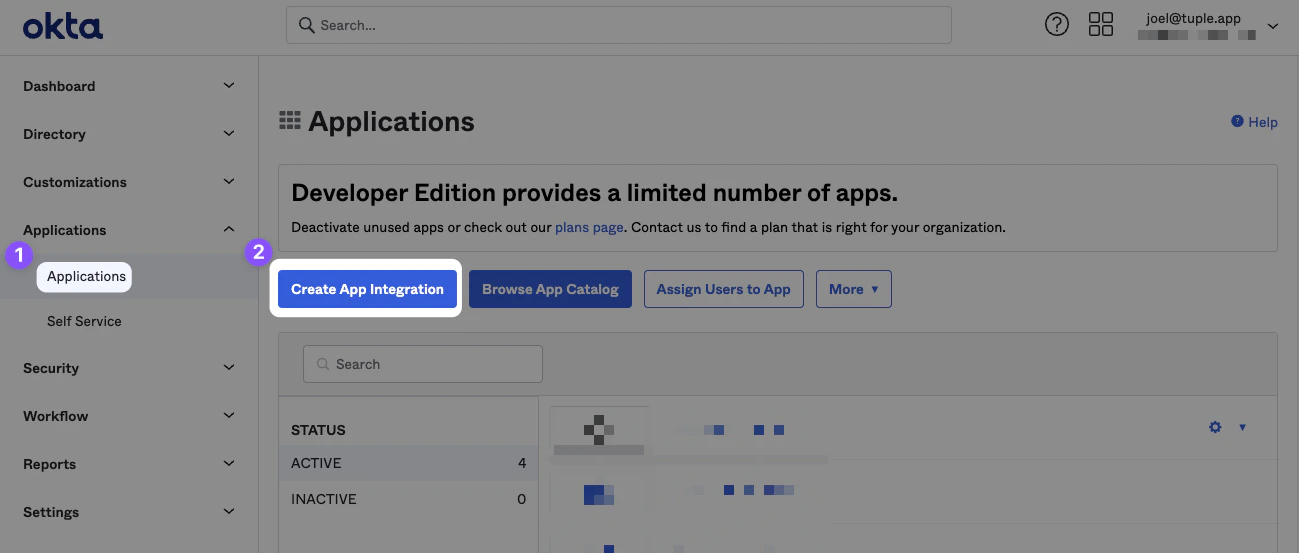
After signing in to your Okta account, click **Applications** in the navigation bar and then click **Create App Integration**.
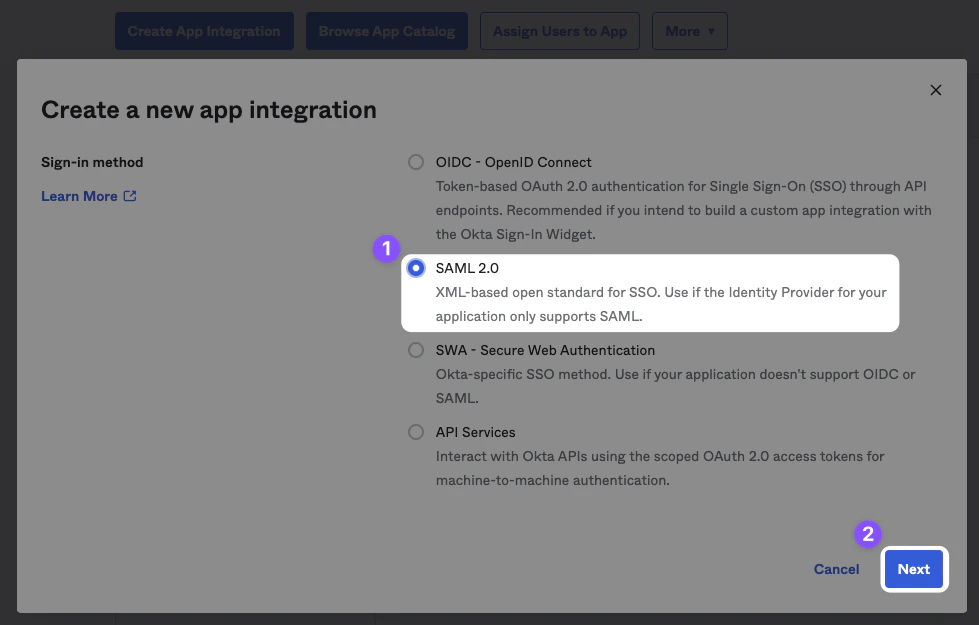
 Select **SAML 2.0** as the sign-in method.
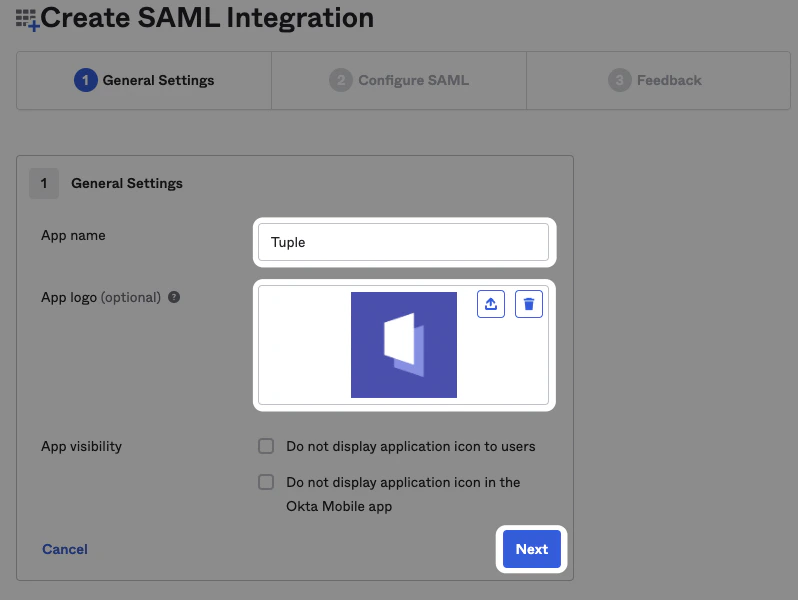
 Name the app "Tuple" and upload an icon, which you can [download here](https://s3.wasabisys.com/tuple/images/tuple-sso.png).
 Fill in the following fields:
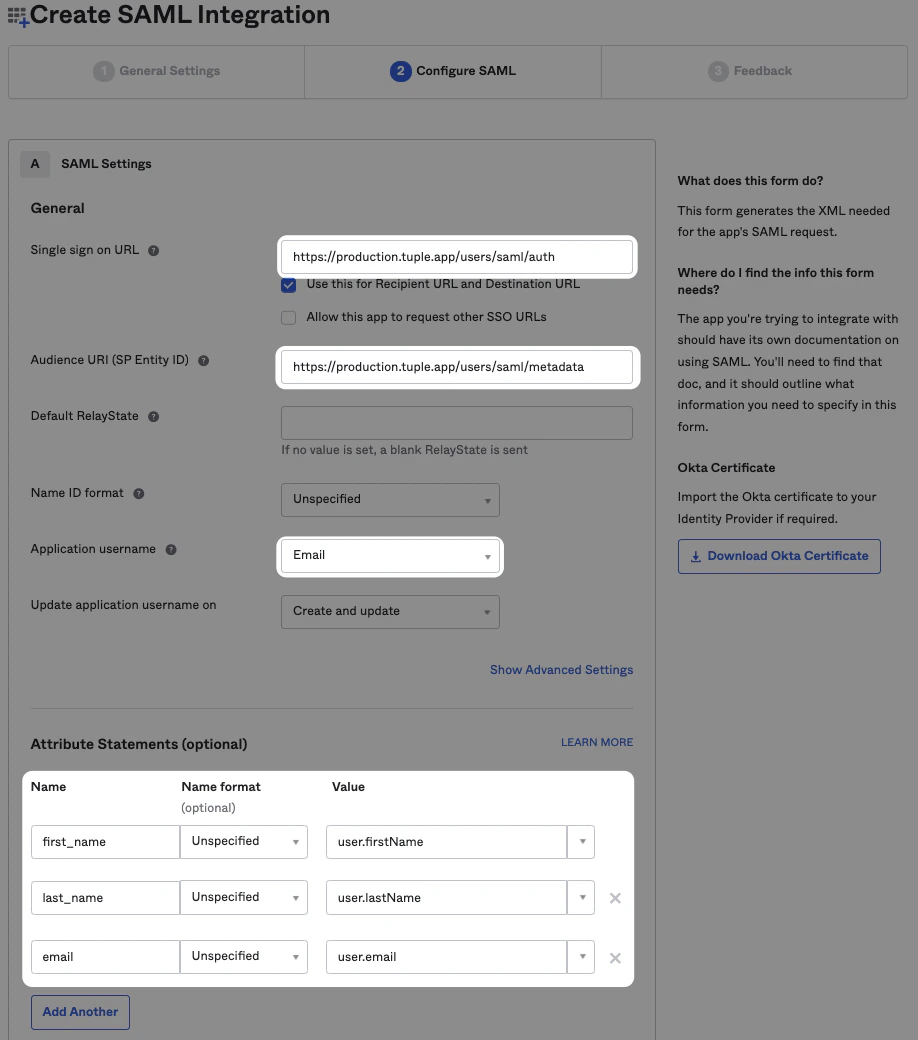 **Single sign on URL**
```
https://production.tuple.app/users/saml/auth
```
**Audience URI (SP Entity ID)**
```
https://production.tuple.app/users/saml/metadata
```
There are three additional attributes that Tuple requires: `email`, `first_name`, and `last_name`.
After finishing the install wizard, click **View SAML Setup Instructions** on the Sign On tab.
**Single sign on URL**
```
https://production.tuple.app/users/saml/auth
```
**Audience URI (SP Entity ID)**
```
https://production.tuple.app/users/saml/metadata
```
There are three additional attributes that Tuple requires: `email`, `first_name`, and `last_name`.
After finishing the install wizard, click **View SAML Setup Instructions** on the Sign On tab.
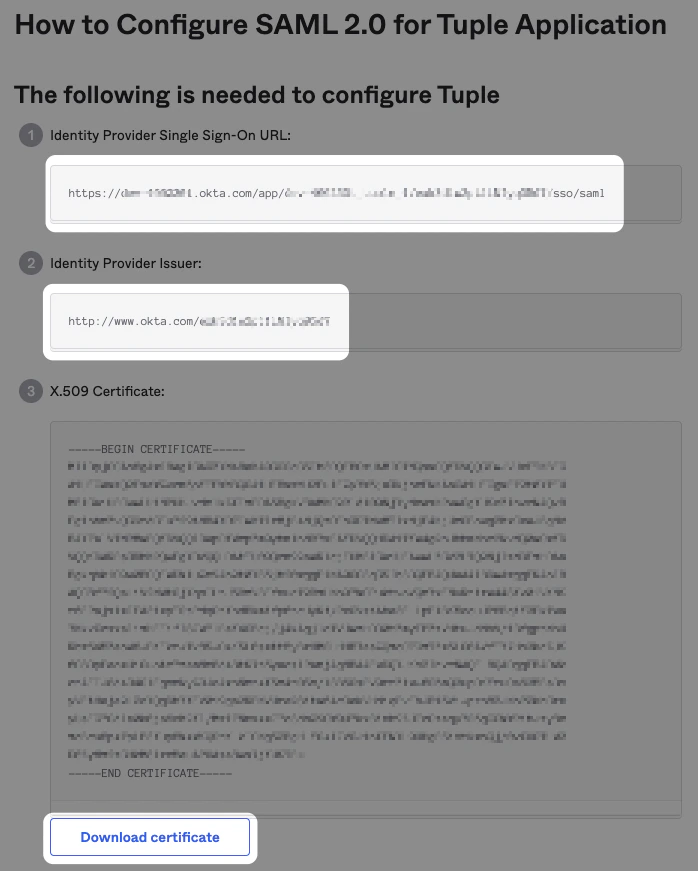
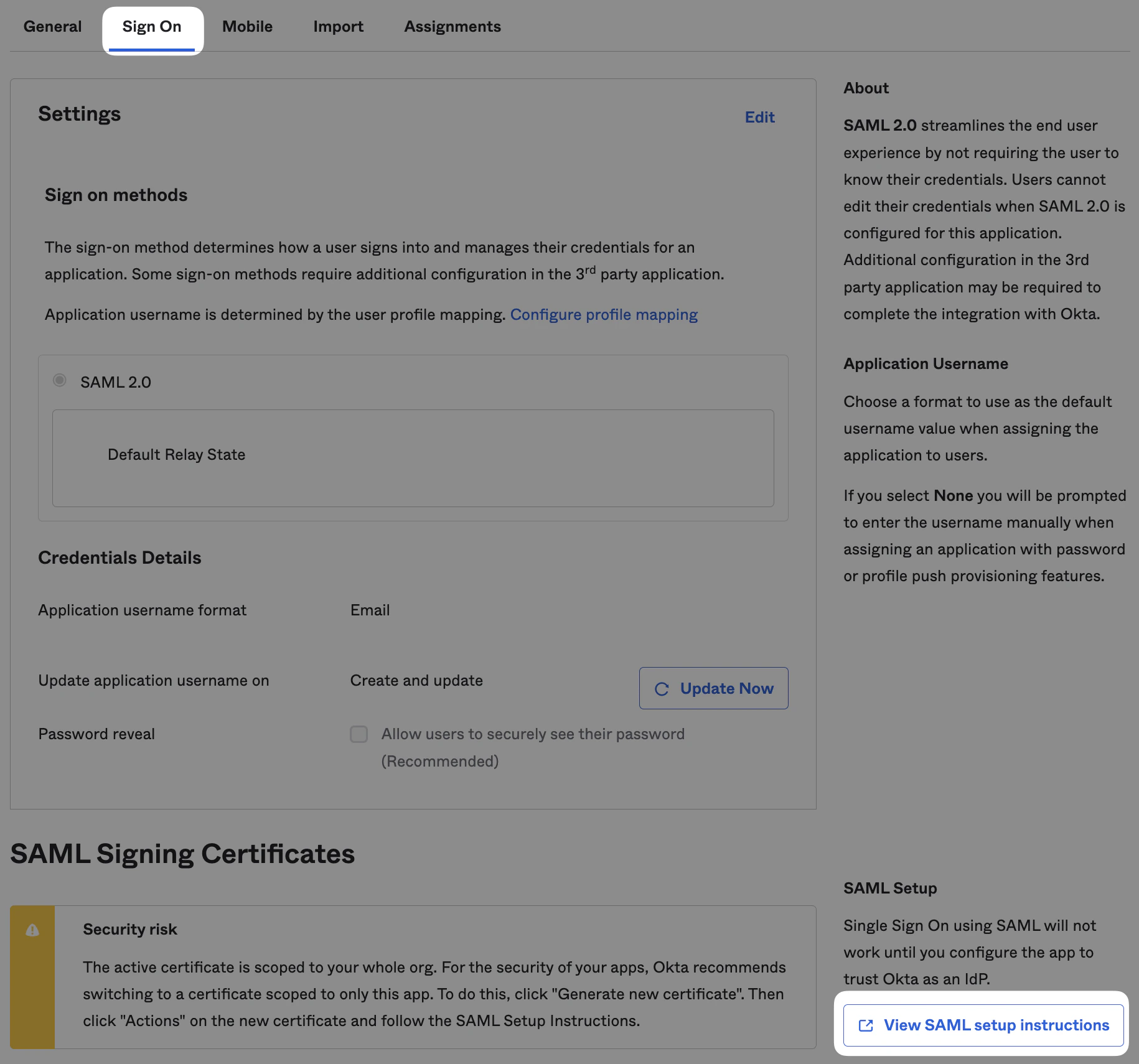 This provides the metadata needed to configure SAML in Tuple:
* Identity Provider Single Sign-On URL
* Identity Provider Issuer URL
* Downloaded certificate file
This provides the metadata needed to configure SAML in Tuple:
* Identity Provider Single Sign-On URL
* Identity Provider Issuer URL
* Downloaded certificate file
 Navigate to the **Settings** tab of the [team management dashboard](https://production.tuple.app/team_management/settings).
Only [team owners](/team-management/team-owner-and-managers) can enable SAML. To find out who your team owner is, check [your profile](https://production.tuple.app/profile#team).
Under **Sign-in methods**, set **Required Authentication Provider** to **SAML SSO**. The **Update SAML Configuration** form appears:
Navigate to the **Settings** tab of the [team management dashboard](https://production.tuple.app/team_management/settings).
Only [team owners](/team-management/team-owner-and-managers) can enable SAML. To find out who your team owner is, check [your profile](https://production.tuple.app/profile#team).
Under **Sign-in methods**, set **Required Authentication Provider** to **SAML SSO**. The **Update SAML Configuration** form appears:
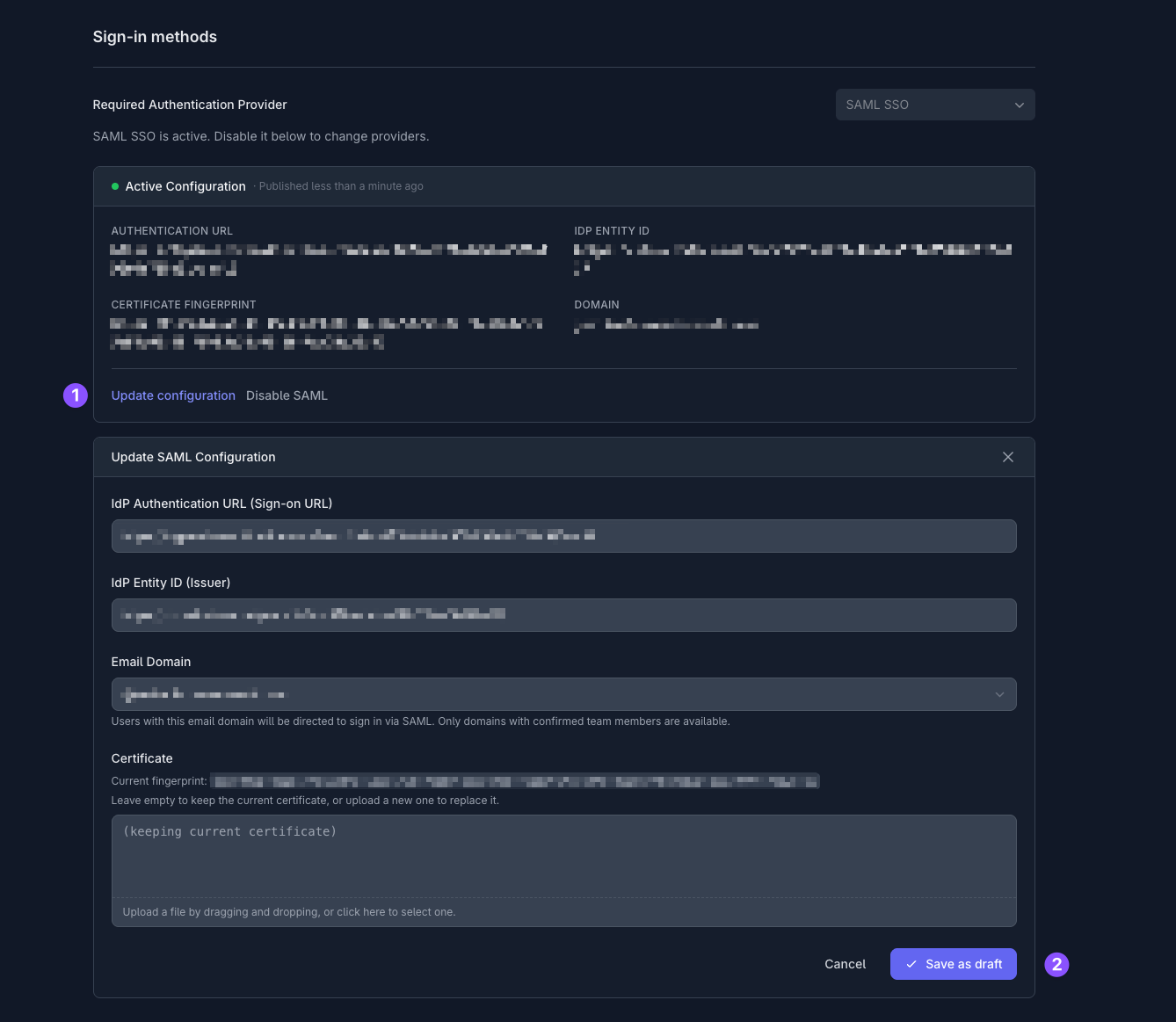 Fill in the values with your {provider_1} metadata:
{children_0}
Select the **Email Domain** that SAML should apply to. Only domains with confirmed team members are available.
Click **Save as draft**. Your draft is saved as a **Pending Update** alongside your current sign-in method, so no one on your team is affected yet.
Fill in the values with your {provider_1} metadata:
{children_0}
Select the **Email Domain** that SAML should apply to. Only domains with confirmed team members are available.
Click **Save as draft**. Your draft is saved as a **Pending Update** alongside your current sign-in method, so no one on your team is affected yet.
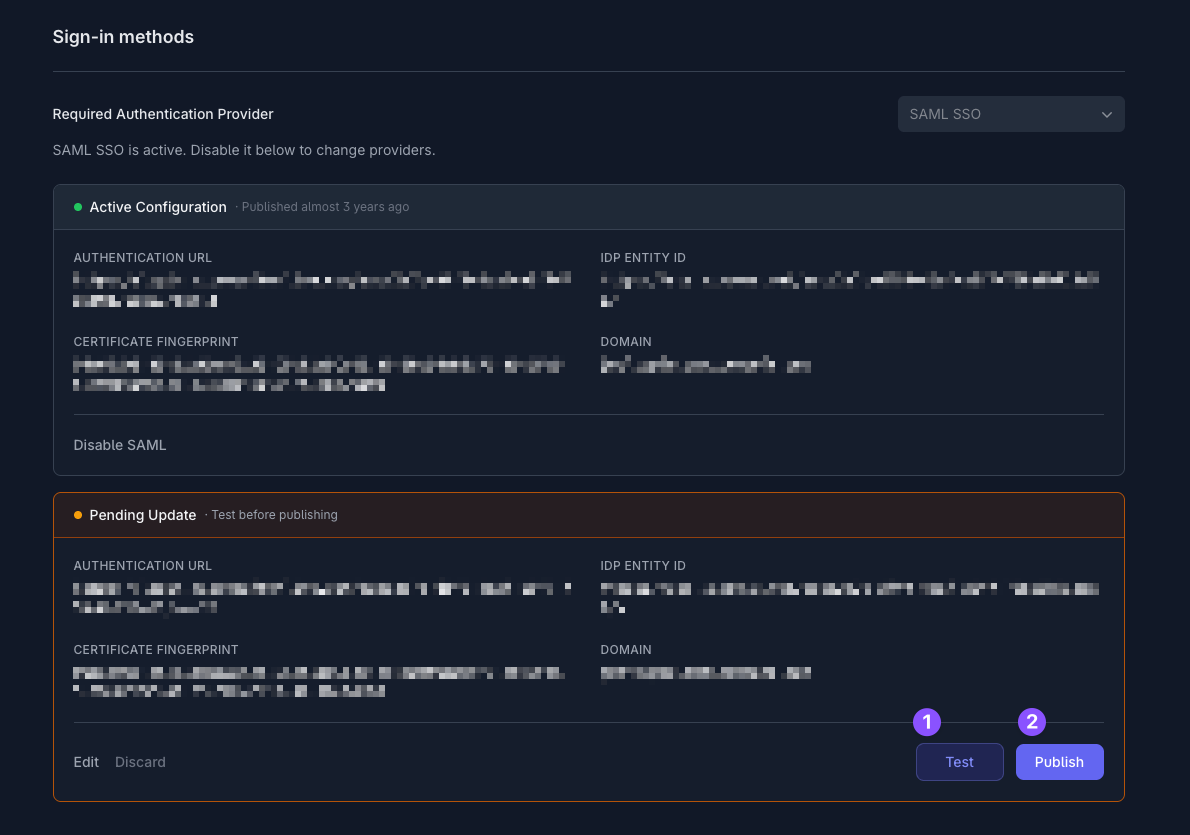 Click **Test** to verify the configuration end-to-end. Tuple signs you in through {provider_1} so you can confirm that authentication succeeds before the change affects anyone else on your team.
Once the test succeeds, click **Publish** to make the configuration live. Active Tuple sessions persist, but new sign-ins are routed through {provider_1}.
Use **Edit** to tweak the draft, or **Discard** to throw it away without publishing.
## SCIM provisioning
Okta supports automated user provisioning via SCIM. See [SCIM provisioning with Okta](/team-management/scim-okta) for setup instructions.
Click **Test** to verify the configuration end-to-end. Tuple signs you in through {provider_1} so you can confirm that authentication succeeds before the change affects anyone else on your team.
Once the test succeeds, click **Publish** to make the configuration live. Active Tuple sessions persist, but new sign-ins are routed through {provider_1}.
Use **Edit** to tweak the draft, or **Discard** to throw it away without publishing.
## SCIM provisioning
Okta supports automated user provisioning via SCIM. See [SCIM provisioning with Okta](/team-management/scim-okta) for setup instructions.