> ## Documentation Index
> Fetch the complete documentation index at: https://docs.tuple.app/llms.txt
> Use this file to discover all available pages before exploring further.
# Okta
> How to set up SCIM provisioning in Tuple with Okta
This guide walks through configuring SCIM provisioning with Okta to automatically manage Tuple user accounts.
SCIM provisioning requires an existing [Okta SAML integration](/team-management/sso-okta). Complete the SSO setup first.
## Prerequisites
Your Okta app must be [configured at creation time](https://support.okta.com/help/s/article/SCIM-Provisioning-Enabled-in-Custom-App?language=en_US) to use SCIM. If you have an existing app that was not configured for SCIM, contact [Okta Support](https://support.okta.com/help/s/opencase).
## Setup
Send an email to [support@tuple.app](mailto:support@tuple.app) to enable SCIM for your team.
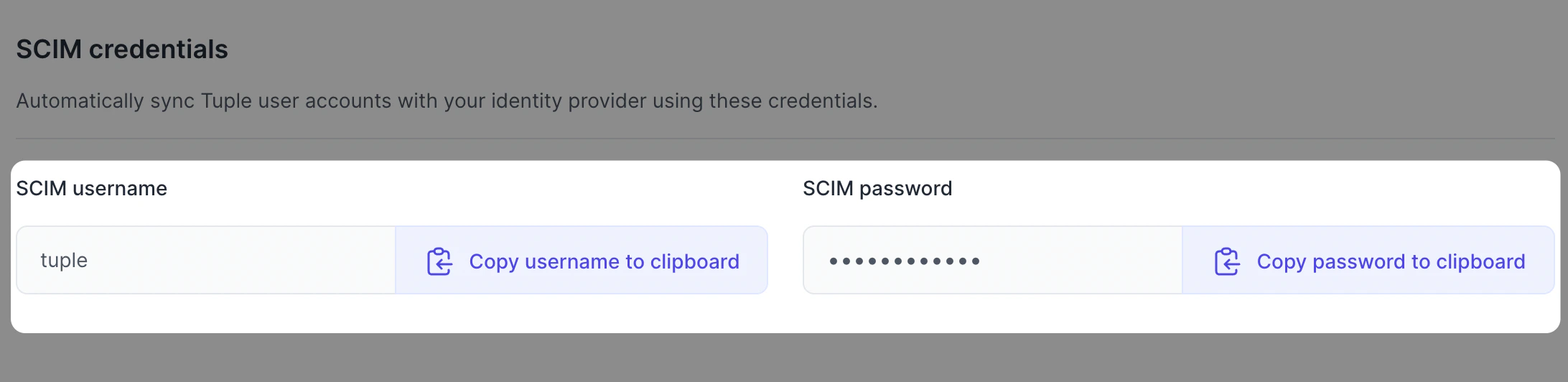
Once approved, your SCIM credentials appear on the [Team Management page](https://production.tuple.app/team_management/invitations) in Tuple:
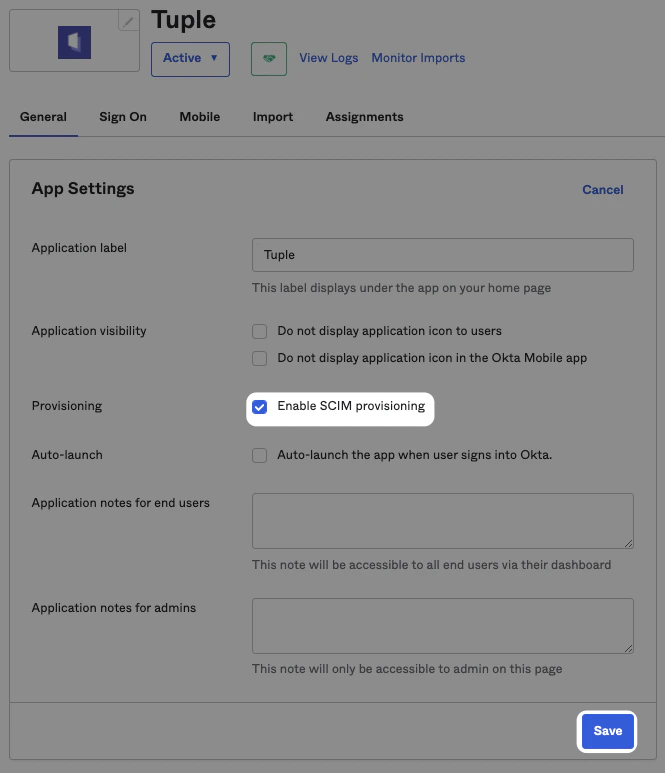
 In your Tuple application in Okta, enable SCIM provisioning:
 In **Provisioning**, configure with the following values:
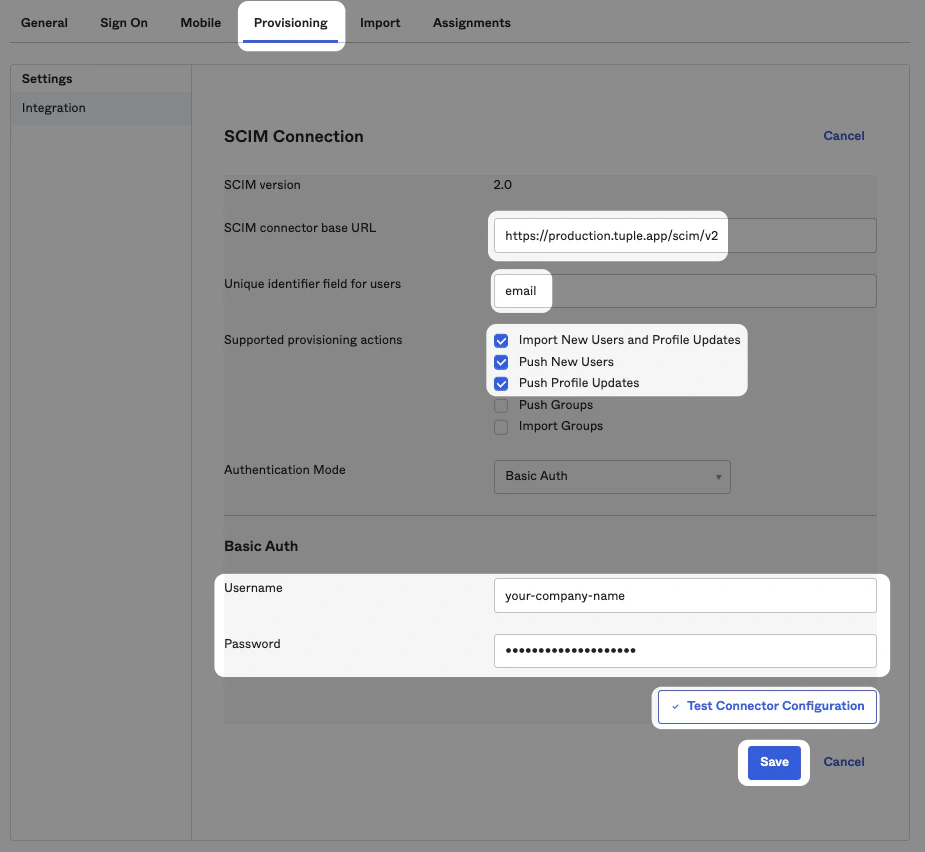 **SCIM connector base URL**
```
https://production.tuple.app/scim/v2
```
**Unique identifier field for users**
```
email
```
Enable the following features:
* Import new users and Profile Updates
* Push New Users
* Push Profile Updates
Use the credentials from your Team Management page.
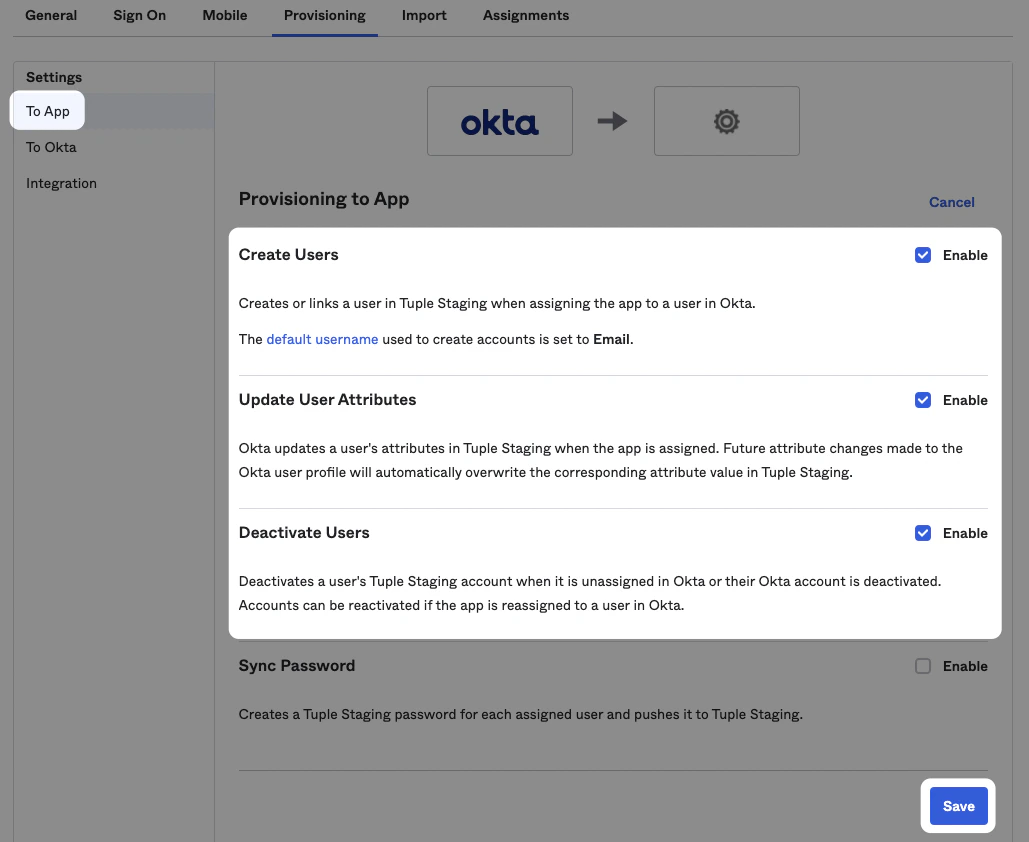
Once the integration step is successful, enable features **To App**:
**SCIM connector base URL**
```
https://production.tuple.app/scim/v2
```
**Unique identifier field for users**
```
email
```
Enable the following features:
* Import new users and Profile Updates
* Push New Users
* Push Profile Updates
Use the credentials from your Team Management page.
Once the integration step is successful, enable features **To App**: