> ## Documentation Index
> Fetch the complete documentation index at: https://docs.tuple.app/llms.txt
> Use this file to discover all available pages before exploring further.
# Microsoft Entra ID
> How to set up SCIM provisioning in Tuple with Microsoft Entra ID
This guide walks through configuring SCIM provisioning with Microsoft Entra ID (formerly Azure AD) to automatically manage Tuple user accounts.
SCIM provisioning requires an existing [Microsoft Entra ID SAML integration](/team-management/sso-azure). Complete the SSO setup first.
## Prerequisites
You need the SCIM credentials from your [Team Management page](https://production.tuple.app/team_management/invitations) in Tuple. If you don't see them, contact [support@tuple.app](mailto:support@tuple.app) to enable SCIM for your team.
## Setup
In the [Microsoft Entra admin center](https://entra.microsoft.com), navigate to your Tuple enterprise application.
Select **Provisioning** in the left sidebar.
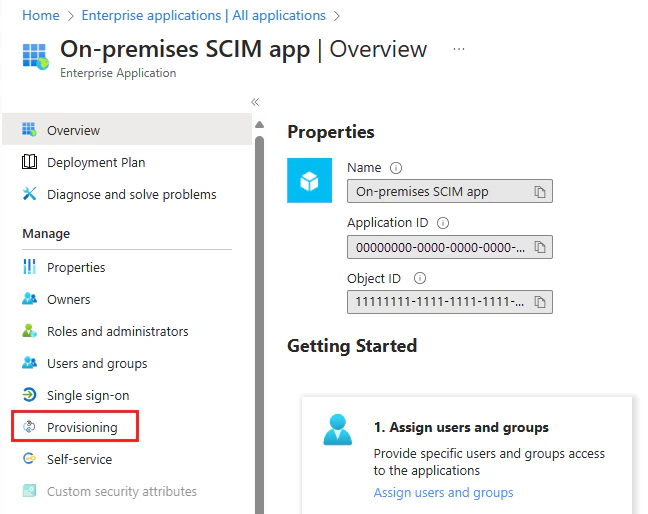 Click **Get started**, then set **Provisioning Mode** to **Automatic**.
Under **Admin Credentials**, fill in the following fields:
**Tenant URL**
```
https://production.tuple.app/scim/v2
```
**Secret Token** -- paste the bearer token from your Tuple Team Management page.
Click **Test Connection** to verify Entra ID can reach Tuple's SCIM endpoint. A success message confirms the credentials are valid.
Expand **Mappings** and select **Provision Microsoft Entra ID Users**.
Ensure the following attributes are mapped:
| Microsoft Entra ID attribute | SCIM attribute |
| ---------------------------- | ------------------------------ |
| `mail` | `emails[type eq "work"].value` |
| `givenName` | `name.givenName` |
| `surname` | `name.familyName` |
| `userPrincipalName` | `userName` |
Click **Save**.
Return to the **Provisioning** overview. Set **Provisioning Status** to **On** and click **Save**.
Entra ID runs an initial sync cycle, then syncs changes approximately every 40 minutes.
Click **Get started**, then set **Provisioning Mode** to **Automatic**.
Under **Admin Credentials**, fill in the following fields:
**Tenant URL**
```
https://production.tuple.app/scim/v2
```
**Secret Token** -- paste the bearer token from your Tuple Team Management page.
Click **Test Connection** to verify Entra ID can reach Tuple's SCIM endpoint. A success message confirms the credentials are valid.
Expand **Mappings** and select **Provision Microsoft Entra ID Users**.
Ensure the following attributes are mapped:
| Microsoft Entra ID attribute | SCIM attribute |
| ---------------------------- | ------------------------------ |
| `mail` | `emails[type eq "work"].value` |
| `givenName` | `name.givenName` |
| `surname` | `name.familyName` |
| `userPrincipalName` | `userName` |
Click **Save**.
Return to the **Provisioning** overview. Set **Provisioning Status** to **On** and click **Save**.
Entra ID runs an initial sync cycle, then syncs changes approximately every 40 minutes.