> ## Documentation Index
> Fetch the complete documentation index at: https://docs.tuple.app/llms.txt
> Use this file to discover all available pages before exploring further.
# Managing Team billing
If you are the **Team Owner** for a team with an **active** or trial subscription, you can access the billing portal by selecting "Manage billing on Stripe" on [your team management page](https://production.tuple.app/team_management/settings).
You will see the following "Manage billing on Stripe" button:
 This will take you to a Stripe billing portal page where you can make modifications to your existing subscription, and download past statements.
## To add a new payment method:
If there is currently no payment method on file (if your team is in a trial), you can add a new payment method by clicking on "Add payment method":
This will take you to a Stripe billing portal page where you can make modifications to your existing subscription, and download past statements.
## To add a new payment method:
If there is currently no payment method on file (if your team is in a trial), you can add a new payment method by clicking on "Add payment method":
 ## To update the existing payment method:
In order to delete a credit card on file, you will need to add a new one first.
You can add a new payment method by using the button mentioned above.
## To cancel your subscription:
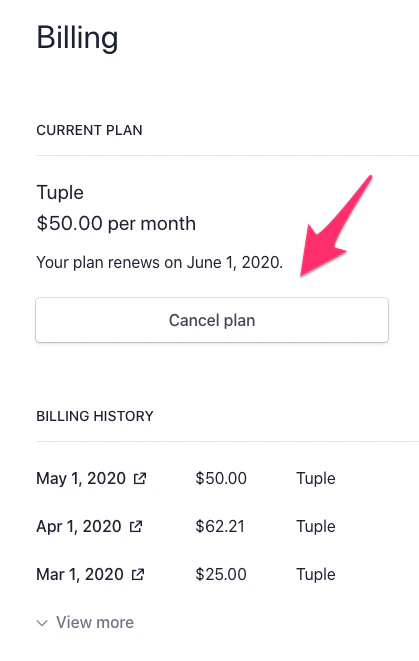
You can set your subscription to cancel at the end of the current period by selecting Cancel plan:
## To update the existing payment method:
In order to delete a credit card on file, you will need to add a new one first.
You can add a new payment method by using the button mentioned above.
## To cancel your subscription:
You can set your subscription to cancel at the end of the current period by selecting Cancel plan:
 ## To update the billing email address (that receives invoices):
Update the value under BILLING INFORMATION Email:
## To update the billing email address (that receives invoices):
Update the value under BILLING INFORMATION Email: