> ## Documentation Index
> Fetch the complete documentation index at: https://docs.tuple.app/llms.txt
> Use this file to discover all available pages before exploring further.
# Single Sign-On (SSO)
> How to configure SAML SSO for your Tuple team
export const provider_1 = "your identity provider"
export const children_0 = undefined
export const provider_0 = "your identity provider"
Tuple supports SAML Single Sign-On as part of the Standard and Enterprise plans. SSO lets your team authenticate through your identity provider instead of managing separate Tuple credentials.
## Provider-specific guides
Includes optional SCIM provisioning
Google Admin console setup
Formerly Azure AD
SAML Test Connector setup
## General SSO setup
If your identity provider is not listed above, you can configure SAML SSO manually using the values below.
Email addresses in {provider_0} and Tuple must match exactly. For example, `dev+tuple@company.com` does not match `dev@company.com`. Verify your team's email addresses before enabling SSO.
### What you need from your identity provider
* Your SSO IdP Entity ID
* Your SSO target URL that performs authentication
* Your auth certificate or its SHA1 fingerprint
* Attributes that include `first_name`, `last_name`, and `email`
### Tuple's SAML endpoints
| Field | Value |
| ------------------------------------ | -------------------------------------------------- |
| Entity ID | `https://production.tuple.app/users/saml/metadata` |
| Assertion Consumer Service (ACS) URL | `https://production.tuple.app/users/saml/auth` |
### Enable SAML in Tuple
Navigate to the **Settings** tab of the [team management dashboard](https://production.tuple.app/team_management/settings).
Only [team owners](/team-management/team-owner-and-managers) can enable SAML. To find out who your team owner is, check [your profile](https://production.tuple.app/profile#team).
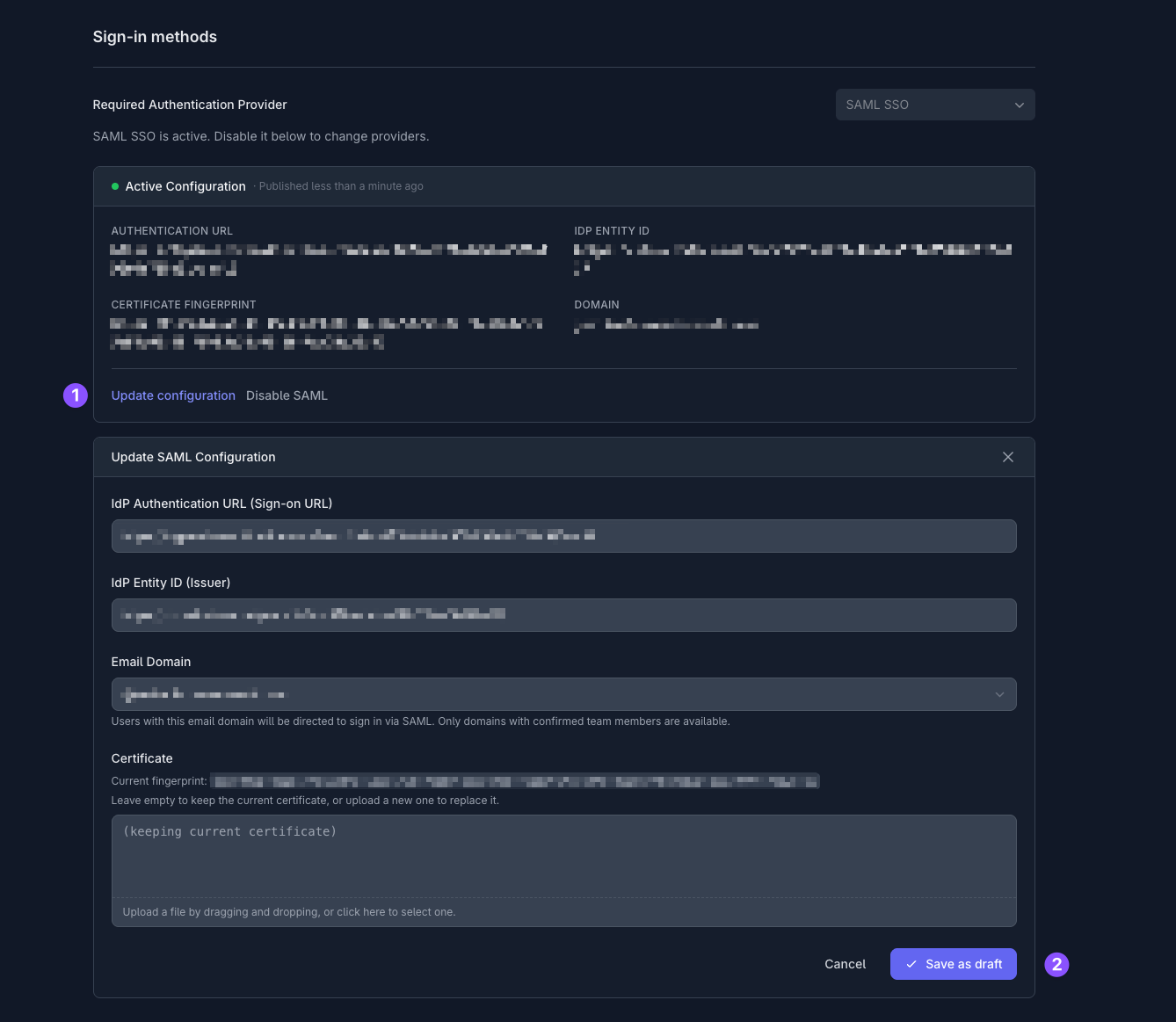
Under **Sign-in methods**, set **Required Authentication Provider** to **SAML SSO**. The **Update SAML Configuration** form appears:
 Fill in the values with your {provider_1} metadata:
{children_0}
Select the **Email Domain** that SAML should apply to. Only domains with confirmed team members are available.
Click **Save as draft**. Your draft is saved as a **Pending Update** alongside your current sign-in method, so no one on your team is affected yet.
Fill in the values with your {provider_1} metadata:
{children_0}
Select the **Email Domain** that SAML should apply to. Only domains with confirmed team members are available.
Click **Save as draft**. Your draft is saved as a **Pending Update** alongside your current sign-in method, so no one on your team is affected yet.
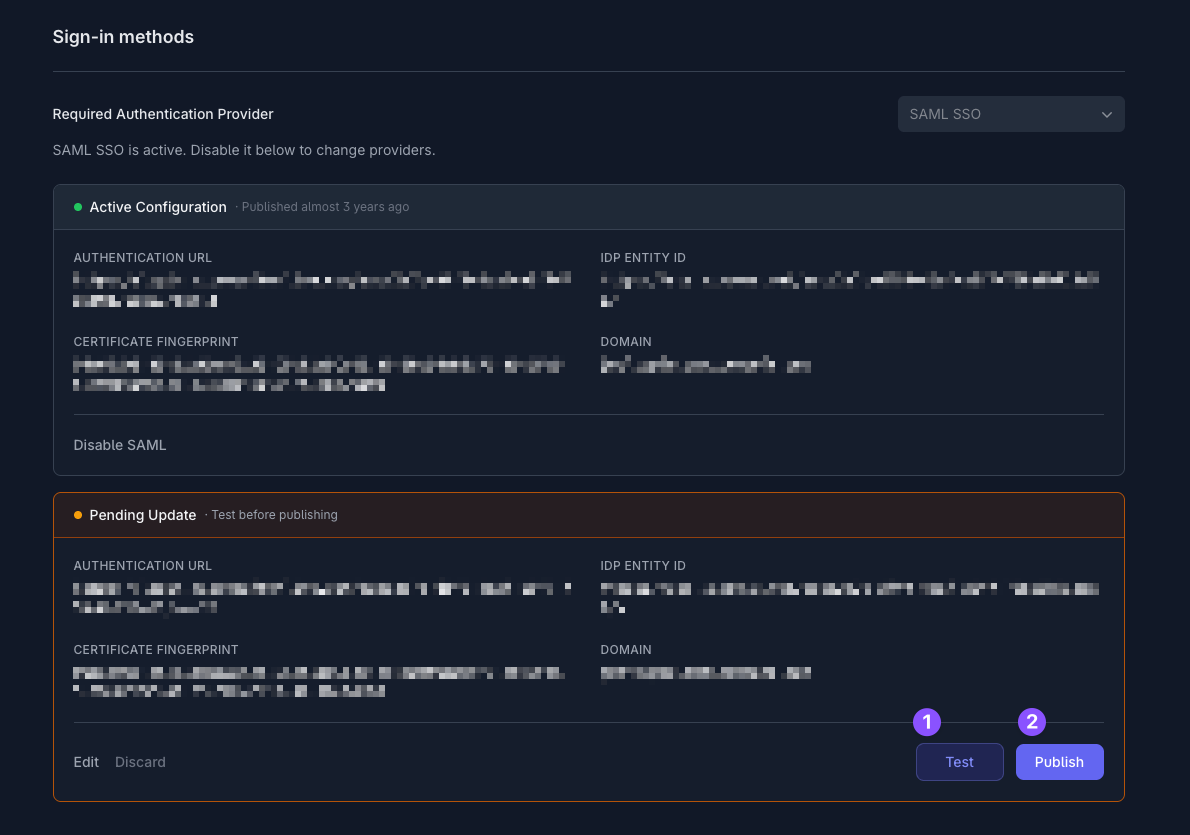 Click **Test** to verify the configuration end-to-end. Tuple signs you in through {provider_1} so you can confirm that authentication succeeds before the change affects anyone else on your team.
Once the test succeeds, click **Publish** to make the configuration live. Active Tuple sessions persist, but new sign-ins are routed through {provider_1}.
Use **Edit** to tweak the draft, or **Discard** to throw it away without publishing.
## Managing your SAML configuration
Tuple keeps a single **Active Configuration** plus any **Pending Update** draft you're working on. Changes are staged as drafts so you can test them before they affect the rest of your team.
### Update an existing configuration
On the **Settings** tab of the team management dashboard, click **Update configuration** on the Active Configuration card. The **Update SAML Configuration** form opens pre-filled with your current values.
Leave the **Certificate** field empty to keep the existing certificate, or upload a new file to replace it. The current fingerprint is shown above the upload field.
Click **Save as draft** to create a Pending Update. From there, **Test** the draft, then **Publish** it when you're ready. You can also **Edit** the draft to make further changes, or **Discard** it to throw it away.
### Archived configurations
When you publish a new SAML configuration, the previous one is automatically archived. Expand **archived SAML configurations** on the Settings tab to see past configurations:
Click **Test** to verify the configuration end-to-end. Tuple signs you in through {provider_1} so you can confirm that authentication succeeds before the change affects anyone else on your team.
Once the test succeeds, click **Publish** to make the configuration live. Active Tuple sessions persist, but new sign-ins are routed through {provider_1}.
Use **Edit** to tweak the draft, or **Discard** to throw it away without publishing.
## Managing your SAML configuration
Tuple keeps a single **Active Configuration** plus any **Pending Update** draft you're working on. Changes are staged as drafts so you can test them before they affect the rest of your team.
### Update an existing configuration
On the **Settings** tab of the team management dashboard, click **Update configuration** on the Active Configuration card. The **Update SAML Configuration** form opens pre-filled with your current values.
Leave the **Certificate** field empty to keep the existing certificate, or upload a new file to replace it. The current fingerprint is shown above the upload field.
Click **Save as draft** to create a Pending Update. From there, **Test** the draft, then **Publish** it when you're ready. You can also **Edit** the draft to make further changes, or **Discard** it to throw it away.
### Archived configurations
When you publish a new SAML configuration, the previous one is automatically archived. Expand **archived SAML configurations** on the Settings tab to see past configurations:
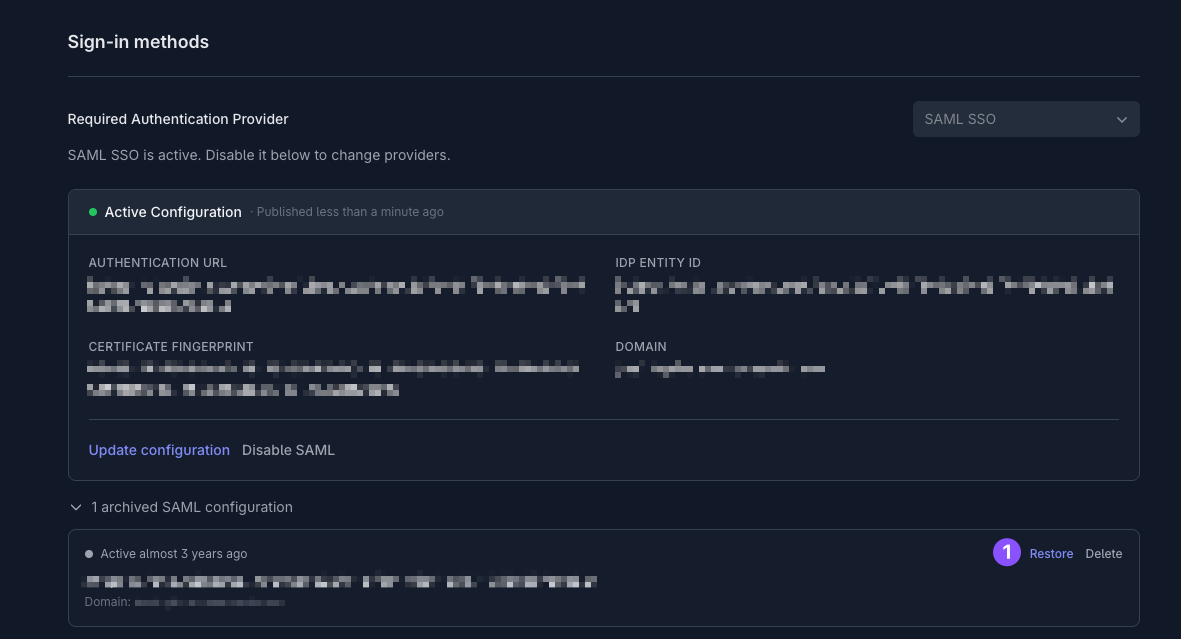 * **Restore** -- bring an archived configuration back so you can test and publish it again. This is useful if you need to roll back to a previous identity provider setup.
* **Delete** -- permanently remove an archived configuration.
## Reference
The first time a user authenticates through your identity provider, Tuple provisions an account for them. If you are on a per-seat billing plan, billing begins for that seat immediately.
You can disable a user's access in your identity provider, but deprovisioning their Tuple account (and stopping billing for that seat) must be done on the [team management page](https://production.tuple.app/team_management/members) by your team owner.
For automated provisioning, see [SCIM provisioning](/team-management/scim-provisioning).
Tuple has three roles: **team owner**, **team manager**, and **user**.
* **Team owners** can manage team settings, add and remove users, promote managers, and update billing information.
* **Team managers** can manage team settings, add and remove users, and promote other managers.
* **Users** can make and receive calls and share team invite links.
See [Team Owner and Managers](/team-management/team-owner-and-managers) for the full permissions breakdown.
Accounts provisioned through your identity provider are created as users. The team owner is typically the person who first created your team on Tuple. Contact [support@tuple.app](mailto:support@tuple.app) if you need to transfer ownership.
Email addresses in your identity provider and Tuple must match exactly. For example, `dev+tuple@company.com` does not match `dev@company.com`. Verify your team's email addresses before enabling SSO.
## Questions?
[Email us](mailto:support@tuple.app) and we'll help you get set up.
* **Restore** -- bring an archived configuration back so you can test and publish it again. This is useful if you need to roll back to a previous identity provider setup.
* **Delete** -- permanently remove an archived configuration.
## Reference
The first time a user authenticates through your identity provider, Tuple provisions an account for them. If you are on a per-seat billing plan, billing begins for that seat immediately.
You can disable a user's access in your identity provider, but deprovisioning their Tuple account (and stopping billing for that seat) must be done on the [team management page](https://production.tuple.app/team_management/members) by your team owner.
For automated provisioning, see [SCIM provisioning](/team-management/scim-provisioning).
Tuple has three roles: **team owner**, **team manager**, and **user**.
* **Team owners** can manage team settings, add and remove users, promote managers, and update billing information.
* **Team managers** can manage team settings, add and remove users, and promote other managers.
* **Users** can make and receive calls and share team invite links.
See [Team Owner and Managers](/team-management/team-owner-and-managers) for the full permissions breakdown.
Accounts provisioned through your identity provider are created as users. The team owner is typically the person who first created your team on Tuple. Contact [support@tuple.app](mailto:support@tuple.app) if you need to transfer ownership.
Email addresses in your identity provider and Tuple must match exactly. For example, `dev+tuple@company.com` does not match `dev@company.com`. Verify your team's email addresses before enabling SSO.
## Questions?
[Email us](mailto:support@tuple.app) and we'll help you get set up.