> ## Documentation Index
> Fetch the complete documentation index at: https://docs.tuple.app/llms.txt
> Use this file to discover all available pages before exploring further.
# Sharing a webcam video
Pairing well is all about communication, and there's so much information sent through someone's facial expressions. Seeing your pair's face while working really makes you feel more connected to them.
## Sharing a webcam
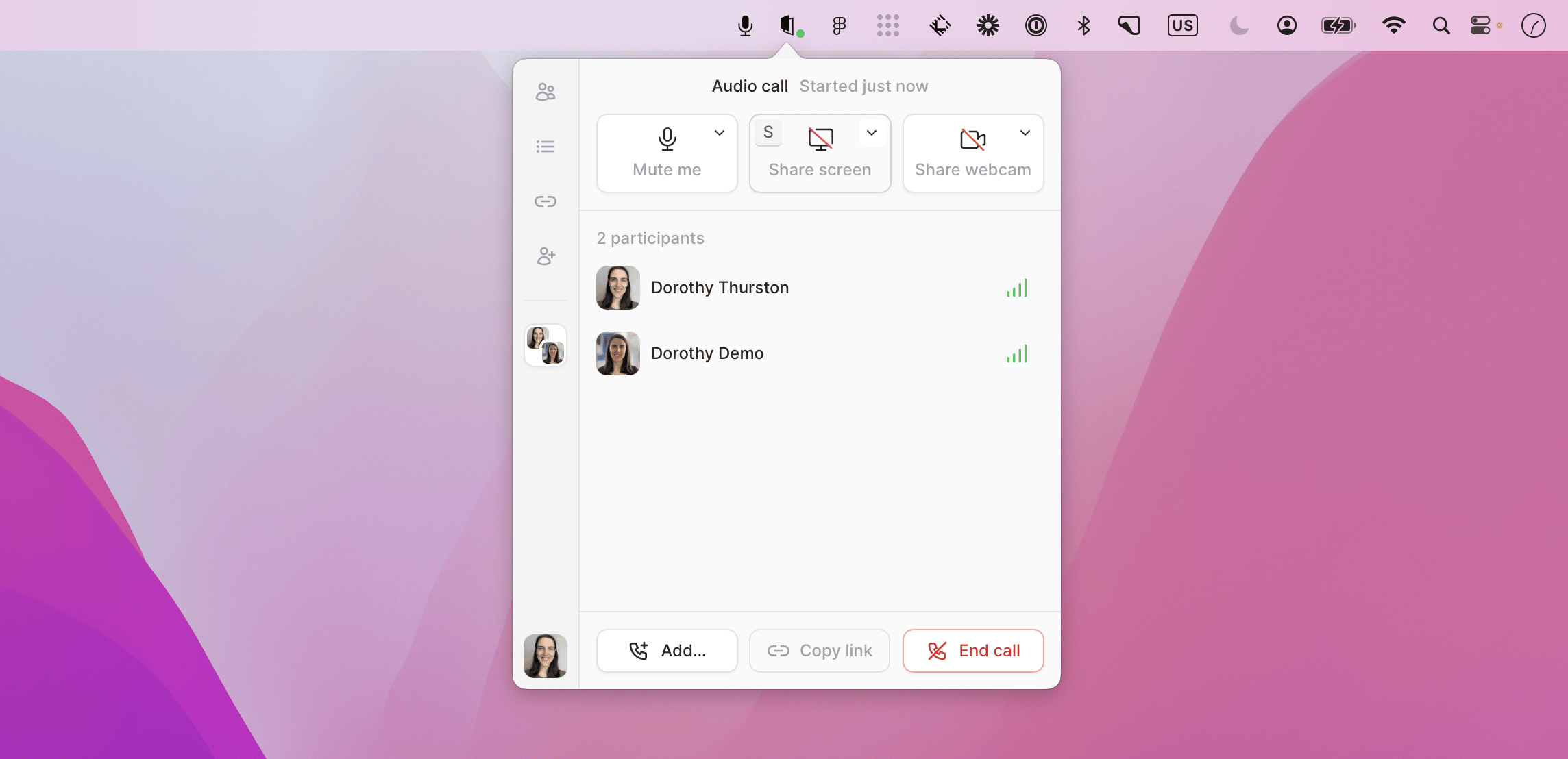
To add a webcam video, click the "Start Webcam" icon in the popover UI:
 You'll be shown a preview of your webcam's feed so you can adjust your lighting or background:
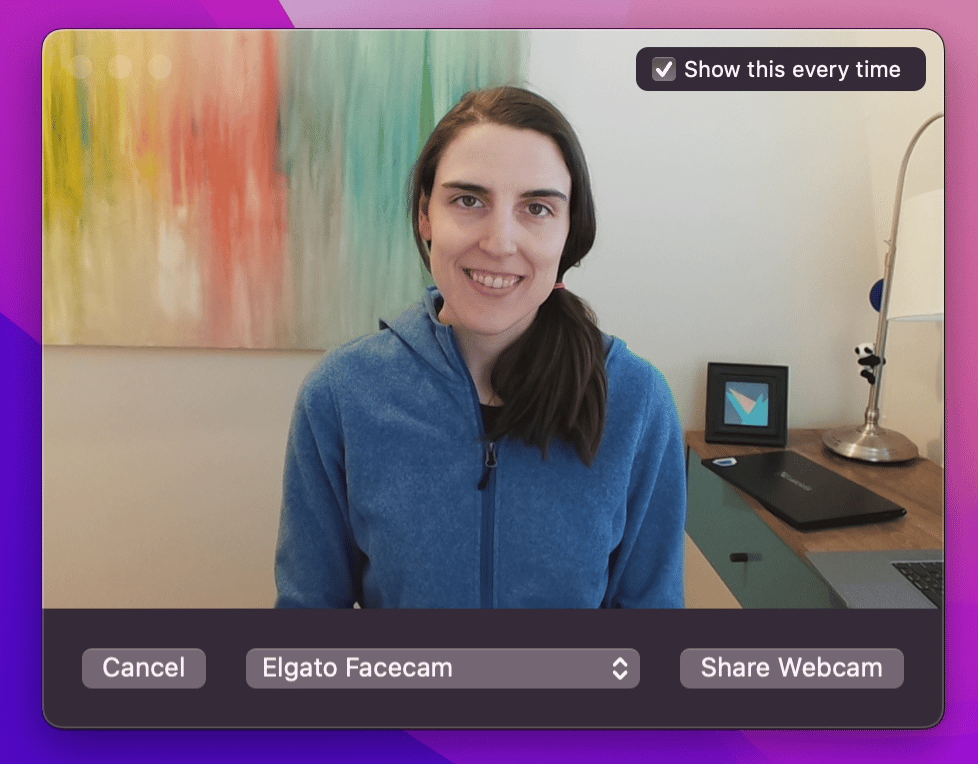 **Note:** this preview won't be seen by your pair, even if you're already sharing your desktop with them.
Once you click "Start Sharing", the preview disappears and your video stream will be shown to your pair.
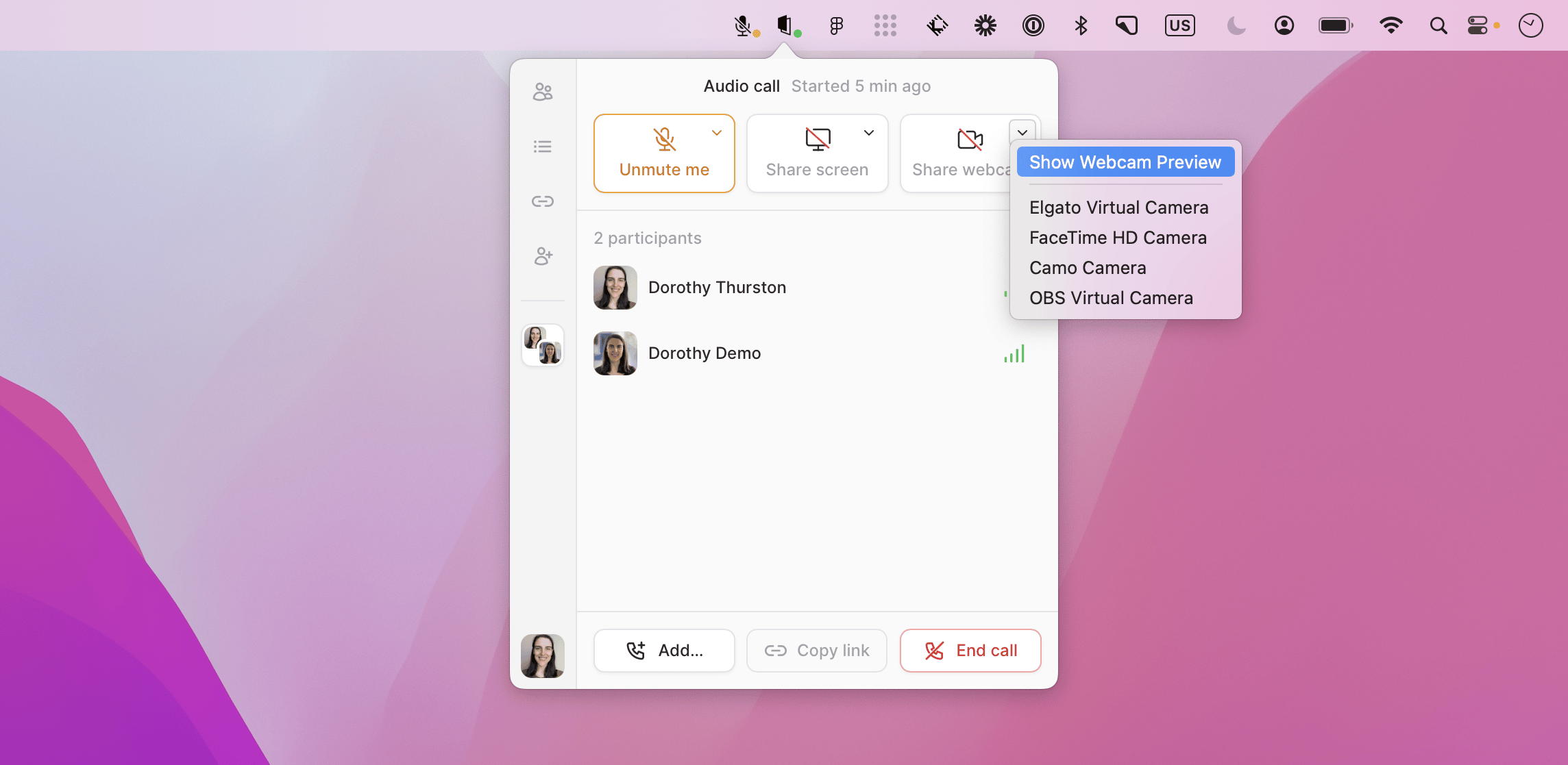
When you aren't sharing your webcam feed, you can bring up the camera preview via an option in the dropdown:
**Note:** this preview won't be seen by your pair, even if you're already sharing your desktop with them.
Once you click "Start Sharing", the preview disappears and your video stream will be shown to your pair.
When you aren't sharing your webcam feed, you can bring up the camera preview via an option in the dropdown:
 ### Conversation mode & coding mode
Tuple has two different ways to see the webcams of other participants on the call: **coding mode** and **conversation mode.**
**Coding mode** is the default mode, and is designed to be used in a pairing session where code is the primary focus:
* In this mode, the webcam window will float above all other windows.
* This mode allows participant webcams to be laid out either in a horizontal row or vertical column (this can be changed from the triple-dot menu).
* In this mode, the webcam window resizes proportionally.
* Buttons and other UI elements are hidden by default and show up when your cursor hovers the window.
### Conversation mode & coding mode
Tuple has two different ways to see the webcams of other participants on the call: **coding mode** and **conversation mode.**
**Coding mode** is the default mode, and is designed to be used in a pairing session where code is the primary focus:
* In this mode, the webcam window will float above all other windows.
* This mode allows participant webcams to be laid out either in a horizontal row or vertical column (this can be changed from the triple-dot menu).
* In this mode, the webcam window resizes proportionally.
* Buttons and other UI elements are hidden by default and show up when your cursor hovers the window.
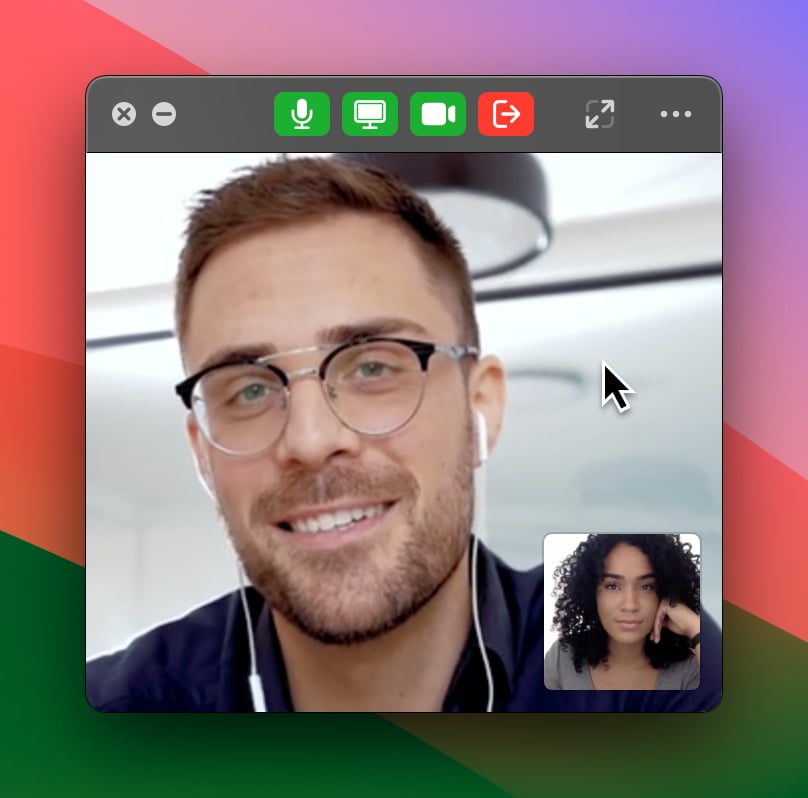 Conversely, you can use **conversation mode** in sessions where more of the focus is on discussion amongst the participants:
* In this mode, the webcam window will behave like a normal window (i.e. it will go behind other windows when it loses focus, the window can be resized arbitrarily, etc).
* This mode lays out participant webcams in a grid, which allows each individual webcam view to be larger.
Conversely, you can use **conversation mode** in sessions where more of the focus is on discussion amongst the participants:
* In this mode, the webcam window will behave like a normal window (i.e. it will go behind other windows when it loses focus, the window can be resized arbitrarily, etc).
* This mode lays out participant webcams in a grid, which allows each individual webcam view to be larger.
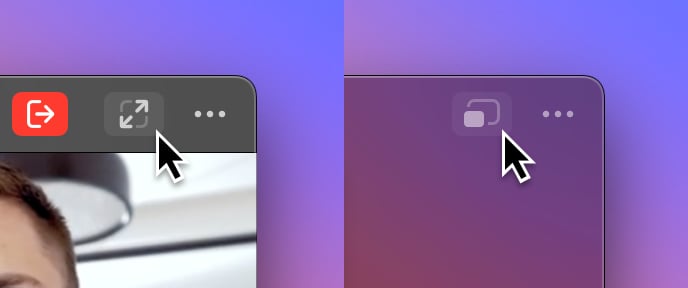
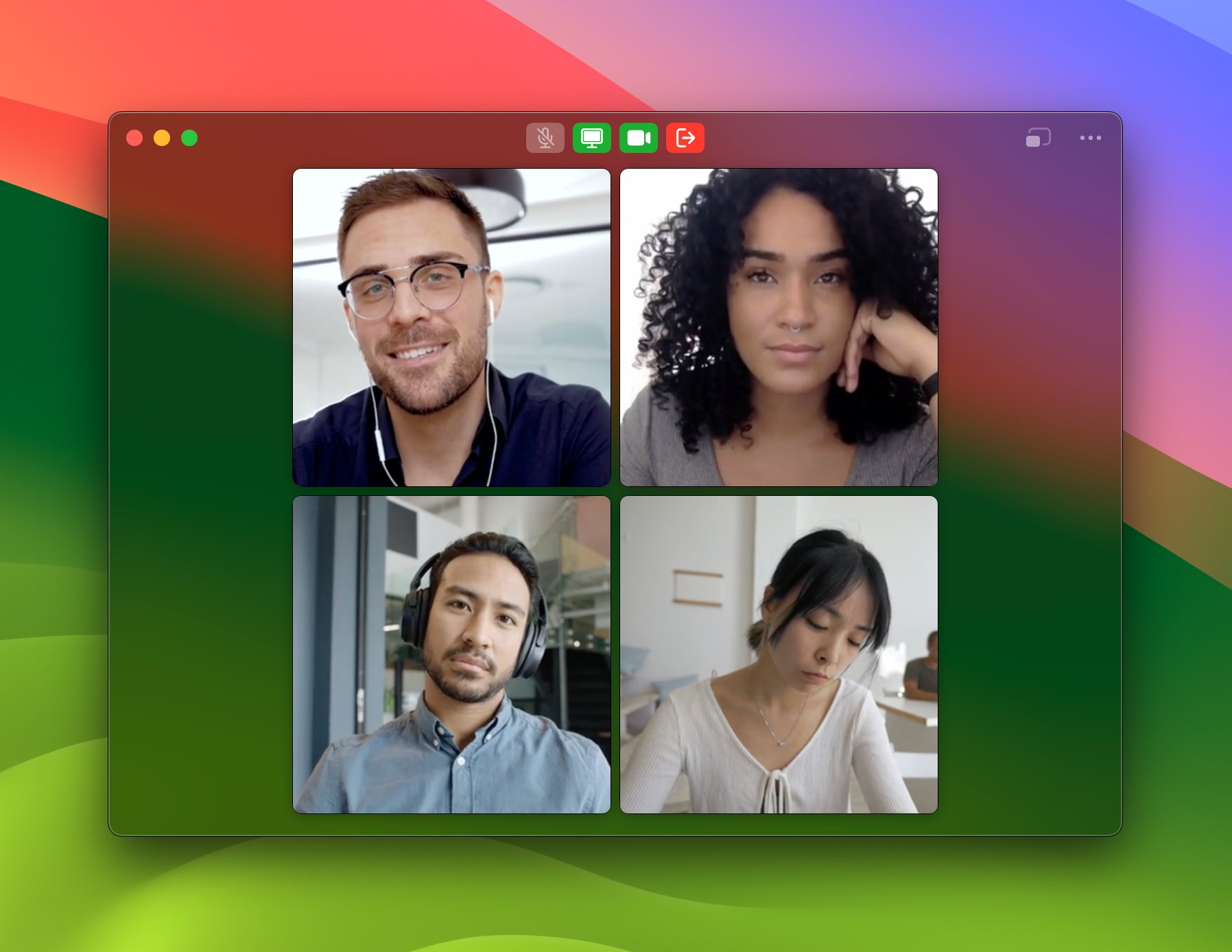 To switch between the two modes, click the toggle button in the top-right of the webcam window:
 ## Showing your own webcam self-view
While on a call, you can show or hide your own self view. This won't change whether other participants can see your webcam or not.
To show or hide your self view, click on the menu in the top-right corner of the webcam window, and click "Show/Hide Self View".
## Showing your own webcam self-view
While on a call, you can show or hide your own self view. This won't change whether other participants can see your webcam or not.
To show or hide your self view, click on the menu in the top-right corner of the webcam window, and click "Show/Hide Self View".
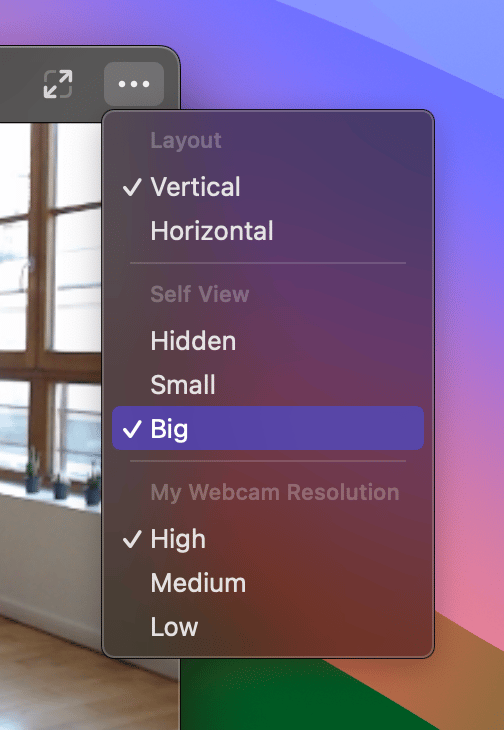
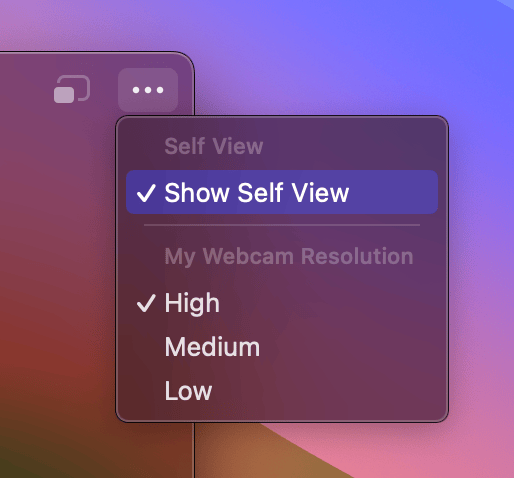 When you're in **coding mode**, you have the ability to choose between a small or large self view. *Small* will display your own video feed as a minimized thumbnail placed in the bottom-right corner of the webcam window, which helps save space when you're pairing with someone. *Big* sets your self-view to be the same size as the other tiles.
 ## Participant controls
Click another participant's webcam tile to open its menu. Depending on the participant's current state, you can:
* **Ask to Share Screen**
* **Ask to Share Webcam**
* **Ask to Unmute**
* **Mute Audio**
* **Kick** them from the call
These controls are available in coding mode and conversation mode.
## Changing the webcam in use while sharing
You can swap out the webcam in use when you are sharing a webcam by selecting the camera you'd prefer to share by selecting it from the dropdown:
## Using effects on your webcam
On supported Macs, macOS provides free background blur and other camera effects that work with Tuple. While your webcam is active, open the camera indicator in the menu bar and enable **Portrait**. Availability depends on your Mac and camera; see [Apple's requirements](https://support.apple.com/105117).
## Participant controls
Click another participant's webcam tile to open its menu. Depending on the participant's current state, you can:
* **Ask to Share Screen**
* **Ask to Share Webcam**
* **Ask to Unmute**
* **Mute Audio**
* **Kick** them from the call
These controls are available in coding mode and conversation mode.
## Changing the webcam in use while sharing
You can swap out the webcam in use when you are sharing a webcam by selecting the camera you'd prefer to share by selecting it from the dropdown:
## Using effects on your webcam
On supported Macs, macOS provides free background blur and other camera effects that work with Tuple. While your webcam is active, open the camera indicator in the menu bar and enable **Portrait**. Availability depends on your Mac and camera; see [Apple's requirements](https://support.apple.com/105117).
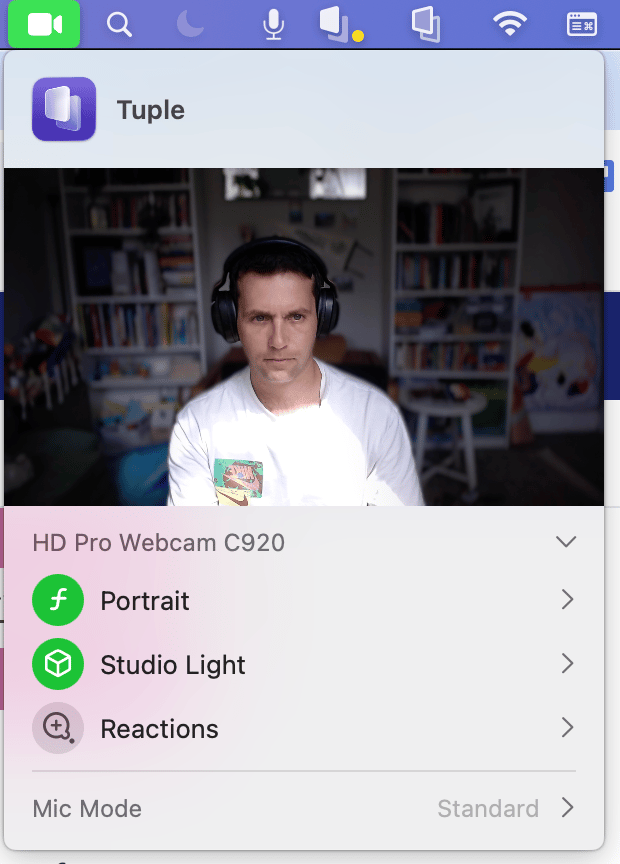 On macOS Ventura, open **Control Center**, click **Video Effects**, then enable **Portrait**.
Tuple also supports virtual cameras. You can use third-party software such as [Krisp.ai](https://krisp.ai/) or [OBS](https://obsproject.com/) when you need effects beyond those included with macOS.
## Setting your webcam resolution preference
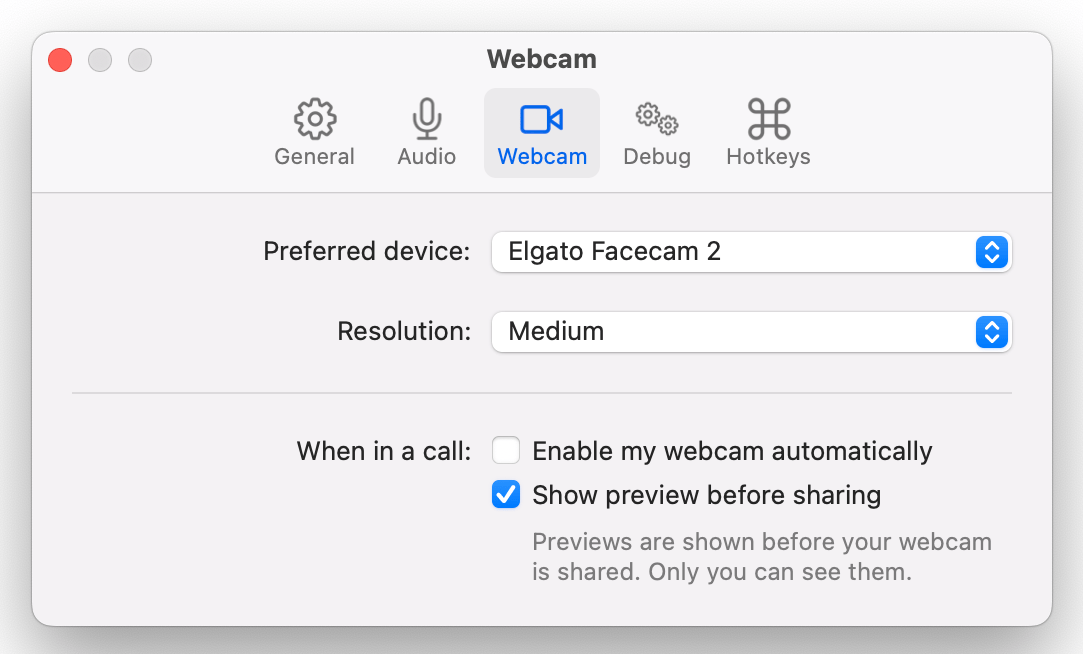
You can set the webcam resolution in your [preferences](/application-preferences/macos-preferences-webcam). Setting the resolution will automatically change the resolution on any current calls.
You might need to tweak your resolution depending on your network connection. If you have a high-speed connection and want maximum webcam quality, set your preference to high. If you're working with a relatively poor connection, set your preference to medium:
On macOS Ventura, open **Control Center**, click **Video Effects**, then enable **Portrait**.
Tuple also supports virtual cameras. You can use third-party software such as [Krisp.ai](https://krisp.ai/) or [OBS](https://obsproject.com/) when you need effects beyond those included with macOS.
## Setting your webcam resolution preference
You can set the webcam resolution in your [preferences](/application-preferences/macos-preferences-webcam). Setting the resolution will automatically change the resolution on any current calls.
You might need to tweak your resolution depending on your network connection. If you have a high-speed connection and want maximum webcam quality, set your preference to high. If you're working with a relatively poor connection, set your preference to medium:
 ### Sharing a webcam
To add a webcam video, click the "Start Webcam" icon in the popover UI:
### Sharing a webcam
To add a webcam video, click the "Start Webcam" icon in the popover UI:
 You'll be shown a preview of your webcam's feed so you can adjust your lighting or background:
**Note:** this preview won't be seen by your pair, even if you're already sharing your desktop with them.
Once you click "Start Sharing", the preview disappears and your video stream will be shown to your pair.
When you aren't sharing your webcam feed, you can bring up the camera preview via an option in the dropdown:
You'll be shown a preview of your webcam's feed so you can adjust your lighting or background:
**Note:** this preview won't be seen by your pair, even if you're already sharing your desktop with them.
Once you click "Start Sharing", the preview disappears and your video stream will be shown to your pair.
When you aren't sharing your webcam feed, you can bring up the camera preview via an option in the dropdown:
 ### Showing your own webcam self-view
While on a call, you can show or hide your own self view. This won't change whether other participants can see your webcam or not.
To show or hide your self view, click on the menu in the top-left corner of the webcam window, and toggle "Show Self View".
### Showing your own webcam self-view
While on a call, you can show or hide your own self view. This won't change whether other participants can see your webcam or not.
To show or hide your self view, click on the menu in the top-left corner of the webcam window, and toggle "Show Self View".
 ### Changing the Webcam in use while sharing
You can swap out the webcam in use when you are sharing a webcam by selecting the camera you'd prefer to share by selecting it from the dropdown:
### Changing the Webcam in use while sharing
You can swap out the webcam in use when you are sharing a webcam by selecting the camera you'd prefer to share by selecting it from the dropdown:
