> ## Documentation Index
> Fetch the complete documentation index at: https://docs.tuple.app/llms.txt
> Use this file to discover all available pages before exploring further.
# Interacting with a shared screen
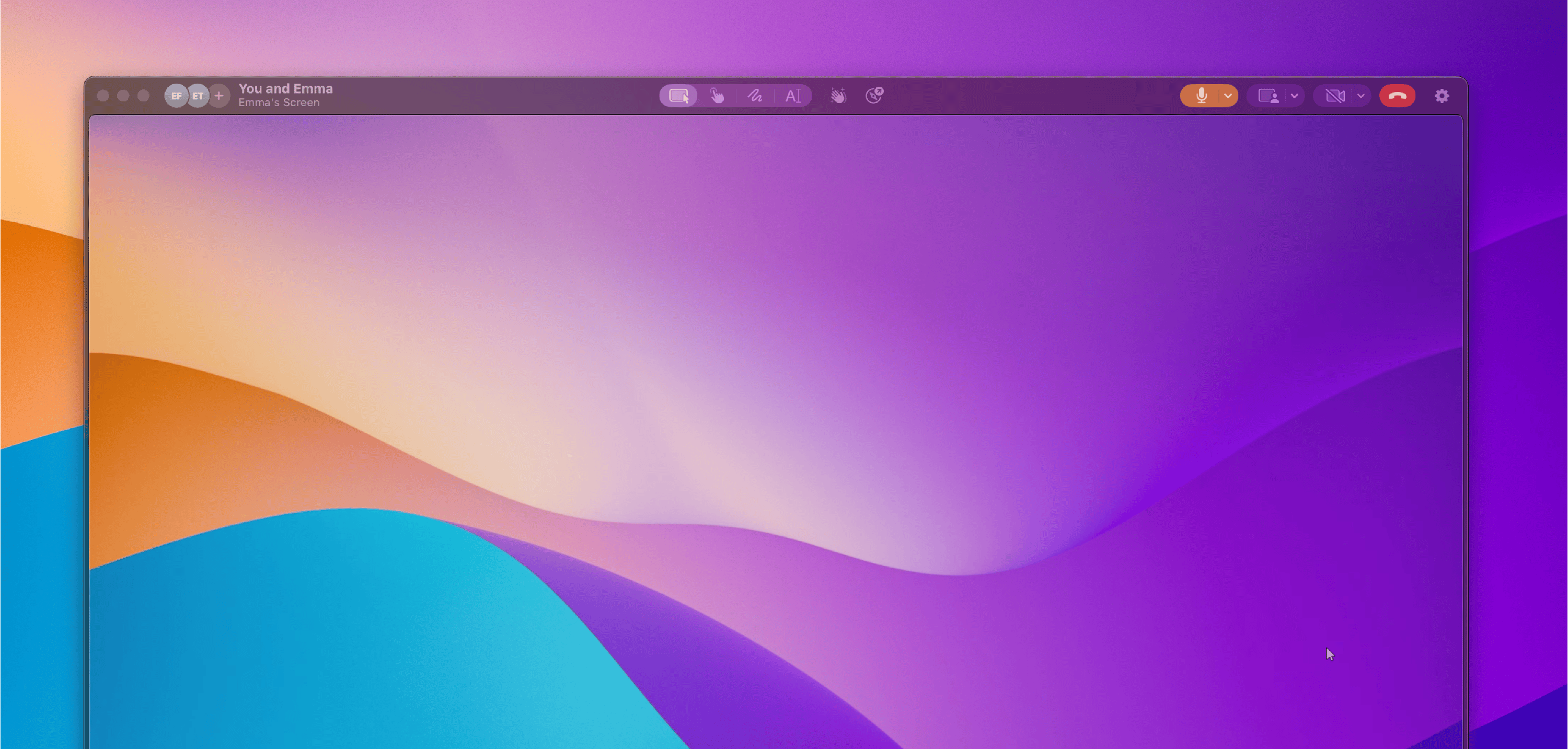 When someone else on a call is sharing their screen, you can use the toolbar at the top of the viewing window to understand what's going on in the call and interact with the shared screen.
*Note: If you fullscreen this window, you can access the toolbar by moving your cursor to the top of the screen.*
## Participant Display
When someone else on a call is sharing their screen, you can use the toolbar at the top of the viewing window to understand what's going on in the call and interact with the shared screen.
*Note: If you fullscreen this window, you can access the toolbar by moving your cursor to the top of the screen.*
## Participant Display
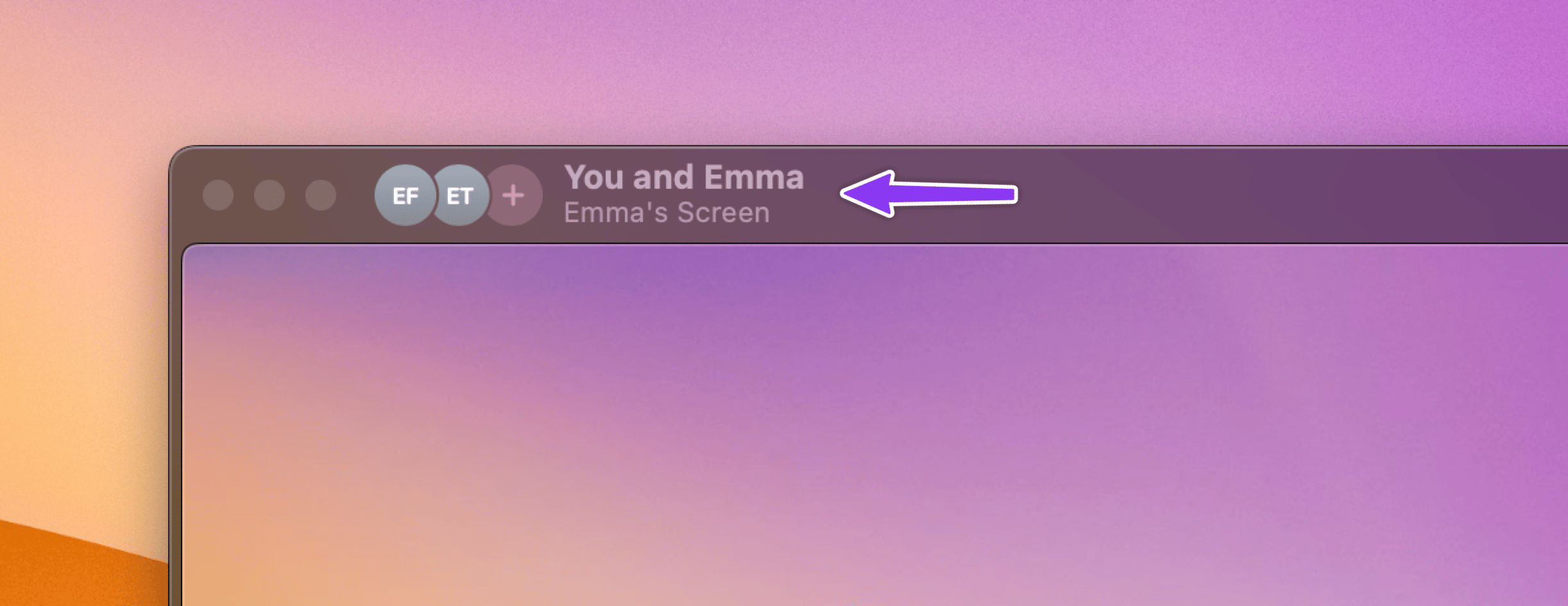 In the top left of the window is the participant display. Here, you'll see an overview of who's on the call with you, whose screen you're looking at, and who currently has control over the mouse and keyboard.
When a user has control over the mouse and keyboard, they'll have a colored ring around their avatar:
In the top left of the window is the participant display. Here, you'll see an overview of who's on the call with you, whose screen you're looking at, and who currently has control over the mouse and keyboard.
When a user has control over the mouse and keyboard, they'll have a colored ring around their avatar:
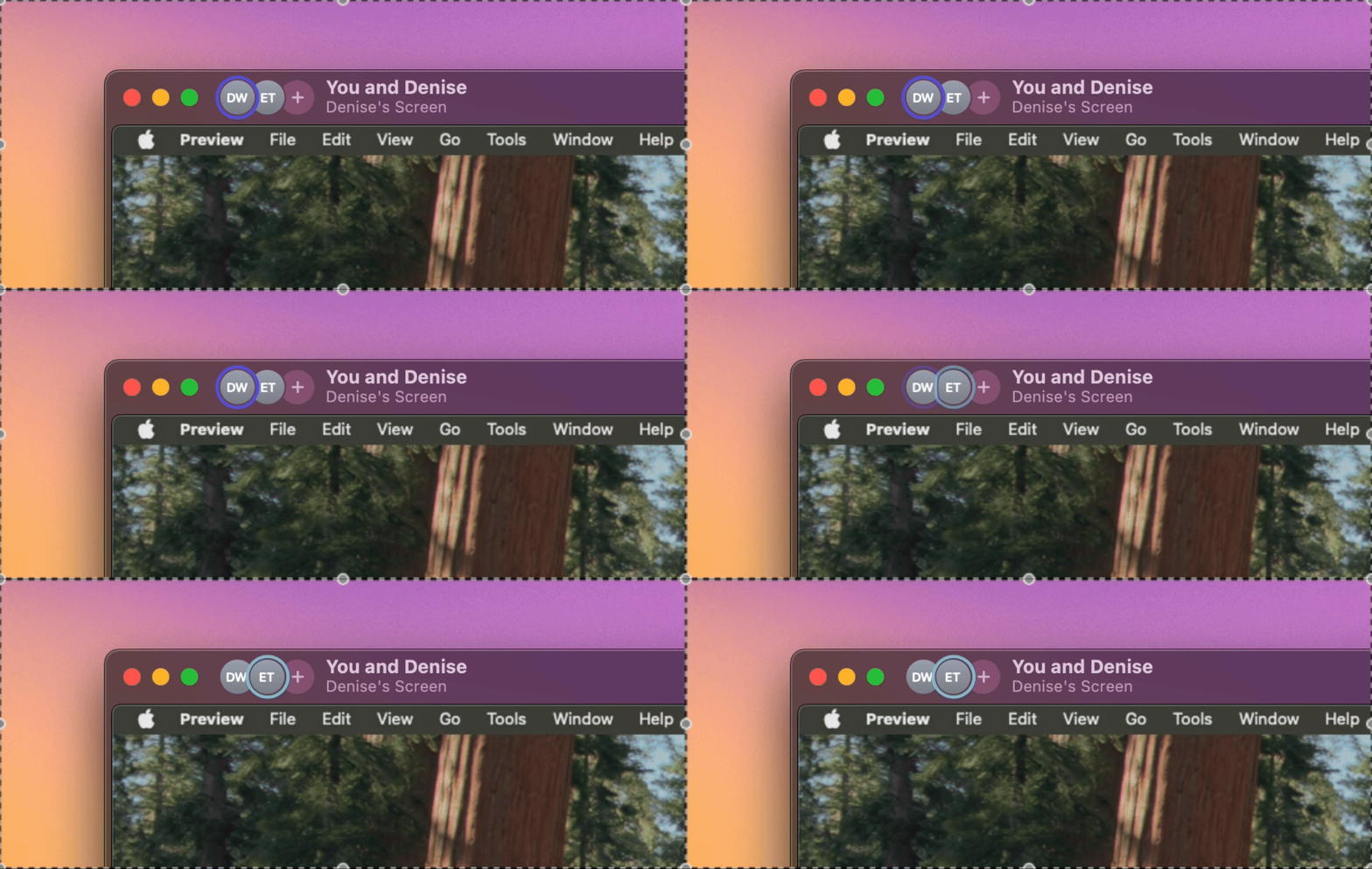 You can click on the "+" icon to add more people to a call (either by adding them directly, or by copying a link to the call):
 Clicking on any user's avatar allows you to request that they share their screen or webcam, mute their audio, or kick them off the call:
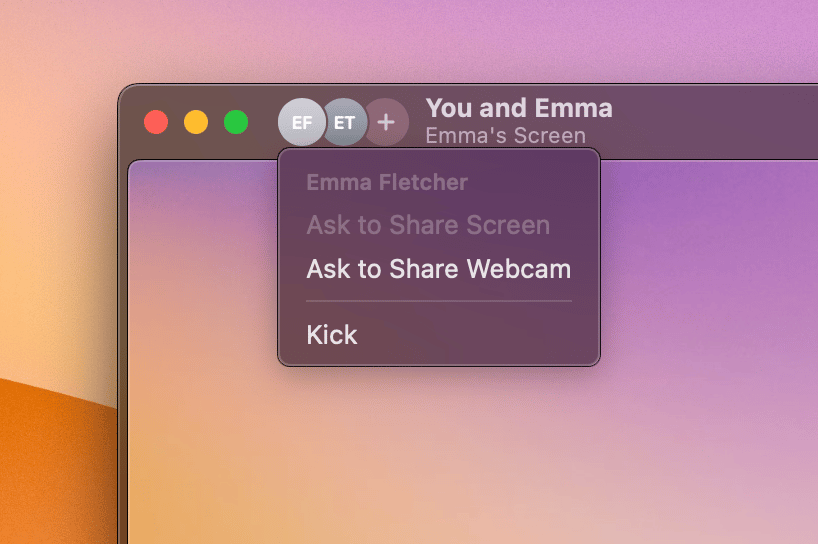 Selecting **Mute Audio** immediately mutes the other participant's microphone. They receive an on-screen notification letting them know they were muted, with the option to unmute themselves.
## Shared Screen Tools
Tuple has a number of tools that allow you to interact with a shared screen:
### Remote Control
Selecting **Mute Audio** immediately mutes the other participant's microphone. They receive an on-screen notification letting them know they were muted, with the option to unmute themselves.
## Shared Screen Tools
Tuple has a number of tools that allow you to interact with a shared screen:
### Remote Control
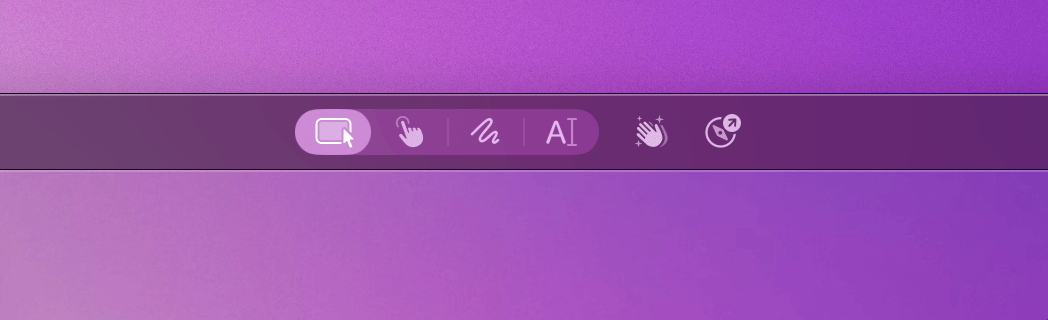 When the remote control tool is enabled, all of your mouse and keyboard input events will be forwarded to the host machine. The only exception is command-tab (see settings below).
### Paint
When the remote control tool is enabled, all of your mouse and keyboard input events will be forwarded to the host machine. The only exception is command-tab (see settings below).
### Paint
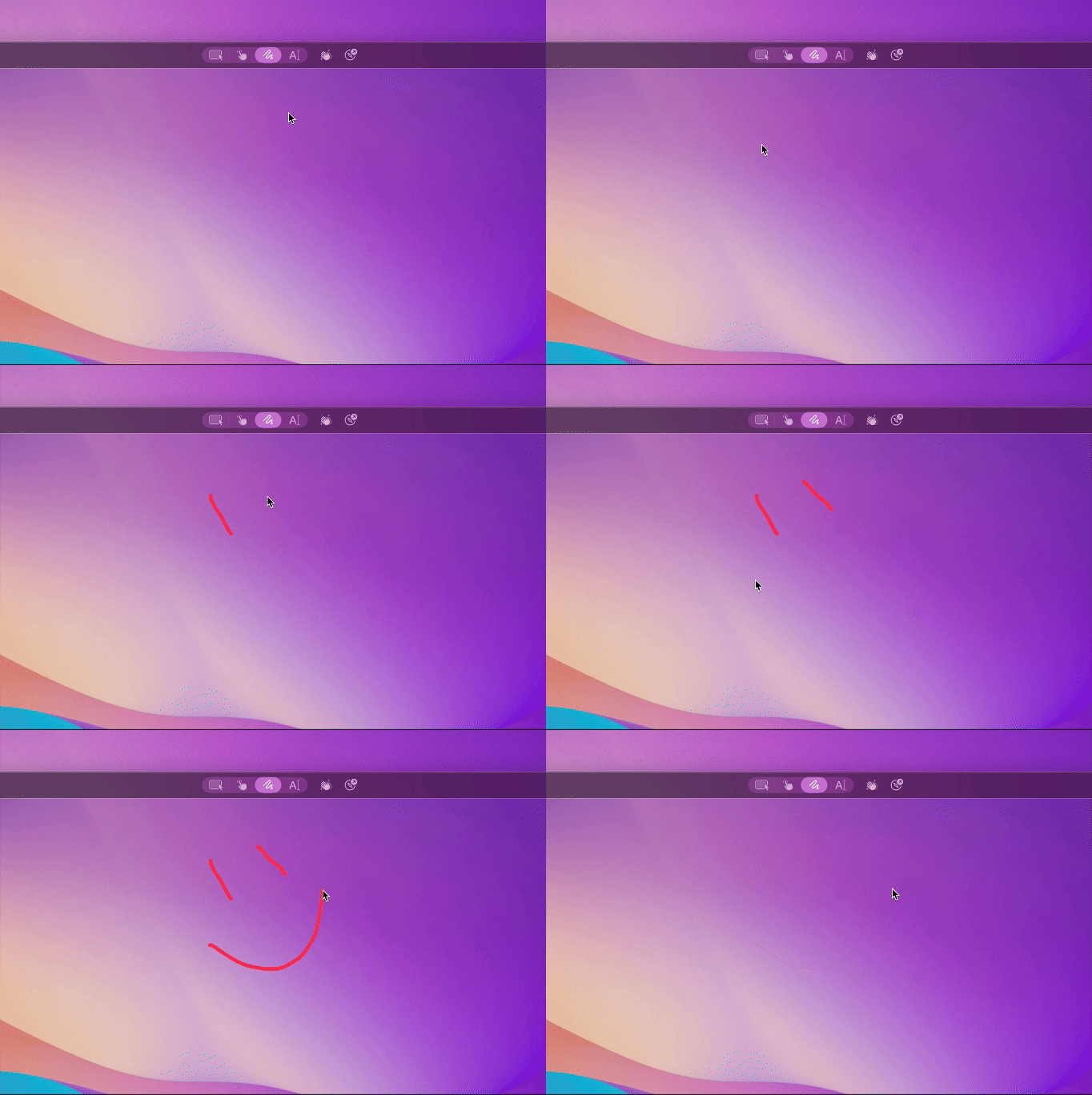 This tool allows you to draw on the shared screen; your drawing can be seen by all participants. Your paint color is [automatically assigned](/pairing-with-tuple/collaborative-painting#paint-colors) so each participant's drawings are easy to tell apart. By default, anything you draw will fade away automatically after a few seconds, though this behavior can be changed (see settings below). You can also hold shift to draw a straight line.
### Highlight Click
This tool allows you to draw on the shared screen; your drawing can be seen by all participants. Your paint color is [automatically assigned](/pairing-with-tuple/collaborative-painting#paint-colors) so each participant's drawings are easy to tell apart. By default, anything you draw will fade away automatically after a few seconds, though this behavior can be changed (see settings below). You can also hold shift to draw a straight line.
### Highlight Click
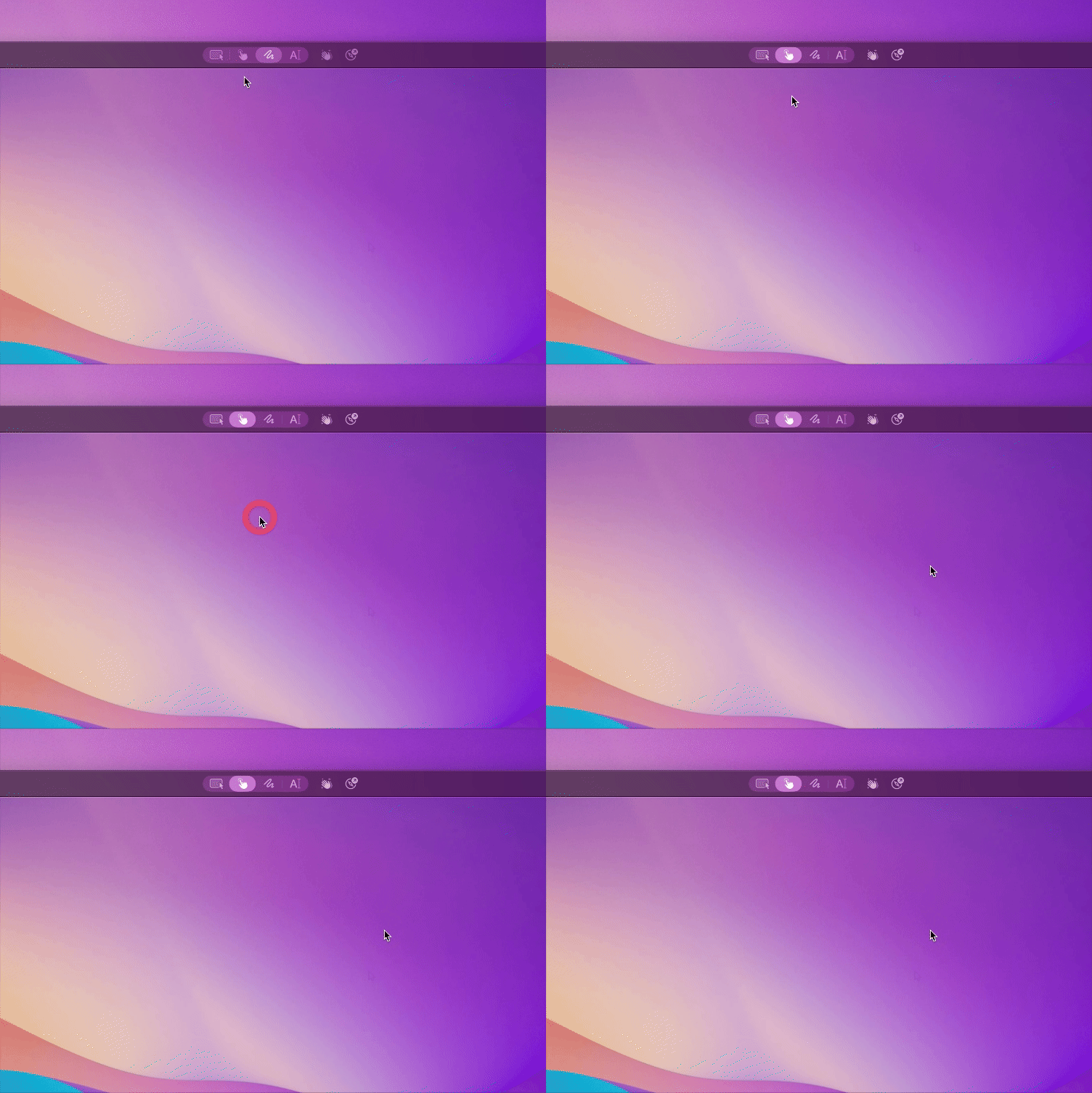 This tool allows you to create a pulsing indicator on the host's screen for a few seconds. Use this mode to quickly draw your pair's attention to something without getting in the way too much.
### Text Annotation
This tool allows you to create a pulsing indicator on the host's screen for a few seconds. Use this mode to quickly draw your pair's attention to something without getting in the way too much.
### Text Annotation
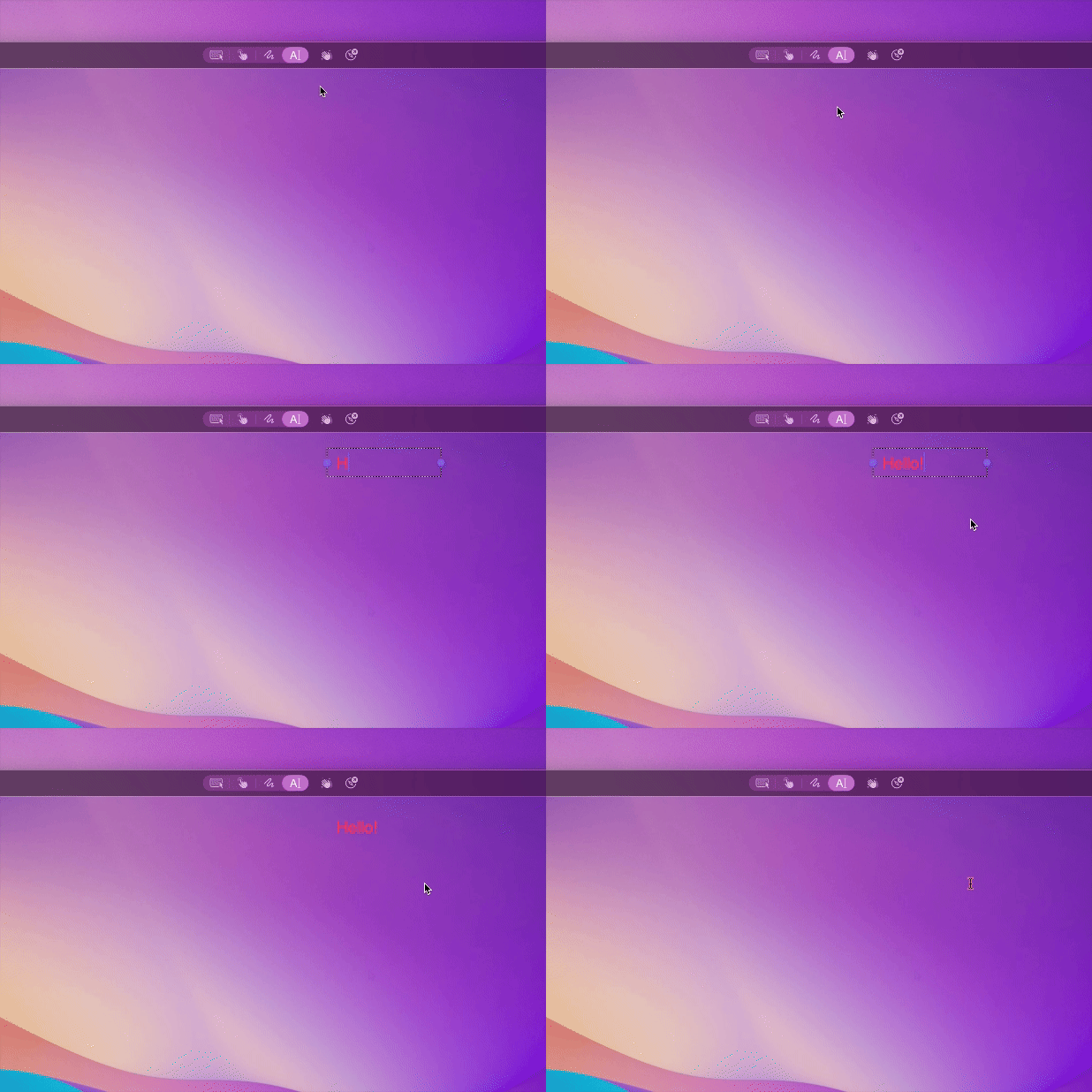 This tool allows you to place a text field anywhere within the shared screen, and type some text. You can also insert emojis using the system emoji picker (`Ctrl+Cmd+Space`).
### Reactions
This tool allows you to place a text field anywhere within the shared screen, and type some text. You can also insert emojis using the system emoji picker (`Ctrl+Cmd+Space`).
### Reactions
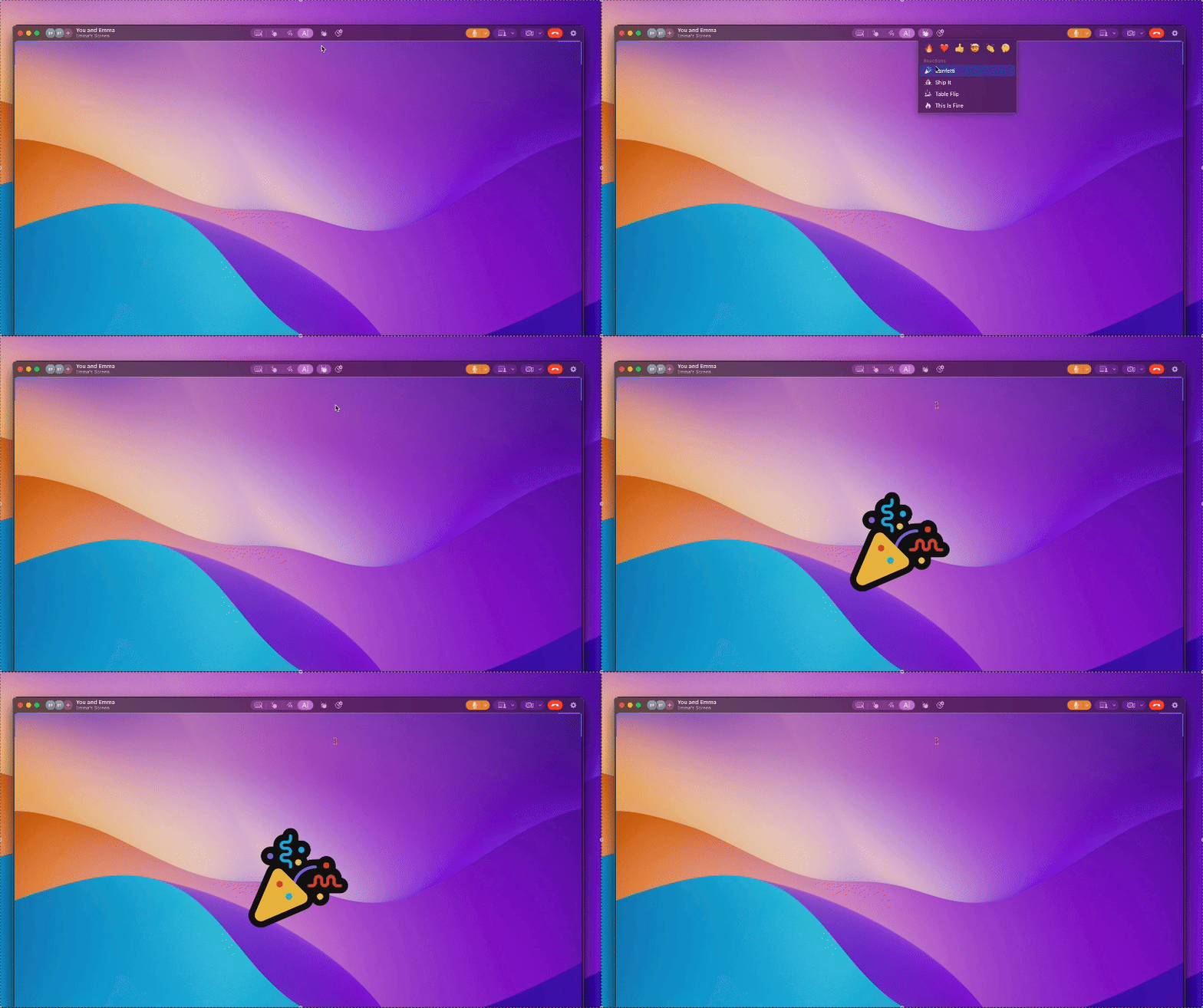 Tuple contains a number of reactions you can send while on a call. There are a handful of emojis that can be sent, as well as some bigger, full-screen reactions.
### Send GIF
You can send animated GIFs during a call to bring a bit of fun into your pairing session (powered by [Klipy](https://klipy.com/)). Click the **Send Reaction** button in the toolbar, then select **Send GIF...** at the bottom of the menu.
This opens a GIF picker where you can search for something specific. There are three ways to send a GIF:
* **Click to send:** hover over a GIF to reveal the send button, then click it to place the GIF on the shared screen.
* **Double-click:** double-click any GIF to send it immediately.
* **Drag to place:** drag a GIF out of the picker and drop it anywhere on the shared screen to place it at that exact spot.
GIF playback is synchronized across all call participants. Your recently sent GIFs are saved so you can quickly reuse them.
You can also navigate the GIF picker with your keyboard. Use the **arrow keys** to browse results and press **Return** to send the selected GIF.
### Zoom Tool
Tuple contains a number of reactions you can send while on a call. There are a handful of emojis that can be sent, as well as some bigger, full-screen reactions.
### Send GIF
You can send animated GIFs during a call to bring a bit of fun into your pairing session (powered by [Klipy](https://klipy.com/)). Click the **Send Reaction** button in the toolbar, then select **Send GIF...** at the bottom of the menu.
This opens a GIF picker where you can search for something specific. There are three ways to send a GIF:
* **Click to send:** hover over a GIF to reveal the send button, then click it to place the GIF on the shared screen.
* **Double-click:** double-click any GIF to send it immediately.
* **Drag to place:** drag a GIF out of the picker and drop it anywhere on the shared screen to place it at that exact spot.
GIF playback is synchronized across all call participants. Your recently sent GIFs are saved so you can quickly reuse them.
You can also navigate the GIF picker with your keyboard. Use the **arrow keys** to browse results and press **Return** to send the selected GIF.
### Zoom Tool
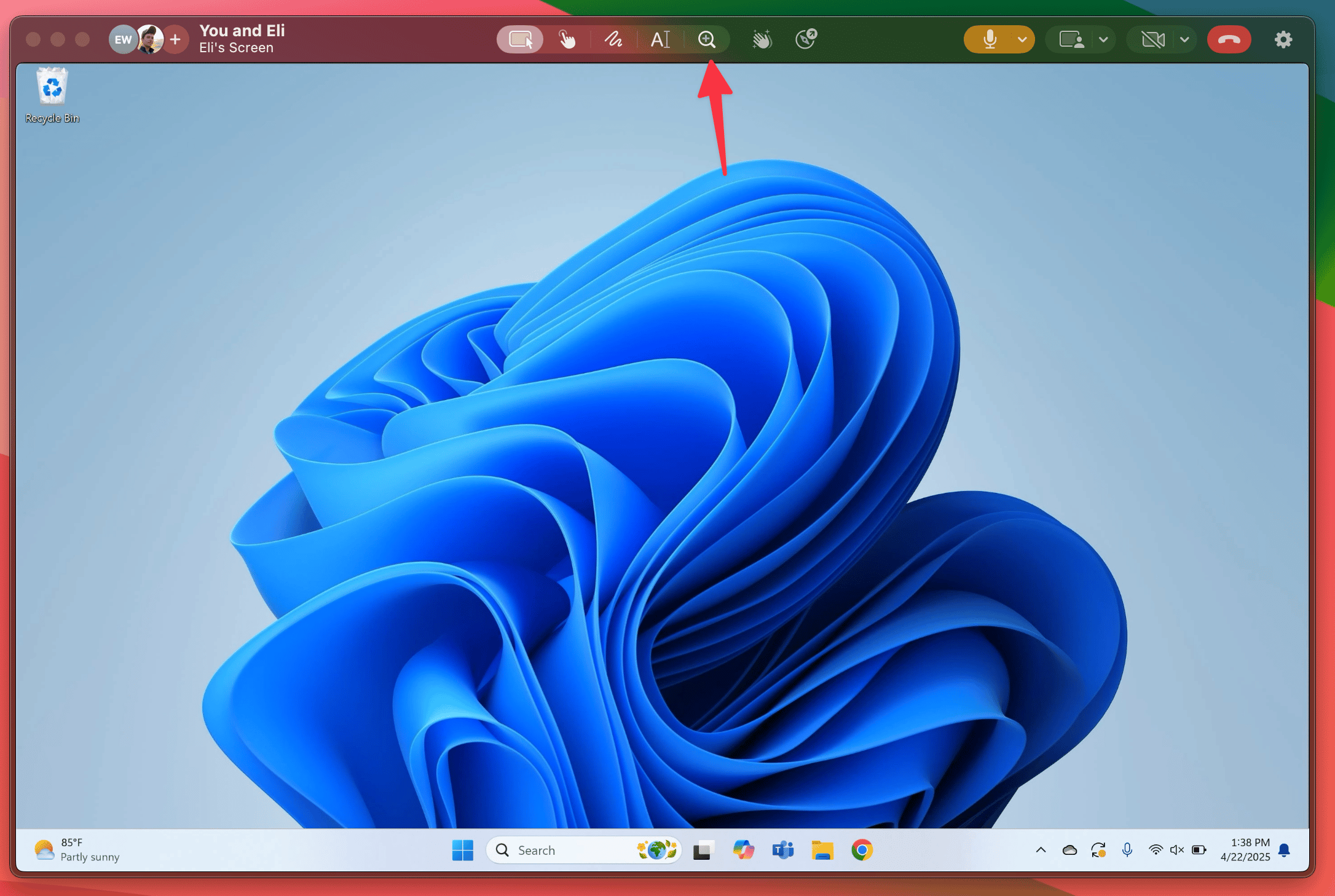 The zoom tool allows you to zoom in (and pan around) on a shared screen.
**Zooming**
When using the zoom tool, there are a number of ways to zoom in and out:
* **Left click** will zoom in; both **Option + left click** and **right click** will zoom out
* **Double click** zooms all the way in; **double click** when zoomed all the way in will zoom all the way back out again
* **Pinch in** (on a trackpad) will zoom in; **pinch out** will zoom out
* **Command + scroll wheel / two finger scroll** will zoom in and out (the zoom direction will respect your "Natural scrolling" setting in macOS)
* The **zoom buttons** in the lower right hand corner of the screen also allow you to zoom in and out
**Panning**
There are also a few different ways to pan with the zoom tool selected (once you've zoomed in):
* Holding **space** while clicking and dragging will allow you to pan (your cursor will change into a hand)
* Using the **scroll wheel** will pan up and down; if your mouse has a trackball that supports horizontal scrolling, that will work as well
* **Holding down the scroll wheel** (also sometimes called the “third button”) will pan
* You can use **two fingers** to pan (on a trackpad)
* Panning can also be toggled on using the **pan button** in the lower right hand corner
**Universal shortcuts**
There are a handful of keyboard shortcuts that you can use, regardless of which tool you have selected (the only exception is when you're in remote control mode, since the keypresses would be forwarded to the remote machine):
* **Command + `+`** will zoom in, **Command + `-`** will zoom out
* **Command + 0** will make the shared screen the same resolution as your native resolution
* **Command + 9** will zoom to fit the shared screen into the screen share window
These commands can also be found in the **View** menu in the menu bar.
**Zooming and panning while using other tools**
It's also possible to zoom and pan when you have the drawing, highlight click, and text annotation tools selected:
* **Option + left click** will zoom in; **Option + command + left click** or **Option + right click** will zoom out
* **Option + double click** zooms all the way in; **Option + double click** when zoomed all the way in will zoom all the way back out again
* Holding **Option + scroll wheel / two finger scroll** will zoom in and out
* Holding **Option + pinching in** (on a trackpad) will zoom in; **Option + pinch out** will zoom out
* You can hold **Option** and use **two fingers** to pan (on a trackpad)
* Holding **space** while clicking and dragging will allow you to pan
* **Option + holding down the scroll wheel** (also sometimes called the “third button”) will pan
**Caveats**
* Note that the zoom tool **won't** appear unless the screen you're viewing can be zoomed in on; if the shared screen is equal or lower to your native resolution, the tool won't be shown.
* You're not able to zoom in further than your own native resolution
* You won't be able to pan around if you haven't zoomed in
### Send Link
The zoom tool allows you to zoom in (and pan around) on a shared screen.
**Zooming**
When using the zoom tool, there are a number of ways to zoom in and out:
* **Left click** will zoom in; both **Option + left click** and **right click** will zoom out
* **Double click** zooms all the way in; **double click** when zoomed all the way in will zoom all the way back out again
* **Pinch in** (on a trackpad) will zoom in; **pinch out** will zoom out
* **Command + scroll wheel / two finger scroll** will zoom in and out (the zoom direction will respect your "Natural scrolling" setting in macOS)
* The **zoom buttons** in the lower right hand corner of the screen also allow you to zoom in and out
**Panning**
There are also a few different ways to pan with the zoom tool selected (once you've zoomed in):
* Holding **space** while clicking and dragging will allow you to pan (your cursor will change into a hand)
* Using the **scroll wheel** will pan up and down; if your mouse has a trackball that supports horizontal scrolling, that will work as well
* **Holding down the scroll wheel** (also sometimes called the “third button”) will pan
* You can use **two fingers** to pan (on a trackpad)
* Panning can also be toggled on using the **pan button** in the lower right hand corner
**Universal shortcuts**
There are a handful of keyboard shortcuts that you can use, regardless of which tool you have selected (the only exception is when you're in remote control mode, since the keypresses would be forwarded to the remote machine):
* **Command + `+`** will zoom in, **Command + `-`** will zoom out
* **Command + 0** will make the shared screen the same resolution as your native resolution
* **Command + 9** will zoom to fit the shared screen into the screen share window
These commands can also be found in the **View** menu in the menu bar.
**Zooming and panning while using other tools**
It's also possible to zoom and pan when you have the drawing, highlight click, and text annotation tools selected:
* **Option + left click** will zoom in; **Option + command + left click** or **Option + right click** will zoom out
* **Option + double click** zooms all the way in; **Option + double click** when zoomed all the way in will zoom all the way back out again
* Holding **Option + scroll wheel / two finger scroll** will zoom in and out
* Holding **Option + pinching in** (on a trackpad) will zoom in; **Option + pinch out** will zoom out
* You can hold **Option** and use **two fingers** to pan (on a trackpad)
* Holding **space** while clicking and dragging will allow you to pan
* **Option + holding down the scroll wheel** (also sometimes called the “third button”) will pan
**Caveats**
* Note that the zoom tool **won't** appear unless the screen you're viewing can be zoomed in on; if the shared screen is equal or lower to your native resolution, the tool won't be shown.
* You're not able to zoom in further than your own native resolution
* You won't be able to pan around if you haven't zoomed in
### Send Link
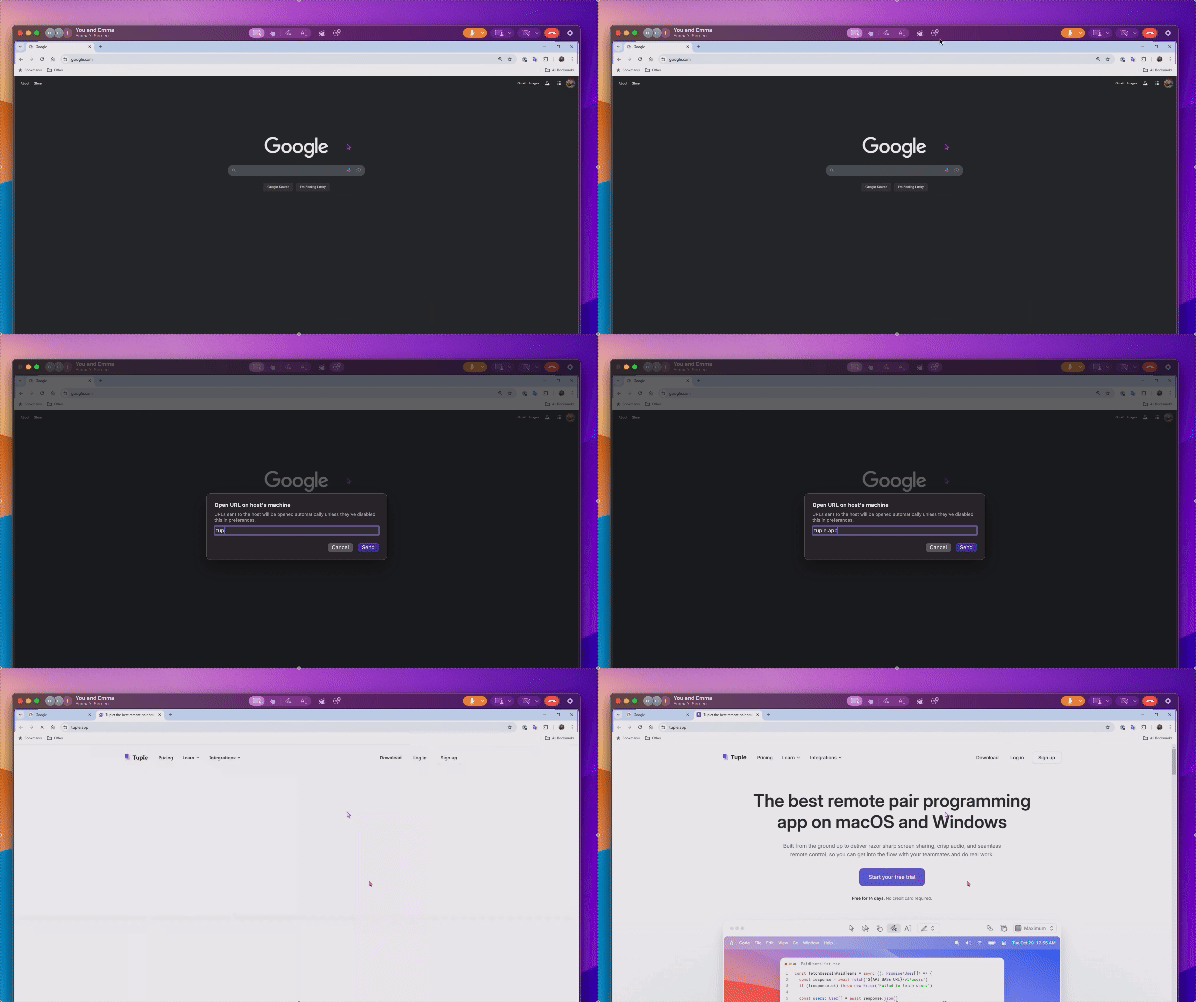 This tool allows you to send your pair a URL, which will open automatically in their browser. This can be disabled by the call initiator in their Preferences.
## A/V Controls
This tool allows you to send your pair a URL, which will open automatically in their browser. This can be disabled by the call initiator in their Preferences.
## A/V Controls
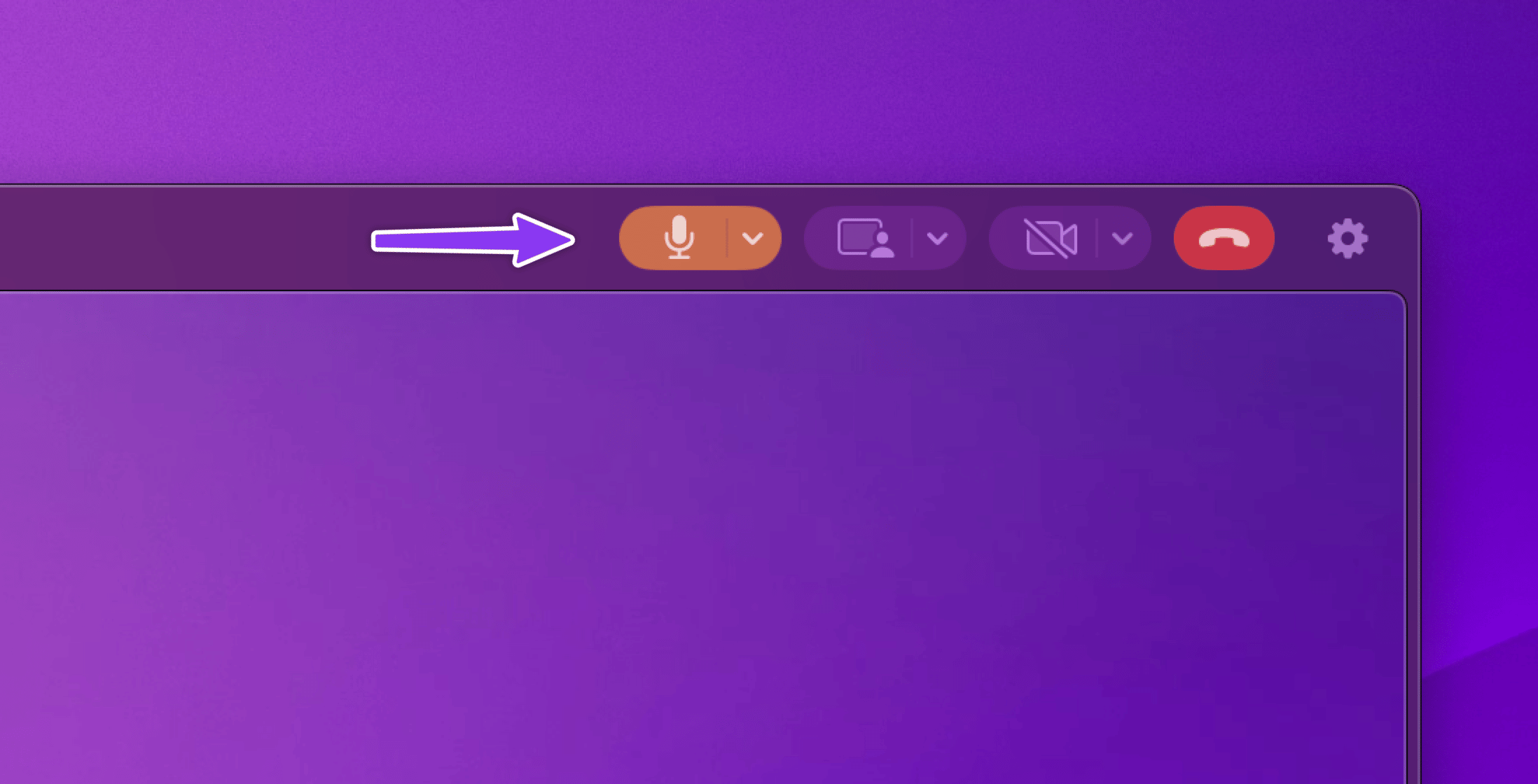 The shared screen window also contains controls for enabling and disabling your microphone and webcam. You can also change your active audio and camera devices directly from this menu. Lastly, these controls also allow you to easily begin sharing your own screen.
## Settings
The shared screen window also contains controls for enabling and disabling your microphone and webcam. You can also change your active audio and camera devices directly from this menu. Lastly, these controls also allow you to easily begin sharing your own screen.
## Settings
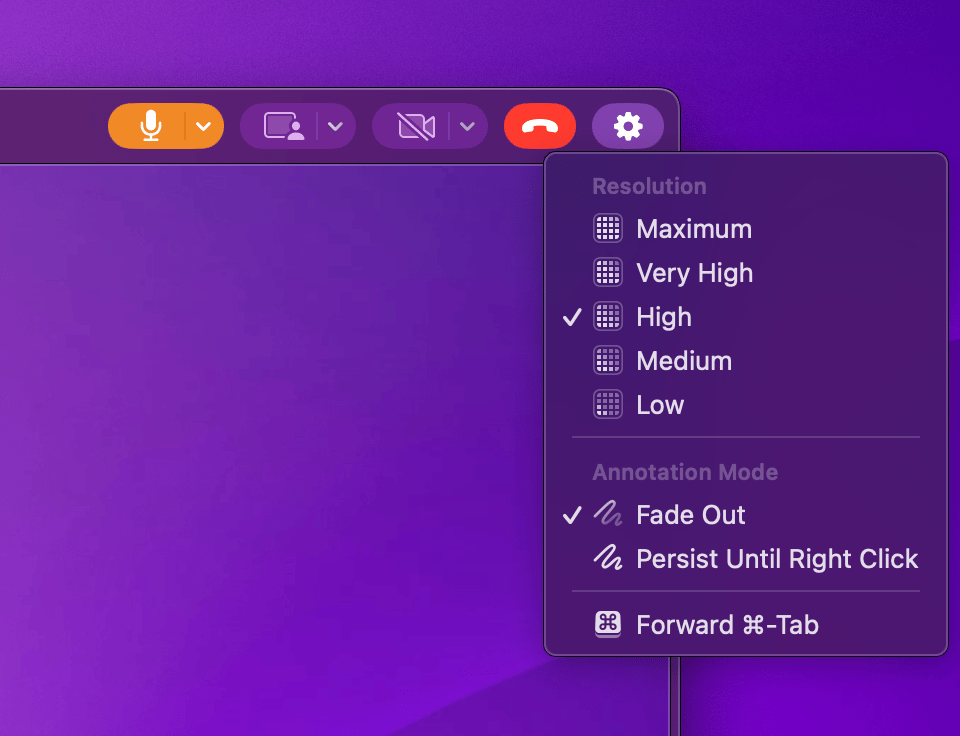 ### Stream resolution
The initial Stream Resolution setting is based on the call initiator's preference but can be temporarily modified by the guest during a call.
If you aren't doing a lot of typing or clicking on the shared screen, you should crank this up to get the sharpest image. However, if you want very snappy responses to your keystrokes, then you can get lower latency by reducing the resolution of the video.
### Paint persistence
You can choose whether you want drawings done with the paint tool to fade after 2 seconds, or persist until you right click.
### Forwarding command-tab
You can toggle whether you want the command-tab key sequence to be sent to the host or not.
### Upscale Content
On Apple Silicon Macs, you can toggle **Upscale Content** to sharpen the incoming screen share video. This runs locally on your machine, so it only changes how the shared screen looks on your display — it doesn't affect the resolution other participants receive.
This toggle and the [Upscale content](/application-preferences/macos-preferences-screen-share#upscale-content) checkbox in the Screen Share preferences pane control the same setting, so changes in either place stay in sync. If the menu item doesn't appear, your Mac isn't on Apple Silicon or upscaling is disabled for your account.
## A note about fullscreen
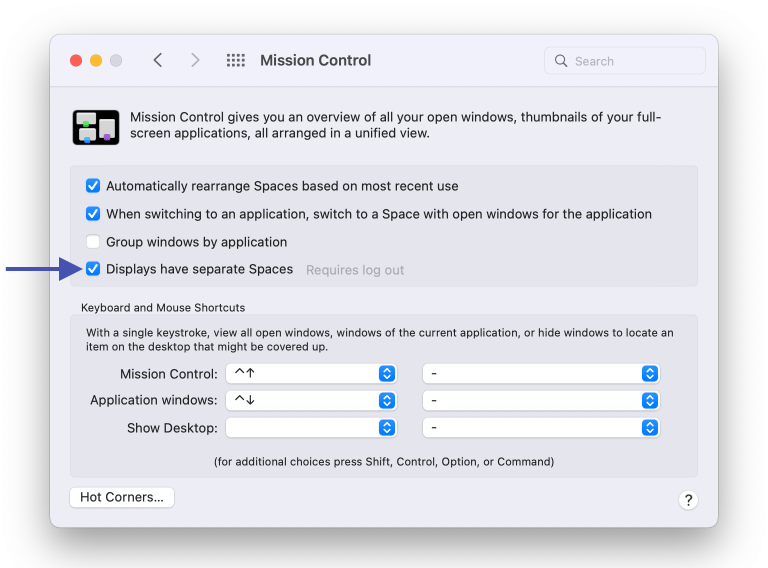
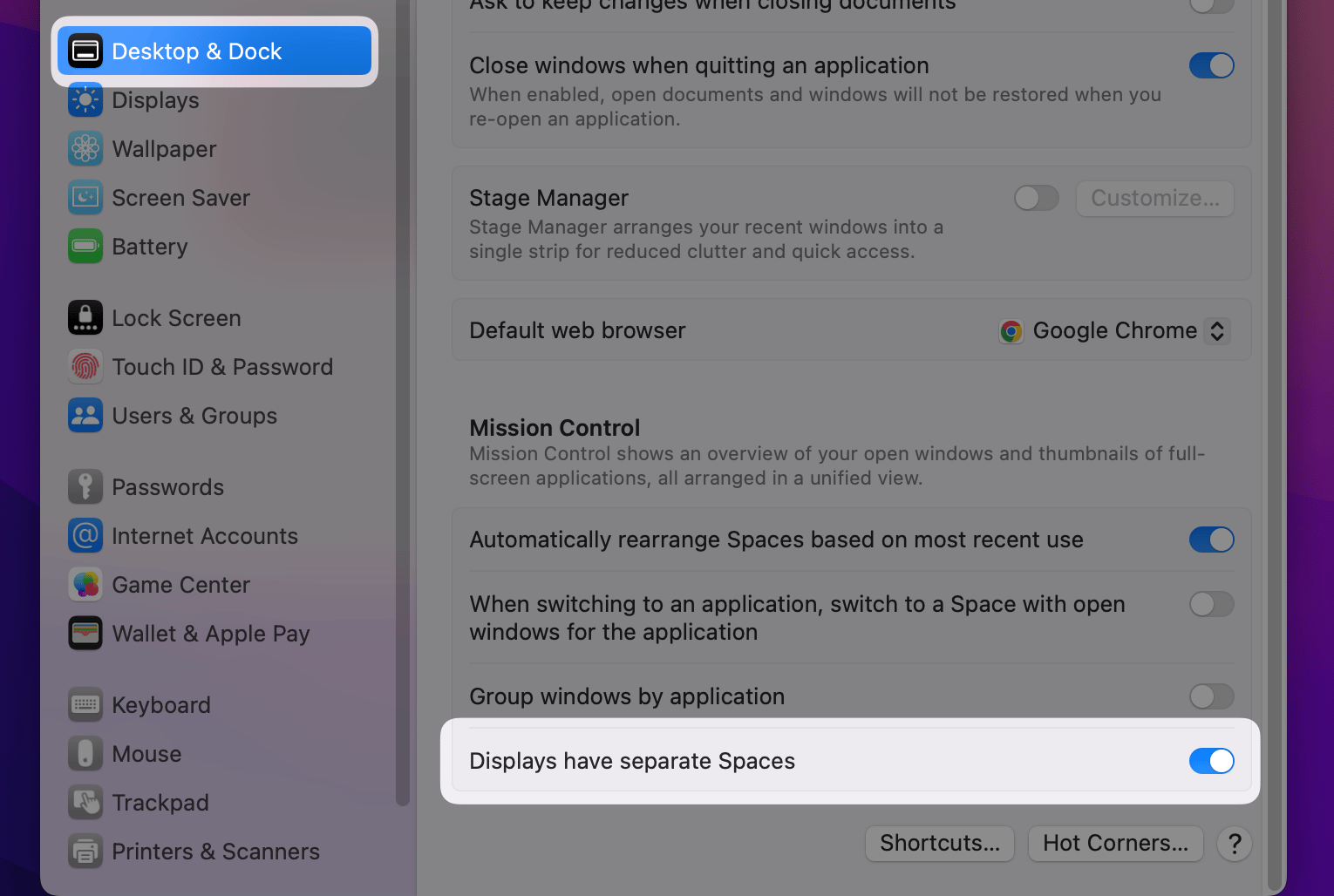
Tuple only allows fullscreen when the macOS setting 'Displays have separate spaces' is turned on. You can find that setting in System Preferences > Mission Control:
### Stream resolution
The initial Stream Resolution setting is based on the call initiator's preference but can be temporarily modified by the guest during a call.
If you aren't doing a lot of typing or clicking on the shared screen, you should crank this up to get the sharpest image. However, if you want very snappy responses to your keystrokes, then you can get lower latency by reducing the resolution of the video.
### Paint persistence
You can choose whether you want drawings done with the paint tool to fade after 2 seconds, or persist until you right click.
### Forwarding command-tab
You can toggle whether you want the command-tab key sequence to be sent to the host or not.
### Upscale Content
On Apple Silicon Macs, you can toggle **Upscale Content** to sharpen the incoming screen share video. This runs locally on your machine, so it only changes how the shared screen looks on your display — it doesn't affect the resolution other participants receive.
This toggle and the [Upscale content](/application-preferences/macos-preferences-screen-share#upscale-content) checkbox in the Screen Share preferences pane control the same setting, so changes in either place stay in sync. If the menu item doesn't appear, your Mac isn't on Apple Silicon or upscaling is disabled for your account.
## A note about fullscreen
Tuple only allows fullscreen when the macOS setting 'Displays have separate spaces' is turned on. You can find that setting in System Preferences > Mission Control:
 Or in macOS 13.0+ in System Preferences > Desktop and Dock:
 When **viewing** a shared screen, you can control the interaction using the guest toolbar at the top of the viewing window.
## Mouse modes
When **viewing** a shared screen, you can control the interaction using the guest toolbar at the top of the viewing window.
## Mouse modes
 Tuple supports multiple ways of using your mouse to interact with a shared screen:
#### Remote control
In this mode, you can use your mouse to interact with the shared screen.
#### Highlight Click
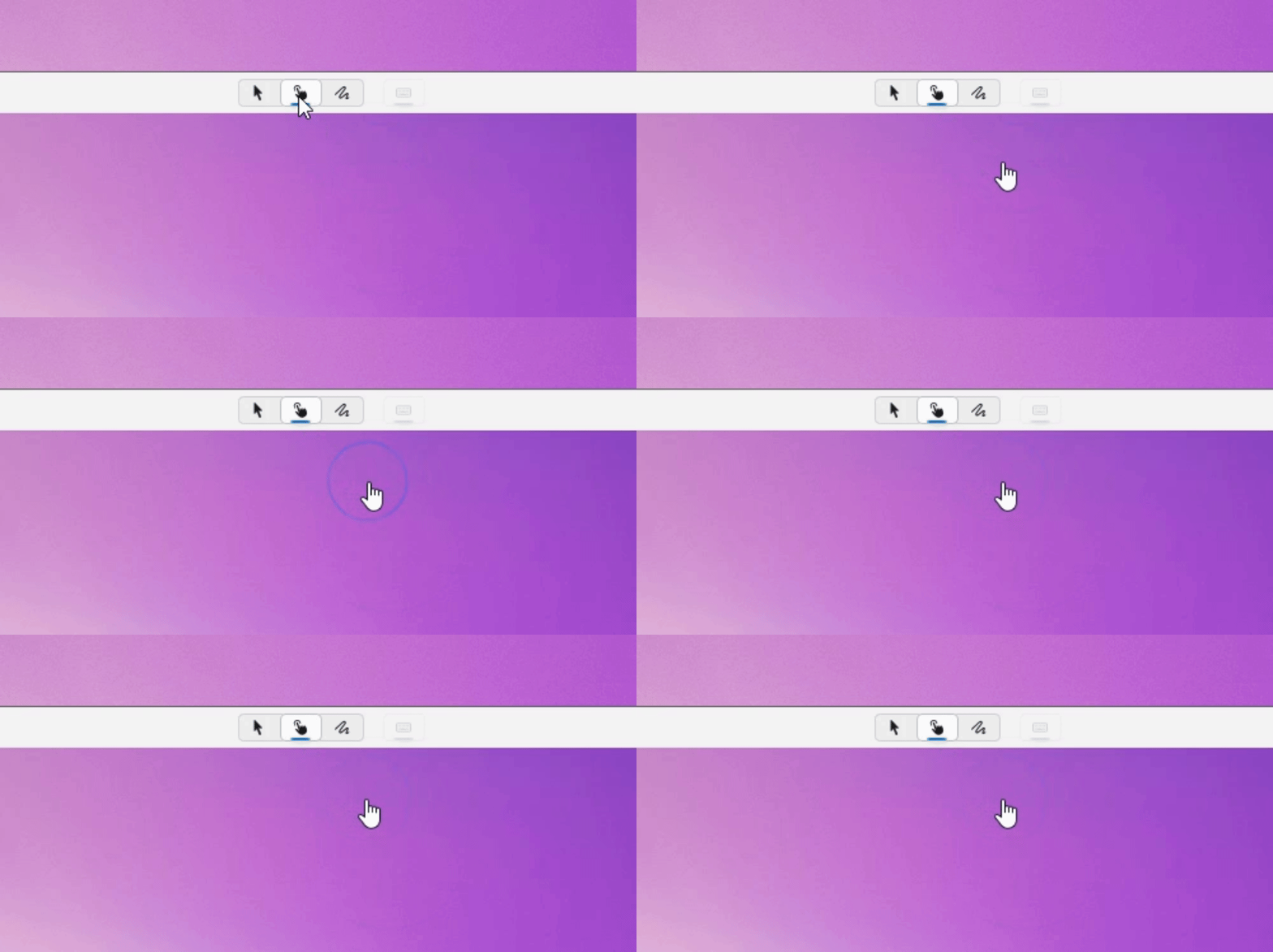
When using Highlight Click, clicks will create a pulsing indicator for a few seconds on the host's screen. Use this mode to quickly draw your partner's attention without getting too much in the way.
Tuple supports multiple ways of using your mouse to interact with a shared screen:
#### Remote control
In this mode, you can use your mouse to interact with the shared screen.
#### Highlight Click
When using Highlight Click, clicks will create a pulsing indicator for a few seconds on the host's screen. Use this mode to quickly draw your partner's attention without getting too much in the way.
 ## Paint mode
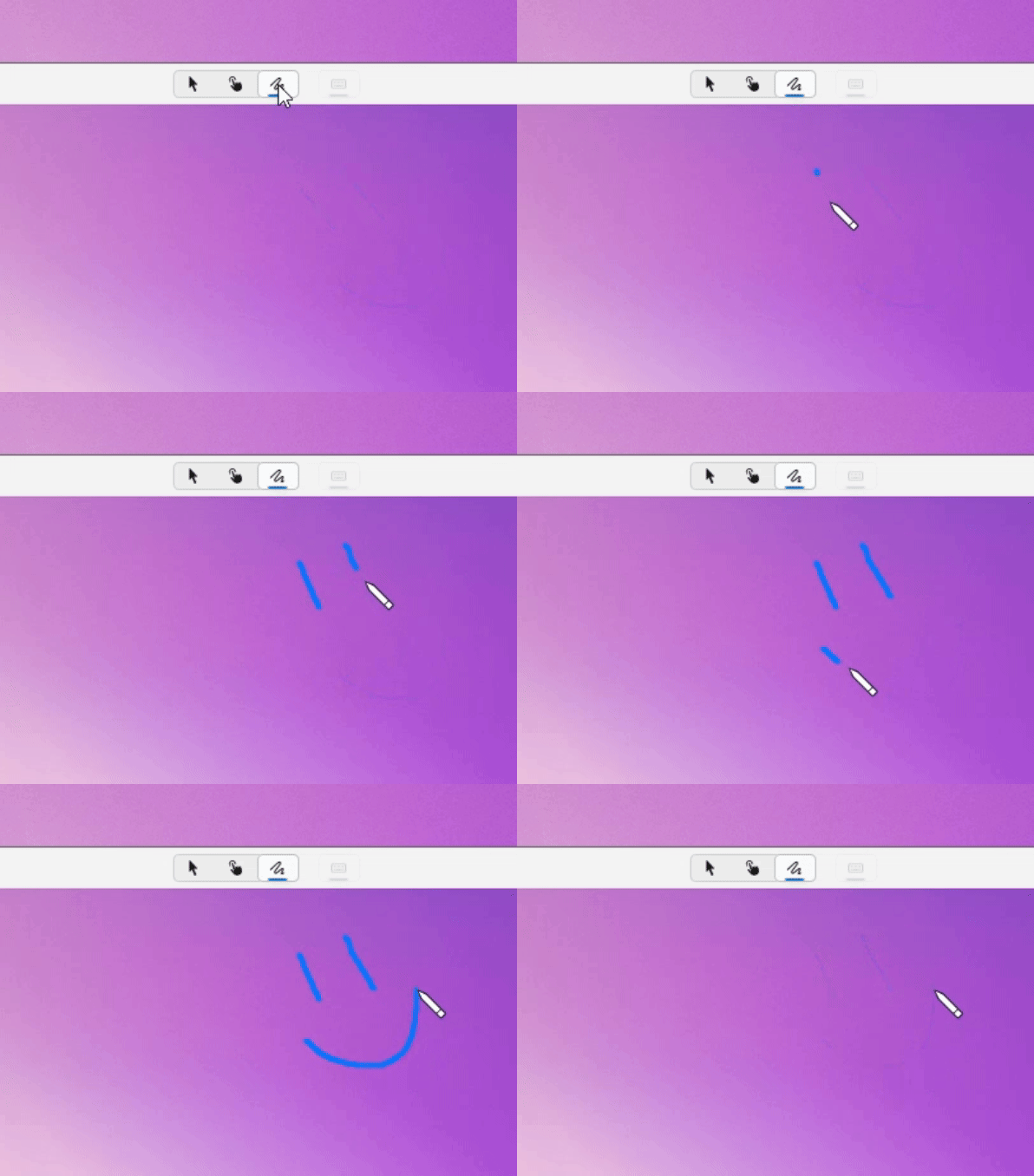
In Paint mode, you can click and drag to draw on your partner's screen. Anything you draw will fade away automatically after a few seconds.
## Paint mode
In Paint mode, you can click and drag to draw on your partner's screen. Anything you draw will fade away automatically after a few seconds.
 ## Keyboard modes
 #### No Keyboard
Your keystrokes will never be sent to the host machine. Use this mode if you will be switching back and forth between viewing your partner's screen and doing your own typing elsewhere, so you don't accidentally interfere.
#### Keyboard
This mode will transmit all of your keystrokes to the shared machine. Note that Tuple does *not* translate modifier keys when connecting to a host that's on macOS. For example, if you want to issue a keyboard shortcut on macOS that utilizes the command key (⌘), you could use the Windows key (⊞) instead.
## Reactions
We have many reactions you can send while viewing a screen.
#### No Keyboard
Your keystrokes will never be sent to the host machine. Use this mode if you will be switching back and forth between viewing your partner's screen and doing your own typing elsewhere, so you don't accidentally interfere.
#### Keyboard
This mode will transmit all of your keystrokes to the shared machine. Note that Tuple does *not* translate modifier keys when connecting to a host that's on macOS. For example, if you want to issue a keyboard shortcut on macOS that utilizes the command key (⌘), you could use the Windows key (⊞) instead.
## Reactions
We have many reactions you can send while viewing a screen.
 #### Emoji Reactions 🔥
Send 🔥, ❤️, 👍, 🤯, 👏, or 🤔 to your pair.
#### Confetti 🎉
Essential for a pairing session. When you and your pair have accomplished something truly great, send some confetti to celebrate.
#### Ship it 🚢
Code looking good to go? Use this one.
#### Table Flip (╯°□°)╯︵ ┻━┻
Legacy code got you flipping out? Send this reaction.
#### This is fine 🐶🔥
Everything a dumpster fire? Send this animation of [KC Green](https://kcgreendotcom.com/index.html)'s classic comic.
## Stream resolution
#### Emoji Reactions 🔥
Send 🔥, ❤️, 👍, 🤯, 👏, or 🤔 to your pair.
#### Confetti 🎉
Essential for a pairing session. When you and your pair have accomplished something truly great, send some confetti to celebrate.
#### Ship it 🚢
Code looking good to go? Use this one.
#### Table Flip (╯°□°)╯︵ ┻━┻
Legacy code got you flipping out? Send this reaction.
#### This is fine 🐶🔥
Everything a dumpster fire? Send this animation of [KC Green](https://kcgreendotcom.com/index.html)'s classic comic.
## Stream resolution
 The initial Stream Resolution setting is based on the call initiator's preference but can be temporarily modified by the guest during a call.