[Windows] Sharing a webcam video
Pairing well is all about communication, and there's so much information sent through someone's facial expressions. Seeing your pair's face while working really makes you feel more connected to them.
Sharing a webcam
To add a webcam video, click the "Start Webcam" icon in the popover UI:

You'll be shown a preview of your webcam's feed so you can adjust your lighting or background:
Note: this preview won't be seen by your pair, even if you're already sharing your desktop with them.
Once you click "Start Sharing", the preview disappears and your video stream will be shown to your pair.
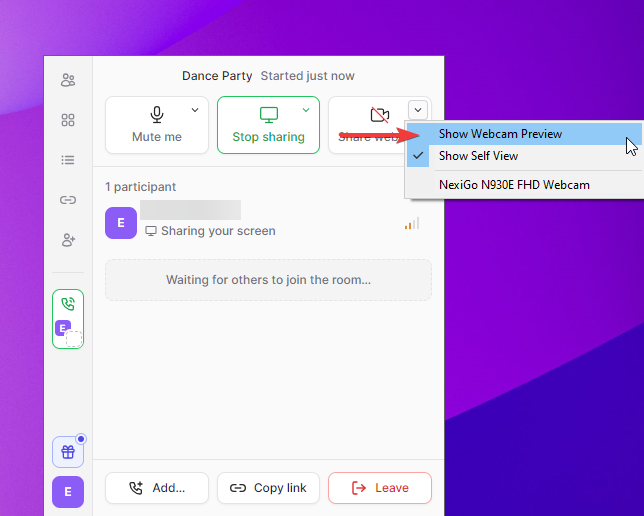
When you aren't sharing your webcam feed, you can bring up the camera preview via an option in the dropdown:
Showing your own webcam self-view
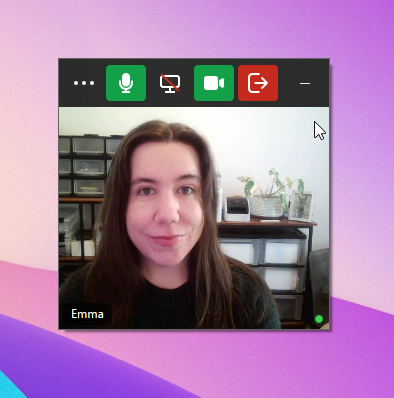
While on a call, you can show or hide your own self view. This won't change whether other participants can see your webcam or not.
To show or hide your self view, click on the menu in the top-left corner of the webcam window, and toggle "Show Self View".
Changing the Webcam in use while sharing
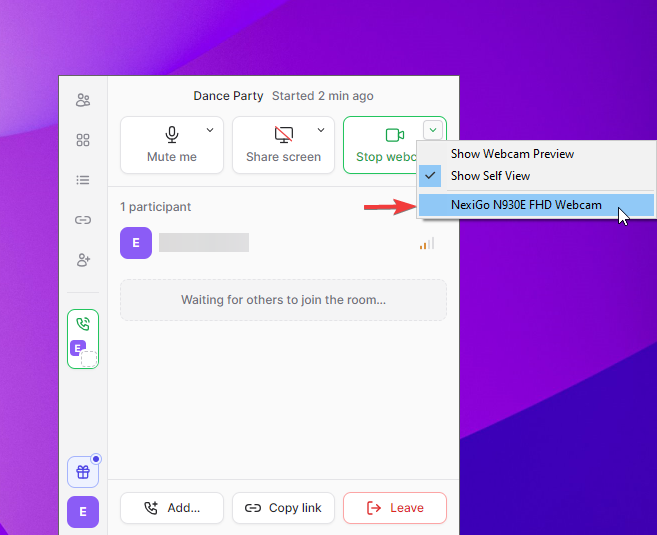
You can swap out the webcam in use when you are sharing a webcam by selecting the camera you'd prefer to share by selecting it from the dropdown: