> ## Documentation Index
> Fetch the complete documentation index at: https://docs.tuple.app/llms.txt
> Use this file to discover all available pages before exploring further.
# Network
To open your preferences, click your avatar at the bottom left of the Tuple popover and select **Settings** from the dropdown:
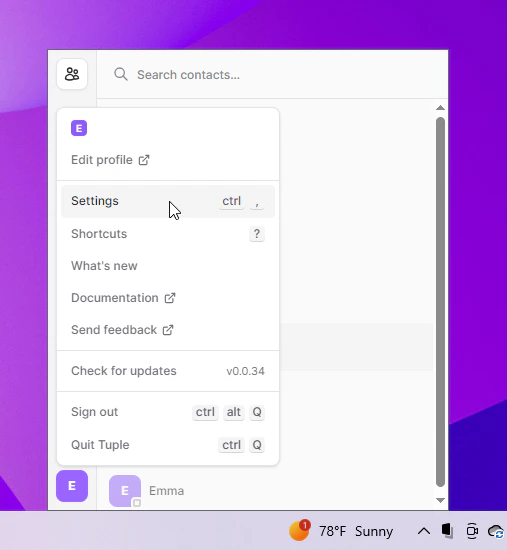 You can also use the keyboard shortcut **ctrl+,**. This will bring up the settings window. You can then select the **Network** tab:
 ### Force TURN
Enabling this will force your calls to use a [TURN server](https://en.wikipedia.org/wiki/Traversal_Using_Relays_around_NAT). This is useful if you're on a network that has known P2P issues.
### Force Media Server
Enabling this will force Tuple to use a media server for screen sharing. Again, useful on networks with known P2P issues.
### Force TURN
Enabling this will force your calls to use a [TURN server](https://en.wikipedia.org/wiki/Traversal_Using_Relays_around_NAT). This is useful if you're on a network that has known P2P issues.
### Force Media Server
Enabling this will force Tuple to use a media server for screen sharing. Again, useful on networks with known P2P issues.