> ## Documentation Index
> Fetch the complete documentation index at: https://docs.tuple.app/llms.txt
> Use this file to discover all available pages before exploring further.
# General
To open your preferences, click your avatar at the bottom left of the Tuple popover and select **Settings** from the dropdown:
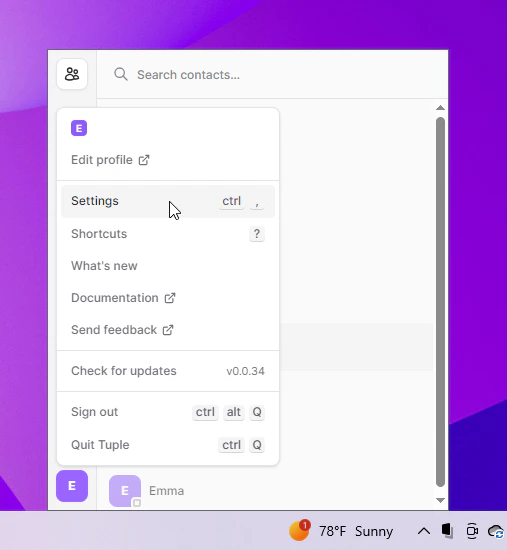 You can also use the keyboard shortcut **ctrl+,**. This will bring up the settings window:
 ### **Appearance**
Select if you want Tuple to use light or dark mode.
### **Show who I'm pairing with**
If selected, people you and your pair both know will be able to see your call's participants in their contact list. You can learn more [here](/pairing-with-tuple/showing-who-youre-pairing-with).
### **Persistent Drawings**
If selected, any drawings created with the paint mouse mode will persist until you right click.
### **Launch at login**
If selected, Tuple will launch when you log in.
### **Appearance**
Select if you want Tuple to use light or dark mode.
### **Show who I'm pairing with**
If selected, people you and your pair both know will be able to see your call's participants in their contact list. You can learn more [here](/pairing-with-tuple/showing-who-youre-pairing-with).
### **Persistent Drawings**
If selected, any drawings created with the paint mouse mode will persist until you right click.
### **Launch at login**
If selected, Tuple will launch when you log in.