> ## Documentation Index
> Fetch the complete documentation index at: https://docs.tuple.app/llms.txt
> Use this file to discover all available pages before exploring further.

# App Veil

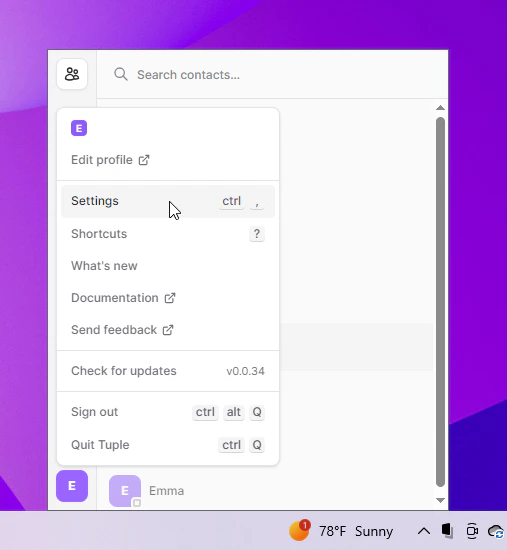
To open your preferences, click your avatar at the bottom left of the Tuple popover and select **Settings** from the dropdown:
<img src="https://mintcdn.com/tuple-0f82e5be/O4IiteXcXoa48ycm/images/application-preferences/shared/windows/open-settings-menu.png?fit=max&auto=format&n=O4IiteXcXoa48ycm&q=85&s=c1cd64f169fb88f35d8c9c6754bcbdbc" alt="Tuple avatar menu with Settings selected on Windows" width="507" height="550" data-path="images/application-preferences/shared/windows/open-settings-menu.png" />

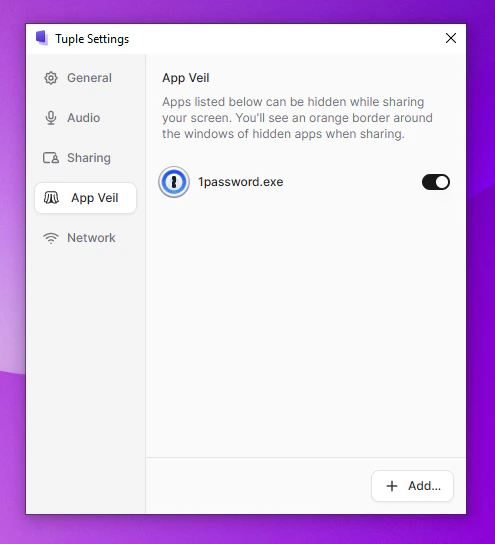
You can also use the keyboard shortcut **ctrl+,**. This will bring up the settings window. From here, you can select the **App Veil** tab:
<img src="https://mintcdn.com/tuple-0f82e5be/O4IiteXcXoa48ycm/images/application-preferences/windows-preferences-app-veil/app-veil-tab.png?fit=max&auto=format&n=O4IiteXcXoa48ycm&q=85&s=7cbf17b28200a996a2e4b07f36fd42bc" alt="Settings window with the App Veil tab selected on Windows" width="495" height="544" data-path="images/application-preferences/windows-preferences-app-veil/app-veil-tab.png" />

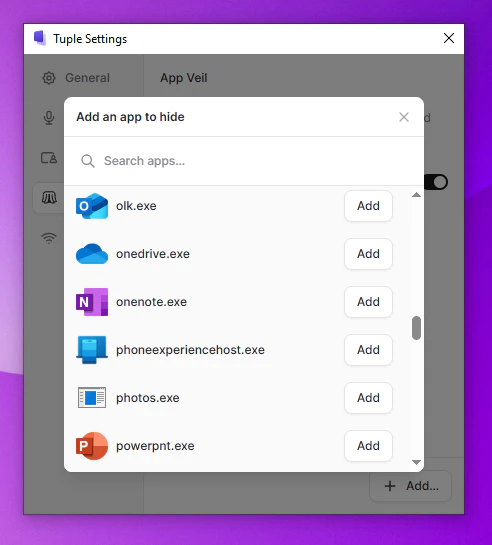
In this tab, you can select the apps that you want to be hidden when you share your screen. Click the button marked "Add..." to bring up a list of apps on your machine:
<img src="https://mintcdn.com/tuple-0f82e5be/O4IiteXcXoa48ycm/images/application-preferences/windows-preferences-app-veil/add-app-dialog.png?fit=max&auto=format&n=O4IiteXcXoa48ycm&q=85&s=b95cca30fdd1ba1f73c94dc605edca7b" alt="App Veil dialog listing installed apps that can be added to the veil list" width="492" height="545" data-path="images/application-preferences/windows-preferences-app-veil/add-app-dialog.png" />

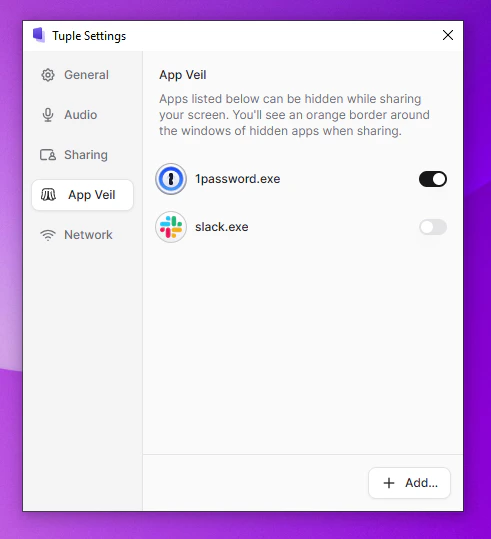
Click the "Add" button next to an app to add it to the list of things to veil. If you need to temporarily unveil a veiled app, you can toggle it off via the main settings view:
<img src="https://mintcdn.com/tuple-0f82e5be/O4IiteXcXoa48ycm/images/application-preferences/windows-preferences-app-veil/toggle-veiled-app.png?fit=max&auto=format&n=O4IiteXcXoa48ycm&q=85&s=a40d352dc52da0626d4c4714d975d2be" alt="App Veil settings with a veiled app toggled on or off" width="491" height="539" data-path="images/application-preferences/windows-preferences-app-veil/toggle-veiled-app.png" />

When you share your screen with a veiled app, this is what you'll see:
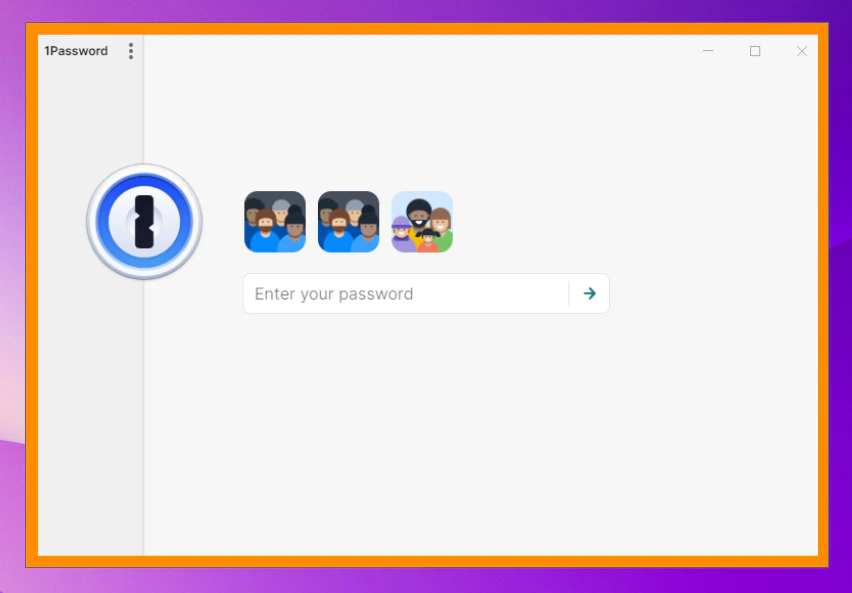
<img src="https://mintcdn.com/tuple-0f82e5be/O4IiteXcXoa48ycm/images/application-preferences/windows-preferences-app-veil/local-veiled-app-view.png?fit=max&auto=format&n=O4IiteXcXoa48ycm&q=85&s=af77033c5ed1fe31a13489e893d142cf" alt="Your own view of a shared screen containing a veiled app on Windows" width="852" height="593" data-path="images/application-preferences/windows-preferences-app-veil/local-veiled-app-view.png" />

...and this is what others on the call will see:

<img src="https://mintcdn.com/tuple-0f82e5be/O4IiteXcXoa48ycm/images/application-preferences/windows-preferences-app-veil/remote-veiled-app-view.png?fit=max&auto=format&n=O4IiteXcXoa48ycm&q=85&s=f556730b2e2e9155a3e627eac6e2a318" alt="What other call participants see when a Windows app is veiled" width="852" height="593" data-path="images/application-preferences/windows-preferences-app-veil/remote-veiled-app-view.png" />
