> ## Documentation Index
> Fetch the complete documentation index at: https://docs.tuple.app/llms.txt
> Use this file to discover all available pages before exploring further.
# Transcription
Tuple's local transcription feature is in **alpha**. Aspects of the feature might change as we continue to iterate on feedback.
To open your preferences, click your avatar at the bottom left of the Tuple popover and select **Settings** from the dropdown:
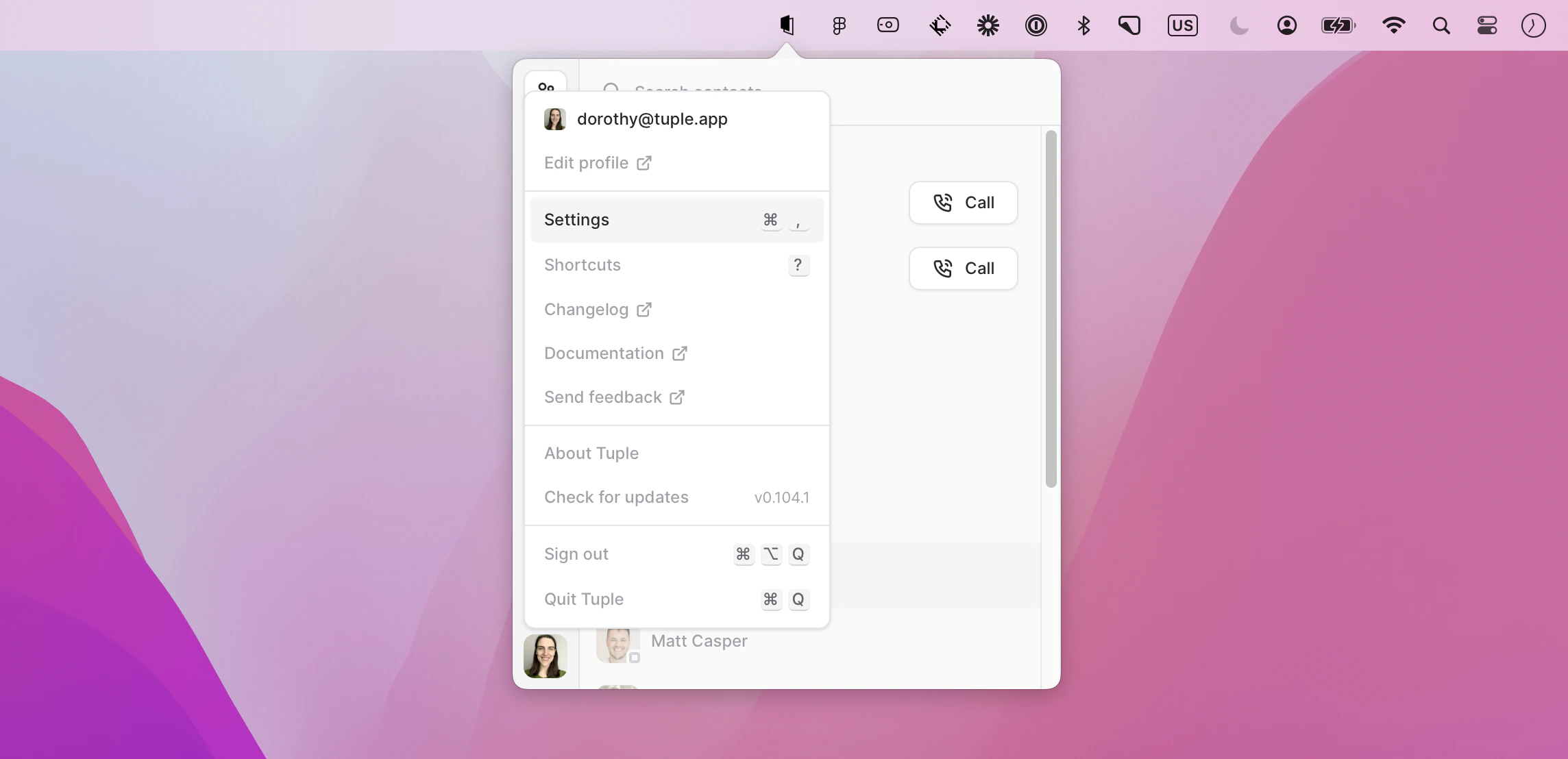 You can also use the keyboard shortcut **cmd + ,** to bring up the menu.
Then select the Transcription tab:
You can also use the keyboard shortcut **cmd + ,** to bring up the menu.
Then select the Transcription tab:
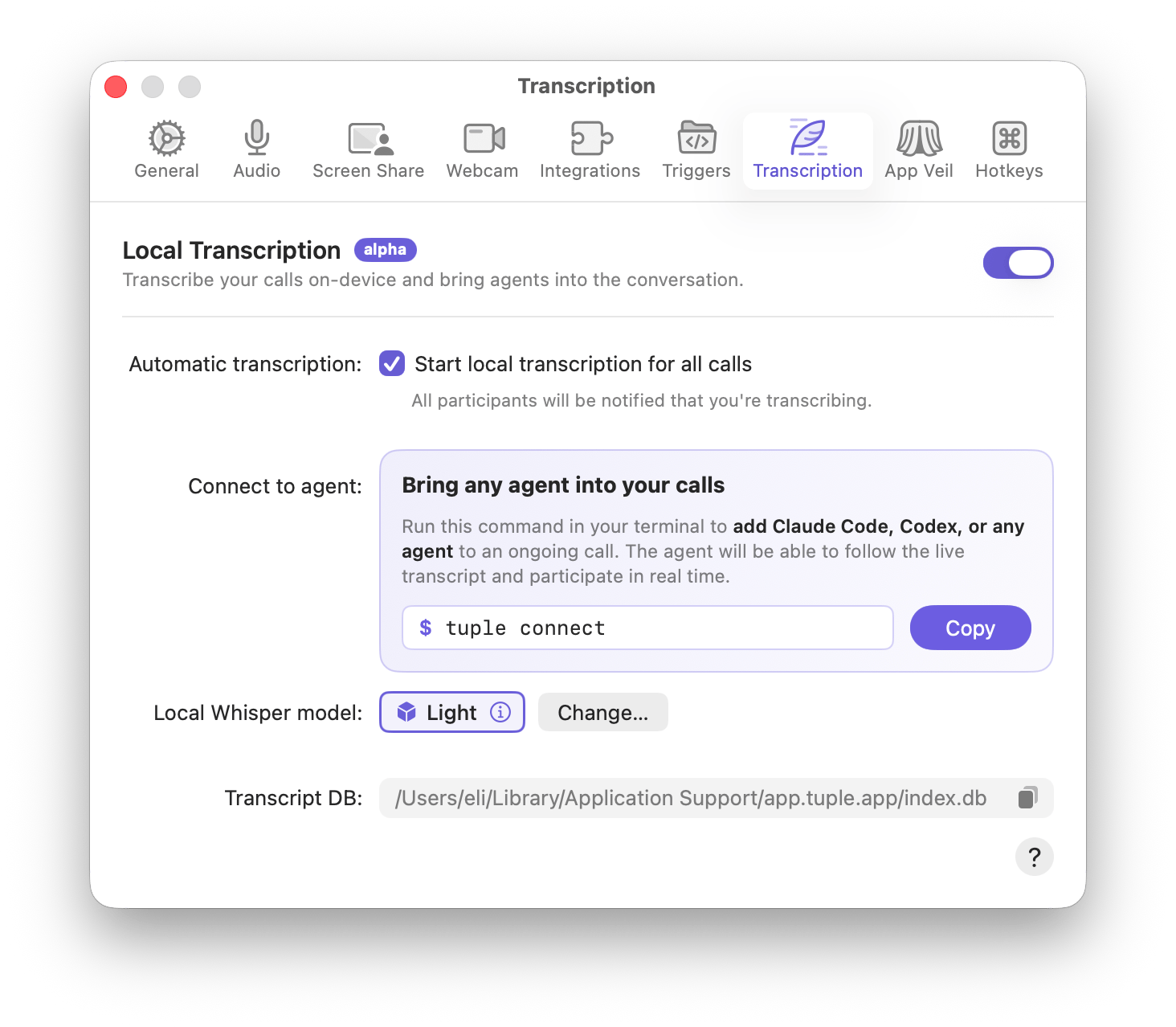 This tab controls everything related to [transcribing calls](/pairing-with-tuple/transcribing-calls): which on-device model is used, whether transcription starts automatically, and how to bring an AI agent into your calls. Transcription runs entirely on your machine, and transcripts are saved to a local database.
## Enabling transcription
The master switch at the top of the pane turns transcription on or off for the account. While it's off, the rest of the pane is dimmed and the **Transcribe** call control is unavailable.
Flipping the switch on requires a downloaded model:
* **A model is already downloaded and selected** — transcription activates immediately.
* **No model is downloaded yet** — Tuple opens a prompt to install one. Download a model to enable the feature.
You can also reach the same model picker later via the [Supported models](#supported-models) list to change models without toggling the master switch.
## Supported models
Tuple ships with a list of pre-optimized transcription models that you can download on demand. These are [GGML](https://github.com/ggml-org/ggml) models designed to be used by [whisper.cpp](https://github.com/ggml-org/whisper.cpp), which have been further optimized to utilize [CoreML](https://developer.apple.com/documentation/coreml). The base models have all been sourced from the [main whisper.cpp repository](https://huggingface.co/ggerganov/whisper.cpp/tree/main).
| Model | Description | Size | Required VRAM | GGML Model |
| --------- | -------------------------------------- | ------- | ------------- | -------------------------- |
| **Turbo** | Fast, accurate, multilingual | 1.75 GB | 6 GB | `ggml-large-v3-turbo-q5_0` |
| **Light** | English only, slower, less VRAM needed | 650 MB | 2 GB | `ggml-small.en` |
These models are optimized to run on Apple Silicon machines, and have **not** been tested on or optimized for Intel-based machines.
Hosted models are stored in `~/Library/Application Support/app.tuple.app/Transcription Models/`. Switching models leaves the previously downloaded model on disk; use **Remove** in the picker to delete one.
If a download fails, or if a model file is corrupt or can't be installed, a red error icon appears next to the model in the picker. Click the icon to see the specific problem and the recommended fix:
* **Model is corrupted** — remove the model and download it again (or, for a custom model, choose a new file).
* **Download failed** — the download didn't complete; try again.
* **Not enough disk space** — free up space on your disk and try the download again.
Tuple does not retry failed downloads automatically — start the download again from the picker.
### Custom model
If you'd rather use your own [GGML](https://github.com/ggml-org/ggml) model, the **Custom model** row at the bottom of the picker lets you choose a `.bin` or `.gguf` model file from disk with the **Choose…** button. The file you pick becomes your selected model right away.
Custom models need a matching `.mlmodelc` CoreML sidecar installed alongside the GGML file. Tuple's built-in models include this sidecar automatically; a custom GGML file does not. If the CoreML bundle isn't present next to the model, Whisper throws an error when Tuple tries to load it.
## Transcript storage
Transcripts are stored in a local database on your machine, not as individual files. The Transcription tab shows the database path in the **Transcript DB** field.
The database location can't be changed from settings. To read, search, and export past calls, use the `tuple` CLI — see [Accessing your transcripts](/pairing-with-tuple/transcribing-calls#accessing-your-transcripts) and [Searching past calls](/pairing-with-tuple/searching-past-calls).
## Automatically transcribe calls
When this checkbox is on, Tuple starts transcribing the call as soon as you join, just as if you'd clicked the **Transcribe** call control yourself. Other participants will be informed that you've started transcribing.
This checkbox is **on by default**. It's only available when transcription is enabled and a model is installed.
## Bringing an agent into your calls
The Transcription tab includes a **Connect to Agent** card explaining how to attach an AI agent (Claude Code, Codex, or any [harness](/cli/connect#supported-harnesses)) to a call. Copy the `tuple` command it shows and run it in your terminal during a call; the agent then follows the live transcript and participates in real time.
If the Tuple CLI isn't installed yet, the card shows an **Install** button instead. See [Connect an AI agent](/cli/connect) for full details.
This tab controls everything related to [transcribing calls](/pairing-with-tuple/transcribing-calls): which on-device model is used, whether transcription starts automatically, and how to bring an AI agent into your calls. Transcription runs entirely on your machine, and transcripts are saved to a local database.
## Enabling transcription
The master switch at the top of the pane turns transcription on or off for the account. While it's off, the rest of the pane is dimmed and the **Transcribe** call control is unavailable.
Flipping the switch on requires a downloaded model:
* **A model is already downloaded and selected** — transcription activates immediately.
* **No model is downloaded yet** — Tuple opens a prompt to install one. Download a model to enable the feature.
You can also reach the same model picker later via the [Supported models](#supported-models) list to change models without toggling the master switch.
## Supported models
Tuple ships with a list of pre-optimized transcription models that you can download on demand. These are [GGML](https://github.com/ggml-org/ggml) models designed to be used by [whisper.cpp](https://github.com/ggml-org/whisper.cpp), which have been further optimized to utilize [CoreML](https://developer.apple.com/documentation/coreml). The base models have all been sourced from the [main whisper.cpp repository](https://huggingface.co/ggerganov/whisper.cpp/tree/main).
| Model | Description | Size | Required VRAM | GGML Model |
| --------- | -------------------------------------- | ------- | ------------- | -------------------------- |
| **Turbo** | Fast, accurate, multilingual | 1.75 GB | 6 GB | `ggml-large-v3-turbo-q5_0` |
| **Light** | English only, slower, less VRAM needed | 650 MB | 2 GB | `ggml-small.en` |
These models are optimized to run on Apple Silicon machines, and have **not** been tested on or optimized for Intel-based machines.
Hosted models are stored in `~/Library/Application Support/app.tuple.app/Transcription Models/`. Switching models leaves the previously downloaded model on disk; use **Remove** in the picker to delete one.
If a download fails, or if a model file is corrupt or can't be installed, a red error icon appears next to the model in the picker. Click the icon to see the specific problem and the recommended fix:
* **Model is corrupted** — remove the model and download it again (or, for a custom model, choose a new file).
* **Download failed** — the download didn't complete; try again.
* **Not enough disk space** — free up space on your disk and try the download again.
Tuple does not retry failed downloads automatically — start the download again from the picker.
### Custom model
If you'd rather use your own [GGML](https://github.com/ggml-org/ggml) model, the **Custom model** row at the bottom of the picker lets you choose a `.bin` or `.gguf` model file from disk with the **Choose…** button. The file you pick becomes your selected model right away.
Custom models need a matching `.mlmodelc` CoreML sidecar installed alongside the GGML file. Tuple's built-in models include this sidecar automatically; a custom GGML file does not. If the CoreML bundle isn't present next to the model, Whisper throws an error when Tuple tries to load it.
## Transcript storage
Transcripts are stored in a local database on your machine, not as individual files. The Transcription tab shows the database path in the **Transcript DB** field.
The database location can't be changed from settings. To read, search, and export past calls, use the `tuple` CLI — see [Accessing your transcripts](/pairing-with-tuple/transcribing-calls#accessing-your-transcripts) and [Searching past calls](/pairing-with-tuple/searching-past-calls).
## Automatically transcribe calls
When this checkbox is on, Tuple starts transcribing the call as soon as you join, just as if you'd clicked the **Transcribe** call control yourself. Other participants will be informed that you've started transcribing.
This checkbox is **on by default**. It's only available when transcription is enabled and a model is installed.
## Bringing an agent into your calls
The Transcription tab includes a **Connect to Agent** card explaining how to attach an AI agent (Claude Code, Codex, or any [harness](/cli/connect#supported-harnesses)) to a call. Copy the `tuple` command it shows and run it in your terminal during a call; the agent then follows the live transcript and participates in real time.
If the Tuple CLI isn't installed yet, the card shows an **Install** button instead. See [Connect an AI agent](/cli/connect) for full details.