> ## Documentation Index
> Fetch the complete documentation index at: https://docs.tuple.app/llms.txt
> Use this file to discover all available pages before exploring further.
# Screen share
To open your preferences, click your avatar at the bottom left of the Tuple popover and select **Settings** from the dropdown:
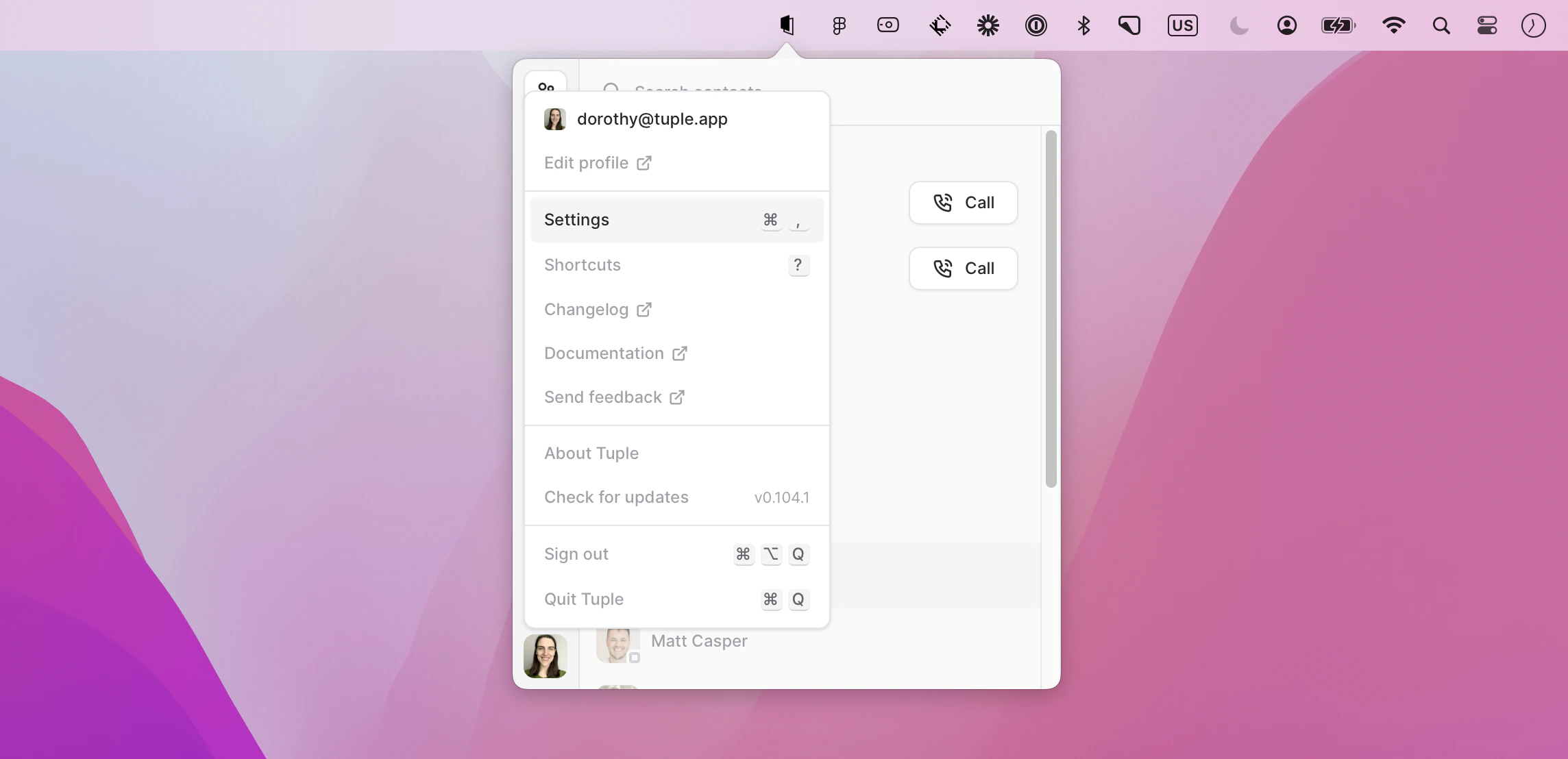 You can also use the keyboard shortcut **cmd + ,** to bring up the menu.
Then select the Screen Share tab:
You can also use the keyboard shortcut **cmd + ,** to bring up the menu.
Then select the Screen Share tab:
 ## Viewing resolution
This setting dictates the resolution that will be used when someone else shares their screen with you. If you adjust this setting while a session is in progress, it will be utilized in the next call. On a call where faster interactions are necessary, you might want to set this lower; if you don't need to do a lot of typing or clicking but want high viewing quality, then set it higher.
## Upscale content
On Apple Silicon Macs, Tuple can upscale incoming screen share video to make text and UI elements look sharper on your display. This is a local, per-viewer setting — it only affects what *you* see and has no impact on the resolution other participants receive.
You can toggle this from the Screen Share preferences pane, or directly during a call from the **Upscale Content** option in the screen share window's settings menu.
## When Sharing My Screen
### Open links sent to my clipboard
If you don't like the fact that guests can force a URL to open on your computer, you can disable this. URLs will still be sent to your clipboard, but you have to explicitly paste them into a browser to open them.
## Annotations
### Persist until right click
If selected, any drawings created with the paint mouse mode will persist until you right click. You can also change this while on a call via the settings dropdown on the screen share window.
## Participant Cursors
### Always show other cursors
If this setting is enabled, you'll see other participants' cursors all the time. If it's disabled, you'll only see them if another participant enters control mode.
### Automatically show name labels
If this setting is enabled, you'll see name labels appear on other participants' cursors whenever they enter a call, take control, or begin annotating on the screen. If it's disabled, name labels will only be shown if you hover over another participant's cursor.
## Viewing resolution
This setting dictates the resolution that will be used when someone else shares their screen with you. If you adjust this setting while a session is in progress, it will be utilized in the next call. On a call where faster interactions are necessary, you might want to set this lower; if you don't need to do a lot of typing or clicking but want high viewing quality, then set it higher.
## Upscale content
On Apple Silicon Macs, Tuple can upscale incoming screen share video to make text and UI elements look sharper on your display. This is a local, per-viewer setting — it only affects what *you* see and has no impact on the resolution other participants receive.
You can toggle this from the Screen Share preferences pane, or directly during a call from the **Upscale Content** option in the screen share window's settings menu.
## When Sharing My Screen
### Open links sent to my clipboard
If you don't like the fact that guests can force a URL to open on your computer, you can disable this. URLs will still be sent to your clipboard, but you have to explicitly paste them into a browser to open them.
## Annotations
### Persist until right click
If selected, any drawings created with the paint mouse mode will persist until you right click. You can also change this while on a call via the settings dropdown on the screen share window.
## Participant Cursors
### Always show other cursors
If this setting is enabled, you'll see other participants' cursors all the time. If it's disabled, you'll only see them if another participant enters control mode.
### Automatically show name labels
If this setting is enabled, you'll see name labels appear on other participants' cursors whenever they enter a call, take control, or begin annotating on the screen. If it's disabled, name labels will only be shown if you hover over another participant's cursor.