> ## Documentation Index
> Fetch the complete documentation index at: https://docs.tuple.app/llms.txt
> Use this file to discover all available pages before exploring further.
# Integrations
To open your preferences, click your avatar at the bottom left of the Tuple popover and select **Settings** from the dropdown:
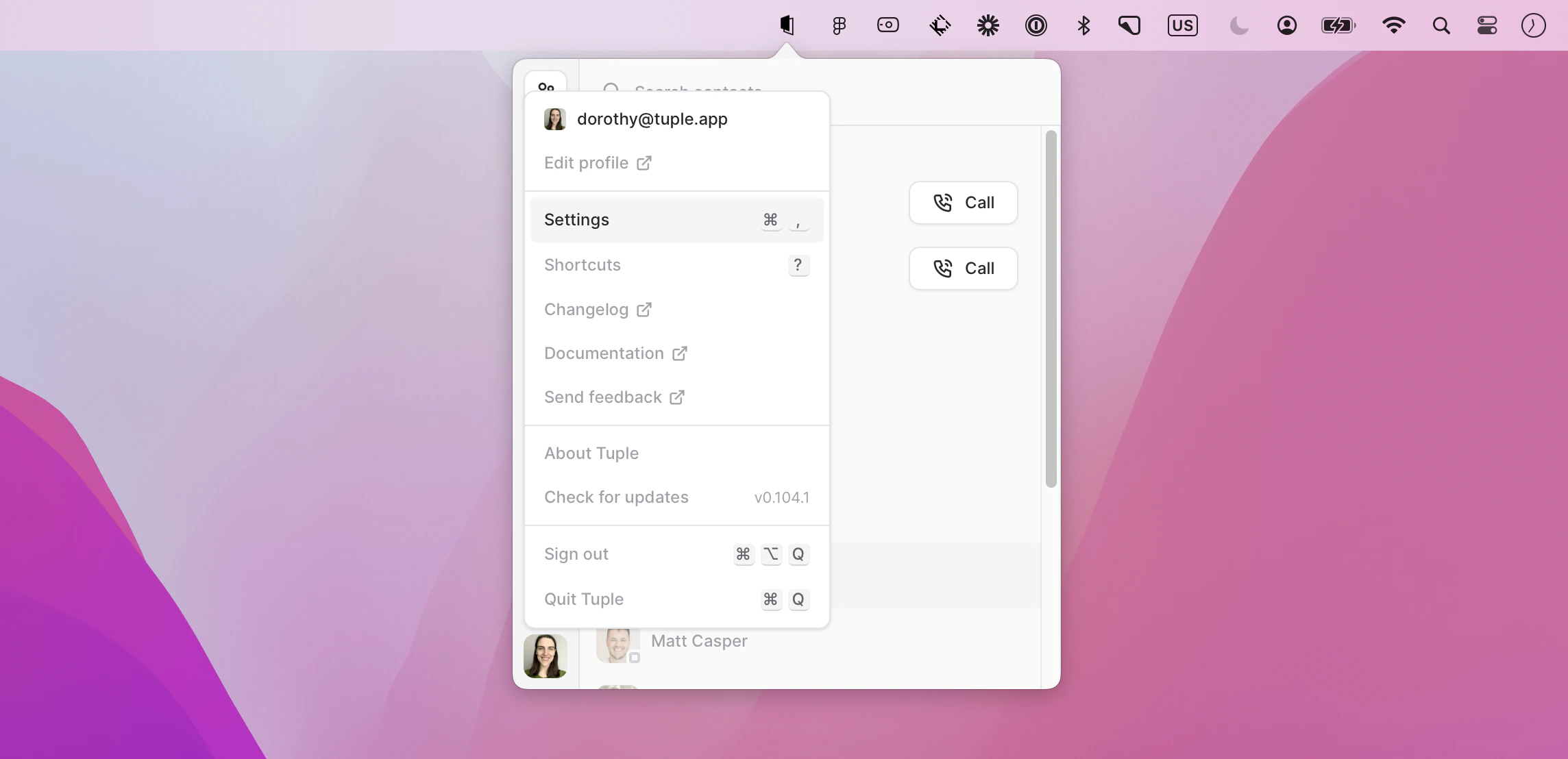 You can also use the keyboard shortcut **cmd + ,** to bring up the menu.
Then select the Integrations tab:
You can also use the keyboard shortcut **cmd + ,** to bring up the menu.
Then select the Integrations tab:
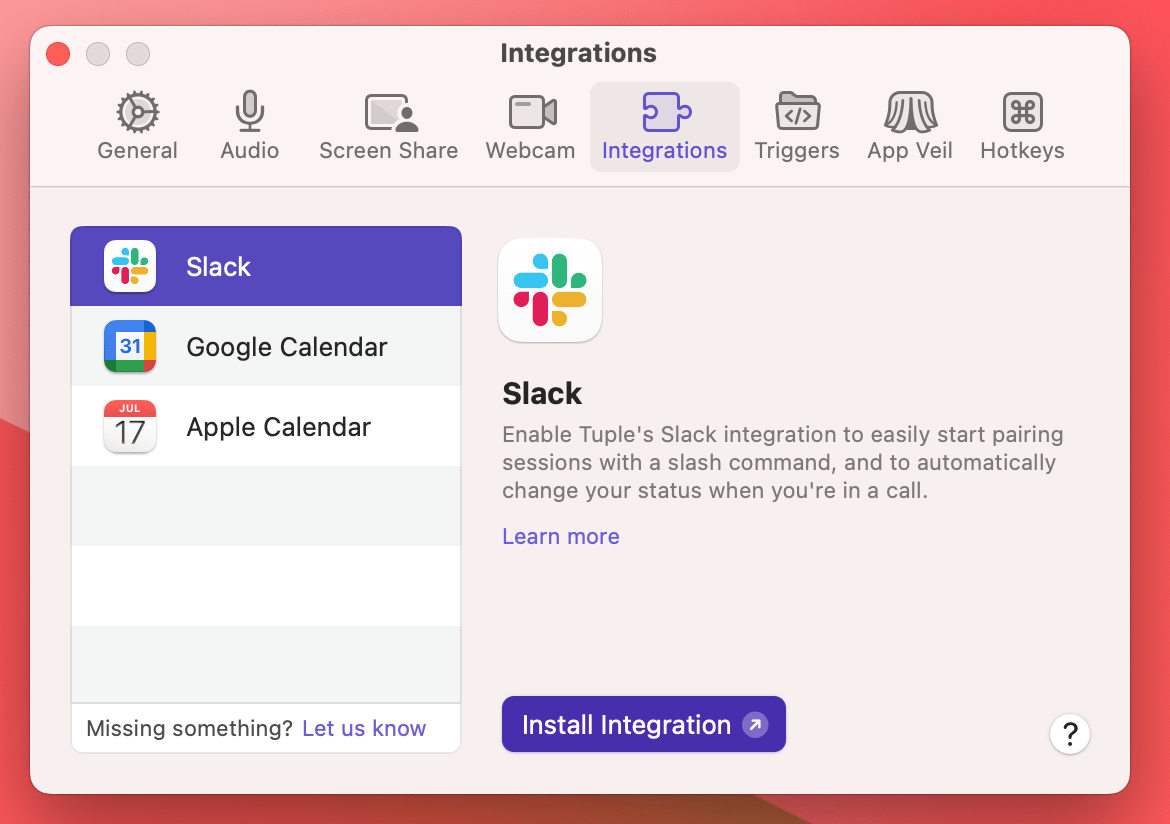 This tab allows you to easily enable Tuple's Slack and Google Calendar integrations (the Apple Calendar integration is enabled by default). If you're on macOS 26 or later, you'll also see a pane to disable the Spotlight integration.
You can also enable the **CLI Server** here. Select it to install the `tuple` command-line tool and to allow or revoke its access to your calls and contacts. Learn more on the [CLI page](/cli/overview).
You can learn more about our integrations [here](/managing-your-account/adding-integrations).
This tab allows you to easily enable Tuple's Slack and Google Calendar integrations (the Apple Calendar integration is enabled by default). If you're on macOS 26 or later, you'll also see a pane to disable the Spotlight integration.
You can also enable the **CLI Server** here. Select it to install the `tuple` command-line tool and to allow or revoke its access to your calls and contacts. Learn more on the [CLI page](/cli/overview).
You can learn more about our integrations [here](/managing-your-account/adding-integrations).