> ## Documentation Index
> Fetch the complete documentation index at: https://docs.tuple.app/llms.txt
> Use this file to discover all available pages before exploring further.
# Hotkeys
To open your preferences, click your avatar at the bottom left of the Tuple popover and select **Settings** from the dropdown:
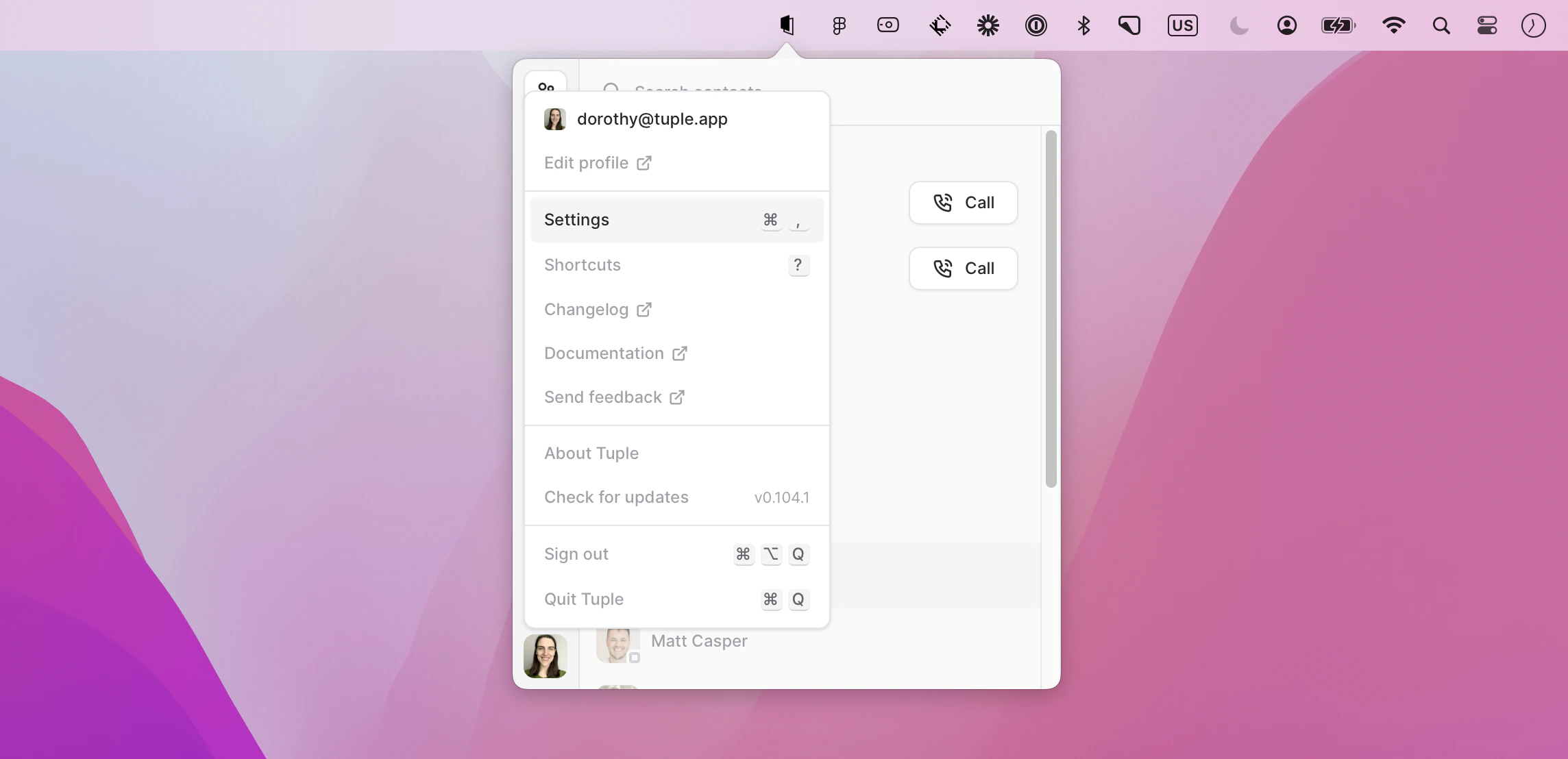 You can also use the keyboard shortcut **cmd + ,** to bring up the menu.
Then select the Hotkeys tab:
You can also use the keyboard shortcut **cmd + ,** to bring up the menu.
Then select the Hotkeys tab:
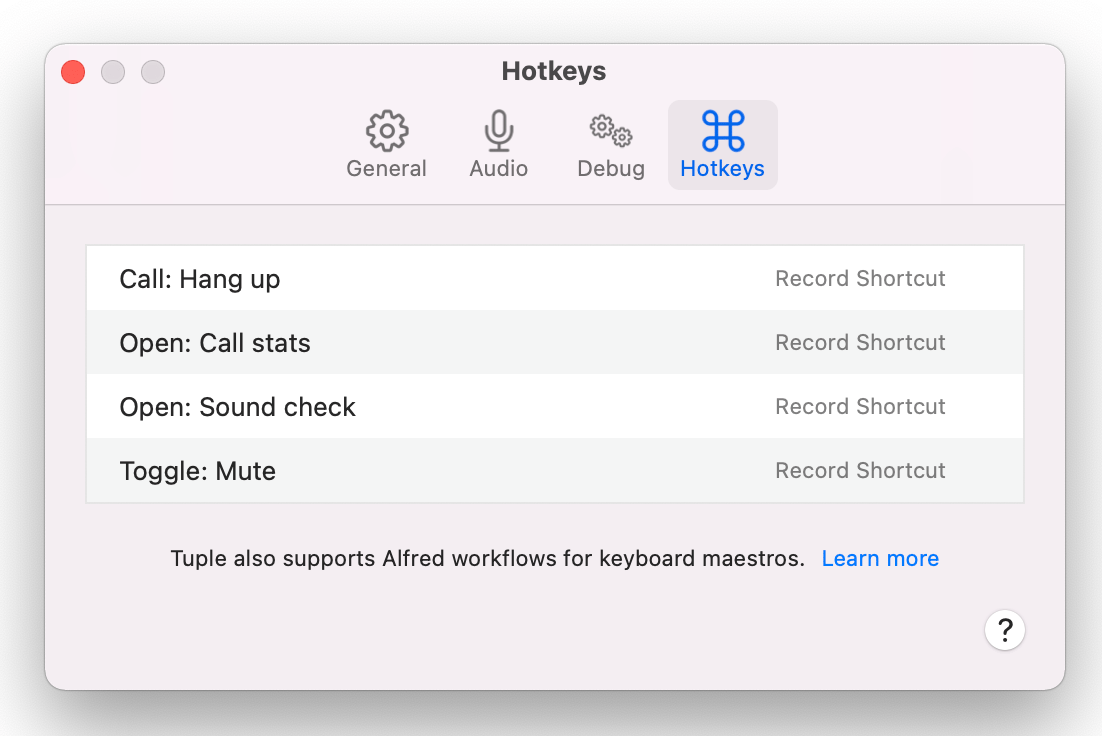 Here you can set custom hotkeys to trigger various actions when using Tuple. Just click "Record Shortcut" and enter the sequence you'd like to use for each action.
You can scroll for even more options than shown in this image.
Here you can set custom hotkeys to trigger various actions when using Tuple. Just click "Record Shortcut" and enter the sequence you'd like to use for each action.
You can scroll for even more options than shown in this image.