> ## Documentation Index
> Fetch the complete documentation index at: https://docs.tuple.app/llms.txt
> Use this file to discover all available pages before exploring further.
# Capture
Tuple's local Capture feature is in **alpha**. Aspects of the feature might change as we continue to iterate on feedback.
To open your preferences, click your avatar at the bottom left of the Tuple popover and select **Settings** from the dropdown:
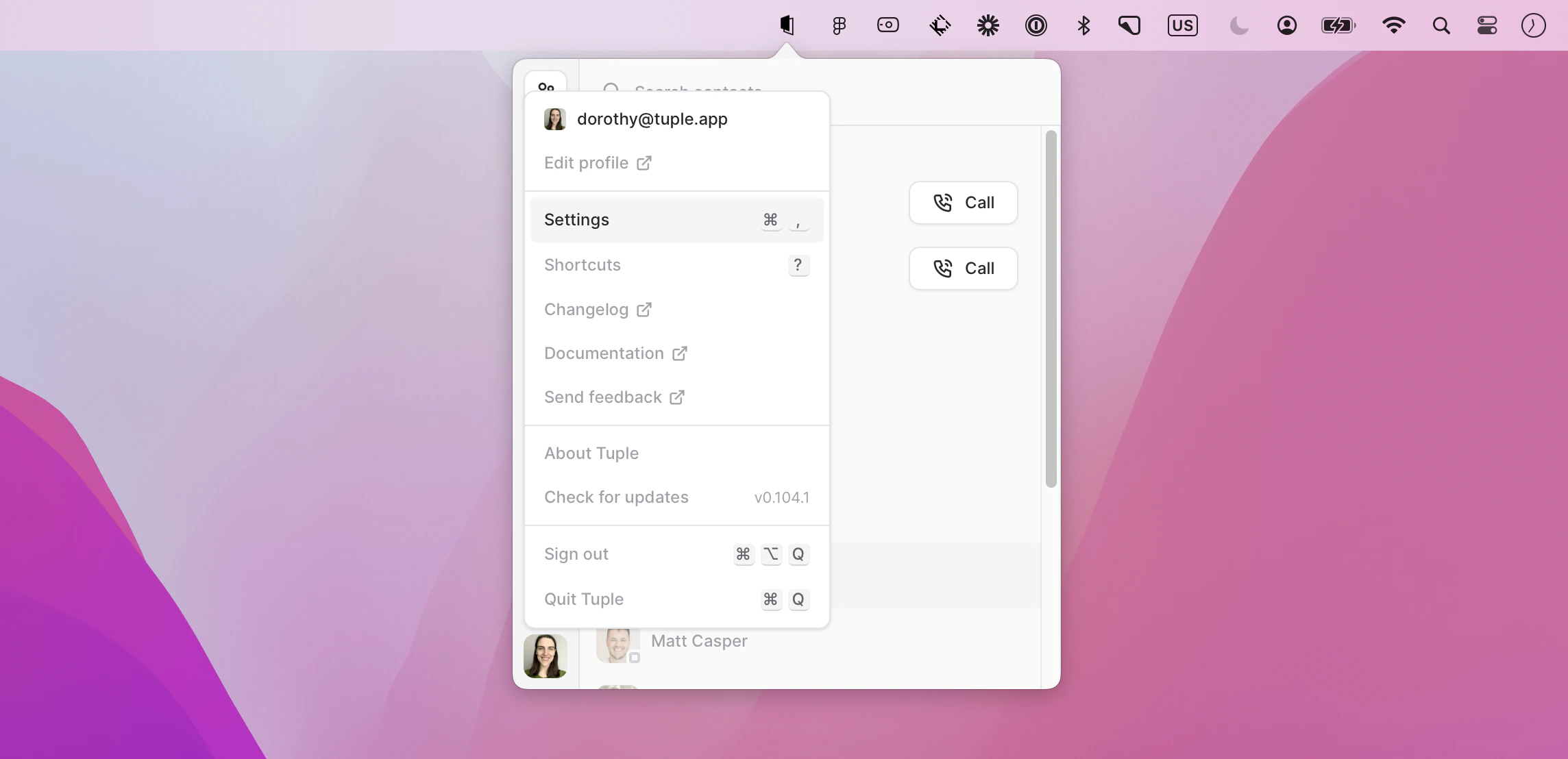 You can also use the keyboard shortcut **cmd + ,** to bring up the menu.
Then select the Capture tab.
You can also use the keyboard shortcut **cmd + ,** to bring up the menu.
Then select the Capture tab.
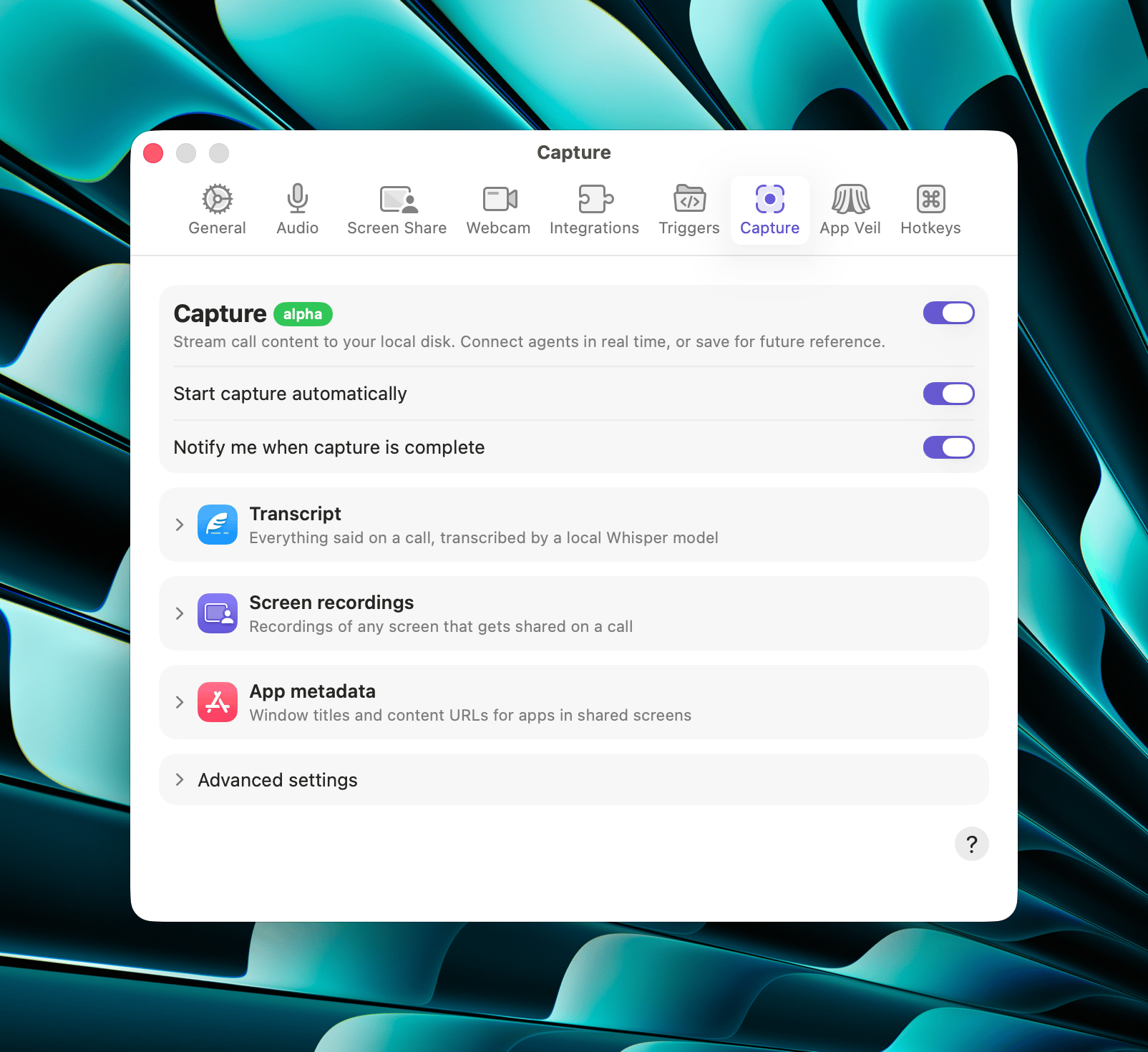 Capture is a single switch: there are no separate controls for the transcript, the screen recordings, and the app metadata. Turning Capture off is how you stop recording all three. To keep your own window titles and URLs from reaching other people's captures, turn off **[Broadcast app metadata](/application-preferences/macos-preferences-screen-share#broadcast-app-metadata)** or veil the app with [App Veil](/application-preferences/macos-preferences-app-veil).
## Start capture automatically
When this is on, Tuple starts capturing as soon as you join a call, just as if you'd clicked the **Capture** call control yourself. Other participants are notified that you've started capturing.
This is **on by default**.
## Notify me when capture is complete
When this is on, you'll get a notification when a captured call ends. The notification takes you straight to that call in [Local History](/pairing-with-tuple/local-call-history).
This is **on by default**. Choosing **Never Show Again** from the notification's **Dismiss** menu turns this same setting off.
## Transcript
The **Transcript** section holds the on-device model Capture uses to turn speech into text. Click **Local Whisper Model** to open the model picker.
### Supported models
Tuple ships with a list of pre-optimized transcription models that you can download on demand. These are [GGML](https://github.com/ggml-org/ggml) models designed to be used by [whisper.cpp](https://github.com/ggml-org/whisper.cpp), which have been further optimized to utilize [CoreML](https://developer.apple.com/documentation/coreml). The base models have all been sourced from the [main whisper.cpp repository](https://huggingface.co/ggerganov/whisper.cpp/tree/main).
| Model | Description | Size | Required VRAM | GGML Model |
| --------- | -------------------------------------- | ------- | ------------- | -------------------------- |
| **Turbo** | Fast, accurate, multilingual | 1.75 GB | 6 GB | `ggml-large-v3-turbo-q5_0` |
| **Light** | English only, slower, less VRAM needed | 650 MB | 2 GB | `ggml-small.en` |
**Turbo** is the recommended default.
These models are optimized to run on Apple Silicon machines, and have **not** been tested on or optimized for Intel-based machines.
Hosted models are stored in `~/Library/Application Support/app.tuple.app/Transcription Models/`. Switching models leaves the previously downloaded model on disk; use **Remove** in the picker to delete one.
If a download fails, or if a model file is corrupt or can't be installed, a red error icon appears next to the model in the picker. Click the icon to see the specific problem and the recommended fix:
* **Model is corrupted** — remove the model and download it again (or, for a custom model, choose a new file).
* **Download failed** — the download didn't complete; try again.
* **Not enough disk space** — free up space on your disk and try the download again.
Tuple does not retry failed downloads automatically — start the download again from the picker.
### Custom model
If you'd rather use your own [GGML](https://github.com/ggml-org/ggml) model, the **Custom model** row at the bottom of the picker lets you choose a `.bin` or `.gguf` model file from disk with the **Choose…** button. The file you pick becomes your selected model right away.
Custom models need a matching `.mlmodelc` CoreML sidecar installed alongside the GGML file. Tuple's built-in models include this sidecar automatically; a custom GGML file does not. If the CoreML bundle isn't present next to the model, Whisper throws an error when Tuple tries to load it.
## Screen recordings
While Capture is running and a screen is shared (yours or someone else's), Tuple records that screen's video into the same local database. Recordings are intended to be a working buffer for the call and the work right after it, *not* a long-lived artifact unto themselves.
Two additional settings relate to how recordings are cached:
* **Screen recording cache expiry** — how long recordings are kept. Defaults to **1 Hour**; you can choose up to 1 Year, or **No Expiration**.
* **Screen recording cache max size** — a cap on total stored video. Defaults to **4 GB**, with options from 1 GB to 16 GB or **No Size Limit**. When the cap is reached, the oldest recordings are deleted first.
## App metadata
When Capture is enabled, Tuple records the app metadata that other participants broadcast while sharing (the window title and content URL of whatever app they have focused.) This allows you to have a history of all of the files or URLs you looked at on a call.
There currently aren't any settings that dictate what you record from others, so this section is only here as a reminder that app metadata is a component of Capture. The corresponding outbound setting (what you broadcast to other people while sharing your own screen) lives with the rest of the sharing settings, as **Broadcast app metadata** in [Screen share preferences](/application-preferences/macos-preferences-screen-share#broadcast-app-metadata). There's a link to that panel from this section.
Titles and URLs are scrubbed of credentials by the machine that shares them, before they're broadcast — sign-in URLs are dropped outright, and secrets in a terminal's window title are replaced with `•••`. See [Broadcasting app metadata](/pairing-with-tuple/broadcasting-app-metadata) for the full rules and their limits.
## Advanced settings
### Session expiry
How long a whole capture session is kept before Tuple deletes it. The transcript, screen recordings, and app metadata for a session all expire together, after the duration you choose here. The default is **No Expiration**.
### Database location
Captures are stored in a single local database on your machine, not as individual files. The location can't be changed - this row is just informational.
Capture is a single switch: there are no separate controls for the transcript, the screen recordings, and the app metadata. Turning Capture off is how you stop recording all three. To keep your own window titles and URLs from reaching other people's captures, turn off **[Broadcast app metadata](/application-preferences/macos-preferences-screen-share#broadcast-app-metadata)** or veil the app with [App Veil](/application-preferences/macos-preferences-app-veil).
## Start capture automatically
When this is on, Tuple starts capturing as soon as you join a call, just as if you'd clicked the **Capture** call control yourself. Other participants are notified that you've started capturing.
This is **on by default**.
## Notify me when capture is complete
When this is on, you'll get a notification when a captured call ends. The notification takes you straight to that call in [Local History](/pairing-with-tuple/local-call-history).
This is **on by default**. Choosing **Never Show Again** from the notification's **Dismiss** menu turns this same setting off.
## Transcript
The **Transcript** section holds the on-device model Capture uses to turn speech into text. Click **Local Whisper Model** to open the model picker.
### Supported models
Tuple ships with a list of pre-optimized transcription models that you can download on demand. These are [GGML](https://github.com/ggml-org/ggml) models designed to be used by [whisper.cpp](https://github.com/ggml-org/whisper.cpp), which have been further optimized to utilize [CoreML](https://developer.apple.com/documentation/coreml). The base models have all been sourced from the [main whisper.cpp repository](https://huggingface.co/ggerganov/whisper.cpp/tree/main).
| Model | Description | Size | Required VRAM | GGML Model |
| --------- | -------------------------------------- | ------- | ------------- | -------------------------- |
| **Turbo** | Fast, accurate, multilingual | 1.75 GB | 6 GB | `ggml-large-v3-turbo-q5_0` |
| **Light** | English only, slower, less VRAM needed | 650 MB | 2 GB | `ggml-small.en` |
**Turbo** is the recommended default.
These models are optimized to run on Apple Silicon machines, and have **not** been tested on or optimized for Intel-based machines.
Hosted models are stored in `~/Library/Application Support/app.tuple.app/Transcription Models/`. Switching models leaves the previously downloaded model on disk; use **Remove** in the picker to delete one.
If a download fails, or if a model file is corrupt or can't be installed, a red error icon appears next to the model in the picker. Click the icon to see the specific problem and the recommended fix:
* **Model is corrupted** — remove the model and download it again (or, for a custom model, choose a new file).
* **Download failed** — the download didn't complete; try again.
* **Not enough disk space** — free up space on your disk and try the download again.
Tuple does not retry failed downloads automatically — start the download again from the picker.
### Custom model
If you'd rather use your own [GGML](https://github.com/ggml-org/ggml) model, the **Custom model** row at the bottom of the picker lets you choose a `.bin` or `.gguf` model file from disk with the **Choose…** button. The file you pick becomes your selected model right away.
Custom models need a matching `.mlmodelc` CoreML sidecar installed alongside the GGML file. Tuple's built-in models include this sidecar automatically; a custom GGML file does not. If the CoreML bundle isn't present next to the model, Whisper throws an error when Tuple tries to load it.
## Screen recordings
While Capture is running and a screen is shared (yours or someone else's), Tuple records that screen's video into the same local database. Recordings are intended to be a working buffer for the call and the work right after it, *not* a long-lived artifact unto themselves.
Two additional settings relate to how recordings are cached:
* **Screen recording cache expiry** — how long recordings are kept. Defaults to **1 Hour**; you can choose up to 1 Year, or **No Expiration**.
* **Screen recording cache max size** — a cap on total stored video. Defaults to **4 GB**, with options from 1 GB to 16 GB or **No Size Limit**. When the cap is reached, the oldest recordings are deleted first.
## App metadata
When Capture is enabled, Tuple records the app metadata that other participants broadcast while sharing (the window title and content URL of whatever app they have focused.) This allows you to have a history of all of the files or URLs you looked at on a call.
There currently aren't any settings that dictate what you record from others, so this section is only here as a reminder that app metadata is a component of Capture. The corresponding outbound setting (what you broadcast to other people while sharing your own screen) lives with the rest of the sharing settings, as **Broadcast app metadata** in [Screen share preferences](/application-preferences/macos-preferences-screen-share#broadcast-app-metadata). There's a link to that panel from this section.
Titles and URLs are scrubbed of credentials by the machine that shares them, before they're broadcast — sign-in URLs are dropped outright, and secrets in a terminal's window title are replaced with `•••`. See [Broadcasting app metadata](/pairing-with-tuple/broadcasting-app-metadata) for the full rules and their limits.
## Advanced settings
### Session expiry
How long a whole capture session is kept before Tuple deletes it. The transcript, screen recordings, and app metadata for a session all expire together, after the duration you choose here. The default is **No Expiration**.
### Database location
Captures are stored in a single local database on your machine, not as individual files. The location can't be changed - this row is just informational.